



StreamFox Amazon Video Converter allows you to convert Amazon Prime Video movies and TV episodes into common video formats for personal offline viewing. This guide walks you through activation, conversion steps, output customization, and file management.
Part 1. Free Trial & Account Activation
| Item | Details |
|---|---|
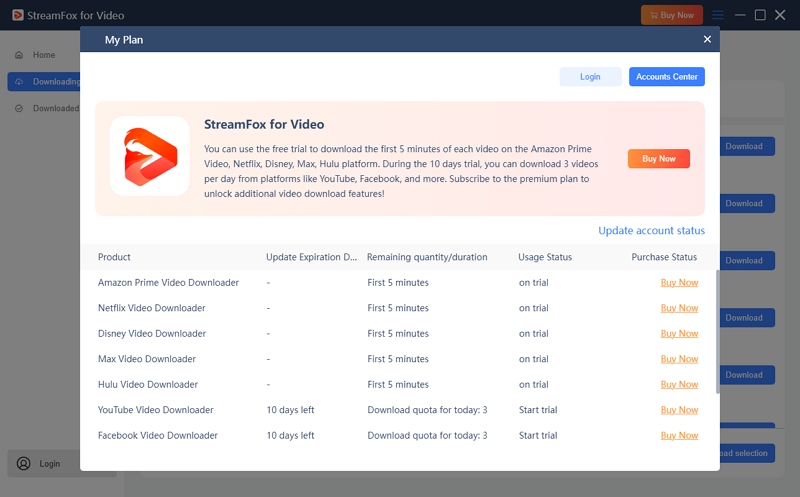
| Trial Duration | 10 days |
| Trial Limitation | First 5 minutes of each Amazon video |
| Purpose | Preview video quality, audio tracks, subtitles, and formats |
The free trial is designed to help users evaluate compatibility and output quality before upgrading.
To unlock full-length conversion:
Purchase a License
- Launch StreamFox for Video
- Select Amazon Prime Video
- Click Buy Now to purchase a single-platform or All-in-One plan
- Activation details are sent to your email
Activate the Software
- Open StreamFox for Video
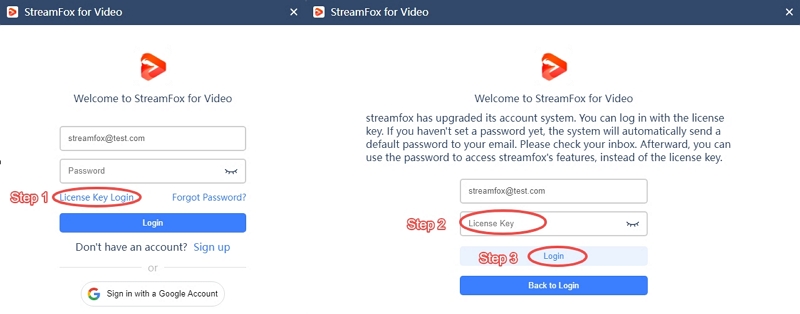
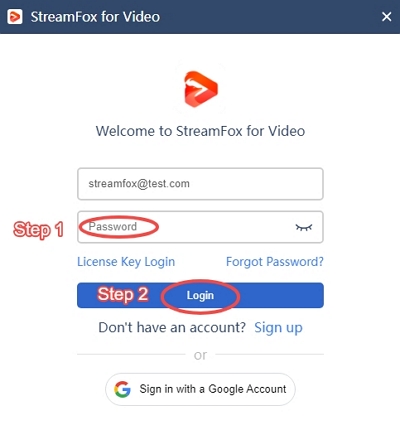
- Click Login
- Choose License Key Login or Password Login
- Enter your credentials to activate premium access
Tip: Existing users can click Update Account Status after purchase to refresh the license automatically.
Part 2. Save Amazon Prime Videos
- Launch StreamFox for Video
- On the Home screen, click Amazon Prime Video
- If prompted, select the region that matches your Amazon account.
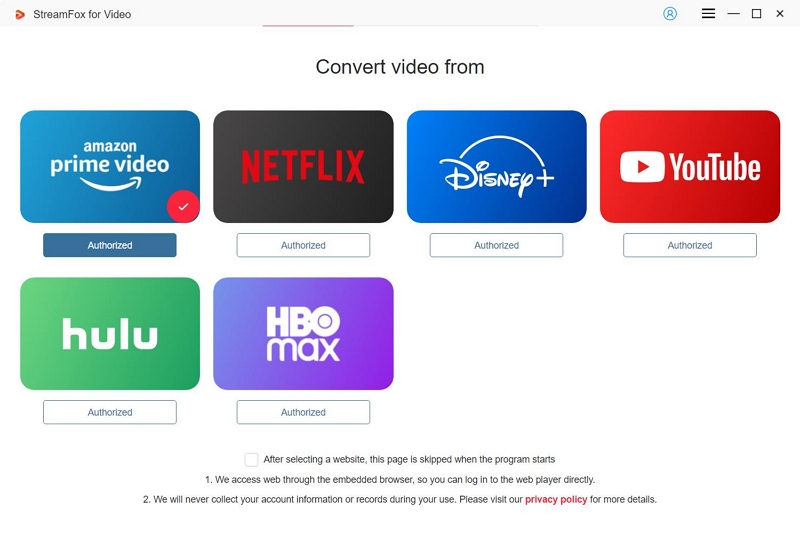
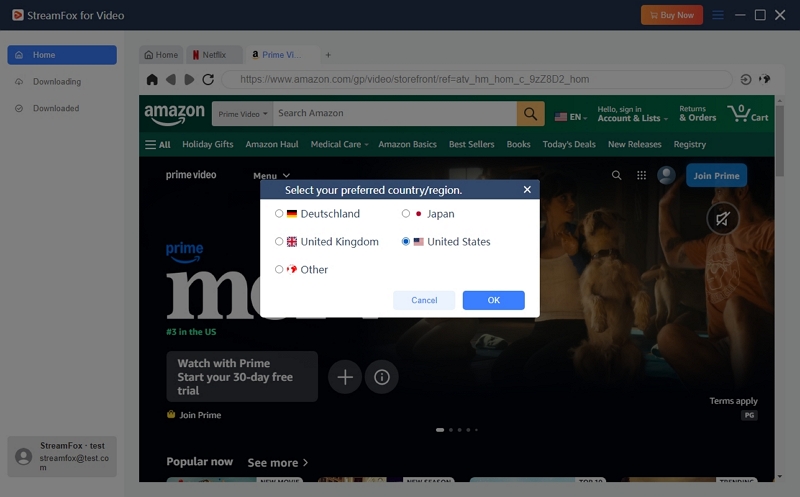
- A built-in browser will open
- Log in with your Amazon Prime Video account to access your library
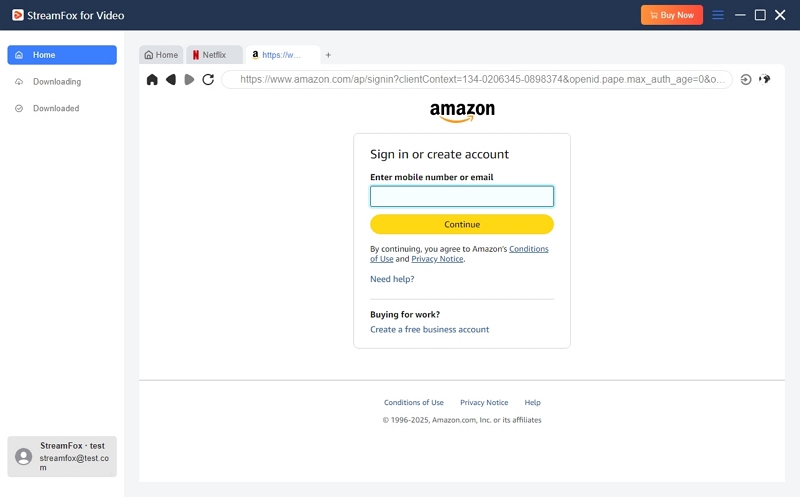
Privacy Note: StreamFox does not collect or store login information. Login is used only to access content for conversion.
You can add videos in two ways:
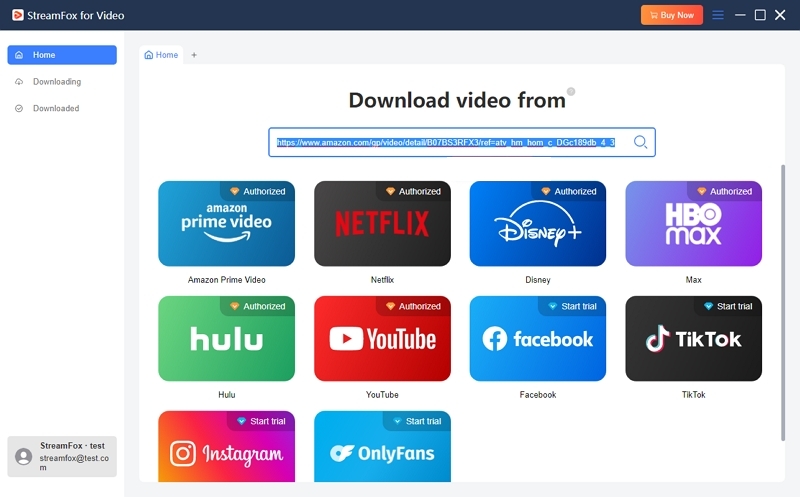
Method 1: Paste Video URL
- Copy the Amazon Prime Video link
- Paste it into the search bar at the top
- Click the search icon
- The video will be analyzed automatically
Method 2: Use the Built-in Browser
- Open the movie or episode you want
- Click the cloud icon next to the address bar
- Add the video to the conversion list
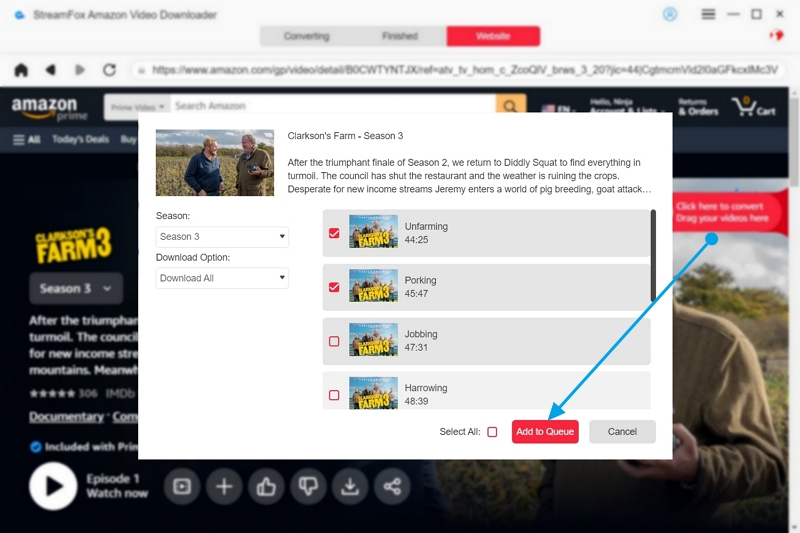
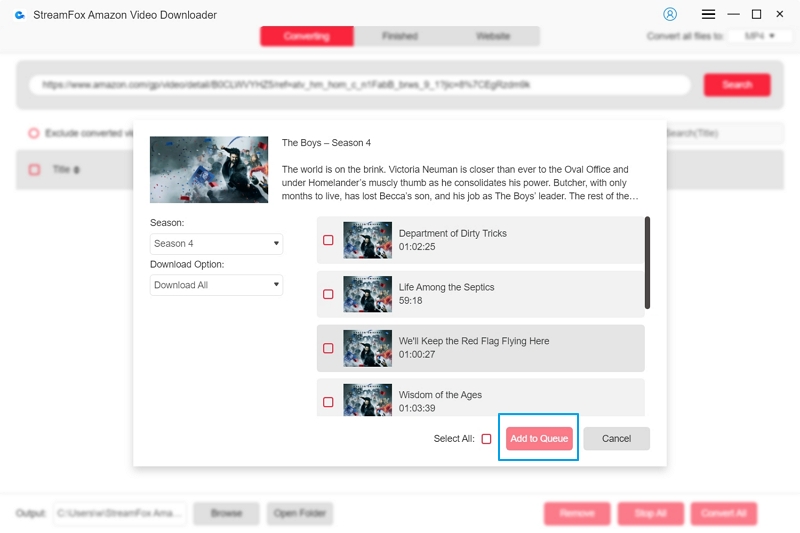
In the pop-up conversion window, choose your preferences:
| Setting | Options |
|---|---|
| Download Option | All / Audio Only / Subtitles Only |
| Output Format | MP4 / MKV / MOV |
| Quality | Based on source |
| Audio Language | Multiple languages (source-dependent) |
| Subtitle Language | Multiple languages (when available) |
| Save Subtitle As | Hardcoded / Soft / External |
Click Download to start conversion.
Notes
- Audio-only and subtitle-only modes appear only if supported by the source
- Available languages depend on the original Amazon video
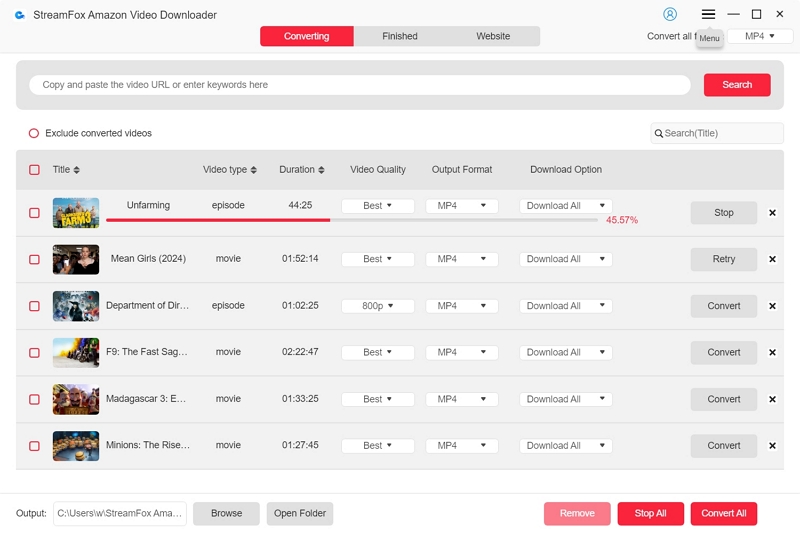
View real-time progress in the Downloading section (pause, resume, or cancel tasks if needed)
Tip: If you accidentally add an unwanted video to the conversion list, you can click Cancel in the Downloading section to stop the task.
Note: Once a download is canceled, restarting the same Amazon video requires beginning the conversion process again from the start. Partial progress cannot be resumed.
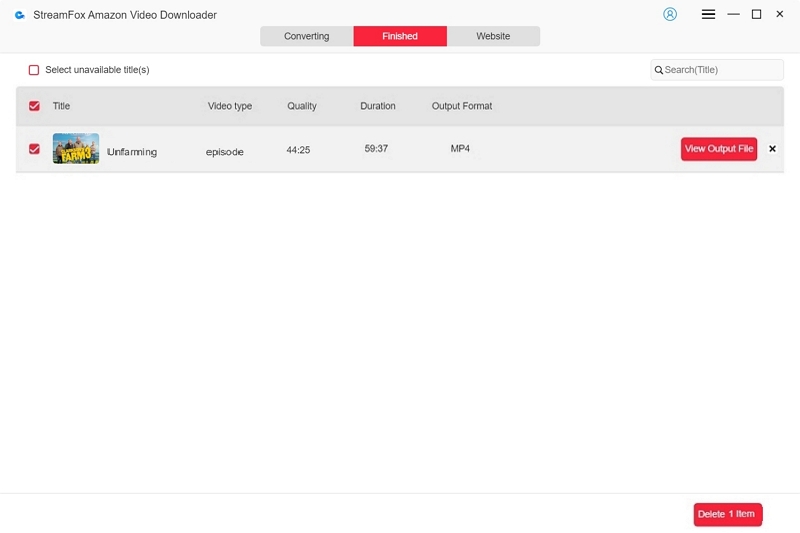
After completion:
- Go to Downloaded
- Click View Output File to open the local folder
- Play videos offline with any installed media player
Part 3. Manage Downloaded Videos
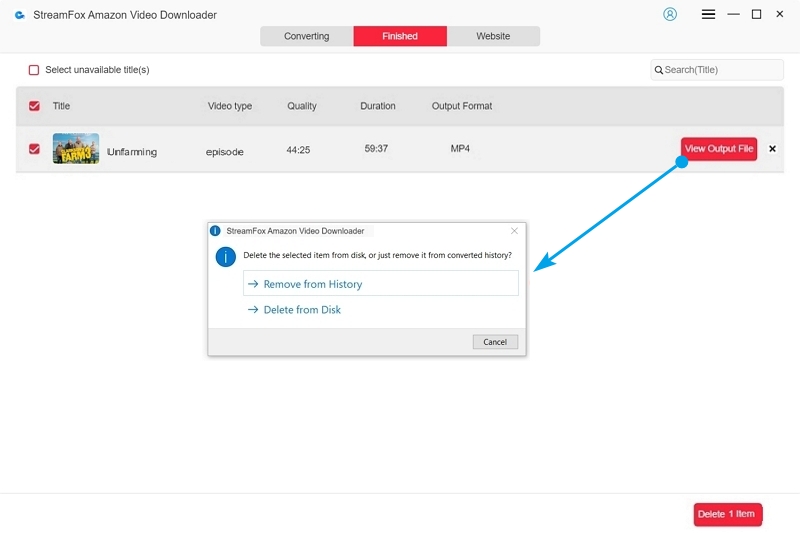
- Open the Downloaded section
- Select one or more items using the checkbox
- Click Delete Selection. Choose one option:
- Remove from History (keeps files)
- Delete from Disk (removes files)
This helps keep the task list organized without affecting stored files unless desired.
Part 4. Preferences & Output Customization
Go to Menu (☰) → Preferences → Output Settings
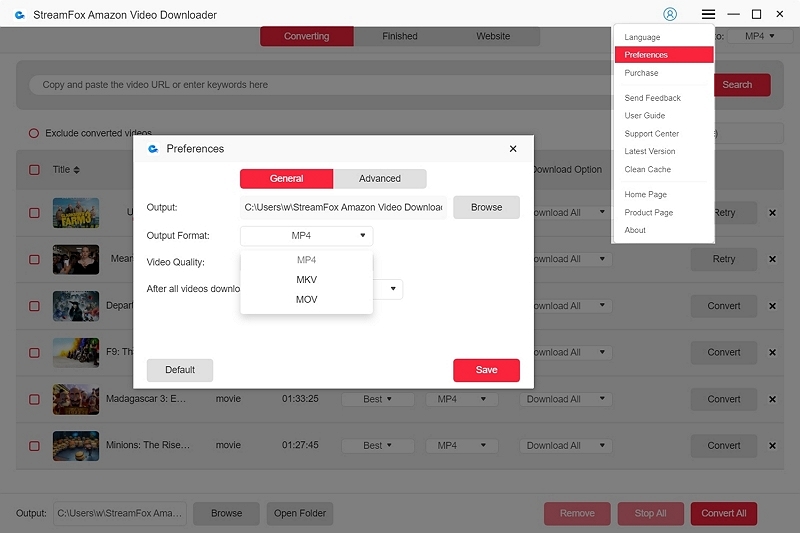
| Setting Category | Options | Description |
|---|---|---|
| Output Path | — | Choose save location |
| Video Format | MP4 / MKV / MOV | Default video container |
| Audio Format | MP3 / M4A / FLAC / WAV | For audio-only mode |
| Video Quality | Best / Medium / Low | Depends on source |
| Video Codec | AUTO / H.264 / H.265 | Encoding method |
| GPU Acceleration | On / Off | Improves performance |
| Audio Language | Multiple | Source-determined |
| Subtitle Language | Multiple | Auto-detected |
| Save Subtitle As | Hardcoded / Soft / External | Subtitle handling |
| After All Tasks | None / Sleep / Shutdown / Exit | Post-conversion action |
| Type | Description | Editable | Toggle |
|---|---|---|---|
| Hardcoded | Embedded into video | ❌ | ❌ |
| Soft | Separate track | ❌ | ✅ |
| External | Independent file (.srt / .vtt) | ✅ | ✅ |
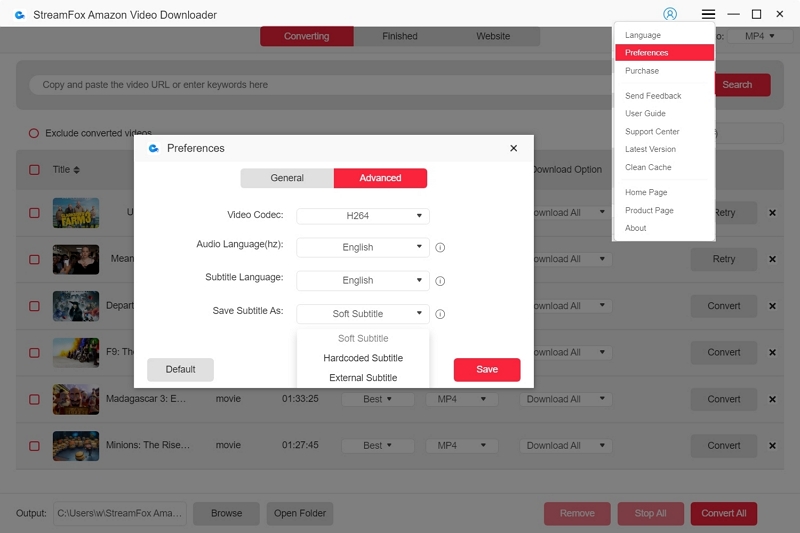
- Hardcoded Subtitles
Hardcoded subtitles (also called burned-in subtitles) are permanently embedded into the video image. They offer strong compatibility across devices, but cannot be turned off or customized. In some cases, they may cover parts of the video frame.
- Soft Subtitles
Soft subtitles are stored as an independent subtitle track inside the video file. They can be enabled or disabled during playback in supported media players, offering more flexibility than hardcoded subtitles. However, some devices or players may not display soft subtitles correctly.
- External Subtitles
External subtitles are saved as separate subtitle files, usually in .srt or .vtt format. They allow full customization, including font, size, color, and position. External subtitles must be loaded together with the video file and may be lost or separated if files are moved.
Recommended players: VLC · Media Player Classic-BE (MPC-BE) · PotPlayer
Disclaimer
StreamFox Amazon Video Converter is intended for personal offline viewing and format conversion. Users are responsible for complying with local laws and Amazon Prime Video’s terms of service. StreamFox does not host, store, or distribute any video content.