Playing music on a HomePod is effortless. Simply ask Siri and Apple Music works for song playback. Things get complicated when you want to play your favorite Spotify playlists or Liked Songs on HomePod instead of Apple Music.
That’s where this guide steps in. We’ll walk through every real way to play Spotify on a HomePod today, from the standard AirPlay method to smarter local audio workaround that allows you to listen to Spotify offline.
How to Play Spotify on HomePod Through AirPlay
AirPlay is the easiest path here. It’s Apple’s built-in way of passing audio, video, and other media from one Apple device to another compatible speaker, as long as they’re connected to the same Wi-Fi network. So, it will allow you to send Spotify from an iPhone to a HomePod without any extra setup.
However, this isn’t Spotify running on the HomePod itself. The stream still lives on your iPhone and the HomePod simply plays what the phone sends over. An incoming call, an alarm, or certain system interruptions, can cut the AirPlay session short.
That said, this is the exact path you can use to route Spotify audio to a HomePod through AirPlay.
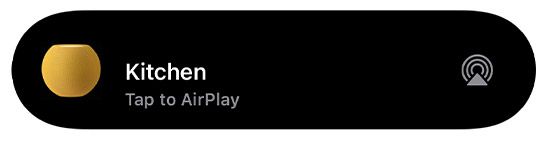
Steps to Follow
Step 1. Start playback inside Spotify on your iPhone and any track works.
Step 2. On the Now Playing bar, tap the small speaker icon. This opens Spotify’s device selector, where AirPlay lives alongside Connect.
Step 3. Choose AirPlay from the list and then iOS will take over and surfaces every nearby AirPlay-compatible speaker.
Step 4. Pick your HomePod or stereo pair. The stream is handed off immediately with your iPhone continuing as the audio source.
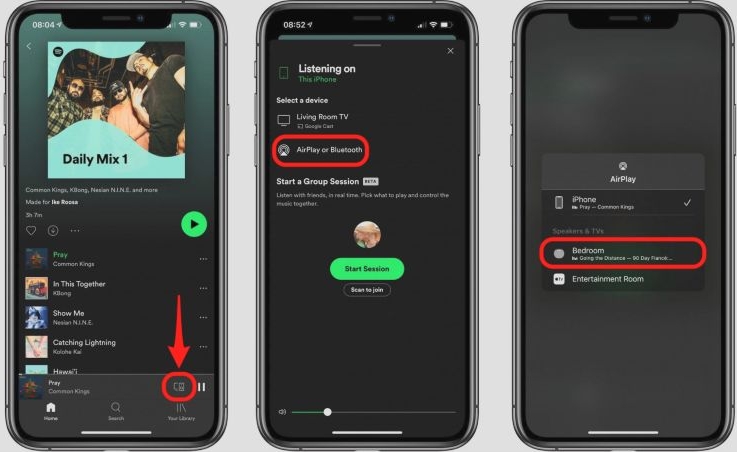
There is another way to do the same thing via the Control Center. Here’s how it works:
Step 1. Pull down the Control Center on your iPhone.
Step 2. In the media panel, tap the AirPlay icon.
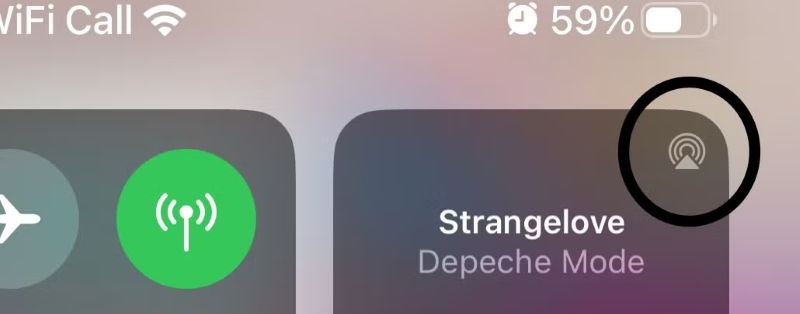
Step 3. Pick your HomePod or speaker group from the list.
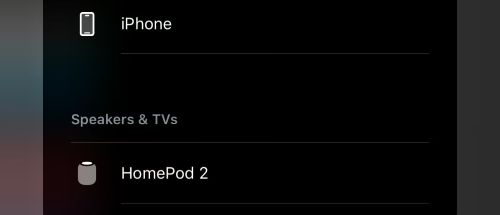
That’s it. Both methods do the same thing.
Can’t Play Spotify on HomePod?
AirPlay failures with Spotify are common and they tend to fall into the same few patterns. Across Spotify Community threads and Apple HomePod discussions, these are the most frequent problems users report and the fixes that actually work in real use.
Unable to connect or HomePod doesn’t appear in AirPlay
This points to a network-related issue. Here’s how to take care of this:
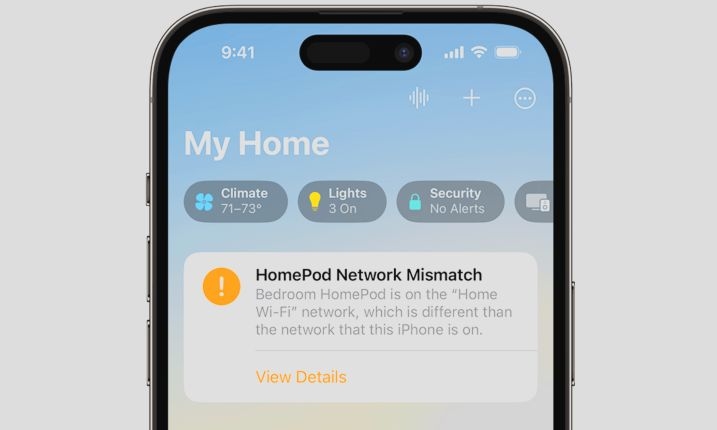
- Open the Home app. Make sure the HomePod isn’t showing a No Internet or Network issue warning.
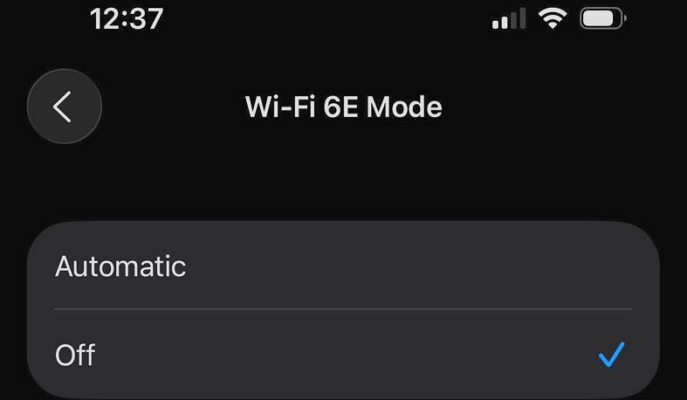
On newer iPhone using Wi-Fi 6E:
- Turn off 6E in Wi-Fi settings.
- Restart your router and then reconnect. AirPlay will become stable immediately after this change.
Music plays in Spotify, but there’s no sound on HomePod
This is a very specific Spotify-on-HomePod symptom. Spotify shows playback progress, the track timer moves forward, but the HomePod stays silent even though AirPlay looks active. What usually helps:
- Re-select the HomePod in the AirPlay picker. Switch to iPhone audio and then back to HomePod.
- Restart either the iPhone or the HomePod. In most cases, sound returns instantly after one reboot.
AirPlay option missing from Spotify’s Connect screen
Sometimes, the AirPlay option simply doesn’t show up inside Spotify’s device list. This does not mean AirPlay is unavailable.
You can always access the AirPlay picker directly from the Control Center, which bypasses Spotify’s Connect screen entirely. That’s why we showed both methods earlier.
HomePod shows offline or randomly refuses connection
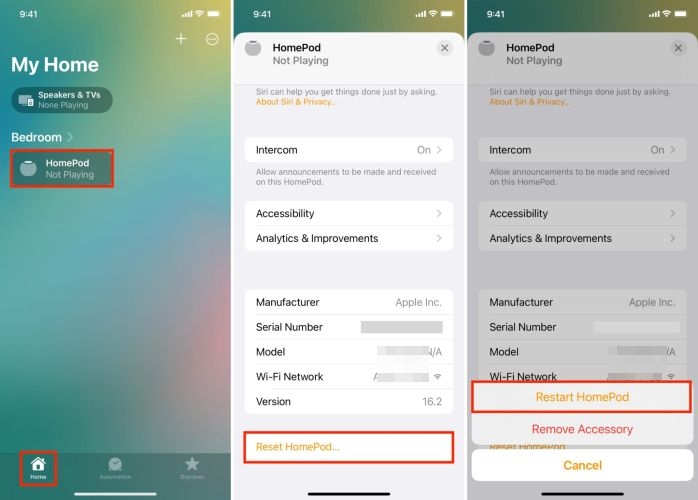
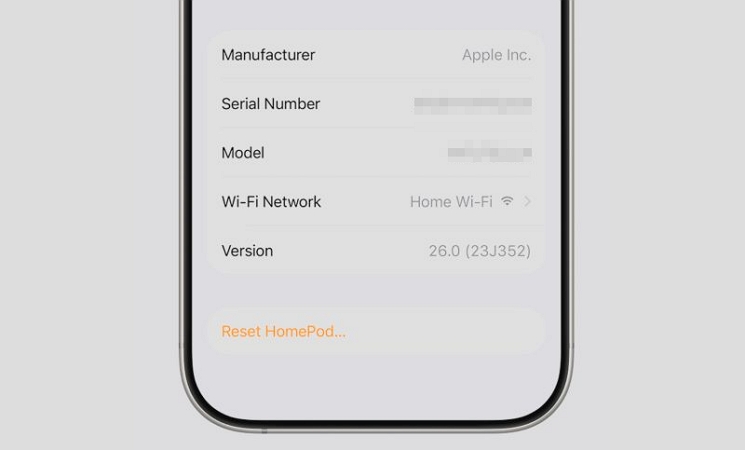
This is usually a HomePod-side issue rather than Spotify itself. The most reliable fix is:
- Ungroup the HomePod.
- Reset it.
- Set it up again on the current Wi-Fi network.
How to Play Spotify on HomePod Using Siri
Even when you ask Siri to play a song from Spotify, the playback actually happens via AirPlay. So your iPhone must be involved and you also need the Spotify app on your phone. Aside from that, your iPhone also needs to be running iOS 17 or later and the HomePod software must be 17.4 or newer.
If those parts are taken care, you can always start playback with a voice command like: “Play Aliens by Coldplay on Spotify.”
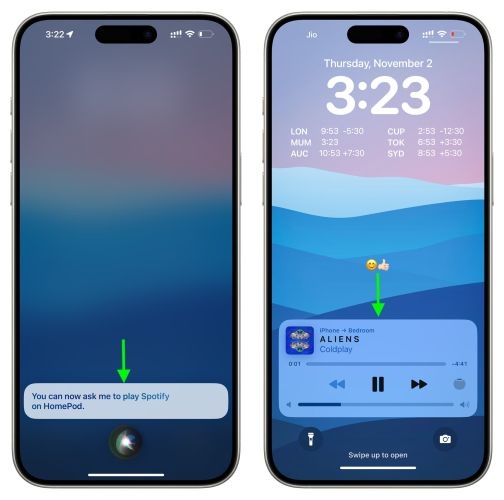
The first time you do this, Siri will ask for permission to access Spotify. Tap Yes.
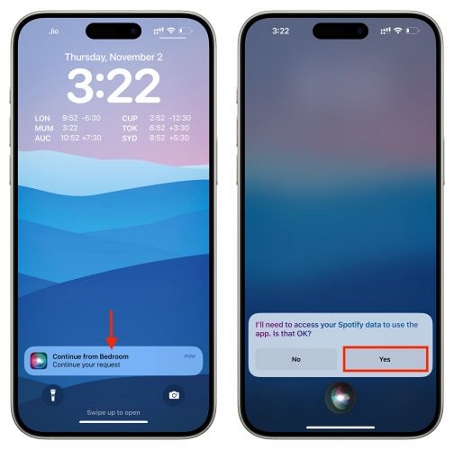
After that, the music will start playing on your HomePod through AirPlay.
How Do I Get Siri to Play Spotify Instead of Apple Music
Earlier the Home app did allow you to choose a default music service. However, this option also never included Spotify to be set as a default.
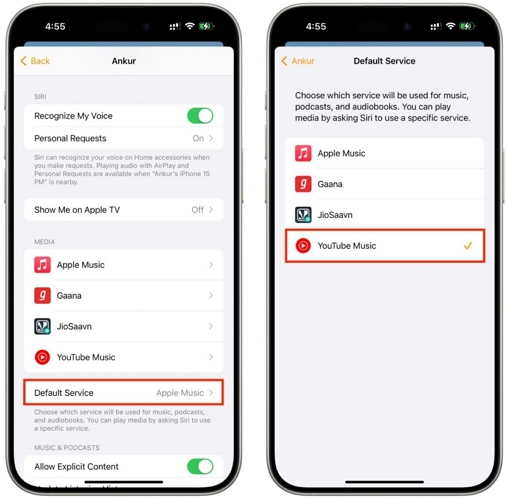
With iOS 17.4 and newer HomePod software, there is no default app switch anymore. Apple quietly changed how this works. Instead, Siri now learns your preference from repeated use.
Before Siri can learn that you prefer Spotify, voice recognition must be enabled for your HomePod. Otherwise, Siri won’t build any preference. Here’s how to set it up correctly:
- Start inside the Home app on your iPhone. From the top-right menu (⋯), head into Home Settings.
- Under People, select your name, the profile that Siri uses to recognise you. This screen shows everyone allowed to interact with the HomePod.
- Switch on Recognize My Voice under Siri. Then move through the setup screens until it finishes.
- When you reach Personal Requests, make sure it’s enabled.
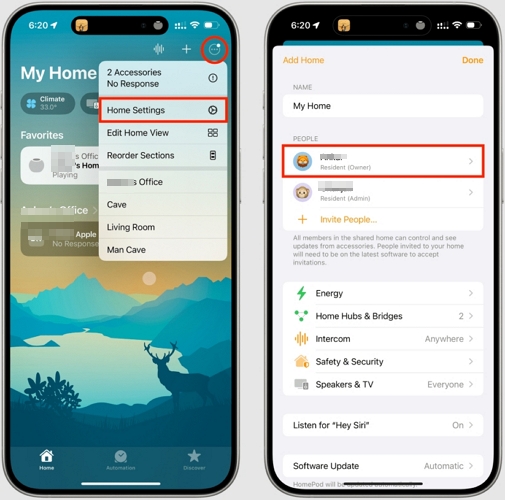
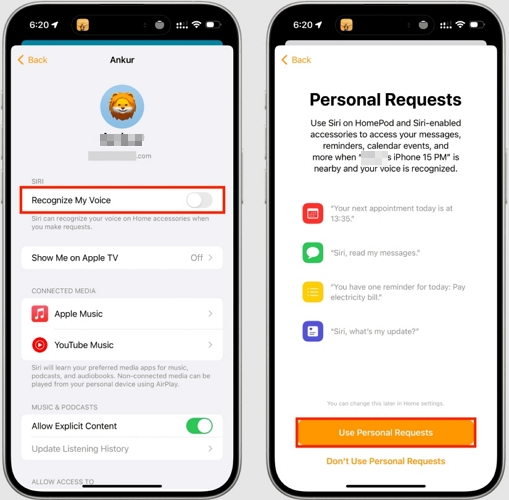
With this in place, Siri stops treating your commands as generic requests. Your Spotify playback, preferences, and habits are now tied to your voice. n practice, this means you need to be explicit at first. For the first few requests, say things like: “Play Every Breath You Take by The Police on Spotify.”or“Play Mockingbird by Eminem on Spotify.”
Do this consistently. You can also use broader commands like:“Play my liked songs on Spotify.”
Over time, Siri starts associating your music requests with Spotify. Once that behavior is learned, shorter commands like “Play Mockingbird” are more likely to trigger Spotify instead of Apple Music.
The routing still happens via AirPlay and your iPhone is still involved. That hasn’t changed. What has changed is that Siri no longer needs a fixed default and it relies on your usage patterns instead.
How to Play Spotify on HomePod via Local Files
Instead of streaming Spotify on HomePod live, you can also first turn the songs into local audio files. Once that’s done, there are a few clear advantages of playing them on the HomePod. For instance, you can add those files to Apple Music or use them in any local music player without ads, interruptions. Spotify itself doesn’t allow converting its tracks into local files. That’s where the StreamFox for Music comes in.
Here’s how the process works.
Step 1. Convert Songs into Local Audio Files
StreamFox for Music lets you save Spotify songs, albums, or playlists as real local files on your computer in MP3, M4A, FLAC, or WAV. More importantly, StreamFox keeps everything intact: song titles, artist names, album details, and cover art. So they can be added cleanly inside Apple Music and other players.
The conversion process is also simple. It comes with an integrated Spotify interface, so you can browse your favorite playlists quickly and convert them easily. The 30X conversion speed ensures saving large playlists doesn’t turn into an all-day job.
Step 2: Add Local Songs to Apple Music
Here’s how to add them to your Apple Music app (Mac or iPhone), whether you use Apple Music with a subscription or not.
1. Bring the Files into Apple Music
- Start Apple Music on your Mac or Windows computer.
- From the menu bar, choose File, then select Import > Import Playlist.
- When the file browser opens, navigate to the StreamFox folder.
- Select the songs or entire folders you want, then confirm.
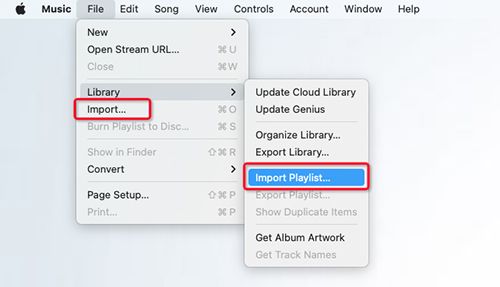
After a moment, the tracks appear inside Apple Music with proper titles, artists, albums, and cover art.

2. Sync the Songs to Your iPhone
At this point, the music lives safely inside Apple Music on your computer. From here, you have two different paths in transferring them to from the PC to your iPhone.
Option 1. Sync Library (Apple Music Subscription Required)
On your Mac or Windows computer:
- Go into Apple Music settings.
- Turn on Sync Library.
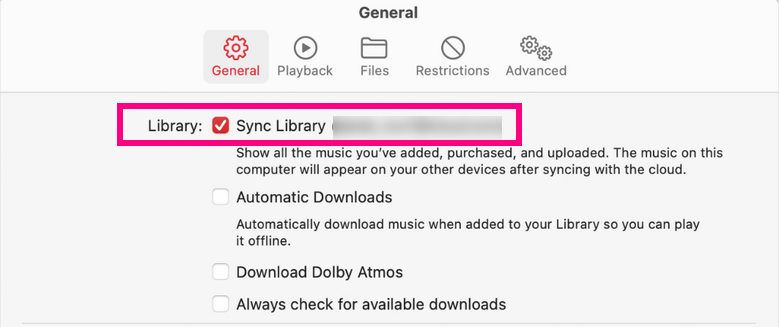
On your iPhone:
- Open Settings.
- Enter Music.
- Enable Sync Library there as well.
The songs appear automatically on your iPhone and other Apple devices within some time.
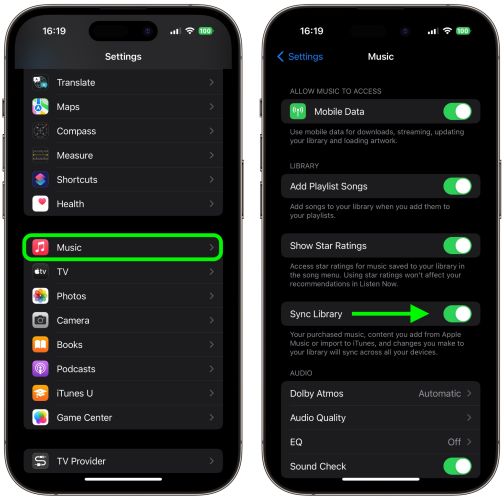
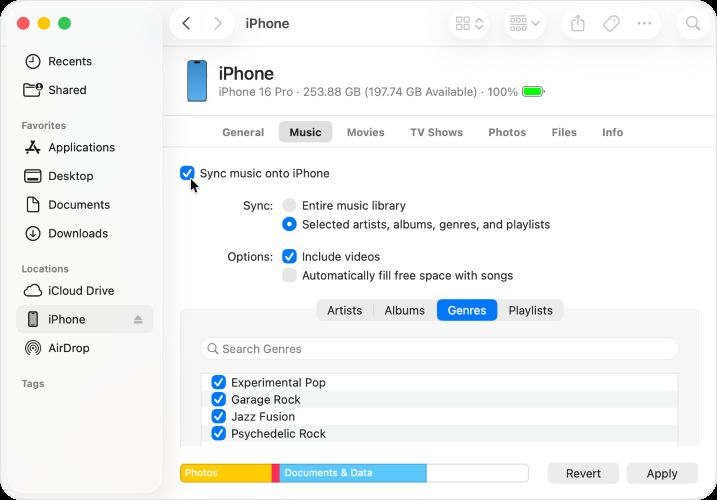
Option 2. Manual Sync with a Cable (No Subscription Needed)
If you don’t use Apple Music subscriptions, this still works perfectly.
- Connect your iPhone to your computer using a USB cable.
- Locate your iPhone under Locations.
- Switch to the Music section. Choose the songs or playlists you want to transfer from your Apple Music library.
- Click Apply.
Step 3: Listen to Spotify on HomePod Through Apple Music
Once the Spotify songs are added to Apple Music, HomePod playback becomes simple. Depending on whether you have an Apple Music subscription, here are the steps:
When you don’t have an Apple Music subscription:
- Start the downloaded track from inside Apple Music.
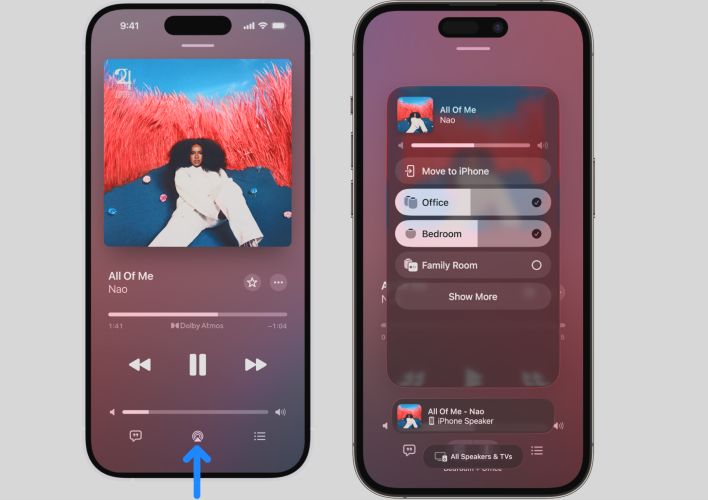
- On the Now Playing screen, switch the output using AirPlay.
- Pick your HomePod and let the audio move over.
The audio moves to the speaker immediately. Your phone stays involved, but the sound comes from HomePod.
When the songs are synced through iCloud Music Library (which requires an Apple Music subscription), things feel more natural:
You can ask Siri to play the uploaded Spotify tracks just like regular library tracks. For example, if you added an album you converted earlier, you can say: “Hey Siri, play All Of Me by Nao.” HomePod plays it directly without needing to open AirPlay or keep your phone active.
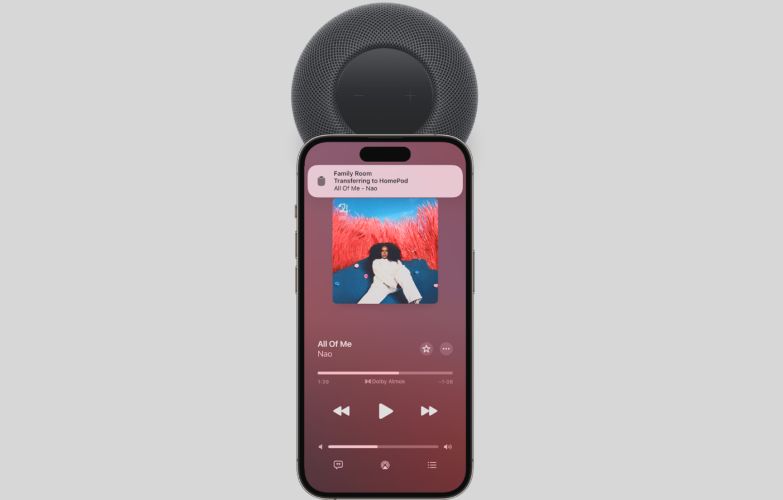
There’s also a faster handoff option. While the song is playing on your iPhone, bring the phone close to the top of the HomePod. The music will switch over automatically and continue on the speaker.
HomePod Spotify Automation: How to Play Music Automatically
You can also create an automation to transfer Spotify audio directly to HomePod. The idea is straightforward: whenever you open Spotify on your iPhone, audio is automatically routed to your HomePod.
This works especially well if you:
- Usually start Spotify from your phone
- Almost always listen through a HomePod or a fixed stereo setup
Once the automation is active, you don’t need to tap AirPlay or pick a speaker manually. Spotify opens and HomePod becomes the output right away. That said, it’s important to understand what this automation does not do.
It does not:
- Let HomePod play Spotify on its own
- Remove the need for your iPhone
- Act like a scheduled or alarm-based playback system (although you can set one separately).
Plus, you should also avoid this auto setup if:
- You frequently switch between different HomePods
- You expect Spotify to play without your phone nearby
- You want music to start automatically at specific times
How to Set Up the Spotify to HomePod Automation
Step 1: Create a new personal automation
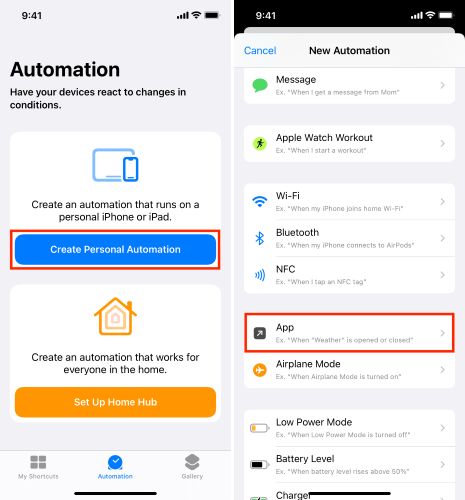
- Open the Shortcuts app and tap Automation at the bottom.
- Tap Create Personal Automation.
- Scroll and select App.
Step 2: Choose Spotify as the trigger
- Choose Spotify.
- Select Is Opened.
- Tap Next.
This tells iOS to act the moment Spotify launches.
Step 3: Set HomePod as the playback destination
- Tap Add Action.
- Search for Set Playback Destination (On some iOS versions it will appear as Change Playback Destination).
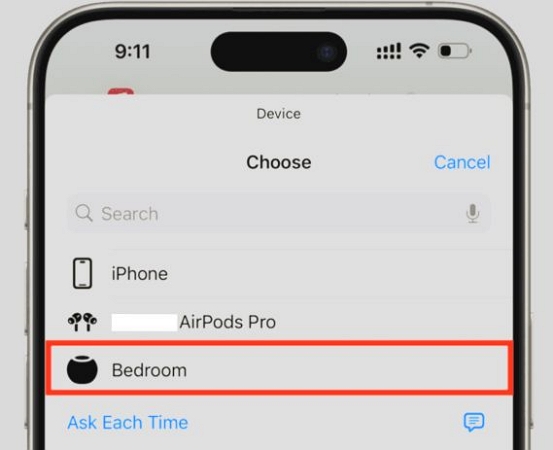
- Tap the destination field.
- Select your HomePod or HomePod stereo pair.
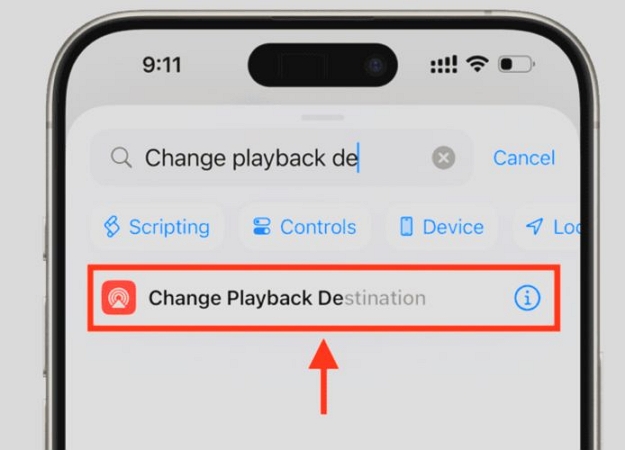
This is the core of the automation.
Step 4: Disable confirmation
- Tap Next.
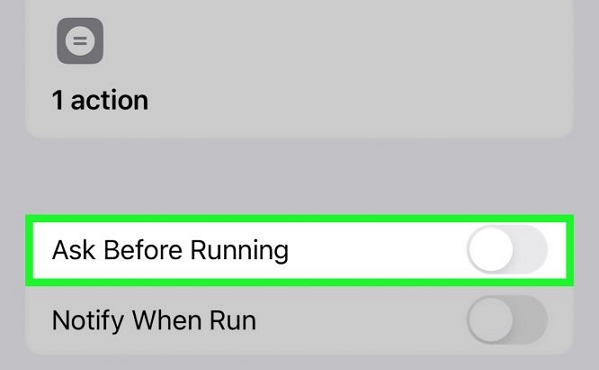
- Turn off Ask Before Running.
- Confirm Don’t Ask.
- Tap Done.
Now the automation runs silently in the background.
FAQs
Can HomePod Play Spotify Without iPhone?
Not for now. At least, not in the official way. For now, you can save your Spotify tracks locally. Then upload those files to Apple Music and sync through iCloud Music Library. Once synced, Siri can play those tracks directly on HomePod without your phone involved. That works because HomePod sees them as part of your Apple Music library. Without doing this, Spotify, VLC, or most third-party music apps will require AirPlay and an active iPhone connection.
When Will Spotify Support HomePod Natively?
There’s no official timeline and this isn’t because Apple blocks it. Apple opened HomePod APIs to third-party music services back in 2020. Services like Pandora, Deezer, YouTube Music have already used those API and can play independently on HomePod. Spotify simply hasn’t implemented native HomePod support yet. Why? Spotify hasn’t given a clear reason. Industry watchers often point to the long-standing “feud” between Apple and Spotify over platform rules and revenue, but that’s speculation, not a technical limitation. What matters is this: Apple has provided the tools but Spotify hasn’t used them.
Summary
We’ve covered every practical way to play Spotify songs on a HomePod today. The official route still depends on AirPlay, because Spotify hasn’t added native HomePod support. In real use, AirPlay itself isn’t the problem. The real friction shows up when you don’t have a Spotify subscription—ads cut in, shuffle mode kicks on, and playback feels clumsy on a speaker that’s meant to sound seamless.