Mighty is a popular music player known for its compact design and tiny size, making it an ideal alternative to the iPod Shuffle. If you’re considering investing in a Mighty Spotify MP3 player, this guide will help you understand it first. In this post, you’ll learn how to play Spotify on Mighty and explore some alternatives if you haven’t bought one yet or aren’t satisfied with its features or usability.
FAQs About Mighty Spotify Player
What Models of Mighty Music Players Are Available?
There are currently two types of Mighty players: Mighty 3 and the waterproof Mighty Wave. You can learn more about them in the table below.
| Mighty 3 | Waterproof Mighty Wave | Mighty Vibe(Unavailable) | |
|---|---|---|---|
| Official Pricing | $129.99 | $149.99 | About $110 USD |
| Storage | 1000+ songs | ||
| Battery | 8+ hours | 8+ hours | 5+ hours |
| Waterproof | No | Yes | No |
| Size | 38 x 38 x 16.0mm 20g |
39 x 39 x 18.5mm 19.8g | 38.1 mm × 38.1 mm × 17.8 mm 19.84g |
| Color | Black, blue, red, grey and lavender | Blue | Black, blue, red and green |
| Supported Music Services | Spotify and Amazon Music | ||
Does Mighty Support MP3 Playback?
No, it doesn’t work with MP3 files. You need the Mighty mobile app and a paid music account to import music from your phone to the device.
Can You Play Spotify on Mighty Without Premium?
Mighty does not support MP3 files and only allows syncing songs from a Spotify or Amazon Music account for offline playback. Therefore, a premium account is required. Spotify restricts offline playback to paid accounts, so if you choose to purchase a Mighty device, you will need an active Spotify subscription to listen offline.
How to Play Spotify on Mighty with Premium
It doesn’t matter whether you own a Mighty 3 or any older model, the steps to sync Spotify music are the same. Keep in mind, the Mighty app is essential for this setup. So, you’ll need either an iPhone or an Android device to link your Spotify account with a Mighty device. Let’s break it down step by step.
Step 1: Connect Spotify to Mighty
- Install the Mighty app from the App Store or Play Store.
- Open the app. Sign in using your preferred method (Apple, Facebook, or email).
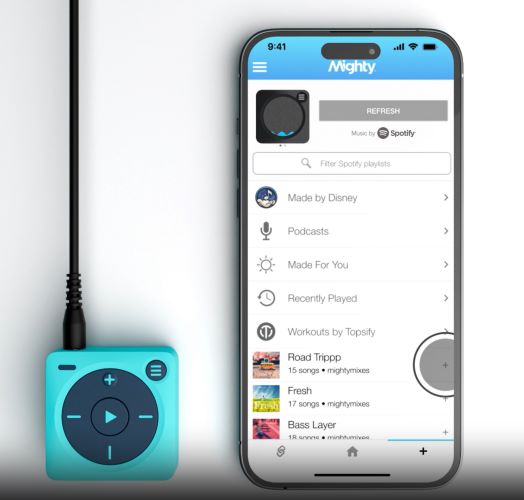
- On the home screen, tap the + button assigned to Spotify.
- Click Connect and enter your Spotify login credentials.
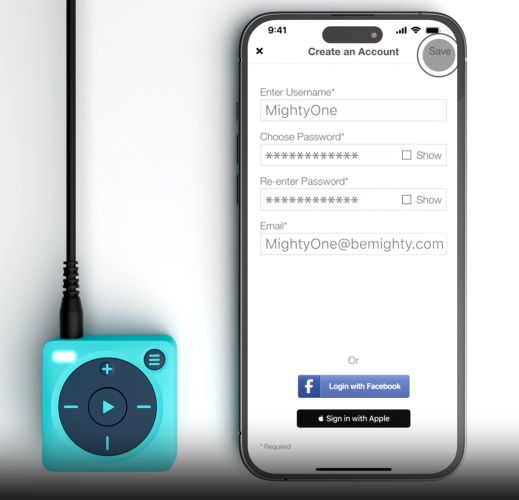
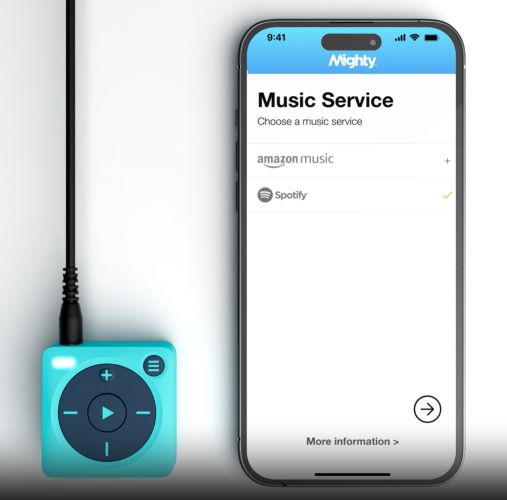
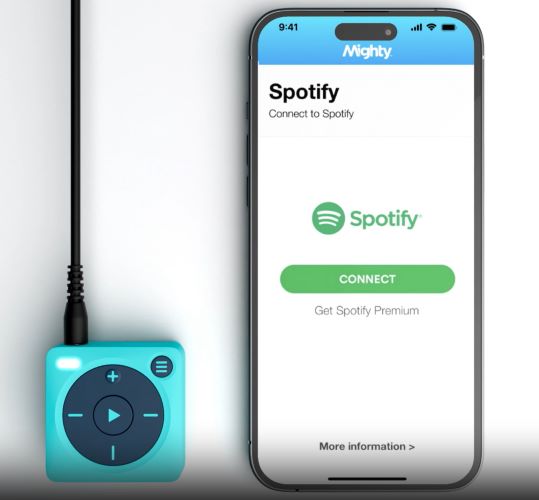
Step 2: Sync Spotify Music to Mighty
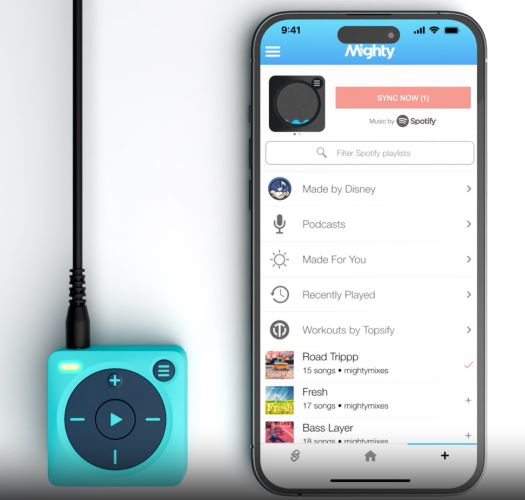
- Turn on your Mighty device. The green LED light will blink to indicate the device is powered on and ready to sync.
- Under the Mighty’s Browse section (the tab with plus icon), you will see your Spotify playlists.
- Tap the + button next to the desired playlist to add it to the sync queue.
- Then, tap Sync Now at the top of the screen to start syncing. The progress wheel will display the syncing status.
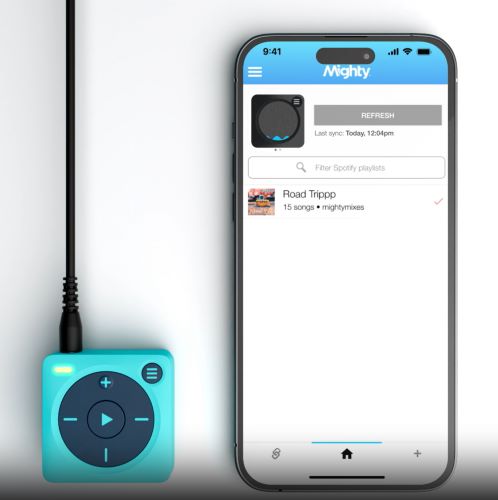
- Once done, move to the Home tab. There, you can find a tick mark next to the synced playlists, indicating that the chosen playlist is synced with the Mighty device.
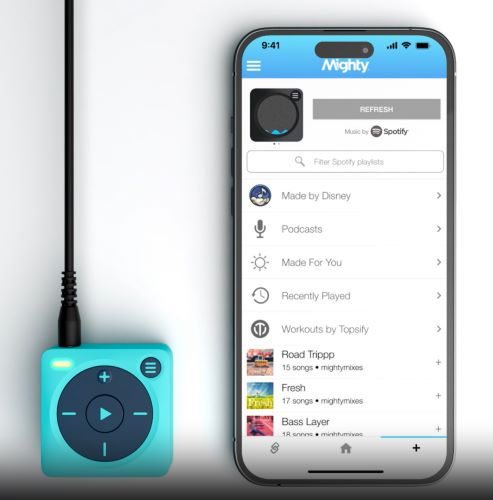
Step 3: Listen to Spotify Music on Mighty Without Phone
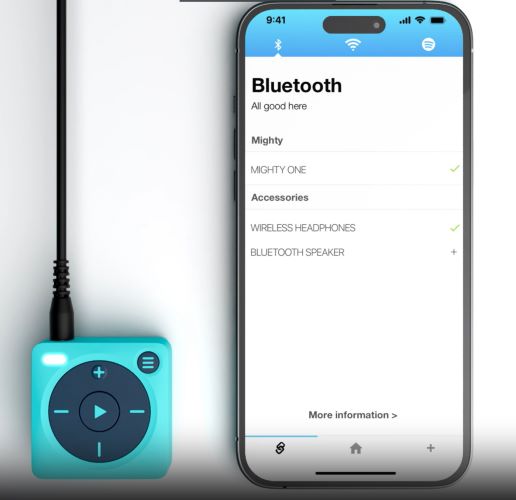
- Move to the Pairing (chain link in lower left) tab. Connect your Bluetooth device.
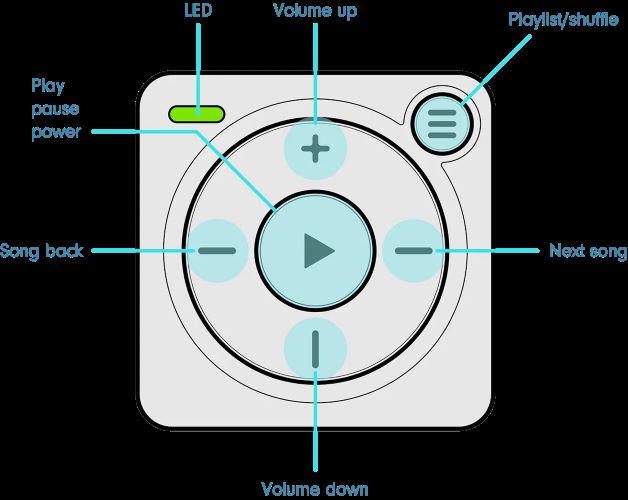
- Once paired, you can use your Mighty device to access the synced Spotify playlists and enjoy your music without needing your phone. You can control your Spotify music on Mighty via the buttons shown in the following image.
Our Using Feedback for Mighty 3

The colors are attractive and it’s lightweight. Listening to music while running is very convenient, as we don’t need to carry the phones.
The Mighty charging cable is a bit short, about 25cm, so the device needs to be close to a power outlet. Otherwise, the Mighty will hang in the air while charging, which may put stress on the outlet.
We synced a Spotify playlist with 500 songs to Mighty, which took about 25 minutes. Of course, the time may vary depending on the internet speed.
Clipping it onto your clothes is very convenient, but the buttons on the Mighty are often accidentally pressed while clipping. It would be even better if it supported MP3 files.
4 Portable Spotify Players: Alternatives to Mighty
There’s no denying that Mighty is a standout device for playing Spotify on the go. It makes perfect sense for sports and outdoor activities, thanks to its compact and rugged design. However, if Mighty doesn’t fit your preferences, there are other options to consider. From advanced smartwatches to classic MP3 players, we’ve included four alternatives that allow you to enjoy Spotify in various ways.
Apple Watch
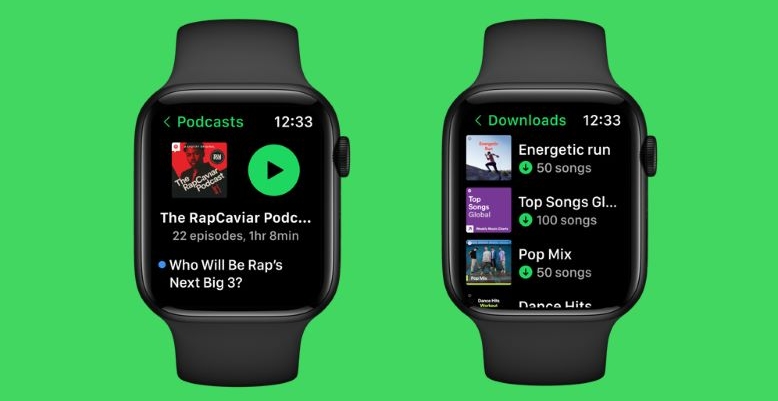
Compared to the Mighty Vibe 3, the Apple Watch weighs twice as much but offers four times the storage capacity. It also provides a longer battery life, although at a significantly higher cost of $250 more.
When judged solely on Apple Watch’s Spotify capabilities, the Apple Watch offers an edge with the ability to stream Spotify both in online and offline modes. However, keep in mind that it still shares one key limitation with Mighty Vibe: Spotify playback is only available for Premium users. Spotify Free users can install the app on the Apple Watch and use it to control music on other devices, but direct listening isn’t supported.
| Feature | Details |
|---|---|
| Price | Starts at US$ 399. |
| Battery Life | Up to 18 hours. |
| Storage | 64 GB (most of it available for user storage). |
| Audio Quality | Feature a basic speaker for playback, with rich audio available over AirPods or other devices. |
| MP3 Support | Yes, but MP3 files must be synced through the Apple Music app. |
| Size and Weight | Dimensions: 42 mm to 46 mm. Weight: 32.9 g to 36.4 g (depending on the model). |
Sony Walkman NW-WS623
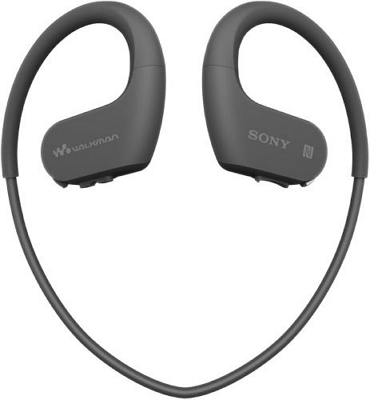
Like Mighty 3, the Sony Walkman NW-WS623 is designed with sports and outdoor activities in mind. However, unlike Mighty 3, the Walkman provides two ways to enjoy Spotify music. It can stream Spotify songs in Bluetooth mode, while being directly connected to your phone for playback. Alternatively, you can convert Spotify tracks to MP3 files (we’ll explain how in the next section) and transfer them for independent offline playback.
Like Mighty 3, the device is waterproof, dustproof, and rugged, making it an excellent choice for active listeners. Here are its key specifications to see how it compares to Mighty 3:
| Feature | Details |
|---|---|
| Price | US$ 139.99. |
| Battery Life | Up to 12 hours (MP3 128kbps), 10 hours (Linear PCM 1411kbps), 4 hours (Bluetooth). |
| Storage | 4GB internal memory for playlists or podcasts. |
| Audio Quality | Depend on the audio format: MP3, WMA (Non-DRM), AAC (Non-DRM), FLAC, and Linear PCM. |
| MP3 Support | Yes, support MP3 and other formats for offline playback. |
| Size and Weight | Weight: Approximately 32 grams (1.2 oz). |
Fiio M6
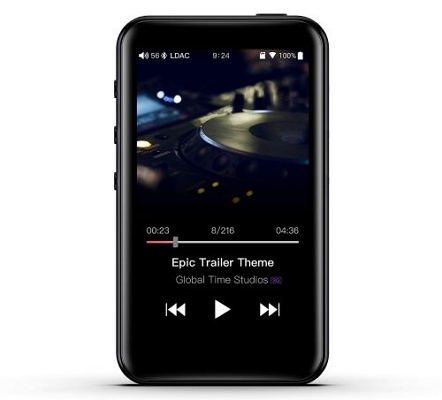
The FiiO M6 can be considered the “dumb phone” version of MP3 players. Unlike Mighty 3, the FiiO M6 lets you install almost any streaming app, including Spotify. However, Spotify is not natively whitelisted, so you’ll have to manually overwrite FiiO’s whitelist to get Spotify. Yes, the extra step is required, but it is entirely possible. Plus, it will give you access to both streaming and downloading Spotify music with a Premium account.
That said, the FiiO M6 shines as a dedicated MP3 player, especially when it comes to playing Spotify songs converted into open formats. Here are the key specifications to explore the FiiO M6 in detail:
| Feature | Details |
|---|---|
| Price | US$ 149.99. |
| Battery Life | Over 13 hours (3.5mm headphone output). Over 15 hours (Bluetooth SBC). Charging time: ~2.5 hours. |
| Storage | 2GB internal, expandable up to 2TB via microSD (card not included). |
| Audio Quality | Embedded ESS Sabre 9018Q2C DAC and support high-resolution formats including DSD64/128, FLAC, AAC, and MP3. |
| MP3 Support | Yes, MP3 files can be played seamlessly with expandable storage for massive libraries. |
| Size and Weight | Dimensions: 53.3mm x 92.5mm x 11.5mm Weight: Approximately 83 grams |
iPod
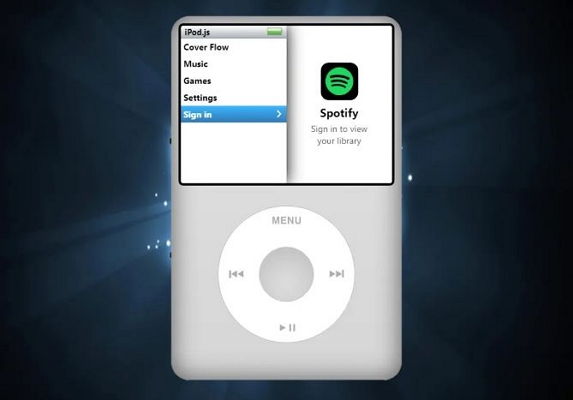
The iPod is listed as the last option because it has been discontinued. If you want to buy one, you’ll likely have to go through unofficial sellers or purchase a second-hand unit.
Unlike the Mighty 3, the iPod functions more like a compact version of the iPhone tailored for media playback. This means it will support the Spotify app: both free and premium Spotify accounts. However, it’s essential to note that only the final generation of iPod—the iPod Touch (7th generation), offers compatibility with the Spotify app. Older iPod models do not support the app. In such cases, you would need to convert Spotify songs to MP3 files using Spotify converters and manually upload them to the iPod for playback. Here’s how iPod compares to Mighty 3, along with its key specifications:
| Feature | Details |
|---|---|
| Price | US$ 199 (32GB). Additional models with 128GB and 256GB are available. |
| Battery Life | Music playback: Up to 40 hours. Video playback: Up to 8 hours. |
| Storage | 32GB in the base model. |
| Audio Quality | Lossy or lossless based on the audio format: AAC, MP3, FLAC, Apple Lossless, and other high-quality formats. |
| MP3 Support | Yes, MP3 files can be directly added or synced through Apple Music or iTunes. |
| Size and Weight | Dimensions: 123.4 mm (H) x 58.6 mm (W) x 6.1 mm (D). Weight: 88 grams. |
How to Play Spotify on MP3 Players
The methods vary depending on the model of your MP3 player.
If it’s a modern music player that supports app installations, you can install Spotify and stream music with a free or paid account or listen offline with a premium account.
If your player only supports MP3 files or works with both local files and streaming services, you can enjoy Spotify on it by using local MP3s.
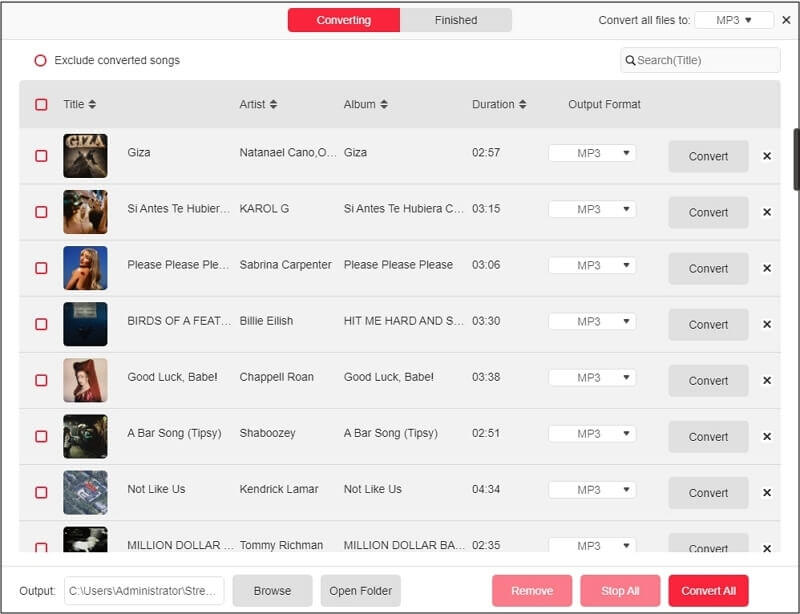
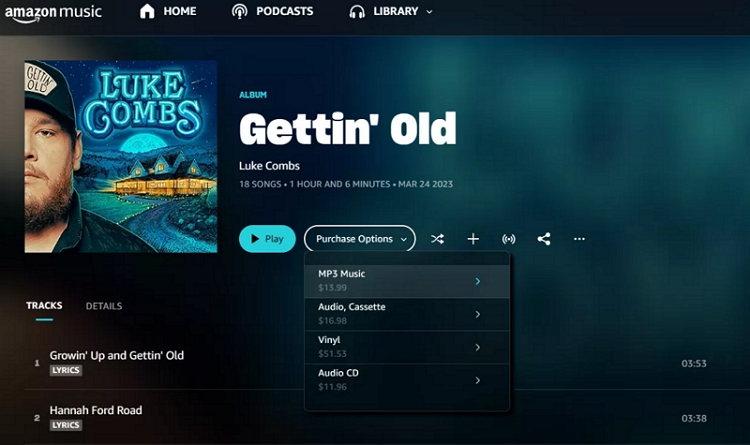
You may be wondering how to get your favorite Spotify songs as MP3 files. You can either purchase the songs or albums from the Amazon Store or convert them using StreamFox for Music. StreamFox can convert music to local files, which you can then transfer to any MP3-compatible player. However, note that you should not share these local songs, whether you bought or converted them.
- Artist name, song title, album name, album cover, and other ID3 tags remain 100% intact.
- The 30X conversion speed ensures you can save even large music libraries in minimal time.
- All converted files are automatically arranged into neatly structured folders, making playlist management effortless.
- Amazon Music, Apple Music, YouTube Music, and Pandora are also supported.
Steps to Transfer MP3 to Music Player
Here’s how you can transfer your local songs to any MP3 player, depending on whether you’ve saved the songs on a Windows or Mac device.
For Mac Users:
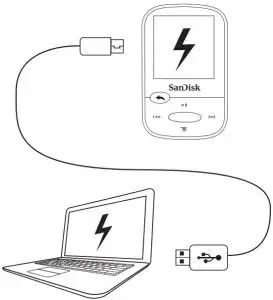
Step 1. Connect your MP3 player to your Mac using the USB cable.
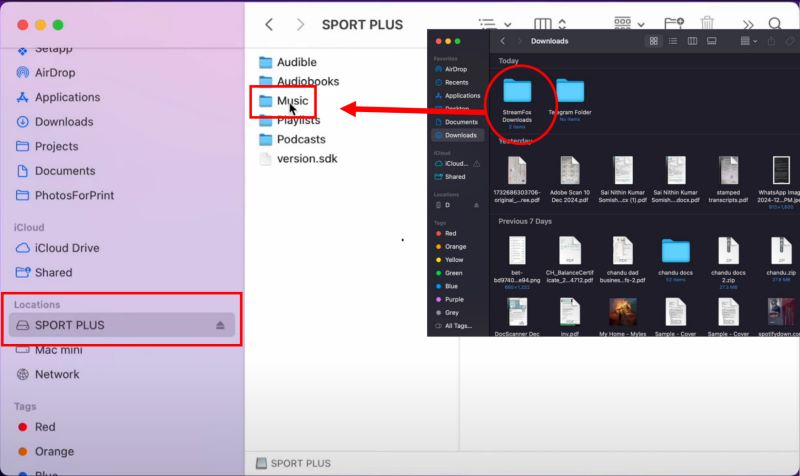
Step 2. Open the Finder window and locate your MP3 player under the Locations section.
Step 3. Open another Finder window and navigate to the folder where saves the prepared songs.
Step 4. Drag the desired songs into the Music folder or any folder on your MP3 player.
For Windows Users:
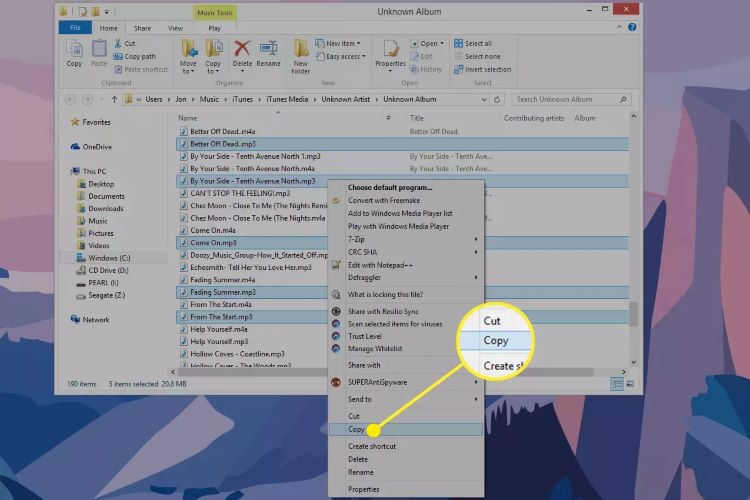
Step 1. Locate the MP3 files on your computer. Right-click on them and choose Copy.
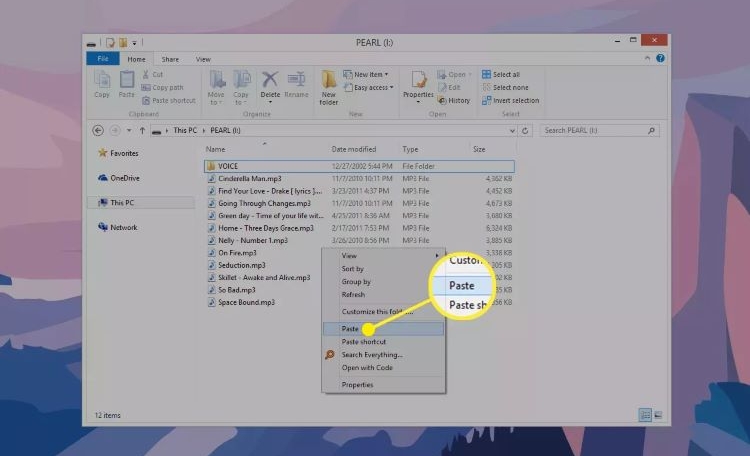
Step 2. Connect your MP3 player to your computer. Once the MP3 device appears on your screen, open it.
Step 3. Locate the Music folder, right-click in the folder and choose Paste from the menu options. Wait for the transfer to complete. Finally remove the MP3 device from the computer.
Conclusion
So there you have it: everything you needed to know about the Mighty device, its integration with Spotify, and other market alternatives for enjoying Spotify songs. You can get one if you want a lightweight music player and are a Spotify Premium user. If you already own one, you can follow this guide to set it up and sync Spotify music to it.