Trying to connect your Spotify Free account to your Amazon Echo via the Alexa app but only seeing a “Premium required” prompt? So, is Spotify Premium necessary to play music on an Echo device? The truth is that Spotify allows you to listen on Echo with either a Free or Premium account, but there are some conditions. Don’t worry if you’re unsure, as we’ll help you better understand how Spotify playback works on Amazon Echo and how to use it.

When You Need Spotify Premium to Use Spotify on Amazon Echo
There are two main cases where Spotify Premium is required for music playback on Amazon Echo:
- Linking your Spotify account via the Alexa app in regions that require Premium.
- Using Alexa voice commands to control Spotify playback.

In other words, if you don’t need to use the Alexa app or voice commands to play Spotify on Amazon Echo, Spotify Premium isn’t required. Spotify provides official ways to play music in this case.
Play Spotify on Amazon Echo with Free or Premium
There are three ways to play Spotify on Amazon Echo and all of them work with both Spotify Free and Premium accounts.
Way 1. Use Alexa App
Apply to
This method works if you are a Spotify Premium user, if you are in a region where Spotify Free accounts can be linked to Amazon Echo, or if you want to play Spotify on Echo without using your phone.
Playable content: Songs, playlists, albums or podcasts(in supported places like US, Germany and France).
Before your Alexa Echo can stream music from Spotify, you need to first link your Spotify account. Thankfully, the process is quick and straightforward. Here’s how to do it:
Step 1: Link Spotify to Alexa
1. Open the Alexa app on your iPhone or Android, tap More, and go to Settings.
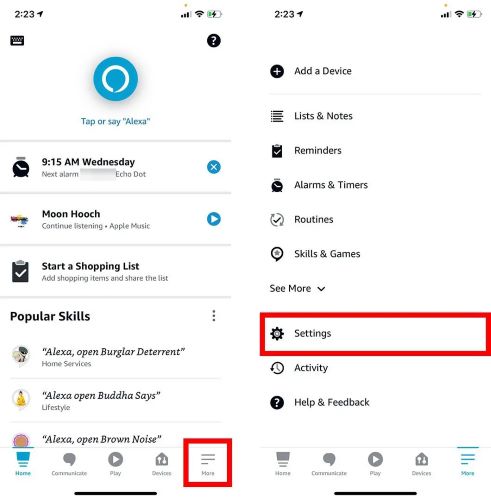
2. Select Music & Podcasts and tap Link New Service.
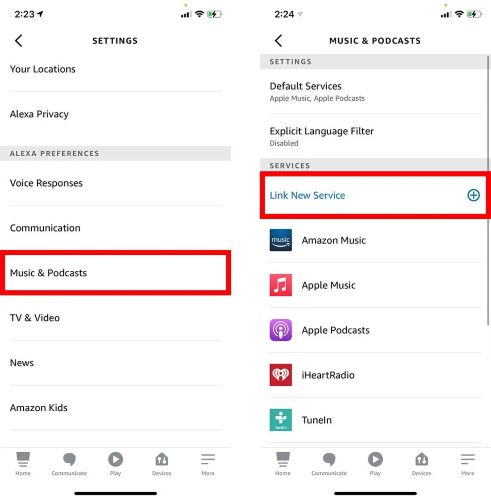
3. Tap Spotify. Then hit Enable to Use.
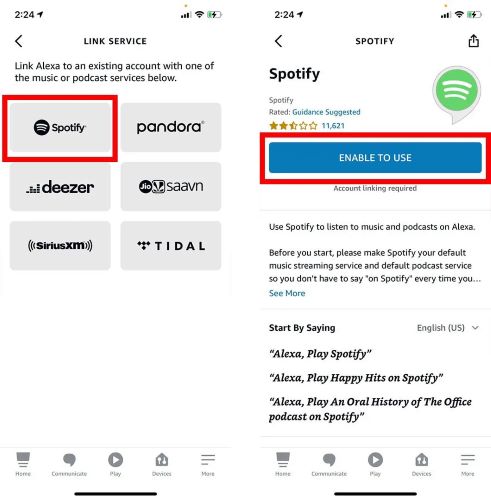
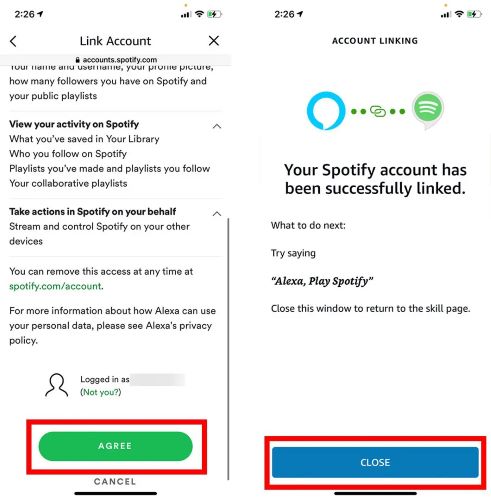
4. Log into your Spotify account. Then, tap Agree to give permission to link.
5. Once done, you’ll see a message confirming Spotify is now connected. Tap Close, and you’re set.
Troubleshoot “Can’t Link Spotify to Alexa”
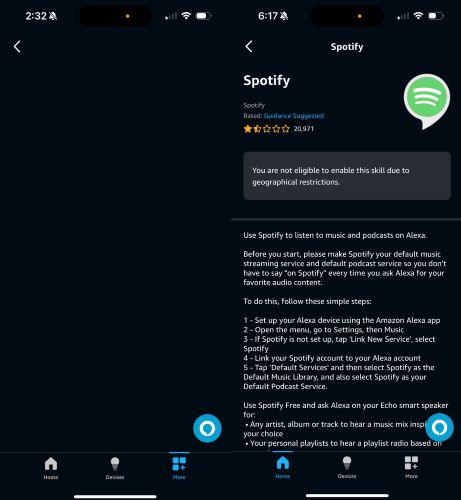
Not all Alexa and Spotify integrations work flawlessly. Encountering a blank screen or finding the “Enable to Use” button missing is a common issue. Thankfully, all these are easily fixable. Here are a few quick fixes that should get things working again.
Fix 1: Check For Updates
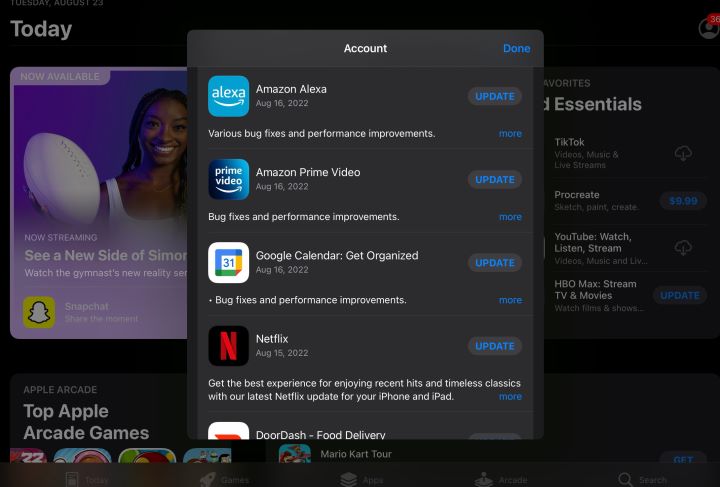
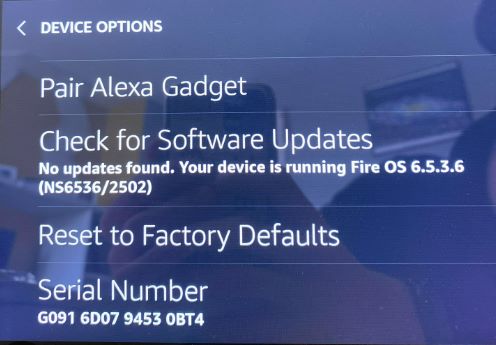
You have to ensure that both the Alexa app on your phone as well as the Alexa’s software version on the Echo devices are up-to-date. Here’s how to check:
Update Alexa App on Phone
- Open App Store or Google Play.
- Search for Amazon Alexa. If an update is pending, install it.
Update Alexa on Echo Device
- Say: “Alexa, check for software updates.”
- If it is, ask Alexa to update. Alexa can handle the update itself.
Fix 2: Reset the Connection
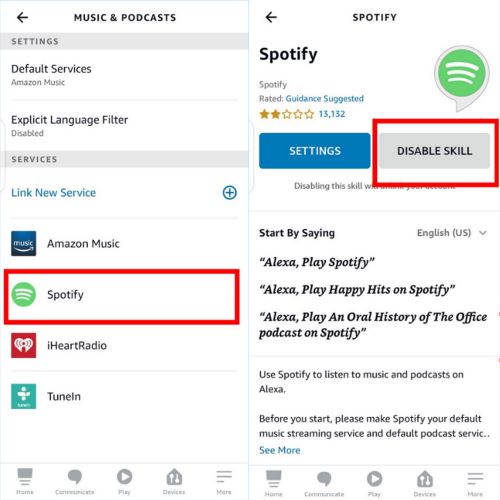
You can always just unlink Spotify and link again to wipe the connection clean. Follow these steps from inside the Alexa app on your phone:
- Open More › Settings › Music & Podcasts.
- Tap the Spotify icon and hit Disable Skill.
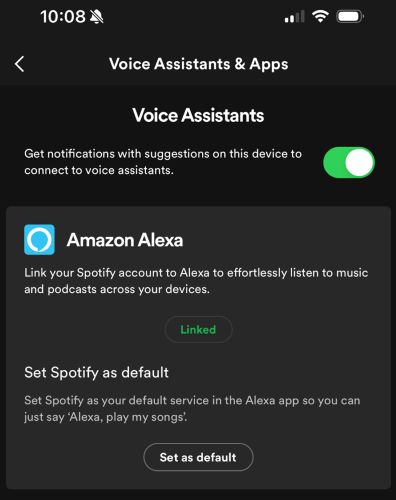
Now, reconnect from a fresh start:
- Open Spotify, go to Settings & Privacy, and tap Voice Assistants & Apps.
- Select Amazon Alexa, switch it on, then tap Connect.
- Approve the request when redirected to Amazon login page.
Step 2: Listen to Spotify on Amazon Echo via Alexa App or Voice Commands
After linking your Spotify account with Alexa, there’s more than one way to start playing music. Let’s discuss the manual method as well as how to use voice commands to play Spotify music on Amazon Echo. You can choose one when it fits the moment.
Option 1: Through Alexa App
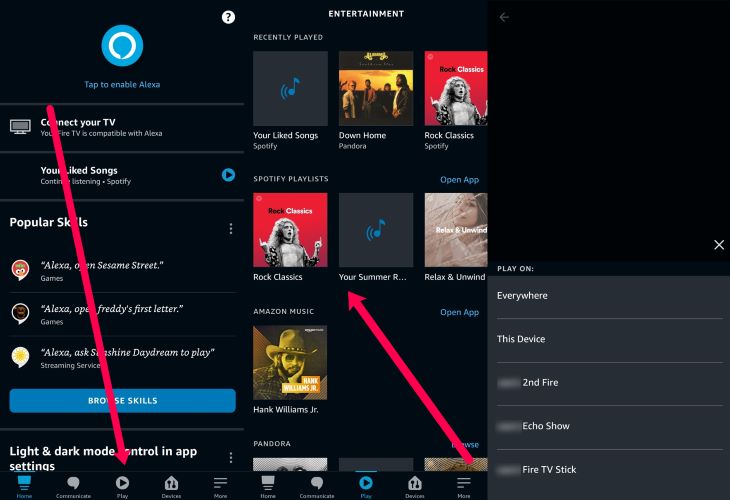
- Open the Amazon Alexa app on your phone.
- At the bottom tab, tap Play.
- You’ll see your playlists from the linked music services: Spotify included.
- Tap on the desired playlist or song title.
- Then, choose the Echo speakers for the output.
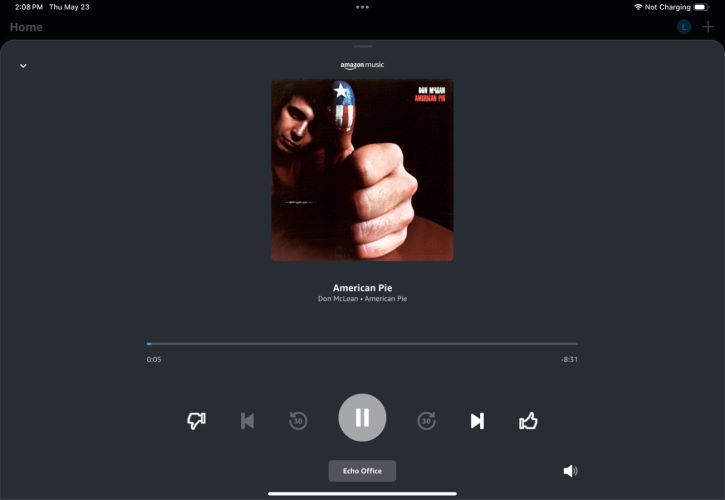
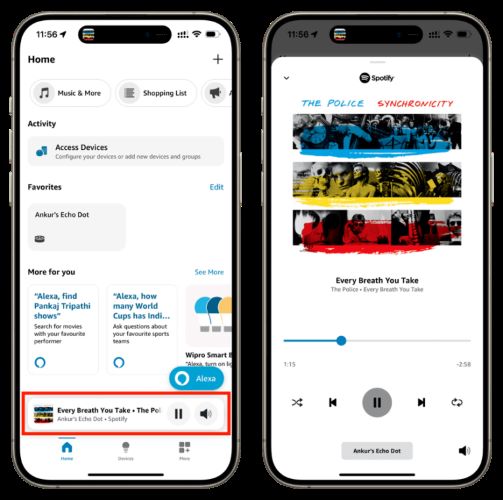
Once playback starts, a mini music player will pop up at the bottom. Tap it to expand for music control.
Option 2: Through Voice Commands
This is what Alexa was designed for: no buttons, no searching, just your voice. Whenever you’re within earshot distance of the Echo device, say something like:
- “Alexa, play my Spotify playlist.”
- “Alexa, play Top 100 on Spotify.”
- “Alexa, play Bohemian Rhapsody by Queen on Spotify.”
Alexa will start playing the song.
Tip: Use Spotify Instead of Amazon Music on Amazon Echo Each Time
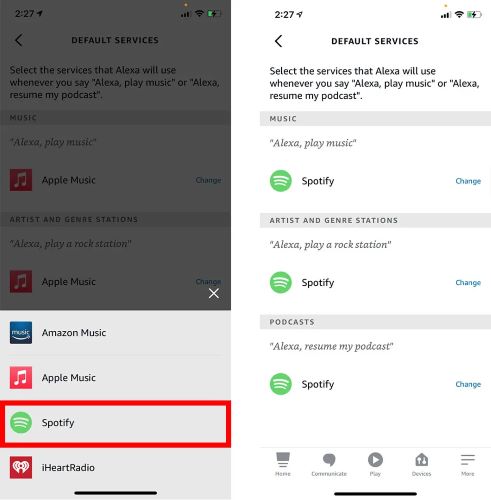
To ensure Amazon Echo always plays from Spotify without needing extra commands, you can set it as the default music service and here are the steps on the Alexa app:
- Go to More > Music & Podcasts.
- In the music and podcast page, click the gear icon at the top-right.
- Choose whether to apply the settings to Family or just your personal profile.
- Tap Default Services.
- Hit Change next to Amazon Music (or your current default service) and pick Spotify from the list.
Way 2. Apply Spotify Connect
Apply to
You want to listen to Spotify on Amazon Echo without using Alexa or with a Free account.
Supported audio: Music, podcasts and audiobooks.
Spotify Connect is useful when you want to switch playback from your phone’s speaker to your Echo device. As long as both Echo and phone are on the same Wi-Fi network, this is simple. To do this:
Step 1: Connect Spotify to Amazon Echo with Spotify App
- Play a song on Spotify.
- Open the Now Playing screen.
- Tap on the Devices icon (speaker in the bottom-right corner).
- All connected services and devices currently on the same Wi-Fi network will appear in the list.
- Select the desired Echo speaker (you must link the desired speaker first to find it in the list).
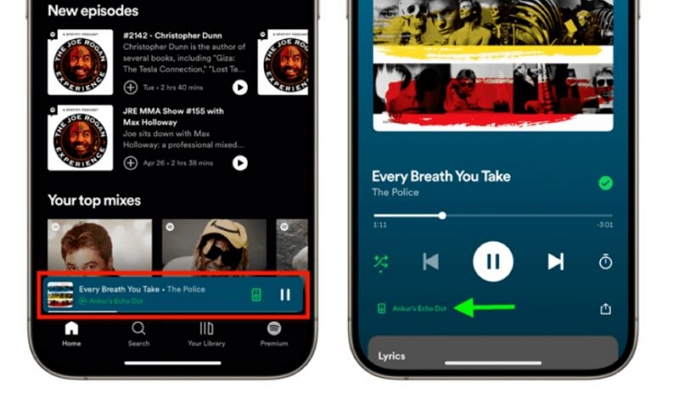
Once you select your Echo, the playback will instantly switch to the Amazon speaker.
Note: You can also say, “Alexa, Spotify Connect.” Then, Alexa will scan all the Spotify accounts linked to the same Wi-Fi network, even if they’re not linked to Alexa. Choose which devices you want the music to play from and follow the instructions that Alexa tells you to.
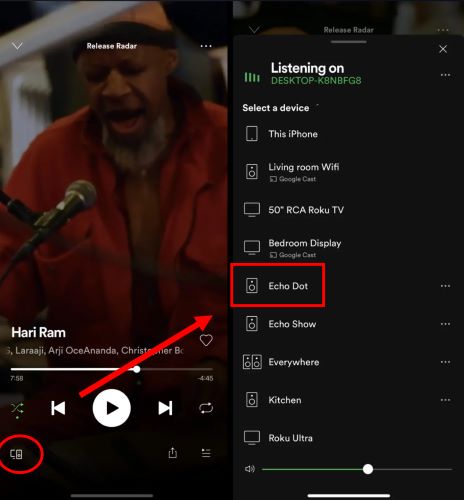
Step 2: Play Spotify on Amazon Echo from Phone via Spotify App
Not only can you initiate playback, but you can also fully control your music on Echo through the Spotify app. For instance, change the song, it will reflect on the Echo speakers.
Way 3. Through Bluetooth
Apply to
Your Echo doesn’t support Spotify Connect, your Spotify account can’t be linked to the Alexa app, or you just need temporary music playback on your Echo.
What you can play: Any audio in the Spotify library.
This method treats the Echo as a simple Bluetooth speaker and works best if you just want louder music and are near the device.
Connect Spotify to Amazon Echo with Bluetooth and Play Music
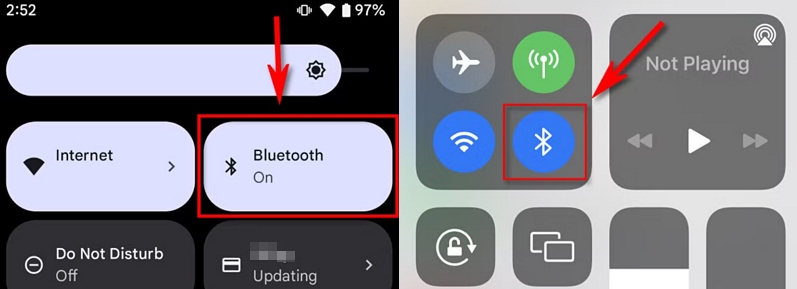
Step 1: Access the Quick Settings(Android) or Control Conter(iPhone) on your device. Then, turn on Bluetooth.
Step 2: Say to your Echo device: “Alexa, turn on Bluetooth mode.”
Step 3: On your phone, open Bluetooth settings, locate the Echo device in the available devices list and tap to pair.
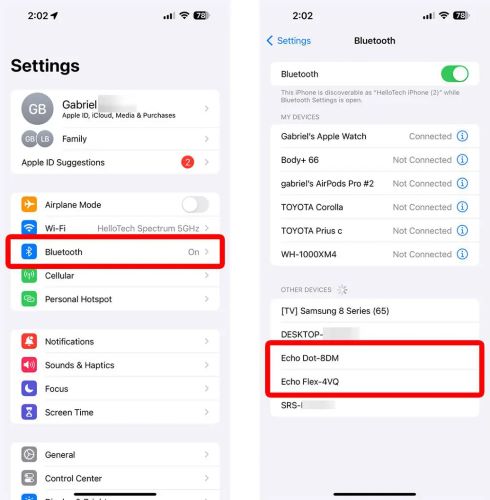
Step 4: Once connected, play a Spotify song and it will play through Amazon Echo over Bluetooth.
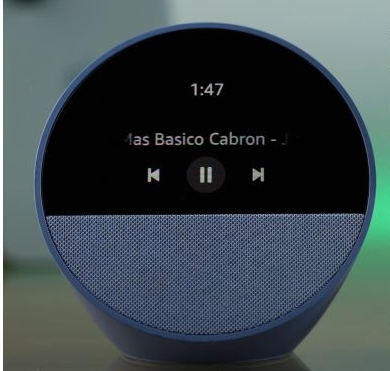
How to Play Spotify on Echo with Bluetooth without Internet
To do this, you can either listen to Spotify offline using the app or convert your music to play through a local media player. StreamFox for Music can help you convert songs into local files for personal use, such as listening offline on an MP3 player, car stereo or an Amazon Echo.
- Built-in Spotify browser makes it simple to save unlimited tracks directly to your device.
- 30x speed and batch processing convert entire Spotify playlists into offline files instantly.
- Original metadata retains, including track names, artist names, albums info, and cover art.
- Support Amazon Music, Apple Music, YouTube Music, and more for seamless offline playback on Echo.
Can’t Play Spotify on Amazon Echo [How to Fix]
If you listen to Spotify on Amazon Echo via the Alexa app, you may encounter that Amazon Echo is refusing to play music from Spotify. For instance, it doesn’t respond when you request Spotify, keeps switching to Amazon Music, or randomly stops playback. These problems typically stem from Wi-Fi issues, minor glitches, or small software conflicts. Thankfully, all these are easily fixable.
Fix 1: Check Wi-Fi
Alexa requires a stable internet connection to properly communicate with Spotify on Echo. If the network is weak or unstable, playback may fail, lag, or stop randomly.
To check and fix your internet connection:
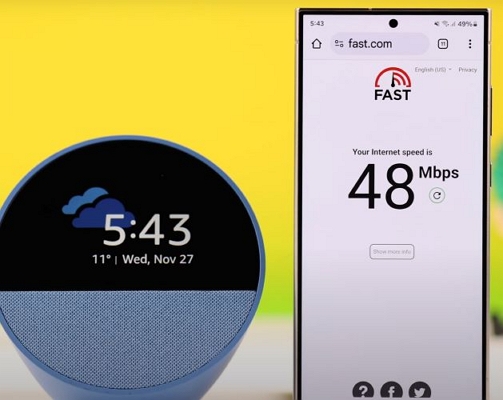
- Run a quick speed test on your phone’s browser.
- Simply visit fast.com or speedtest.net.
- If the internet speed is slow, restart your router and reconnect Alexa app to Wi-Fi.
- Once done, test Alexa again.
Fix 2. Check Echo Volume
It’s possible that Spotify is playing on a muted Amazon Echo. So, you hear nothing from the Echo and think Spotify isn’t working on the device.
- Look at your Echo device: if the red light is on, the microphone is muted.
- Press the mic button to unmute it.
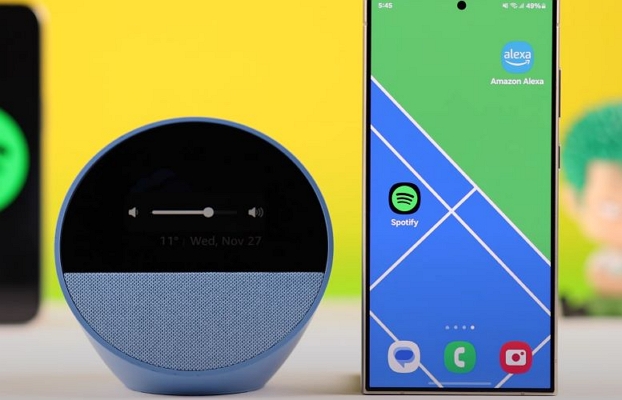
Also, check the volume: Either increase it using the physical buttons or simply say: “Alexa, increase the volume.”
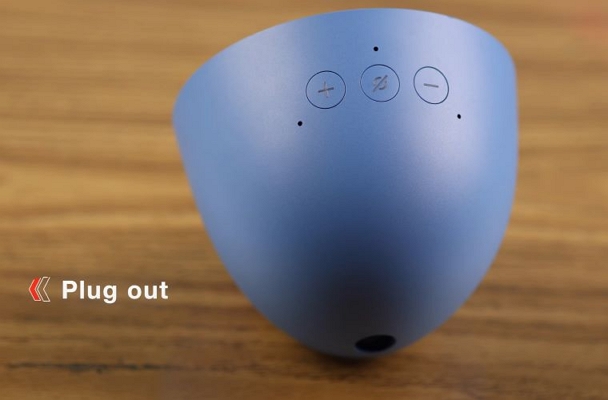
Fix 3: Cold Reboot Echo
A cold reboot is a widely recommended fix when Echo fails to recognize voice commands or fails to communicate with linked services like Spotify. You can do this with three simple steps:
- Unplug the Echo device from its power source.
- Wait for 60 seconds, which will allow Echo’s memory to refresh completely.
- Plug it back in and let Echo restart fully.
Fix 4: Update & Clear Cache on Alexa & Spotify Apps
Outdated apps can cause conflicts between Alexa and Spotify. So, go to the Play Store or App Store. And make sure that both Alexa and Spotify are up to date.
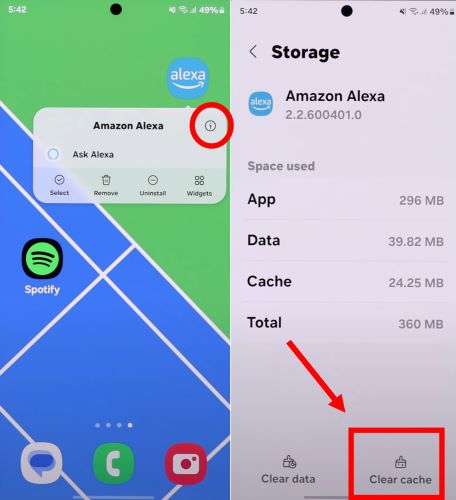
Then, you should also clear the temporary data (cache memory) of both apps to clear minor glitches. Here’s how to clear the Alexa app cache:
On Android:
- Press & hold Amazon Alexa app icon on the home screen.
- Tap the i icon to go to the App info page. And choose Storage.
- Select Clear Cache from the bottom.
Note: Follow the same steps to clear the cache of the Spotify app on Android.
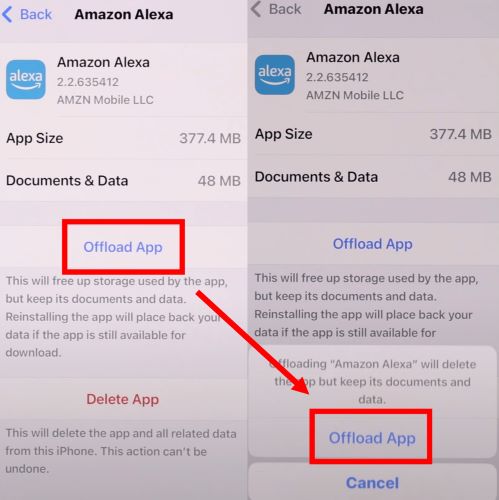
On iPhone:
- Open the Settings app. Choose General > iPhone Storage.
- Find Amazon Alexa. Then, tap Offload App and confirm.
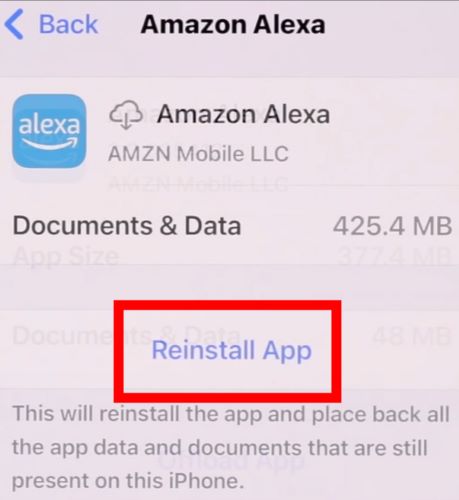
Once done, you will see the Reinstall App option. Tap it to refresh the Alexa app without losing data.
Note: The steps remain the same for clearing cache of the Spotify app.
Fix 5: Factory Reset Echo
As a last resort, you can reset your Echo, which completely removes corrupted configurations. However, it will also remove previous settings and linked Smart Home connections.
So, you will have to set up the device again. Of course, different Alexa Echo speakers have varying reset methods. For example, here’s how to reset the Echo Dot (2nd, 3rd, 4th, or 5th Generation):
- Press and hold both the Microphone Off and Volume Down buttons for 20 seconds.
- Wait for the light ring to power down and restart, confirming that Echo is fully reset.
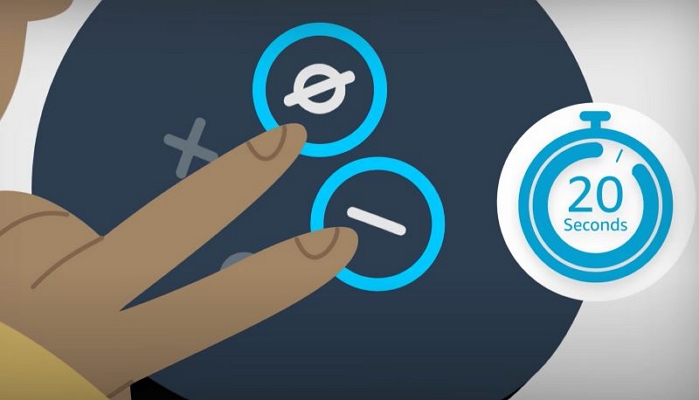
Once Echo reboots, complete the usual setup (configure Amazon account and Wi-Fi). Then, follow the earlier discussed steps to link Spotify and make it your default music service. Then, Alexa should play Spotify with no problem.
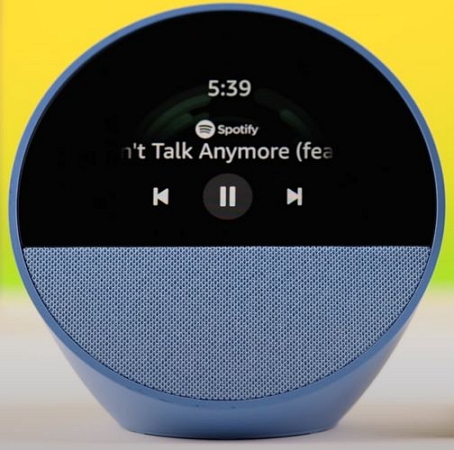
FAQ: Can Echo Dot Play Spotify as an Alarm
Yes, Echo can definitely play Spotify as an alarm. Setting it up is incredibly simple. All you need to do is say:
“Alexa, set an alarm for 6 a.m. with the Eye of the Tiger song on Spotify.”
Alexa will play the song as your wake-up tone at the specified time.
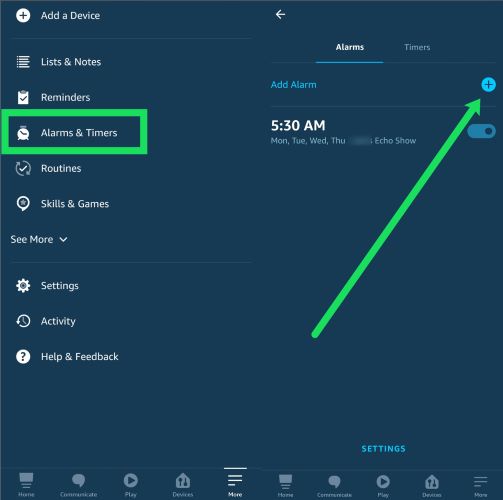
To set it up manually through the Alexa app:
- Tap on the More tab in the Alexa app on iOS or Android.
- Select Alarms & Timers from the menu.
- Tap the + button.
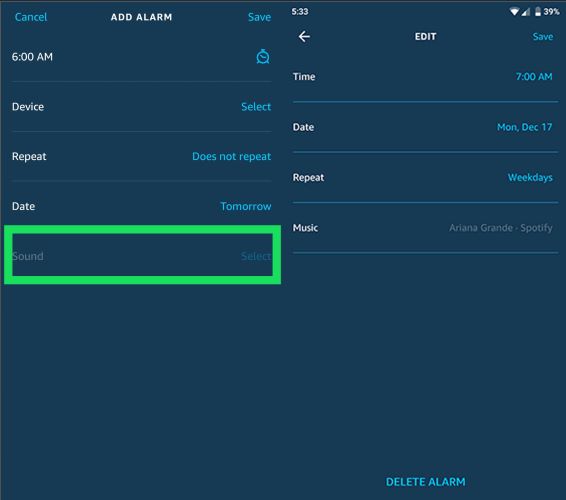
- Configure as needed. Then, tap on the Sound icon and pick the desired song from Spotify.
Once selected, the Echo speakers will play the Spotify song at the wake-time.
Conclusion
By now, you should have found the best way to play Spotify on your Echo device. If you are a Spotify Premium user, using the Alexa app is the most effective method. However, if you just want quick and direct music playback, connecting via Bluetooth is the simplest option.