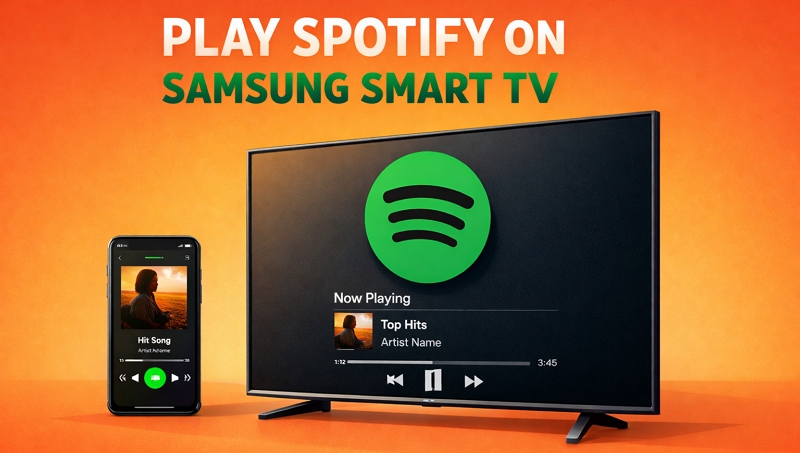
As TVs typically provide louder, room-filling audio than phone speakers, ideal for shared listening, you may wonder if you can play Spotify on your Samsung TV. The answer is yes. In this post, we’ll show you how to listen to Spotify on a Samsung Smart TV, whether you use the native app or not. We’ll also share fixes for Spotify not working on Samsung TVs, helping you enjoy your music smoothly.
You May Also Need: How to Play Spotify on Apple TV
Is Spotify Compatible with Samsung Smart TV?
Yes, most Samsung Smart TVs support the Spotify app, especially models manufactured after 2015 and installed with Tizen OS 2.3 or later. If your Samsung TV’s firmware is up to date, there’s a good chance you can install the latest version of Spotify on it.
How to Install and Use the Spotify App on Samsung Smart TV
Most Samsung TV models allow you to download the Spotify app directly from the Smart Hub. The main advantage of using the app is independent streaming. Here are the steps:
Step 1. Get the Spotify Samsung TV App
1. Press the Home button.
2. Navigate to the Apps section and select it.
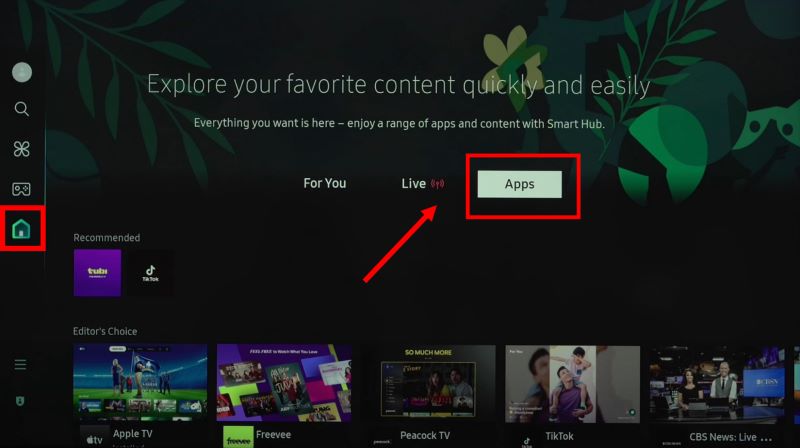
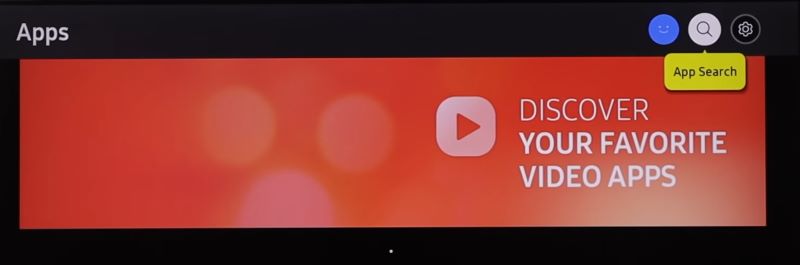
3. At the top of the Apps screen, select the Search icon. Type Spotify using the on-screen keyboard.
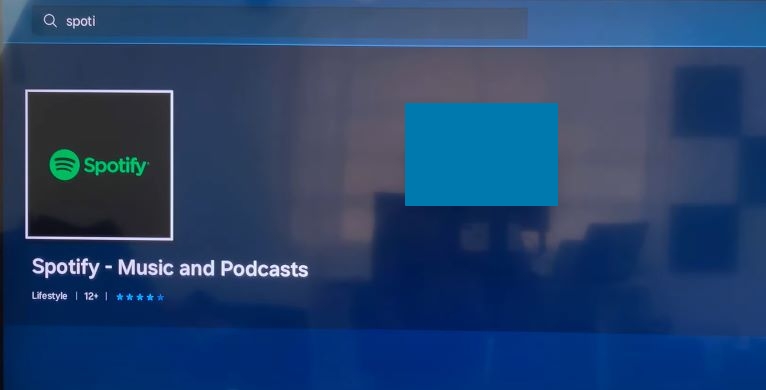
4. Select Spotify – Music and Podcasts to open its details page.
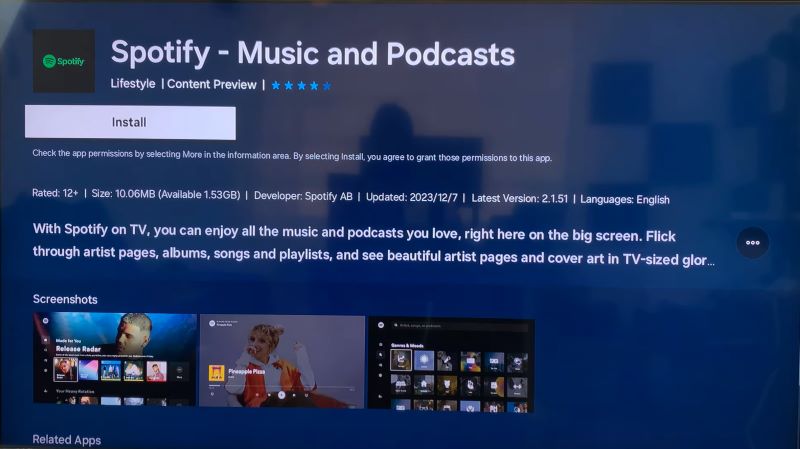
5. Highlight the Install button and press OK.
6. Once done, you’ll see a pop-up with Open and Close options. Make sure to choose Close.
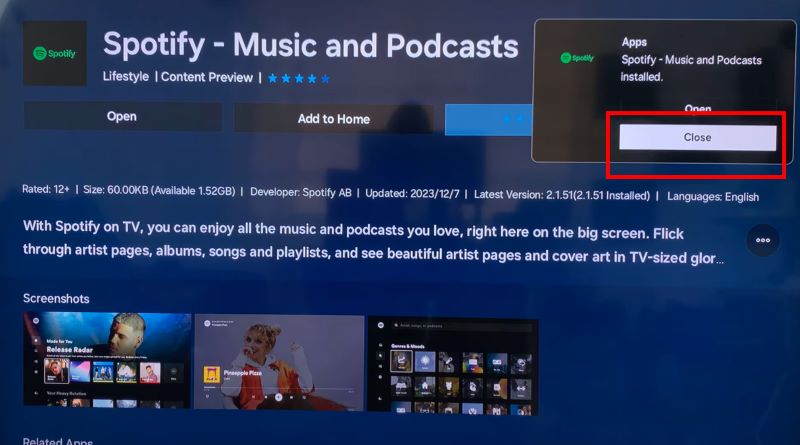
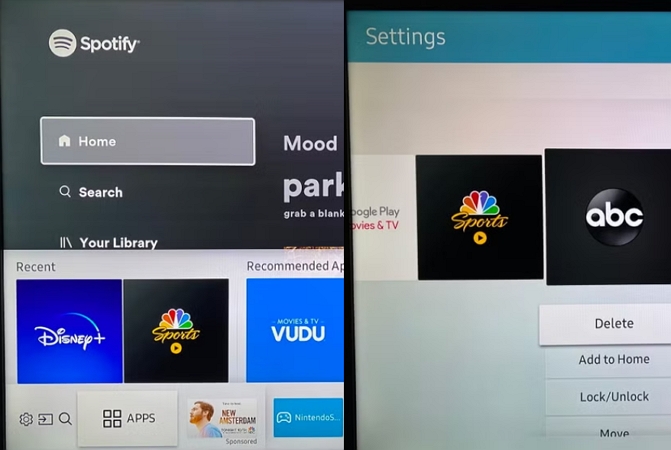
7. Highlight the Add to Home option and press OK. This step is crucial because Spotify may not appear in the main menu even after installation without adding Spotify to your home screen.
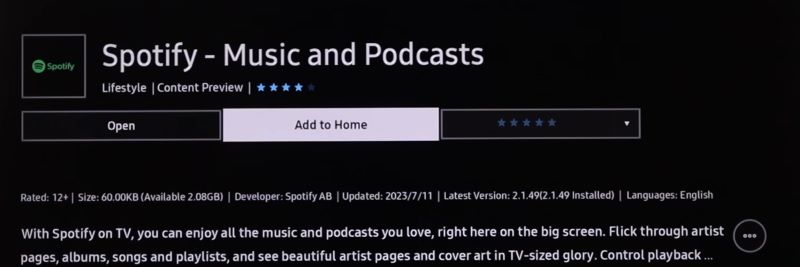
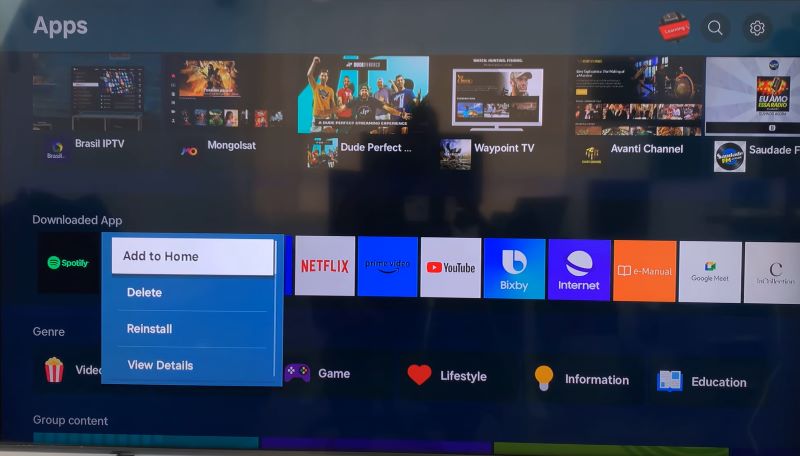
Tip: If you didn’t add the Spotify to Home screen, simply navigate back to the Apps section and find Spotify under the Downloaded Apps section. Long press the OK button to see options and select Add to Home.
Step 2: Login Spotify on Samsung Smart TV
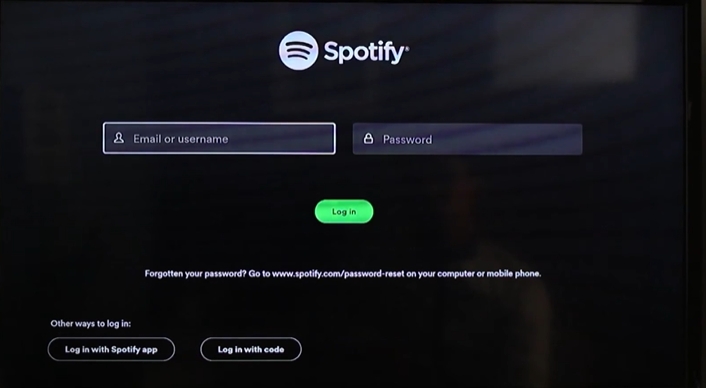
1. Open the Spotify app by selecting it from your home screen. Select Log in.
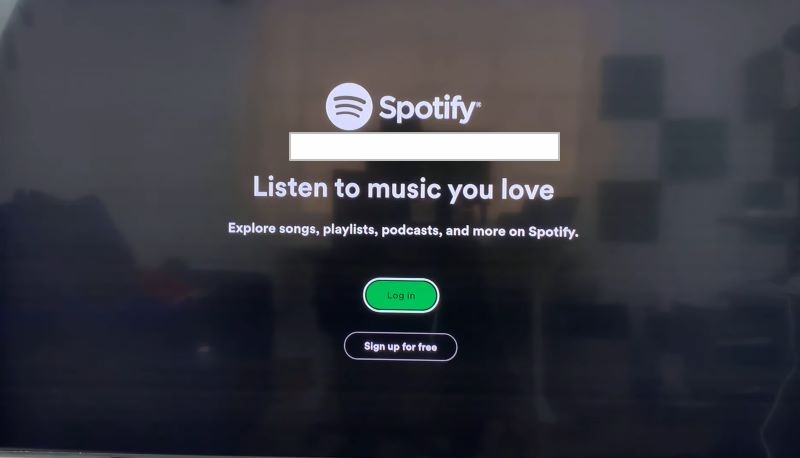
2. Select a login method.
- Option 1: Choose Log in with password. Then enter your email and password to access your Spotify library.
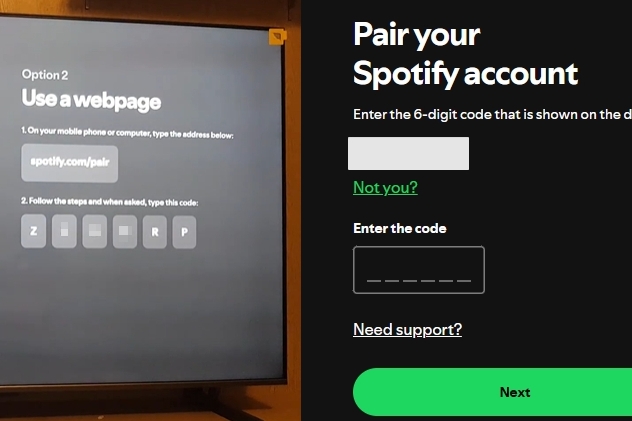
- Option 2: Click Log in with code, go to spotify.com/pair on your phone or computer, enter the 4-digit code shown on the TV and tap Confirm.
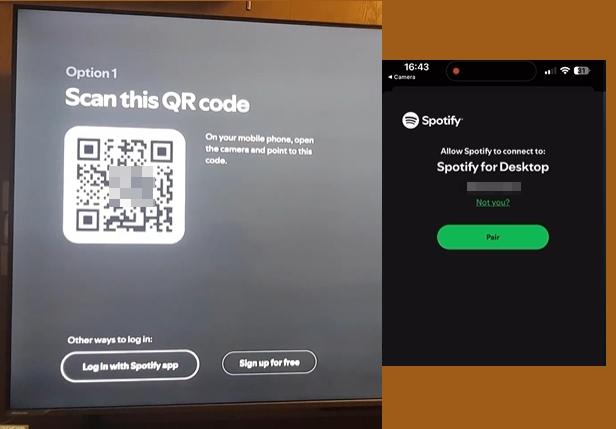
- Option 3: Select Log in with the app. Scan the code with your phone’s camera and tap Connect on your phone.
Step 3. Start Streaming Spotify Directly on Samsung Smart TV
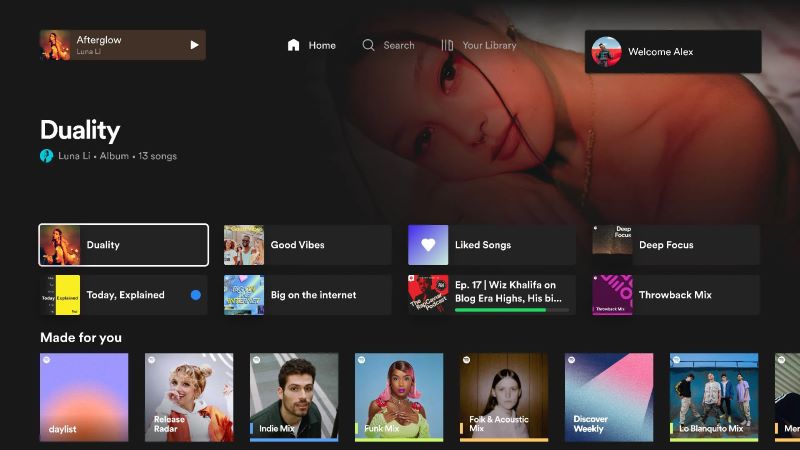
Once logged in, your TV will be connected to your Spotify account. You can start streaming music without relying on your phone.
Fixed: Can’t Find Spotify App on Samsung Smart TV
In certain regions, the Spotify app will not appear at all in the Smart Hub. This is due to location restrictions, even if your Samsung TV is new and other apps can be installed on the TV easily. Here, changing the Smart Hub’s region can help you unlock region-specific apps like Spotify.
Note: Resetting the Smart Hub will erase all downloaded apps and signed-in accounts. You’ll need to re-download and log in to your apps afterward.
That said, here’s how to change the Smart Hub region:
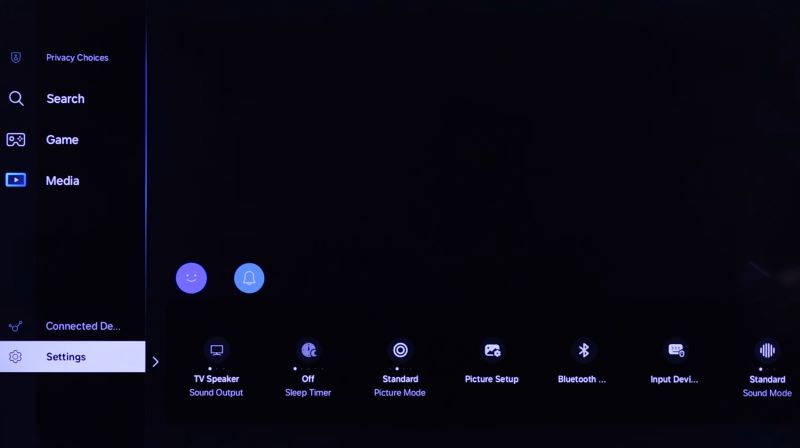
Step 1. Go to Settings > All Settings.
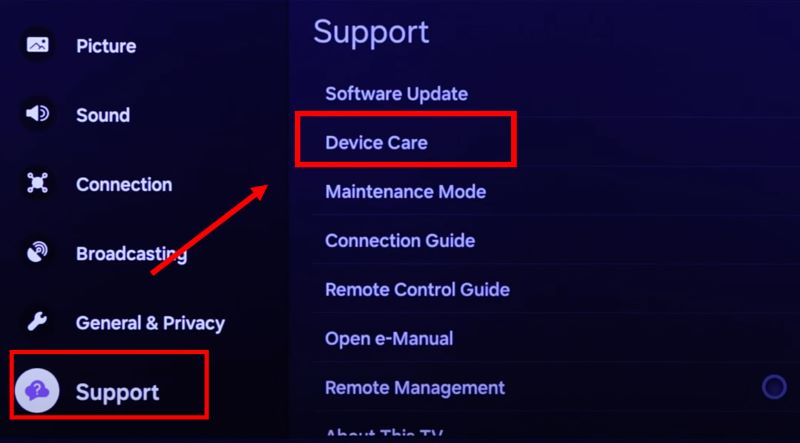
Step 2. Then, navigate to Support, then choose Device Care.
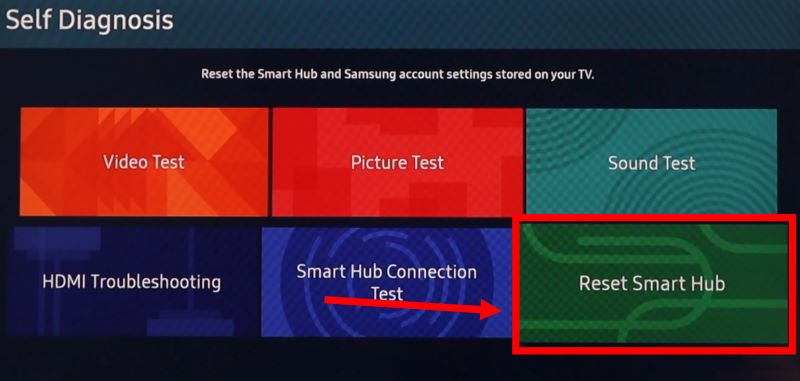
Step 3. Select Self Diagnosis, then click on Reset Smart Hub. You’ll have to enter the TV’s PIN. If you didn’t set one previously, the default is 0000.
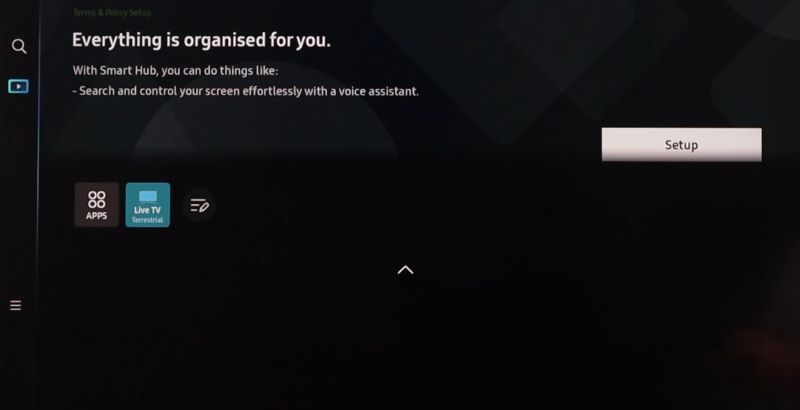
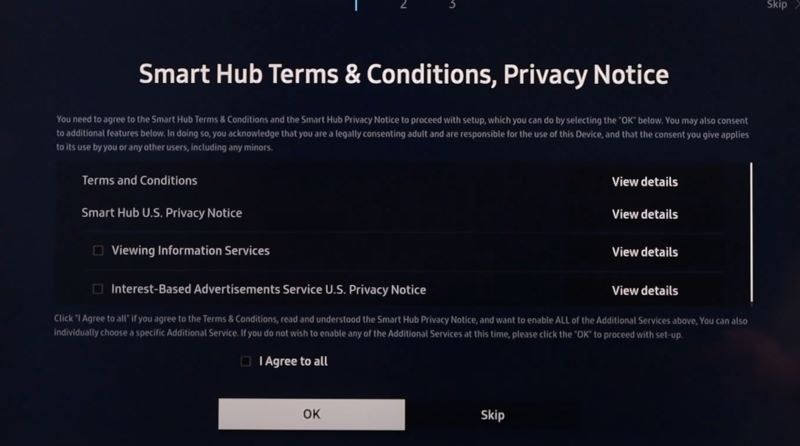
Step 4. After the reset is complete, you’ll be returned to the initial setup screen. Highlight Setup and select it. Follow the on-screen instructions until you are on the Terms and Conditions page.
Step 5. On the Terms and Conditions page, press the following buttons in sequence on your remote: Mute → Volume Up → Channel Up → Mute (in exact this order).
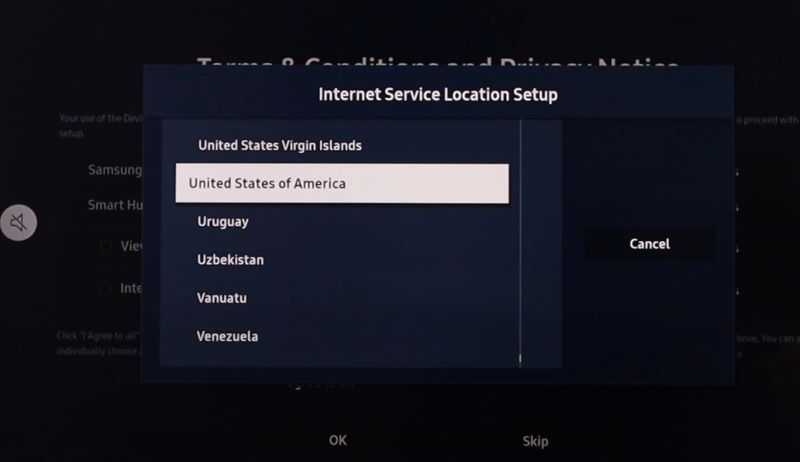
This will open the Internet Service Location Setup menu.
Step 6. Scroll down and select United States of America, then click OK to confirm.
Once done, return to the Smart Hub and Spotify will be available. Follow the instructions shared earlier to install the Spotify app.

How to Uninstall Spotify on Samsung Smart TV
Step 1. Press Home on your remote. Then, locate the Apps option.
Step 2. Access Settings to reach the app list.
Step 3. Highlight Spotify, choose Delete and confirm the deletion.
How to Play Spotify on TV from Your Phone [App Required]
With the Spotify mobile app, there are multiple ways to enjoy music on any models of Samsung TVs, such as using Spotify Connect and screen mirroring. Let’s break down each method.
Way 1: Via Samsung SmartThings
SmartThings is a default app on almost all Samsung TV models, including older TVs. All Samsung phones have the SmartThings app too. You just have to make sure that both the phone and Samsung TV are connected to the same network. If that’s set, follow these steps:
Step 1. Open Spotify on your Samsung phone or tablet. Play any track you like.
Step 2. While the music plays, go back to your home screen and launch the SmartThings app. You can find the Samsung TV under Directly connected devices or Supported devices.
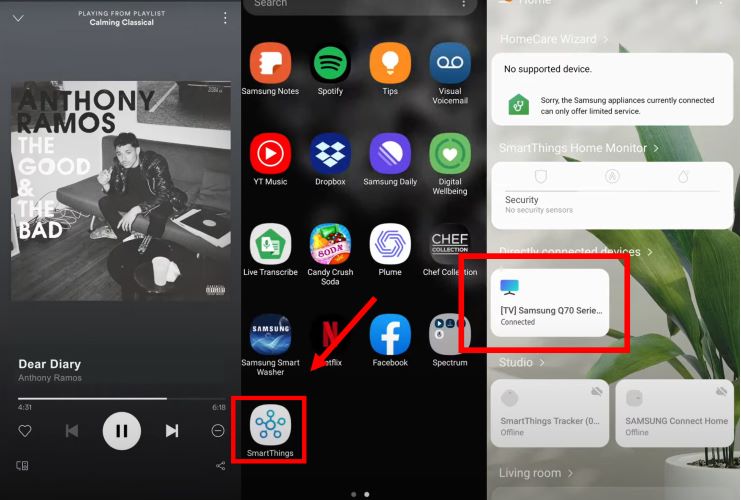
Step 3. Once connected, the audio will transfer and Spotify will start playing on your TV. You can use your phone to manage playback.
Way 2. Use Spotify Connect
On any Samsung TV model connected to Wi-Fi, Spotify Connect (built-in option within the Spotify app) offers a straightforward way to stream audio directly from any phone or computer connected to the same network.
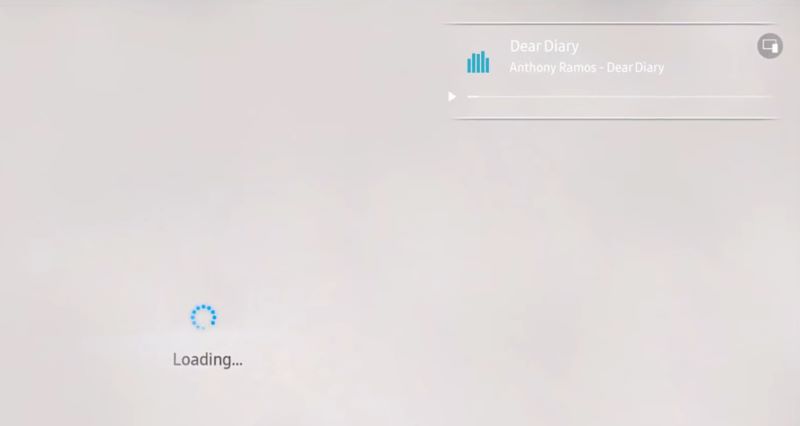
There are two cases: If the TV supports the Spotify app, playback will originate from the TV itself. Your phone will just serve as a remote. If your TV doesn’t support Spotify app, the TV functions as a receiver. The audio will stream from your phone, while minimal metadata will appear on the TV: track title and playback status.
Here’s how to use Spotify connect via Android or iPhone:
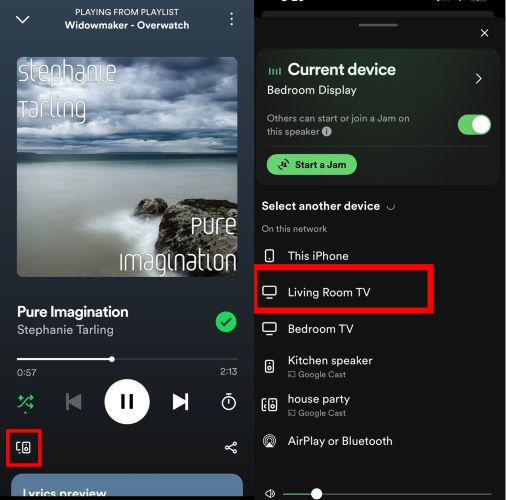
Step 1. Launch the Spotify app. Play a song or playlist. Go to the Now Playing screen. Tap the Devices Available icon (a small speaker symbol) at the bottom left.
Step 2. Select your Samsung TV from the list of available devices. Once selected, playback will switch to the TV.
Way 3. Through Screen Mirroring
Screen Mirroring is another practical method to stream Spotify music on Samsung TVs. It allows you to project your entire phone’s screen, including the audio playback onto the TV. This also includes other activities: notifications, app switches, or messages.
For newer Samsung TVs, there is built-in support for screen sharing. On some older models, you can use third-party apps and still see the phone screen on the TV. Regardless, both your Samsung TV and phone must be on the same network.
That said, the process is simple. Let’s break down the steps for both iPhone and Android users.
For iPhone Users
Before you can start mirroring, ensure AirPlay is enabled on your TV:
Step 1. Press the Home button.
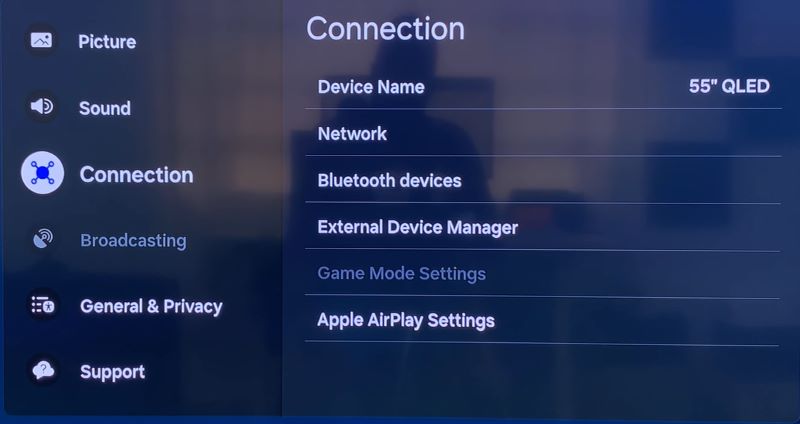
Step 2. Navigate to Settings > All Settings > Connection > Apple AirPlay Settings.
Step 3. Toggle AirPlay to On.
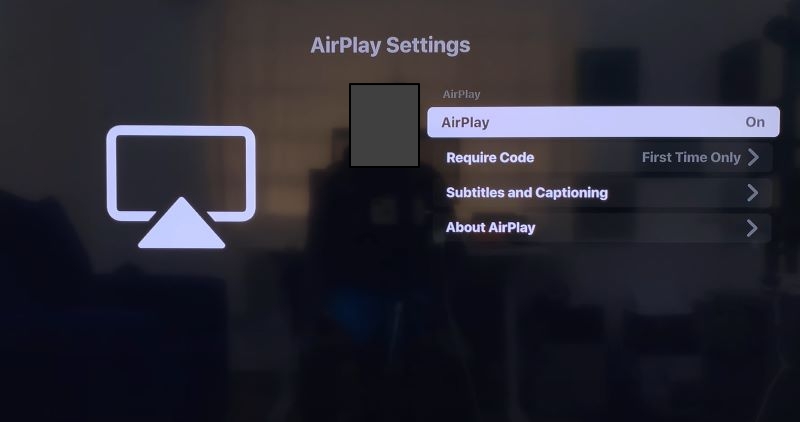
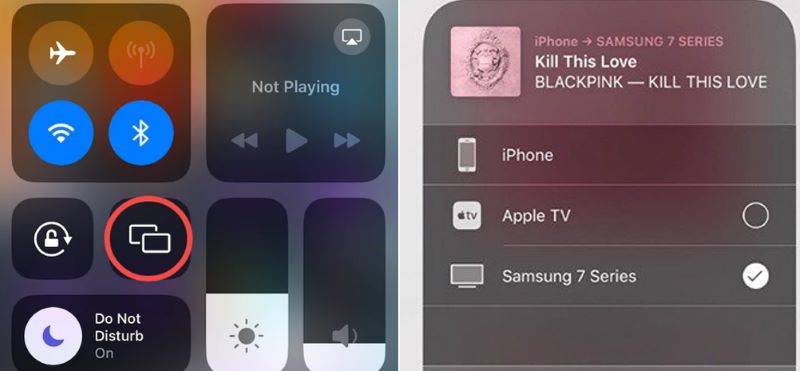
Step 4. Once the one-time setup is complete, switch to your iPhone. And play a song on the Spotify app.
Step 5. Access Control Center. And tap the Screen Mirroring icon. From the list of devices: select the Samsung TV.
To end to broadcast, you can return to the same menu, and select the Stop Mirroring option.
For Android Users
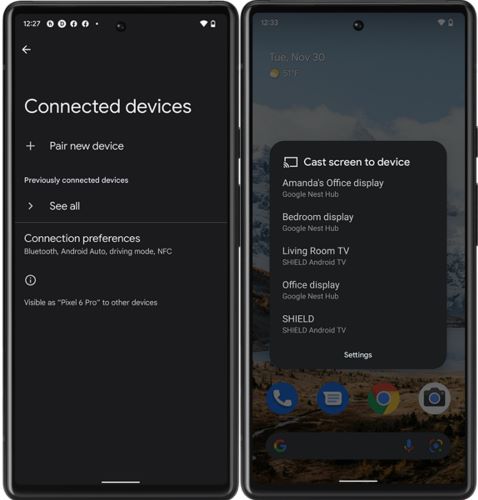
Whether you’re using a Samsung device or a Google Pixel, the process remains straightforward. For instance, on Pixel, follow these steps:
You can go to Settings > Connected Devices. Next, choose Connection Preferences and then select Cast. From the list: tap on the Samsung TV.
On Samsung devices, it is much simpler:
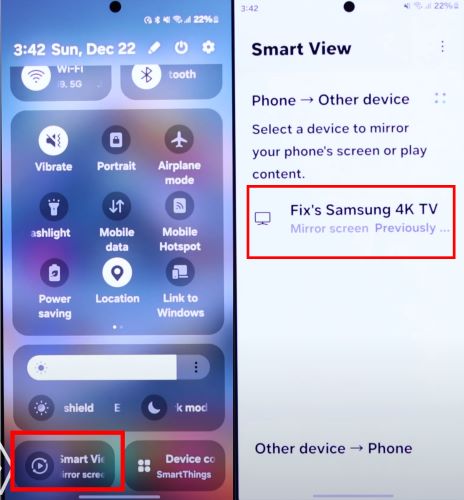
Step 1. Simply pull down the notification panel to reveal the Quick Settings menu, then tap on Smart View.
Step 2. A list of available devices will appear: select your Samsung TV.
How to Play Spotify on Samsung Smart TV Without the App
In this section, we’ll explore two simple methods that allow you to listen to your favorite Spotify tracks without using the app. Whether you have an older TV model or simply prefer an offline experience, these approaches will help you get started easily.
Way 1. Use USB
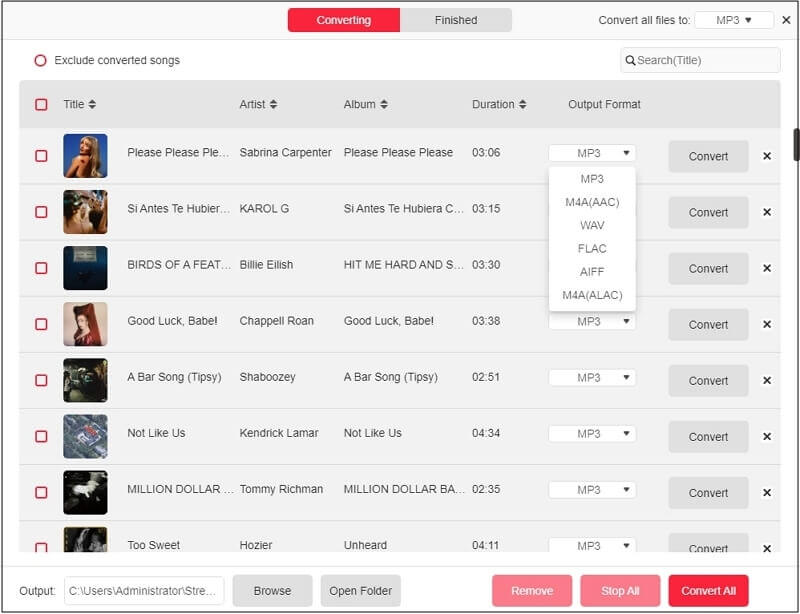
The most direct way to enjoy Spotify on your Samsung TV, without any app installation or internet connection, is through a USB drive. Of course, Spotify doesn’t offer this capability on its own. However, there’s a purpose-built tool designed to make this possible: StreamFox for Music.
StreamFox for Music, a multi-platform music converter, lets you save Spotify tracks in high-quality formats like MP3, FLAC, and WAV that are compatible with Samsung TVs. The converted Spotify songs can be easily moved to any device like USB and MP3 players for personal use. StreamFox works equally well for both free and premium users. You can convert tracks at a maximum bitrate of 320kbps, getting song quality identical to what Spotify offers.
Another key advantage is the unlimited song conversions offered by StreamFox while Spotify limits downloads to 10,000 songs per device. Plus, whether you’re interested in music, podcasts, or even audiobooks, StreamFox covers all content available on Spotify. The offline files ensure the normal Spotify playback when you meet the trouble like “Spotify songs greyed out”.

- Log in directly to your Spotify account and convert tracks using the integrated Spotify browser.
- All metatags like song titles, info of artist and album, and cover art are retained, ensuring an immersive experience on the Samsung TV.
- With speeds 30x faster, converting music becomes seamless and rapid.
- As a complete converter, it also supports other platforms, including YouTube Music, Amazon Music, Apple Music, etc.
Step 1: Save Music as MP3
Step 2: Transfer MP3 to USB
Follow these steps to move the StreamFox converted songs from the computer to a USB drive. The process is similar on both Windows and macOS. We’ll walk through the steps on a Windows computer to show you the process as an example:
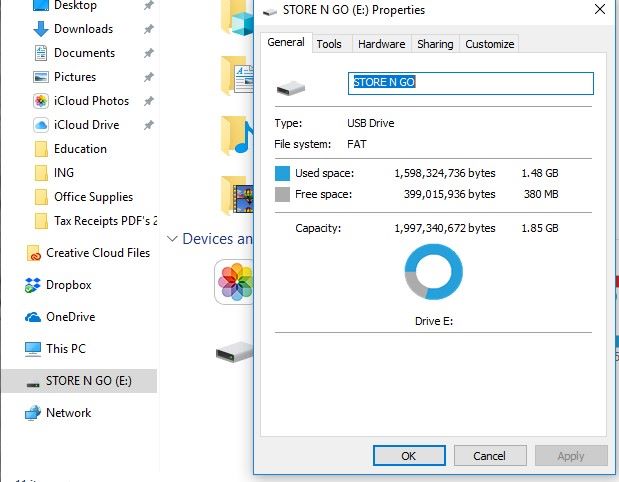
Step 1. You can find the plugged-in USB drive via This PC. Right-click the USB disk and select Properties. See if it is formatted with exFAT or FAT32. If not, reformat it.
Remember: Formatting will erase existing data, so back up your files before continuing.
After that, create a new folder called Music.
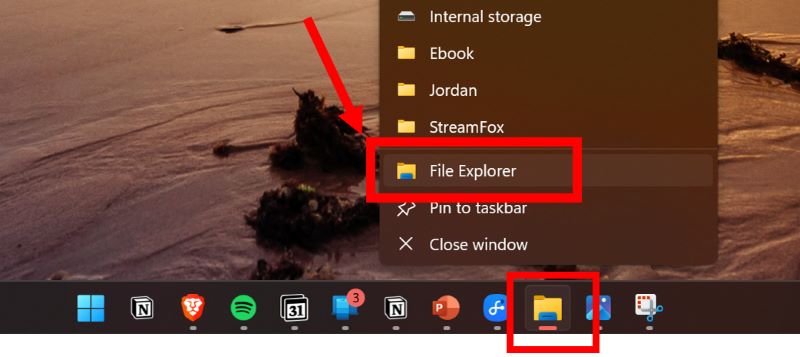
Step 2. Open a second File Explorer window. Go to the folder where your StreamFox offline music are saved.
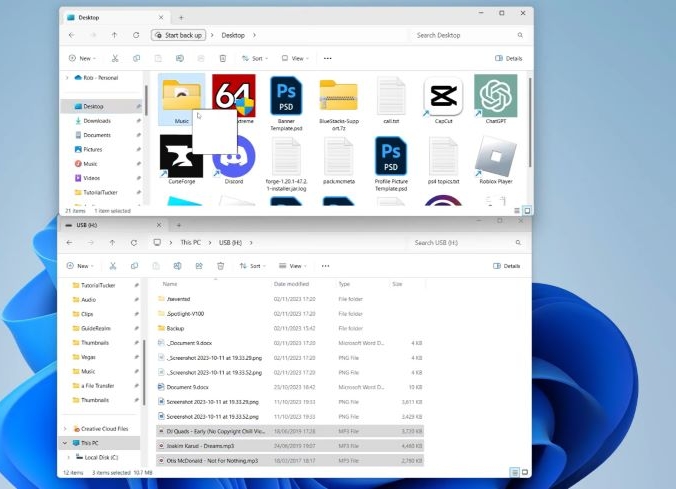
Step 3. For convenience, arrange both windows side by side. Select the songs you want to copy.
Step 4. Drag the selected songs from the StreamFox folder to the Music folder on your USB drive.
Step 3: Play Spotify from the USB on Samsung Smart TV
Once the songs are moved, insert the USB drive into the Samsung TV’s USB port. An automatic pop-up should appear, displaying its content. However, you might have to manually access it once you exit the menu, so follow these steps to access your converted Spotify music:
Step 1. Press the Home button. Then, navigate to Connected Devices.
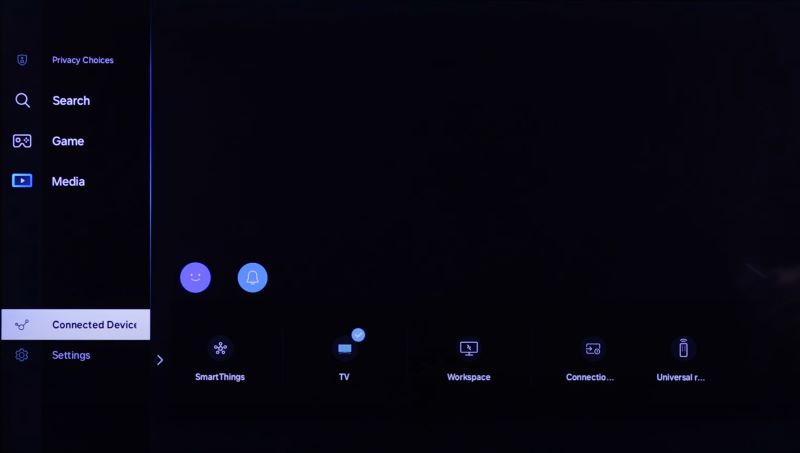
Step 2. You will find the inserted USB drive in the Sources section. Select your USB drive.
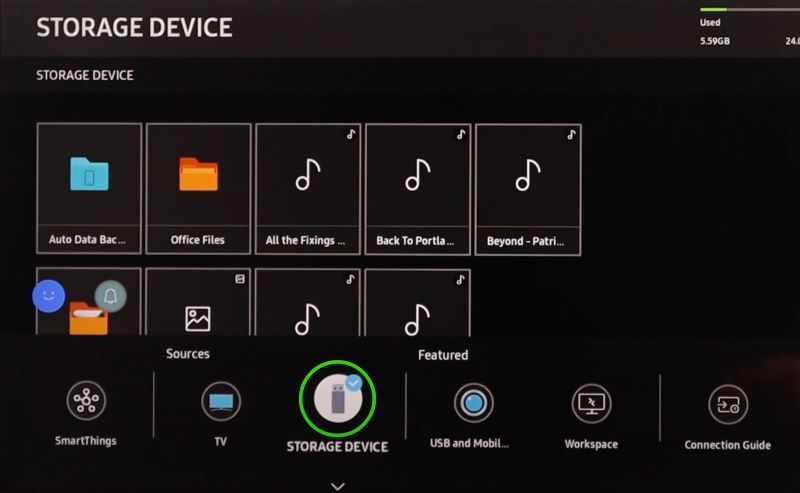
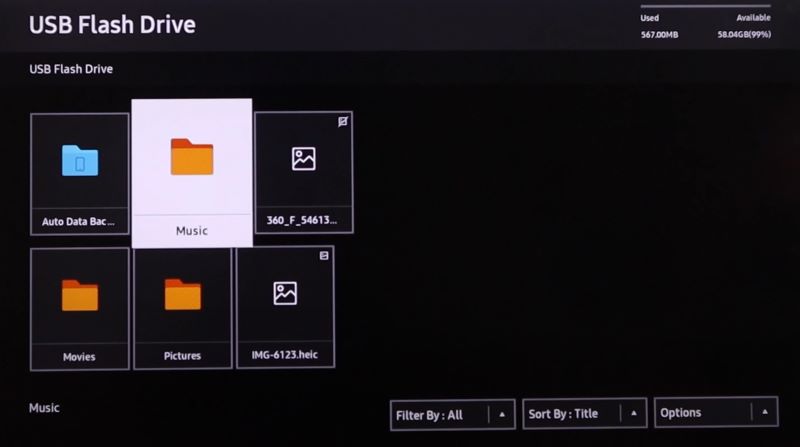
Step 3. Select the Music folder. You can also use the filters at the bottom-right to view only audio files.
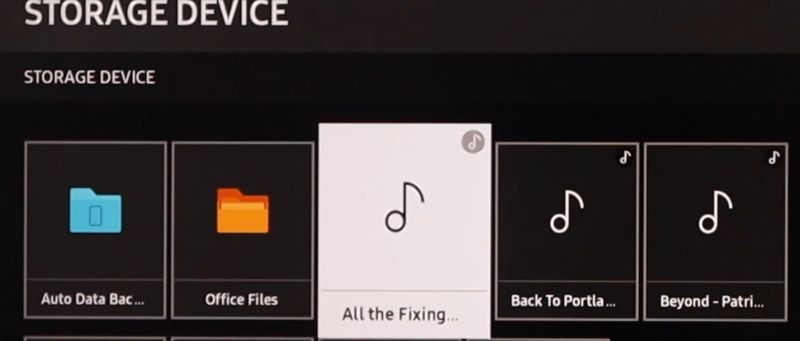
Step 4. Browse through the songs, select any track, and press OK to play them using the built-in media player.
Way 2. Via Chromecast
Another effortless way to enjoy Spotify music on your Samsung TV without the app is by using Google Cast or Chromecast. You can throw music directly from your phone or computer. Of course, this also works for video podcasts or video songs. Here are the steps to cast Spotify on Samsung TV from a desktop Chrome:
Step 1. Connect both the computer with Chrome installed and the Samsung TV to the same WiFi.
Step 2. Access Spotify web player on Chrome and play a song.
Step 3. Click the menu icon in the top right and select Cast.
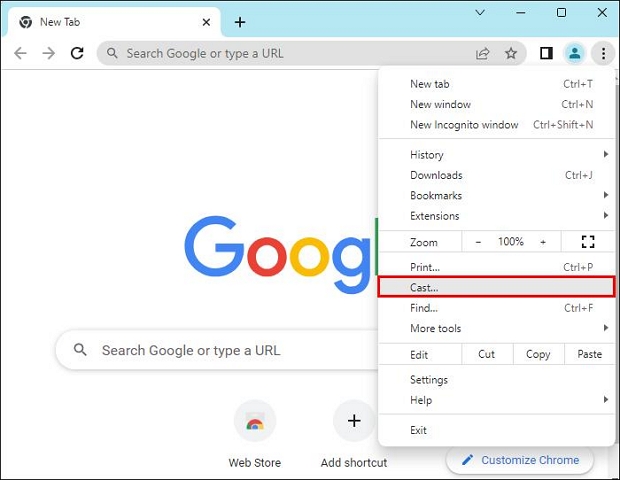
Step 4. Choose the Samsung TV on the Cast tab.
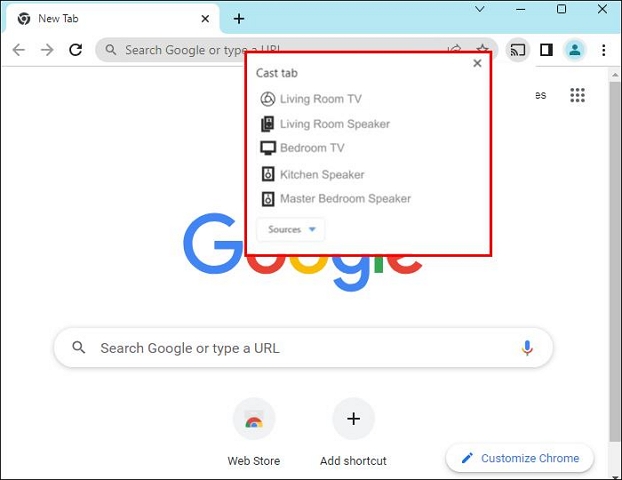
That’s it: the music will start playing from the TV.

Spotify on Samsung TV Not Working [Fixed]
Things are not always smooth with installing or using the Spotify app on the Samsung TV. Whether it’s not functioning or inaccessible, there are several ways to troubleshoot. Below, we’ll cover specific scenarios to help you resolve these issues efficiently.
Case 1: Can’t Play Spotify on Samsung Smart TV
A frequent issue: Spotify refuses to play on Samsung Smart TVs and only shows the prompt “Spotify can’t play this right now”. Such cases can result from temporary glitches, network instability, or accumulated system errors. Since Samsung TVs don’t entirely shut down apps when you exit them, minor background issues build up, leading to performance issues.
Fix: Perform a Cold Reboot with TV Power Outlet
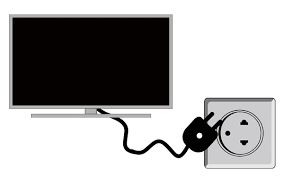
Step 1. First, unplug the power cable of Samsung TV from the wall socket. Once removed, wait for about 30 seconds. This will ensure that the TV fully powers down and clears its memory.
Step 2. Plug the power cable back in. The TV will power on automatically.
Case 2: Spotify on Samsung TV Keeps Skipping Songs
Both the TV firmware and the Spotify TV app are continuously evolving. Even if one of them is running on outdated versions, it will lead to compatibility issues.
Fix: Update Samsung TV’s Firmware and Spotify App
Updating the Spotify app as well as TV firmware will smooth things out. Let’s see the steps one by one.
Update Samsung TV Firmware
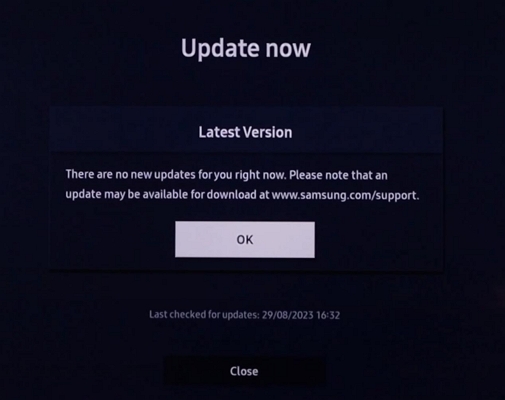
Step 1. In the All Settings menu, go to Support > Software Update.
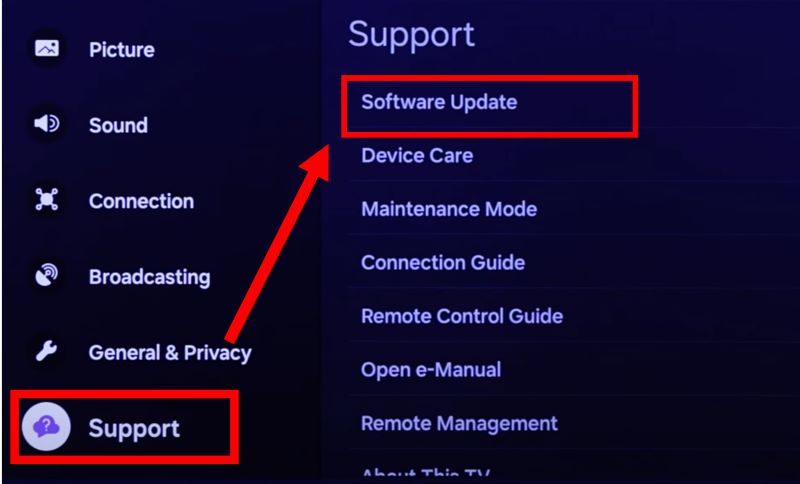
Step 2. Under the Support menu, choose Software Update, then click Update Now.
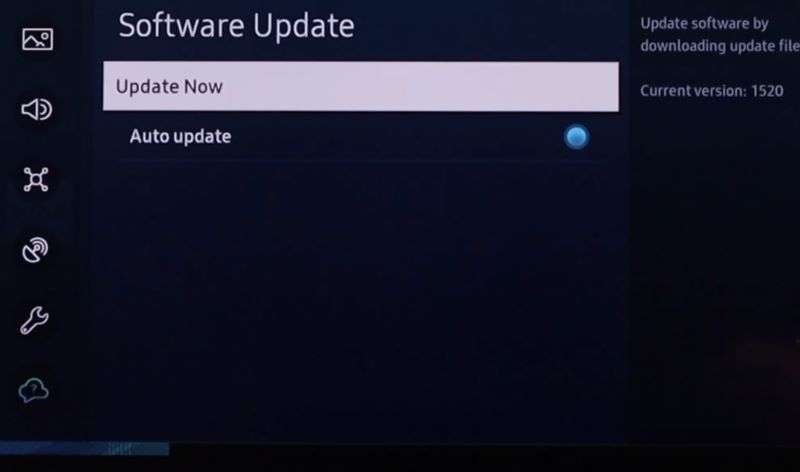
Step 3. Wait for the process to complete. Once done, your TV will restart automatically.
Open Spotify and check if the issue is resolved.
Update the Spotify App
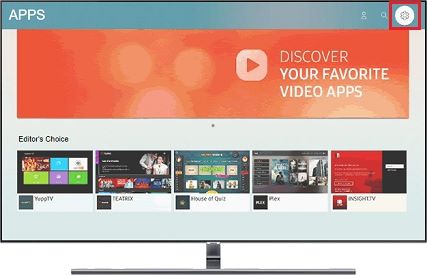
Step 1. Head to the Apps section from the Home screen and open it. Use the directional buttons to highlight Settings and select it.
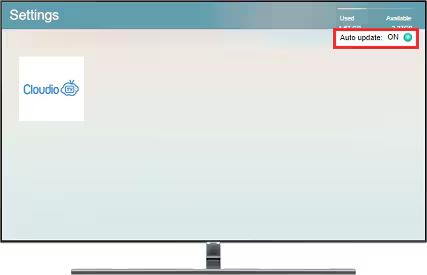
Step 2. Look for Auto Update and turn it on by pressing OK.
Conclusion
With that, you now have every way at your disposal to play Spotify on Samsung Smart TV. Whether you want to stream directly or prefer a more flexible solution without relying on the app, we’ve covered it all.
For those who value offline playback on any model of Samsung Smart TV, transferring Spotify tracks to USB drive via StreamFox for Music ensures uninterrupted music. With StreamFox, you will still get high-quality audio and can store the tracks as long as you want on the USB drive.