As a Spotify user, you’re probably used to listening on your phone or computer. However, you might want more than just your usual devices, such as feeling the deep bass from a speaker in your living room, enjoying your favorite tunes on a smart TV while cooking, or taking Spotify on the go with an MP3 player. If you’re not sure how to set it up, this guide is here to help, which walks you through how to play Spotify on different devices, so you can enjoy your music without limitations.
How Spotify Works on Different Devices
Spotify can play music on many different devices, but the way music is delivered and controlled depends on the technology each device supports. For example, some devices support Spotify Connect, which lets the device stream music directly from Spotify while your phone or computer acts as a remote control. Other devices may use AirPlay, which streams audio from your iPhone or Mac. Below, we will explain the main playback methods, how they work, and which devices support each, so you can choose the best option for your setup.
| Spotify App | Spotify Connect | AirPlay | Bluetooth | Chromecast | USB | |
|---|---|---|---|---|---|---|
| How It Works | Install Spotify on the device for playback | Play music directly from compatible devices | Stream audio from your Apple device to an AirPlay-supported device | Music is sent from your device to a speaker or headphones | Stream music directly from Spotify on supported devices | Play songs through USB for personal listening |
| Music Control | Device itself controls playback | Phone, computer or tablet | iPhone, iPad and Mac | Source device (phone, tablet, computer) controls playback | iPhone, Android, Windows and Mac | The device that plays music from USB |
| Supported Devices | iPhone, Android, Windows, Mac, Apple Watch and car stereo | Smart speakers, Smart TVs, PlayStation, car and more | HomePod, Apple TV, Samsung Smart TV, etc | AirPods, Speaker and other Bluetooth-compatible devices | Google TV, Google Nest and others | Computer, car, TV, etc |
| Offline Playback | Yes | No | Yes | Yes | No | Yes |
| Premium Required | No | No | No | No | No | No |
How to Play Spotify on Smart Speakers
Listening to Spotify on smart speakers brings your music to life with richer sound and hands-free control. In this section, we’ll show you how to enjoy Spotify on two of the most popular smart speakers: Apple HomePod and Amazon Echo. You’ll learn how to set up your speakers, connect your Spotify account, and start streaming your favorite songs effortlessly.
Play Spotify on HomePod
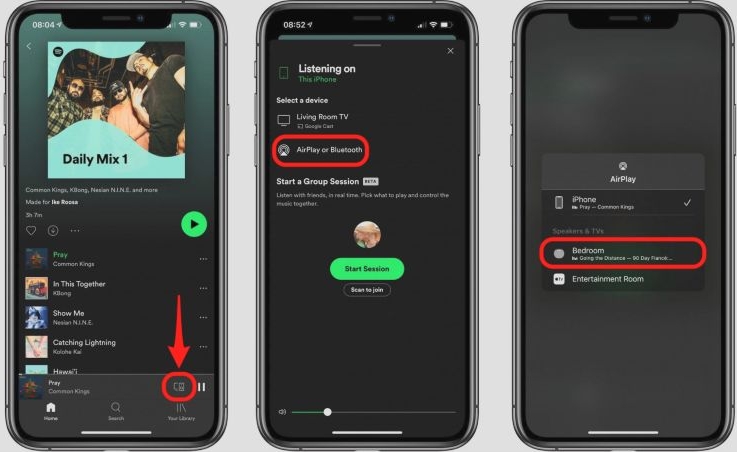
Unlike Apple Music, HomePod does not natively support the Spotify app. To play Spotify on HomePod, you can either use AirPlay from your iPhone, iPad, or Mac, or upload your Spotify music to Apple Music and play it directly from there. Here are the main differences between these 2 ways.
| AirPlay | Play Spotify Songs via Apple Music | |
|---|---|---|
| What You Need | Connect Apple device and HomePod to the same network | Purchase or convert songs and add them to Apple Music |
| Offline Playback | Yes | Yes |
| Music Control | Through Apple device or Siri | Via Siri |
👉For the detailed steps of each way, please see: Full Guide to Play Spotify on HomePod.
Play Spotify on Amazon Echo
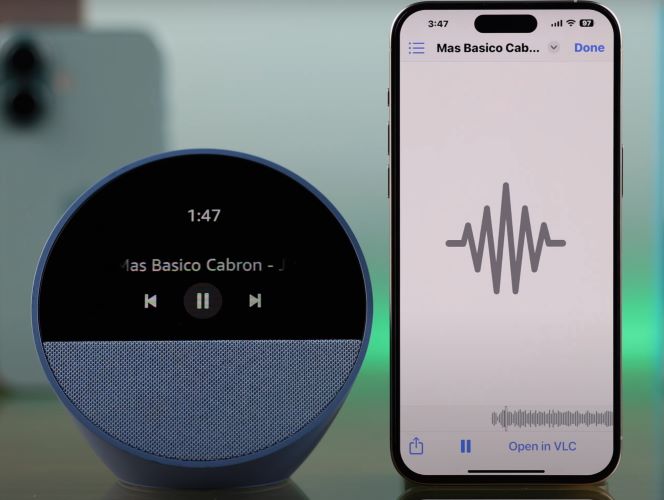
Amazon Echo offers 4 main ways to play Spotify. Here’s an overview of them.
- Use Spotify Connect: This method works best if you have a stable Wi-Fi network and remain within a small area, as both the device with Spotify installed and the Amazon Echo need to be on the same network.
- Use Alexa App: If you want to control your Spotify music with your voice, this native method is perfect for you.
- Use Silk Browser: If you are using an Echo Show and don’t mind playing Spotify through a browser, this method is worth trying.
- Use BlueTooth: If you just want richer sound from your Spotify music, your Echo device is nearby and you want to listen offline, don’t miss this method.
More
To learn more about this method: Play Spotify on Amazon Echo [Step by Step].
How to Play Spotify on Smart TVs
If you want better, surround-style sound but don’t have extra speakers, you can use your smart TV to play Spotify.
Playing music on the TV also lets you see bigger album covers and nicer visuals, which makes the whole vibe more fun. It’s great for hanging out with family or friends. Everyone can join in with Spotify Jam to add or control the songs on the TV, so it’s more interactive and a lot more enjoyable. Next, we will show you how to play Spotify music on your Samsung smart TV.
Play Spotify on Samsung Smart TV
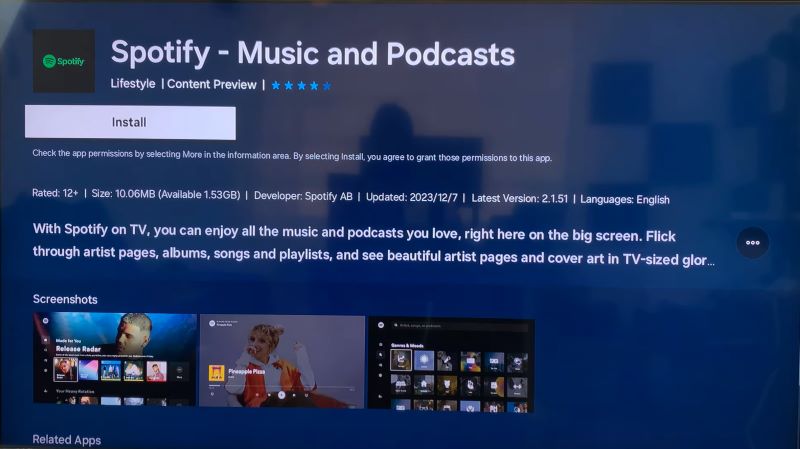
Most Samsung smart TVs support installing and using the Spotify app directly. If your Samsung TV is an older model that doesn’t support app installation, don’t worry, you can still play Spotify on your TV. Which method to use depends on whether you want to control it through your phone and the Spotify app.
To play Spotify music directly on your Samsung smart TV without using the Spotify app or your phone, you can save your Spotify songs to a USB drive and plug it into your TV for music playback. This way also works well for non-smart Samsung TVs.
Alternatively, you can use Chromecast to cast Spotify from your computer’s browser to your TV.
If you choose to listen to Spotify on Samsung smart TV with the app, you have more options. For example, you can use Spotify Connect, the TV’s built-in Spotify app, or AirPlay to play your songs.
How to Play Spotify on Portable Music Players
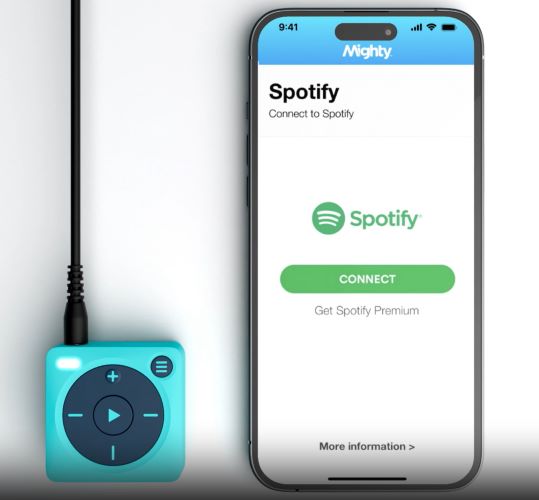
Although listening to music on your phone is very convenient, sometimes using an MP3 player has its advantages, like being more portable and letting you enjoy music completely offline. There are many different types of MP3 players on the market. Some support the Spotify app, while others only play local MP3 files. The Mighty is one popular device, thanks to its sleek design and portability. In the following section, we will use this device as an example to show how to play Spotify on an MP3 player.
Play Spotify on Mighty
Mighty supports offline music playback and Spotify is one of the platforms it works with. To listen to Spotify on Mighty, you need a Spotify Premium account. Simply link your Spotify account to the Mighty app and sync your music. After that, you can enjoy your favorite songs on the go without needing your phone.
FAQs
Can I Play Spotify on Two Different Devices?
Yes, and the method depends on your setup. If you only have one Spotify account and want to play the same song simultaneously on different devices, Spotify Connect is the official way to do it, as long as your devices support it. If you’re using an iPhone, you can also use AirPlay to listen to the same track simultaneously on multiple devices. And if you want to play music across different speaker groups, like a Sonos group, you can set it up directly in the Sonos app.
How Can My Kid Listen to Spotify Without a Phone?
The easiest way for your kid to listen to Spotify safely without a phone is using an MP3 player, like a Mighty or any device that only plays local files. This way, you control the songs, ensuring they hear appropriate content. Of course, if you want your child to choose their own music, or if your MP3 player supports apps, you can set up a Spotify Kids account so they can explore and play songs themselves.
Why Spotify Is Not Supported on Some Devices?
Spotify is not supported on some devices because the app requires certain hardware and software capabilities to run. Older devices, non-smart devices, or gadgets without proper app stores often can’t install Spotify. Additionally, some platforms may have compatibility restrictions or licensing limitations that prevent Spotify from being available.
Final Words
No matter which device you choose—phone, computer, smart TV, MP3 player, or smart speaker, Spotify makes it easy to enjoy your favorite music anywhere. With options like Spotify Connect and AirPlay, you can switch between devices seamlessly. Just pick the method that works for your device and enjoy your tunes!