“Hi, does Discord have Apple Music integration? I am trying to listen to my Apple Music playlist and share it with my friend on Discord, but I don’t know how. I there a workaround to show Apple Music on Discord?”
Unfortunately, Apple Music doesn’t support integration with Discord. Based on community testing and user reports, most third-party tools fail to display Apple Music properly on Discord.
In today’s guide, we shall discuss several reliable techniques you can use to show Apple Music on Discord and play your favorite songs without restrictions.
Can You Show Apple Music on Discord Like Spotify?
If your goal is to display Apple Music as a live Discord status (like Spotify), there is currently no working solution in 2026.
Unlike Spotify, Apple Music does not allow you to listen to songs in real-time on Discord or display the songs you’re listening to as a live activity on your profile.
To show Apple Music on Discord, you need alternative methods like the ones shared in this guide.
Why Apple Music Doesn’t Show on Discord Status?
Here is why Apple Music does not show on Discord;
No Official Discord Integration
Apple Music’s API is designed to allow you to browse catalogs and manage libraries. The platform does not provide Discord with direct access to real-time listening data, which is why you cannot share live playback or listening status on Discord.
DRM Restrictions
Apple Music’s DRM (Digital Rights Management) is another major reason why Apple Music doesn’t show on Discord status. Songs on Apple Music are DRM-protected (the songs can only the played within the App), which is why Discord cannot detect or read playback information directly from the Apple Music app.
What People Often Try — and Why It Doesn’t Work
Before jumping into workable solutions, it’s important to understand why many commonly suggested methods fail.
Using iTunes or Apple Music Desktop App
Some users try playing Apple Music through iTunes or the Apple Music desktop app, hoping Discord will detect it like Spotify.
In practice, Discord does not recognize Apple Music playback and may only display a generic status such as “Playing a game”—or nothing at all.

Rich Presence Tools and Plugins
You may also come across third-party “Rich Presence” tools that claim to show Apple Music activity on Discord.
While a few of these tools may temporarily display track names, they are not reliable because:
- They don’t access real Apple Music playback data
- They rely on window titles instead of actual song metadata
- They frequently break after Discord or Apple Music updates
As a result, they often display incorrect information—or stop working entirely.
If you are curious about this plan, you can learn about its specific working methods below:
Step 1. Find a Rich Presence tool online. For this process, we used the iTunesRichPresence on GitHub. Click on “Release” from the right info bar.
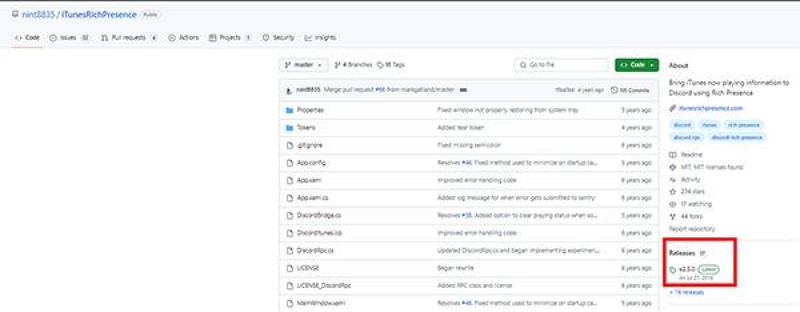
Step 2: Navigate to “Assets” section and click on the “music-rpc-55e1058-aarch64-apple-darwin.zip” to download the latest version of iTunesRichPresence from its GitHub repository.
Step 3: Once the zip file is downloaded, extract all files from it to a target folder on your computer.
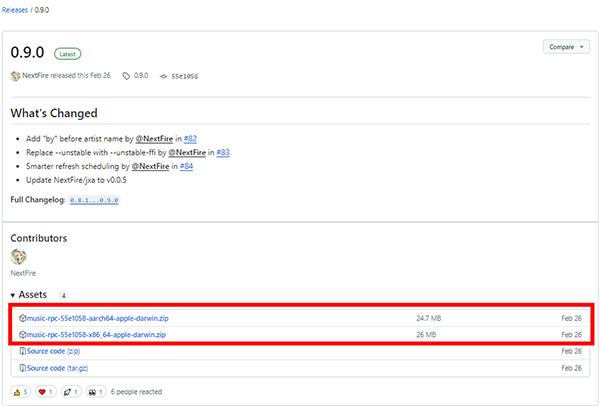
Step 4: Unzip the files and run the application “iTunesRichPresence-Rewrite.exe” to install it on your computer.
Note: Even when successfully installed, these tools often stop working after Discord or Apple Music updates and fail to display accurate track information.
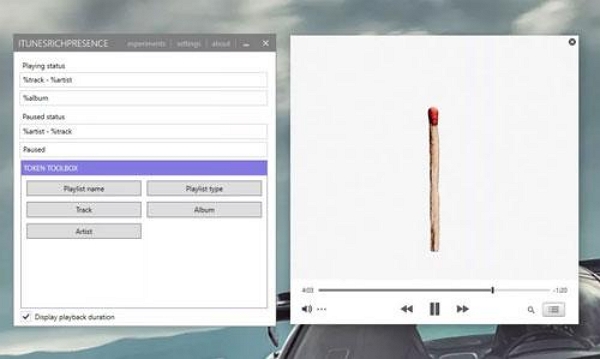
Step 5. Launch the iTunesRichPresence for Windows you installed.
Then, open the iTunes application and play the song that you want to share on Discord.
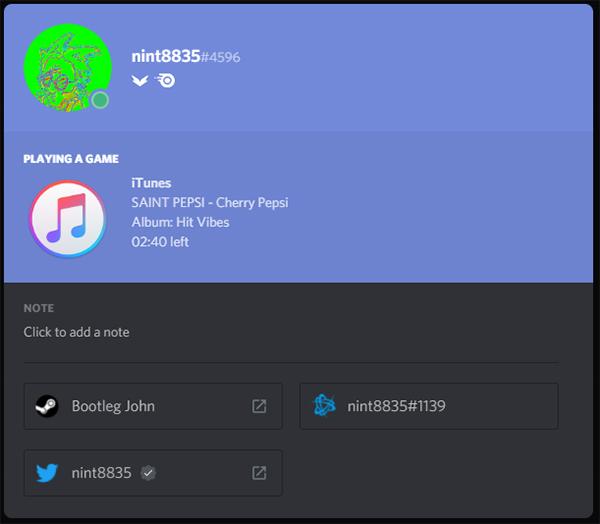
The iTunesRichPresence tool should automatically detect the track currently playing on Apple Music.
Music Bots Claiming to Support Apple Music
When you Google search “Ways to show Apple Music on Discord,” you might come across several “Music bots” that claim can allow you to stream and log in to Apple Music on Discord. This is not TRUE. These bots do not actually work. Apple Music streams are DRM-protected, which means bots cannot stream or log in to Apple Music. These methods often fail.
What You Can Do Instead (Realistic Options)
Since Apple Music doesn’t support Discord integration, the best method depends on your actual goal. Use the guide below to choose the most realistic option.
Option 1: Want a Real-Time Discord Music Status?
Use Spotify for Real-Time Discord Status (Step-by-step guide)
If your main goal is to:
- Show what you’re listening to on Discord
- Let friends listen along in real time
Then Spotify is currently the only music service that works natively with Discord.
Spotify allows Discord to access public playback data, which enables:
- Live activity status
- “Listen Along” sessions
- Profile music display
Apple Music does not offer this capability.
- Best for: Live status display, shared listening
- Downside: Requires Spotify, not Apple Music
Step 1: Run the “Discord” app on your computer and click on the “Gear” icon to open user settings.
Step 2: Select “Connection” > “Spotify.” Then, log in to your Spotify account and allow Discord to access your playlist.
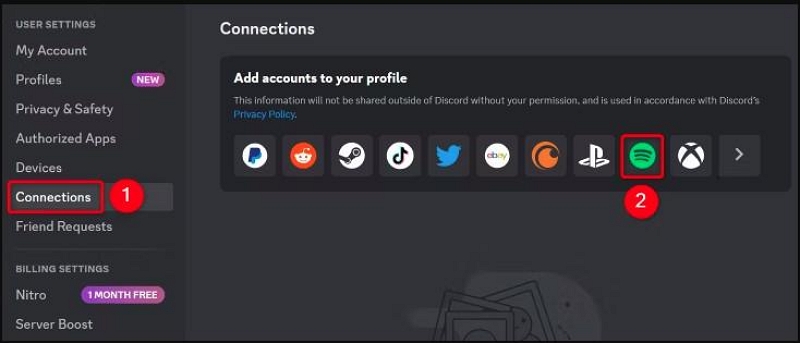
Step 3: Once you’ve connected your Spotify account to Discord, click on “Connections” again in the Discord app and choose how you want Spotify to be displayed on your account.
Toggle on the option to “Display Spotify as your status” and “Display on profile.”
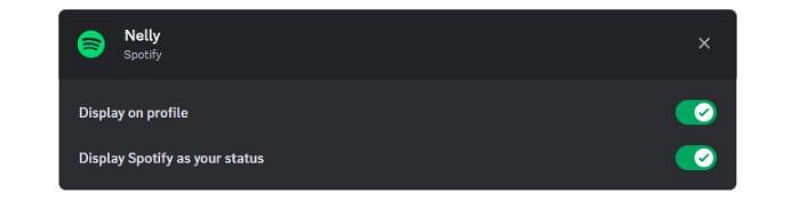
Finally, you can start listening to Spotify music on Discord.
Option 2: Want to Listen Together Using Apple Music?
Share Apple Music via Discord Screen Share (Step-by-step guide)
If you want to share Apple Music audio during a call or server session, screen sharing is the most straightforward option.
You can stream:
- The Apple Music app window
- System audio through Discord
Here is how it works;
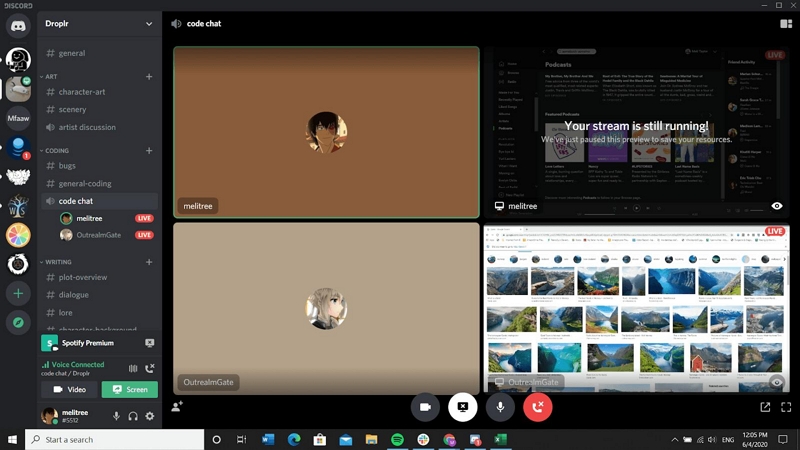
Method 1: Screen Share in a Discord Server
Step 1: Open the “Apple Music” app window on your computer.
Step 2: Launch the “Discord app” on your computer and navigate to a server.
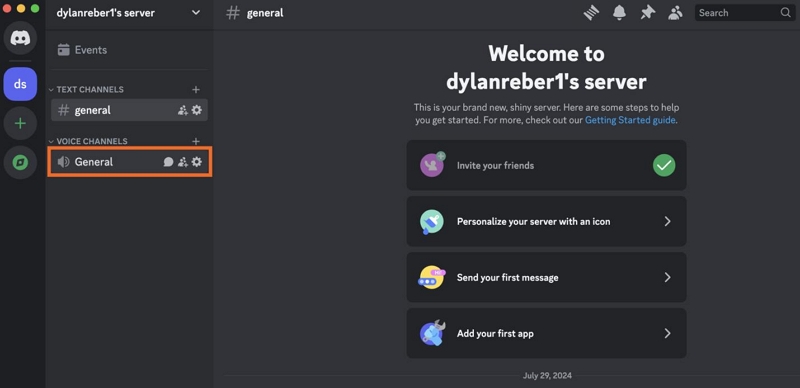
Step 3: Choose a voice channel and click on “Join Voice” to enter a channel.
Step 4: Click on the “Screen Share” icon at the bottom left of your screen.
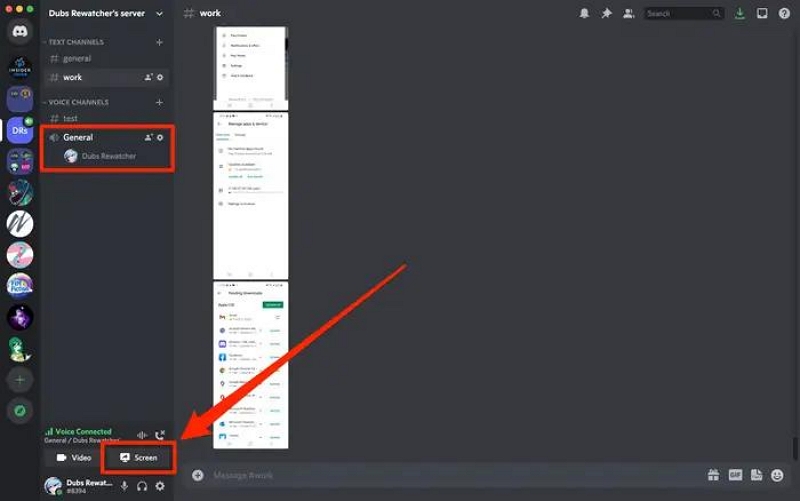
Step 5: Next, select what you want to share. Discord lets you screen share your “Entire screen” or a “Specific window” on your computer. Choose the “Apple Music” window you opened earlier.
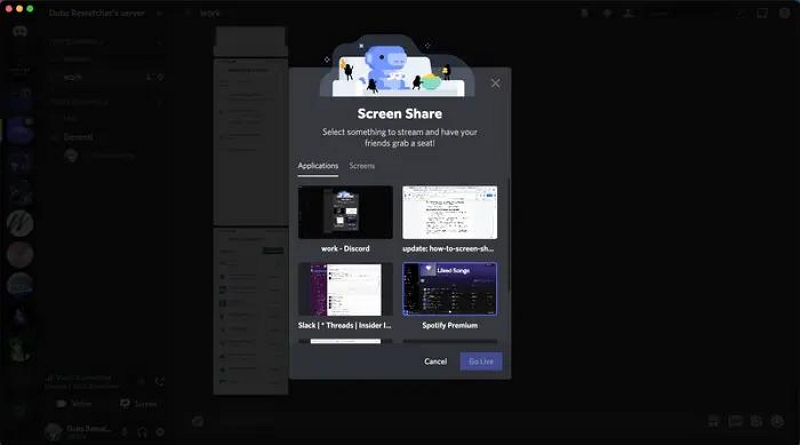
Step 6: Adjust the streaming quality according to your requirements and ensure the “Sound” toggle is turned on.
Step 7: Click on “Go Live” to start sharing Apple Music on Discord.
Method 2: Screen Share in a Private Discord Call
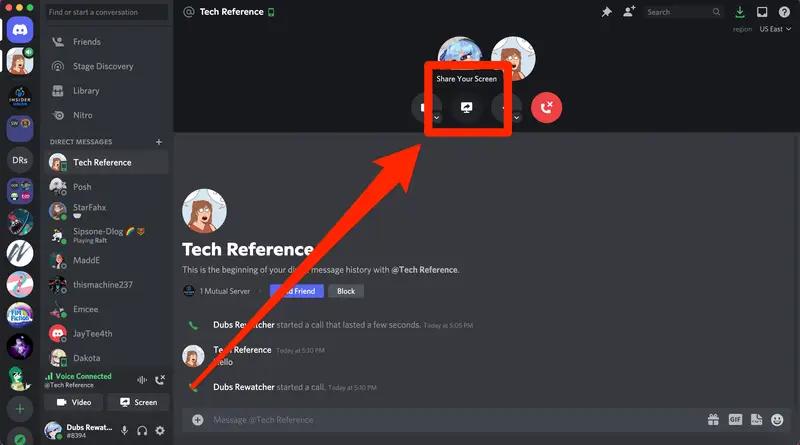
Step 1: Open your message with the person or group you want to share your screen with.
Step 2: Click the “Video Call” icon at the top-right corner to initiate a video call.
Step 3: Once the call starts, select the “Share your screen” option, and choose the “Apple Music app” window.
Suitable for: Music listening sessions; Private channels
This works well for casual listening sessions but has limitations:
- Audio delay
- Poor sound quality
- No status display
Option 3: Want High-Quality Audio Without Streaming Issues?
Convert Apple Music to Local Audio Files (Workaround)
If sound quality and flexibility matter more than live status, converting Apple Music tracks into local audio files is a practical workaround.
Tools like StreamFox for Music allow you to:
- Convert songs, playlists, albums, podcasts, and audiobooks from popular music streaming services with their original ID3 tags.
- Convert audio to MP3, WAV, FLAC, etc.
- Supports high-quality audio formats, such as Spotify’s 320 kbps, Apple Music Lossless, Amazon Music Ultra HD, Deezer HiFi, etc.
- Customizable output options for organized and efficient file management
Limitations: This method does not display Apple Music as a Discord status, but it offers the most control over audio playback.
Once converted, you can:
- Upload tracks in text chats
- Use Discord soundboards
- Add them as local files in Spotify (and then use Spotify’s Discord integration)
Steps to Upload and Play Apple Music Songs on Discord Server
Step 1: Open the “Discord app” and navigate to a server where you manage the soundboard.
Step 2: Click on the server name and select “Server Settings”
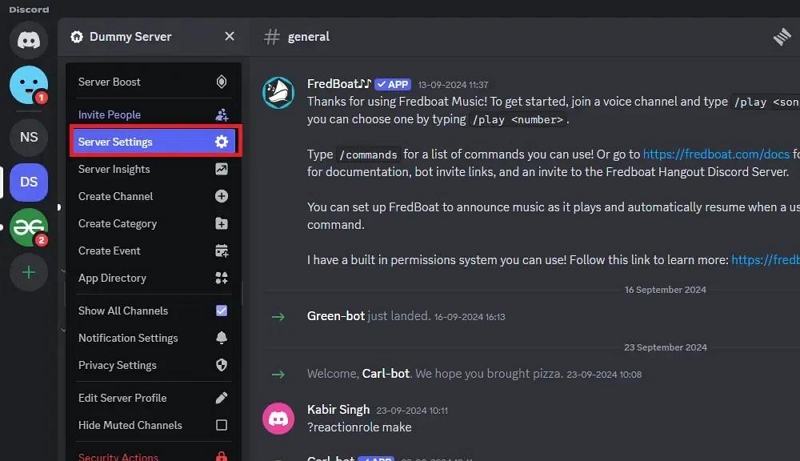
Step 3: Click on “Soundboard” from the left men.

Step 4: Click on the “Browse” button and select the downloaded Apple Music track you want to upload.
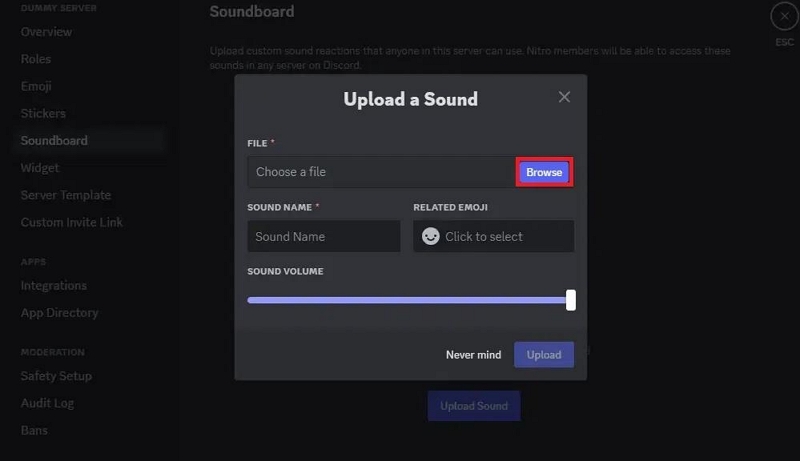
Step 5: Adjust the “Sound Volume” according to your needs. Then, name the sound and click “Upload” to upload the music file.
Steps to Upload and Play Apple Music to Discord in Text Chat
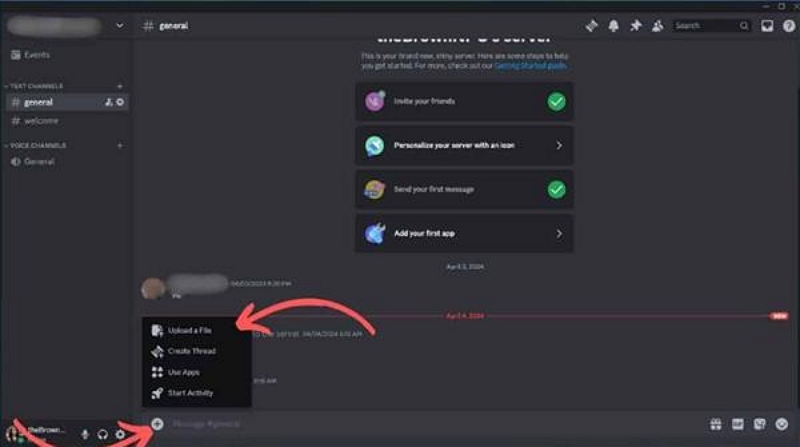
Step 1: Open the text channel where you’d like to upload the Apple Music file.
Step 2: Click on the “+” icon at the bottom left corner and select “Upload a file.”
Step 3: Once you upload the Apple Music file, click “Enter” to send the file to the chat.
Steps to Upload Apple Music to Discord via Spotify
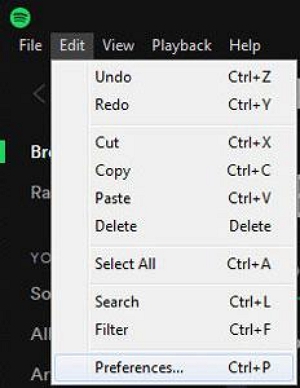
Step 1: Open the “Spotify” app on your computer and navigate to “Menu” > “Edit” > “Preferences.”
Step 2: Scroll to “Local Files” and turn on the toggle next to “Downloads” & “Music Library.” Then, click on “Add A Source.”
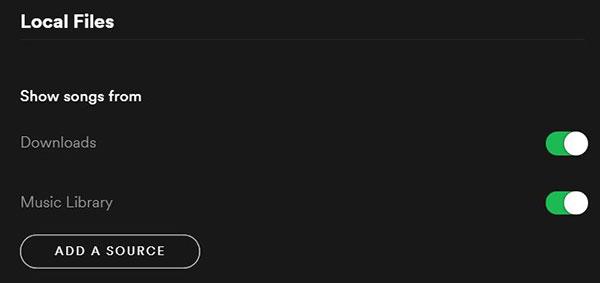
Step 3: Upload the converted Apple Music file and click “OK” to sync the track into Spotify.
Step 4: Open Discord and use the “Spotify” feature to play the uploaded Apple Music track.
FAQs
Why does Discord show “Playing a game” instead of Apple Music?
Discord shows “Playing a game” because it cannot detect Apple Music as a music app.
Apple Music doesn’t share real-time playback info with Discord.
Discord only sees the app running, so it labels it like a generic program (often “Playing a game”).
DRM protection prevents Discord from reading song titles or status.
This is normal—there’s no way to make Apple Music appear as a music status on Discord.
Can you play Apple Music directly in Discord?
No! Discord does not currently support direct playback of Apple Music. It has no built-in feature that allows you to stream or play Apple Music tracks directly in the voice channels or the app itself.
The only way to play Apple Music in Discord is by using the methods discussed on this page.
Can Apple Music activity show on Discord mobile?
Since Apple Music service is not supported on Discord, you cannot show your Apple Music activity on Discord mobile.
Will Apple Music ever support Discord?
There’s no official announcement yet. As of the time of writing, Apple Music or Discord has not announced any collaboration to integrate Apple Music into Discord.
Conclusion
Discord does not currently support Apple Music integration—and there is no reliable way to show Apple Music as a live Discord status in 2026.
However, depending on your goal:
- Spotify is the only solution for real-time status sharing
- Screen sharing works for casual Apple Music listening
- Local audio files offer the best quality and flexibility
Understanding these limitations upfront helps you choose the right workaround—without wasting time on tools that simply don’t work. For more ways to enjoy Apple Music on non-Apple devices, check out our complete guide.