Long drives can get boring—but music makes the journey fun. If you’re a Tesla owner, you might be wondering: can I play Apple Music in my car?
Tesla’s infotainment system has unique features, but its third-party app support can be tricky. Don’t worry—we’ve got you covered. In this guide, you’ll learn:
- Which Tesla models support Apple Music
- Why Apple Music might not work
- The most effective ways to play Apple Music in your Tesla
Can You Play Apple Music on Tesla
Yes! If your Tesla is running software version 2022.44.25 or later, you can enjoy Apple Music while driving.
Requirements:
- Active data connection (Wi-Fi or Tesla’s cellular)
- Premium Connectivity subscription ($9.99/month) if using cellular data
Apple Music is supported in regions including North America, Latin America, Europe, Middle East & Africa, and Asia-Pacific.
Which Tesla Models Support Apple Music?
Apple Music works on all Tesla models: Model 3, Model S, Model X, Model Y, and Cybertruck.
Note: Availability may vary depending on software version and your location.
Why Apple Music Might Not Work in Tesla
If Apple Music isn’t working, here are the most common reasons:
3.1 Tesla Software Not Updated
Apple Music became available with software update 2022.44.25. If your Tesla is running an earlier version, the Apple Music icon won’t appear.
3.2 Regional Restrictions
Apple Music is not available in all regions. If your app is missing, you may be in a region without Tesla-enabled Apple Music support.
3.3 Account or Network Issues
- Poor internet connection
- Expired Apple Music subscription
Both can prevent Apple Music from functioning properly.
How to Play Apple Music in Tesla (What Actually Works)
Now you understand which Tesla models support Apple Music, here are the ways you can play Apple Music in your Tesla.
Method 1: Use Built-in Apple Music App (If Available)
Tesla vehicles running Software update 2022.44.25 or later usually come with a pre-installed Apple Music app. So, if the Apple Music app is available in your Tesla, follow the steps below to enjoy your Apple Music playlist.
Step 1: Tap on the three-dot icon at the bottom of your Tesla vehicle display screen to access the apps window.
Step 2: Tap on the “Apple Music” icon and scan the QR code that appears on the screen using your iPhone or tablet.
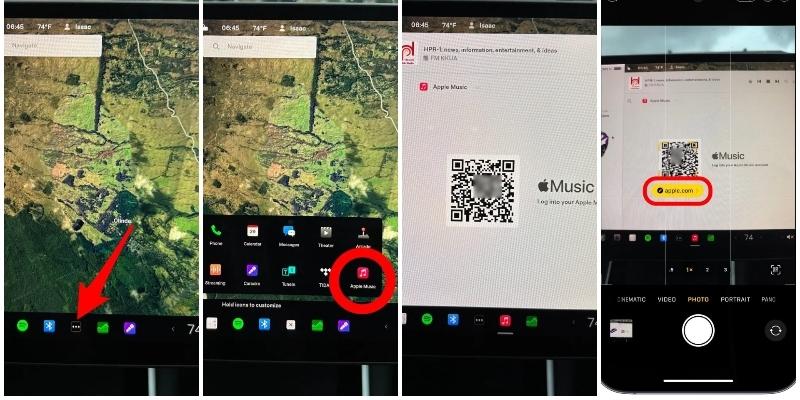
Step 3: The QR code will redirect you to your browser, where you will input your “Apple Music account login details.”
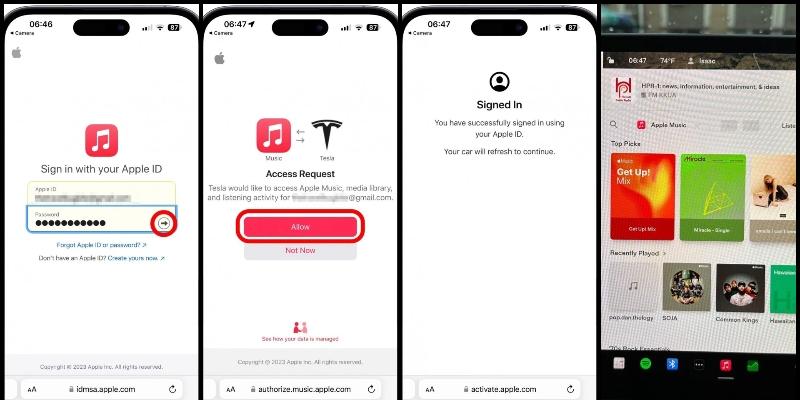
Follow the on-screen instructions and allow Tesla to access your Apple Music account.
Step 4: Now, open the Apple Music app on your Tesla display and tap on “Library” at the top-right to access your playlists and albums.
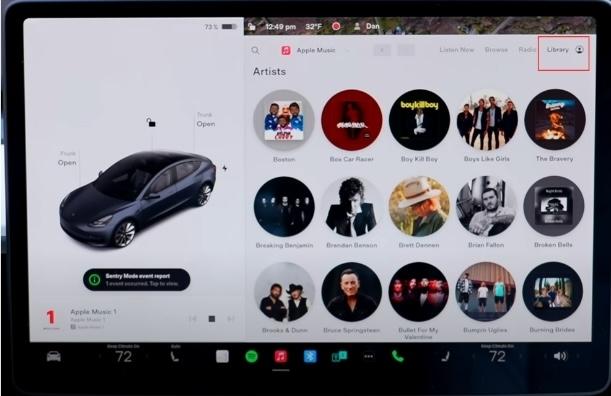
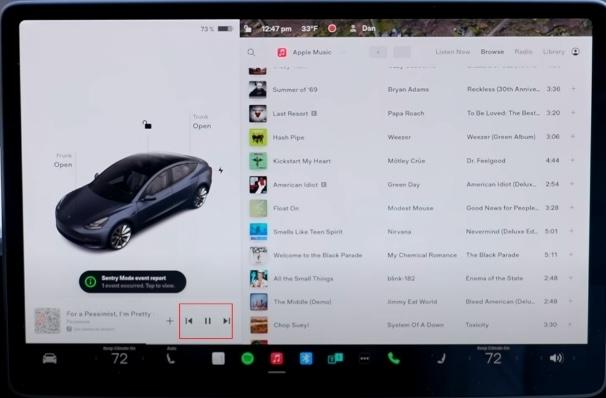
Step 5: Tap on any song to start listening to it. You can also pause, play, and skip songs using the relevant icons displayed on the Apple Music interface.
Limitations
- Feature availability varies
- No offline downloads
- You need premium Connectivity ($9.99/month) for a cellular connection.
For more ways to play Apple Music outside of Apple devices, see our complete guide to using Apple Music on non-Apple devices.
Method 2: Play Apple Music via Bluetooth (All Tesla Models)
If you don’t have a stable network connection, using the built-in Apple Music app might not be the best option. You can listen to Apple Music on your Tesla offline via Bluetooth. This method does not require a premium connectivity fee, and it works with all Tesla models.
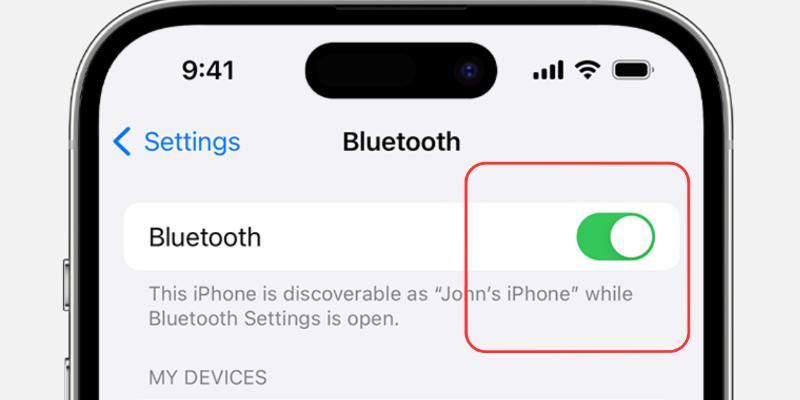
Step 1: Go to “Settings” on your iPhone or iPad and turn on “Bluetooth.”
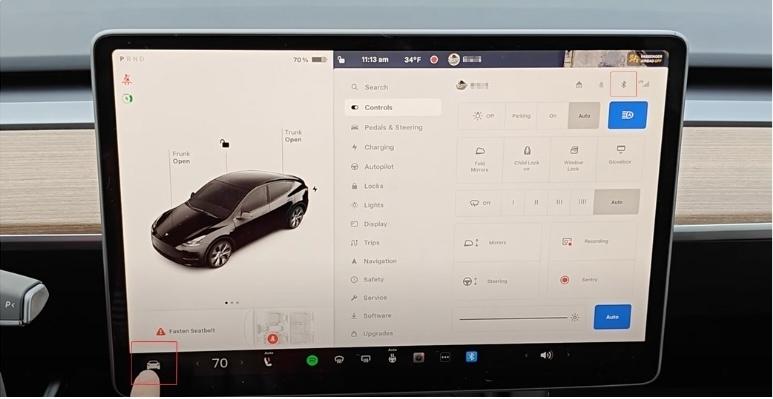
Step 2: Tap on the “Car” icon at the bottom left of the display in your Tesla vehicle. Then, tap the “Bluetooth” icon at the top right corner.
Step 3: Select “Add New Device” and tap “Start Search.”
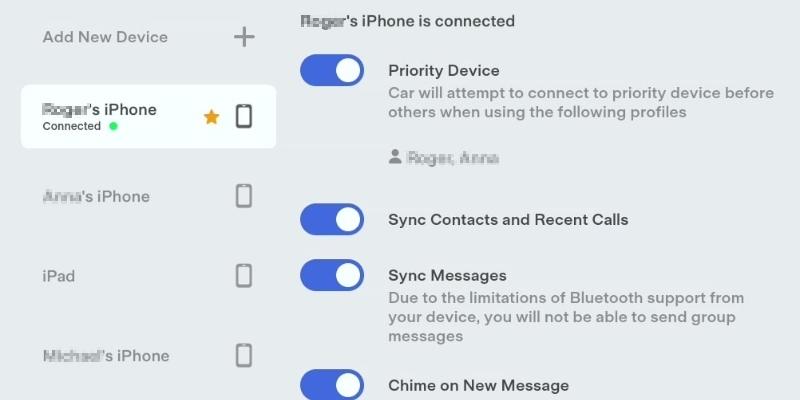
- Tesla will search for nearby Bluetooth, and your phone should be displayed on the screen. Tap in your phone and confirm the connection.
- Also, toggle on “Priority Device.” This allows your car to automatically connect to your phone the next time you want to play Apple Music.
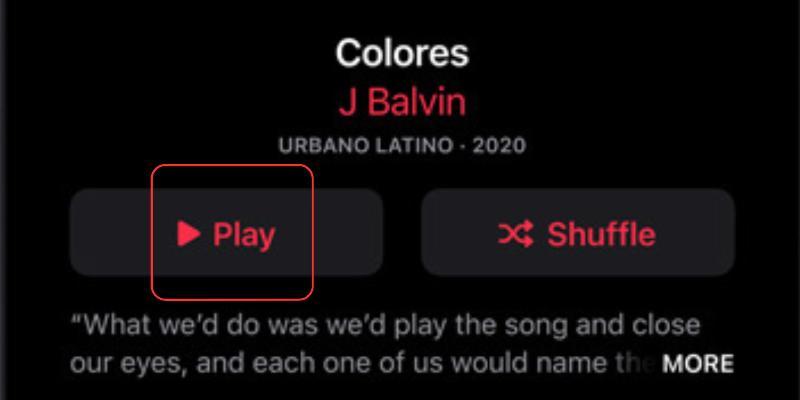
Step 4: Open the Apple Music app on your phone and start playing the song you want to listen to.
Limitations
- Low audio quality compared to Tesla’s direct Apple Music integration.
- You can’t pause, play, or skip tracks directly from Tesla’s display.
- It drains your phone battery faster.
Method 3: Use Tesla Built-in Browser (Web Player)
Another option to play Apple Music in Tesla is to use Tesla’s built-in web browser. By opening Apple Music’s web player, you can still stream your favorite songs and playlists directly in the car.
Step-by-step-guide:
Step 1: Tap on the browser icon at the bottom of your Tesla’s touchscreen.
Step 2: Type “music.apple.com” in the browser address bar and press Enter.
Step 3: Sign in to your Apple Music account using your Apple ID and password.
Step 4: Browse your library and start playing your favorite songs from the browser directly.
Limitations
- Slower performance.
- Not optimized for in-car use.
Playing Apple Music as Local Audio Files (Workaround)
For older Teslas, you can convert Apple Music tracks to MP3 or other formats using StreamFox for Music:
- Convert songs, playlists, albums, and more in batches at 30x faster speed, saving you significant time when processing a large volume of audio.
- Retains the original ID3 tags of the converted music.
- Converted songs are saved on your device permanently.
- Supports popular audio file formats, including MP3, WAV, FLAC, and ALAC.
How to Play Converter Songs Through Tesla Media Player
Once you transfer the converted songs to a USB drive, follow the steps below to start playing them through your Tesla media player.
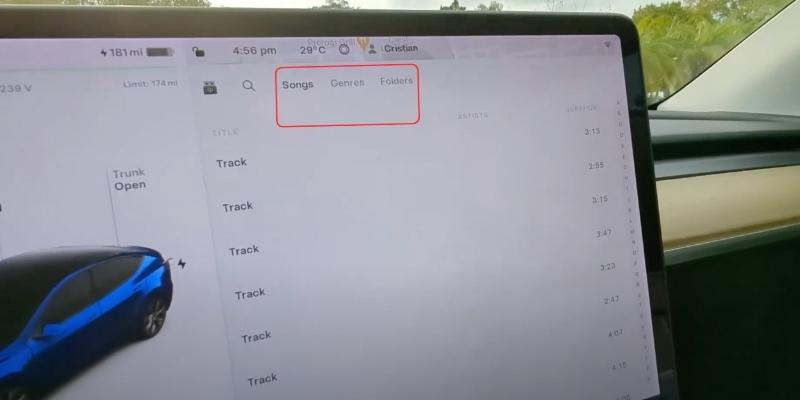
Step 1: Insert the USB drive into the USB port in the glove compartment of your Tesla vehicle. Then, tap on the USB icon at the bottom corner of the touchscreen.
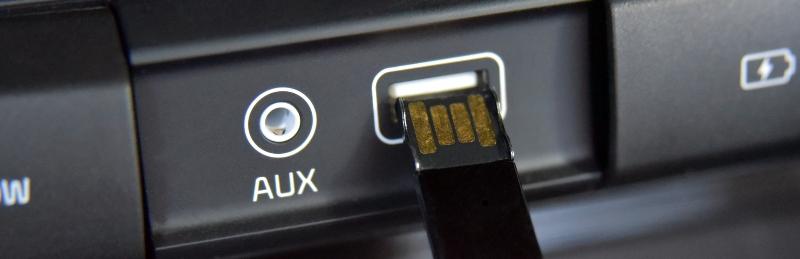
Step 2: Locate the downloaded songs in the USB drive and select the song you want to start playing.
How to Update Tesla Software
For Tesla vehicle owners with outdated software, we’ve prepared a quick guide below to help you update your Tesla software without complications.
Step 1: Connect your Tesla vehicle to a stable WiFi network.
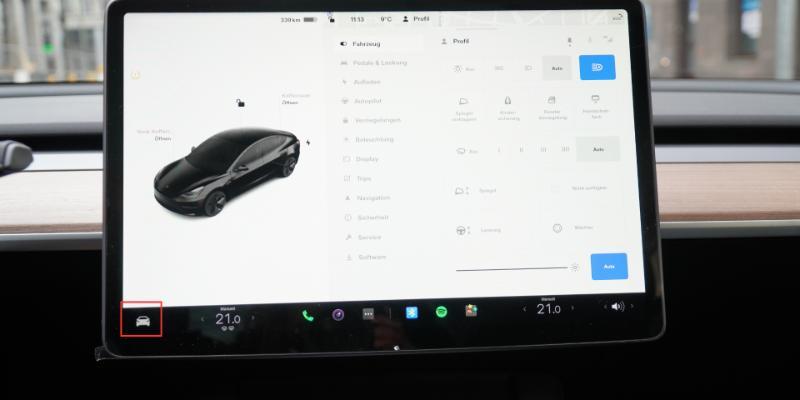
Step 2: Tap on the “Car” icon at the bottom left of the touchscreen.
Step 3: Scroll down the menu list and choose “Software Update.”
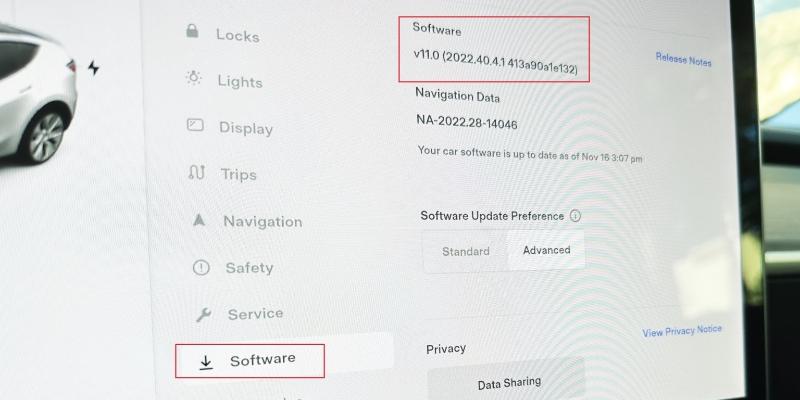
Step 4: Select “Software Update” and choose “Advanced” under “Software update Preference” (this allows you Tesla to automatically download any new software updates as they are rolled out).
Step 5: Once the new software is downloaded, you should see a “Yellow icon” next to the “Software Update.”
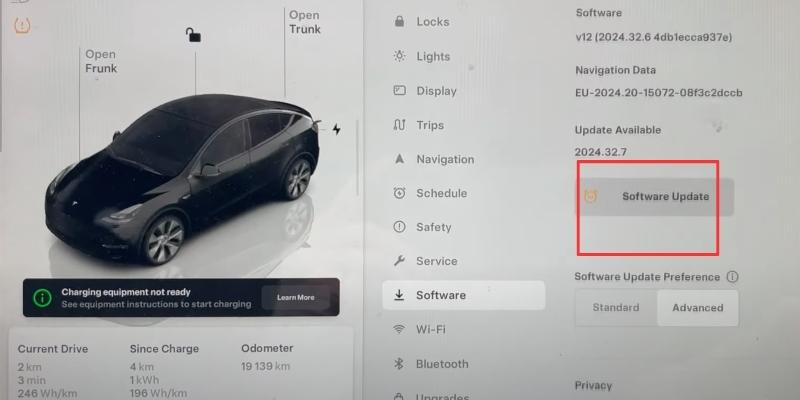
Step 6: Tap on “Install Now” to install the new OS.
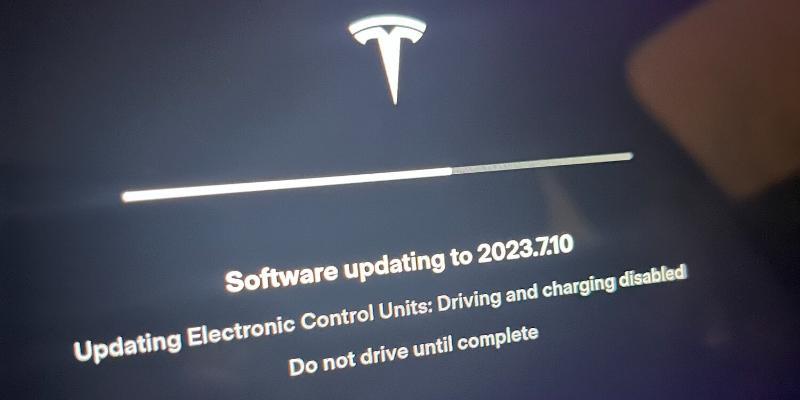
Note: The car cannot be driven during installation.
FAQs
What Music Apps Work in Tesla?
Tesla vehicles support several built-in music streaming apps, depending on region and software version. Commonly supported apps include Spotify, Apple Music, TIDAL, Amazon Music, TuneIn, and Slacker Radio (in some regions).
Is Tesla Removing Music Streaming?
No, Tesla is not removing music streaming from its vehicles. In fact, Tesla continues to expand and refine its in-car entertainment options through software updates. While specific apps or services may change due to licensing, regional restrictions, or updates, music streaming is still a core feature of Tesla’s infotainment system.
How Do You Install Apple Music in a Tesla Model Y?
You don’t need to manually install Apple Music on a Tesla Model Y. Apple Music is included automatically in Tesla vehicles running software version 2022.44.25 or later.
Conclusion
It’s easy to listen to Apple Music in Tesla if you know your options. Our article outlined the most effective methods to enjoy Apple Music on old and new Tesla models without complication. And if you encounter any problem, you can use the tricks we shared to resolve it.