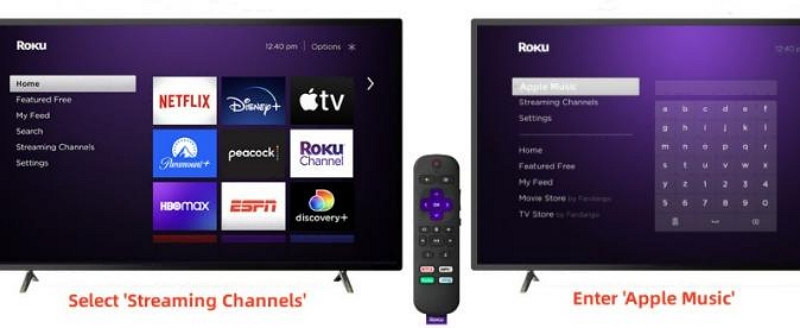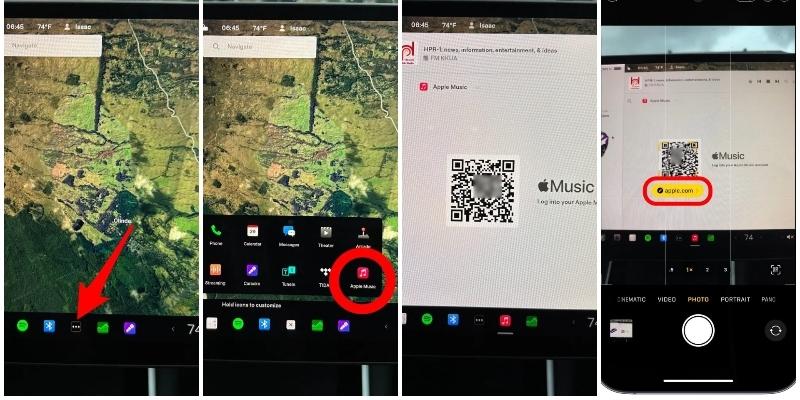
For many gamers, music is as important as graphics or frame rate. The right music playlist can set the mood during a competitive gaming session or a casual play.
Unfortunately, many Apple Music subscribers are still unaware that the service is now available on Xbox, resulting in frequent questions about how to use it on the console.
In this post, we will discuss the availability of Apple Music on Xbox, how to play it, and the best alternatives for enjoying Apple Music on any Xbox console. Keep reading!
Is Apple Music Available on Xbox?
Yes, Apple Music is available on Xbox. Apple Music debuted on Xbox on October 12, 2022, allowing users to stream their favorite songs directly from the console without external devices.
The Apple Music app can be downloaded via the Microsoft Store, and it’s accessible via various Xbox models, including Xbox One, Xbox Series X, and Xbox Series S.
How to Play Apple Music on Xbox (Official & Safe Methods)
There are several ways to enjoy Apple Music on Xbox. In this part, we’ve shared the official method and other low-risk methods that actually work for most users.
Method 1: Download Apple Music via the Microsoft Store
The most reliable and recommended way to play Apple Music on Xbox is via the official Apple Music app in the Microsoft Store. You can install the Apple Music app on your Xbox through the Microsoft Store for free, and the process is really straightforward.
Step 1: Launch your “Xbox console” and press the “Home” button on your controller.
Step 2: Find the “Microsoft Store” app icon and select it.
Step 3: Enter “Apple Music” into the search bar in the Microsoft Store.
Step 4: Choose “Get” to install the Apple Music app.
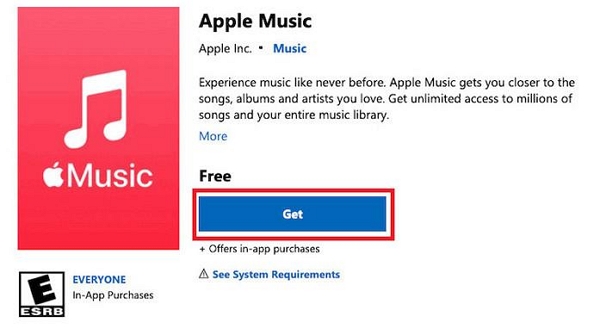
Step 5: Once the app is installed, launch it and sign in to your Apple Music account using your Apple ID and password.
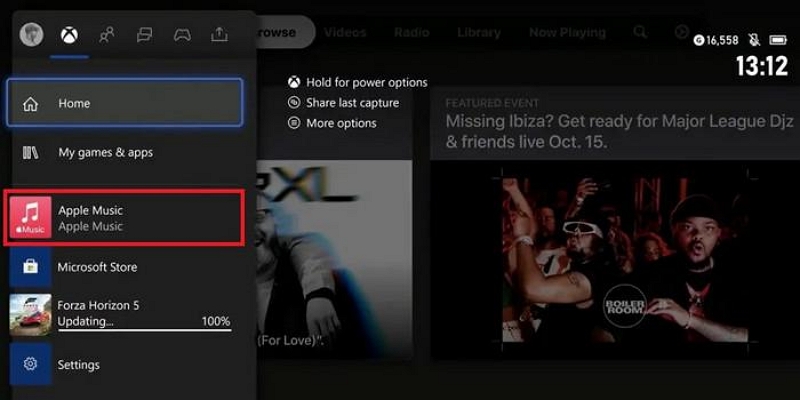
Step 6: Start playing your Apple Music songs on Xbox.
Pros: Official, stable, supports background playback
Cons: Requires installation, uses Xbox storage
Method 2: Use Apple Music Web Player on Xbox
You can also stream Apple Music via the Xbox Microsoft Edge browser.
Here is how to do it;
Step 1: Select “Microsoft Edge” from the Xbox menu.
Step 2: Open https://music.apple.com/ and sign in to your Apple Music account.
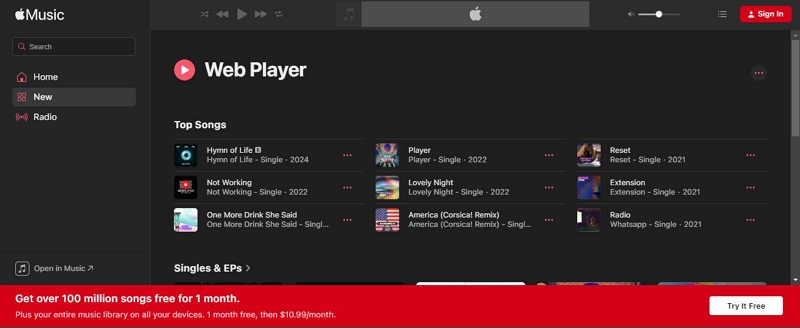
Step 3: Find the song you want to listen to in your Apple Music library and click on Play.
Pros: No app installation required
Cons: Browser must remain open; no background playback
Method 3: AirPlay Apple Music to Xbox via AirServer
Although AirServer is not an Apple-native solution, it is widely regarded as a safe and low-risk option to also play Apple Music on Xbox. With this method, you can control Apple Music from your iPhone or iPad while playing games on Xbox.
Step 1: Open the Microsoft Store on Xbox and search AirServer.
Step 2: Install AirServer (purchase or free trial).
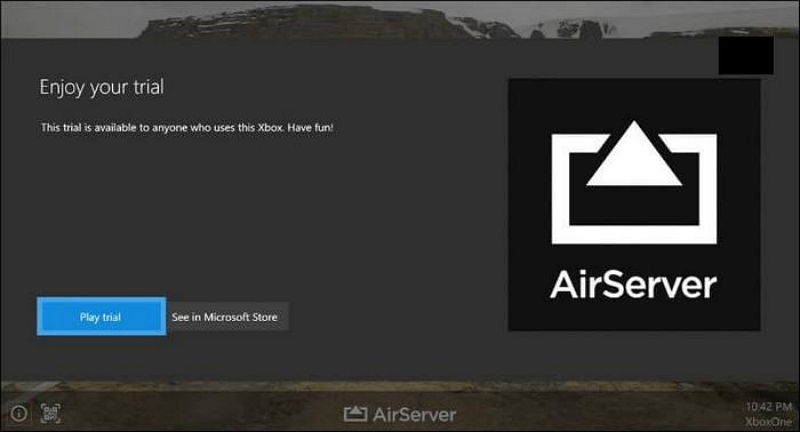
Step 3: Launch AirServer and display the QR code on Xbox.
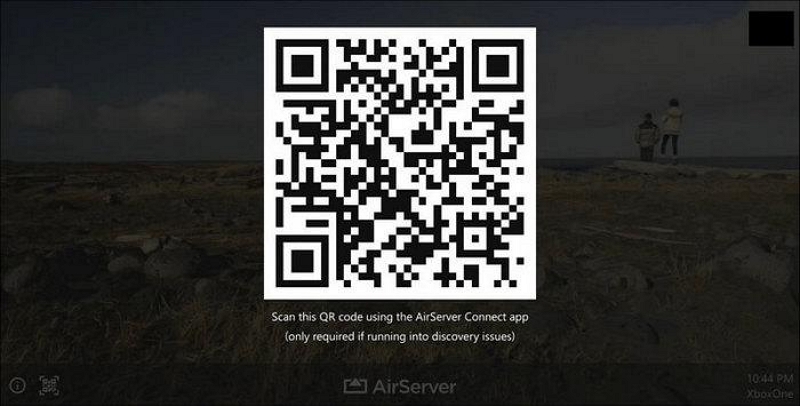
Step 4: On your iPhone, install AirServer Connect and scan the QR code.
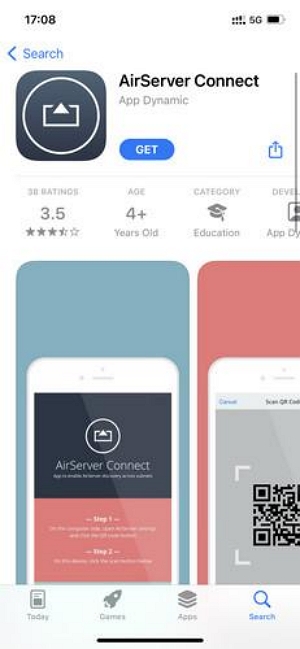
Step 5: Open Apple Music on iPhone, tap AirPlay, and select your Xbox.
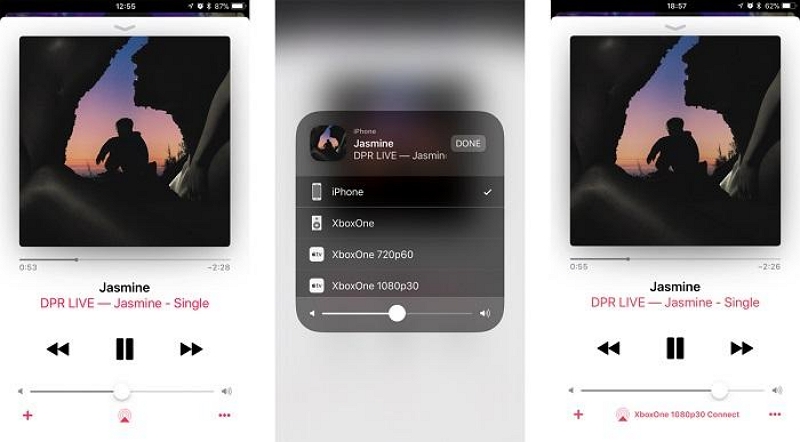
Pros: Stream while gaming, controlled via iPhone
Cons: Setup is slightly longer; requires iPhone/iPad
Why Third-Party Apps Are Risky
Before the official app, some users tried online programs claiming to make Apple Music playable on Xbox.
Risks:
- Could corrupt your system
- Violates Apple Music terms
- Often unreliable or unsafe
✅ Stick to official apps or well-known safe tools like AirServer.
Playing Apple Music as Local Audio Files (Offline Workaround)
Apple Music is DRM-protected, but you can convert songs to local audio files for offline playback using tools like StreamFox for Music.
- Convert Apple Music songs, playlists, and albums to MP3, WAV, AAC, etc.
- Retains original metadata and ID3 tags
- Supports batch downloads up to 30x faster than online tools
- High-quality output (Apple Music Lossless, Spotify 320 kbps, etc.)
Steps to Play Local Files on Xbox:
After converting the Apple Music tracks using StreamFox for Music, you need to transfer the audio files to a USB drive, then plug the USB drive into your Xbox to play the songs offline. Here is how;
Step 1: Connect a USB drive to your computer and open “File Explorer” if you’re using a PC or “Finder” if you’re using a Mac.
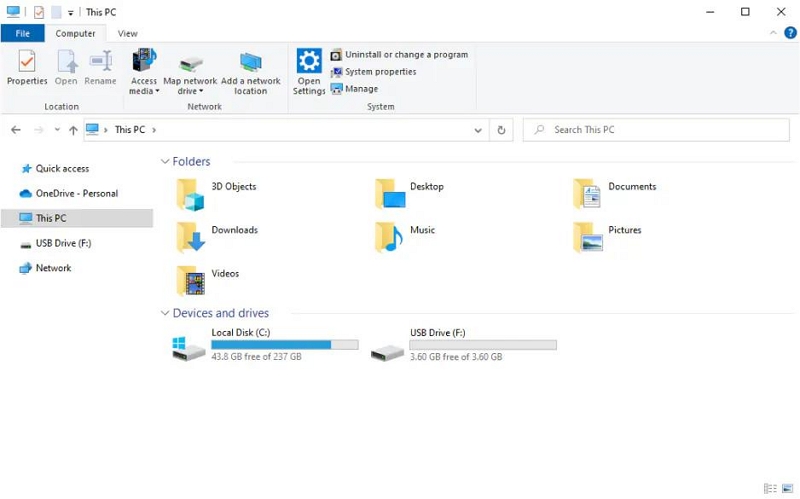
Step 2: Find the music files you want to transfer.
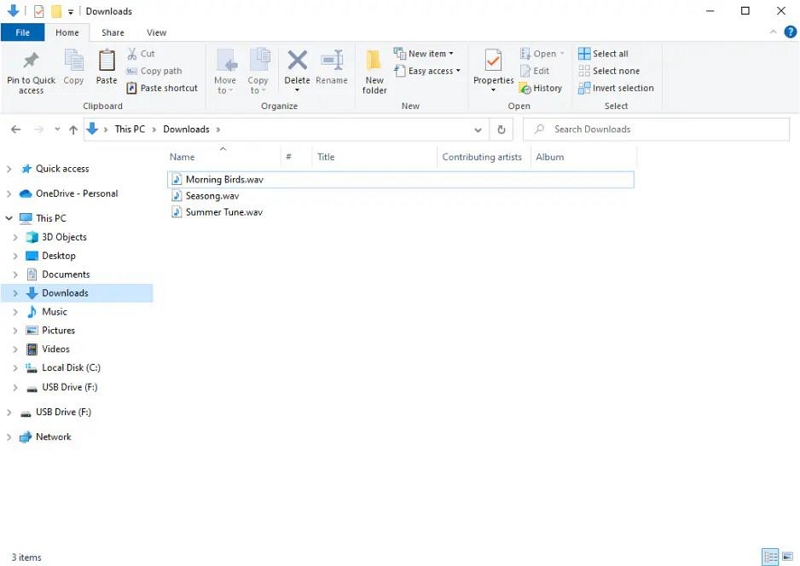
Step 3: Copy and paste or drag and drop the audio files to your USB drive, which should be displayed on the left menu.
Step 4: Unplug the USB drive from your computer and connect it to your Xbox console.
Step 5: Press the “Xbox button” on your controller. Then, select “My Games & Apps” > “See All” > “Media Player.”
Step 6: Select the connected USB drive from the list of storage devices. Then, navigate through its folders and select the music files you want to play.
Step 7: Press “Play” to start listening to the songs offline.
Important note about using StreamFox for Music
- It does not have any Apple Music features.
- No sync or library updates.
- It’s effective for personal use only.
FAQs
Can you stream music on Xbox?
Yes, you can stream music on Xbox. Xbox supports several music streaming apps, including Spotify, Apple Music, Amazon Music, SoundCloud, and Pandora.
Can you play Apple Music from an iPhone to Xbox?
You can play Apple Music from an iPhone to an Xbox using the AirPlay feature. However, you need the AirServer tool to be able to perform such an operation.
Does Xbox Offer Free Apple Music?
No, Xbox does not offer free Apple Music. As of the time of writing, Xbox does not include free Apple Music in its bundle of benefits. You need a paid subscription to access songs in the Apple Music library.
Conclusion
There you have it! You can play Apple Music on Xbox. All you need to do is install the app on your Xbox console.
However, if you don’t want to install Apple Music on your Xbox, we shared other methods to enjoy Apple Music without the App. You can use the Apple Music web player via your Xbox browser, AirPlay, or download your Apple Music songs as local audio files. For more tips on using Apple Music on non-Apple devices, check out our guide.