With StreamFox for Music, a one-stop music streaming converter, you can convert audio from Spotify, Amazon Music, Apple Music, Pandora Music, Deezer Music, YouTube Music, Line Music, Audible and SoundCloud as local files in MP3, M4A, or other formats. The converted songs retain high quality and preserve the corresponding ID tags. This allows you to enjoy your favorite music on any device without a network connection and manage your tracks conveniently. Here’s how to use StreamFox for Music to convert music from Spotify and eight other popular music platforms, with or without a premium account.
1. Get Started with StreamFox for Music
Free download StreamFox for Music on your Windows PC or Mac and then install it by following the onscreen instructions.
After installation, you can launch the software and directly use the free version which allows you to convert 3 songs per platform. For Audible, you can get 2 free downloads.
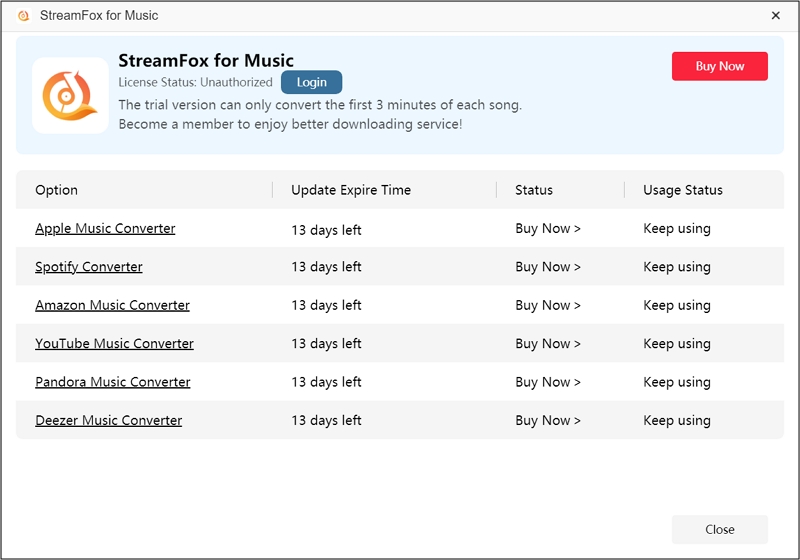
Alternatively, you can purchase and then register StreamFox for Music to use its features without limitations.
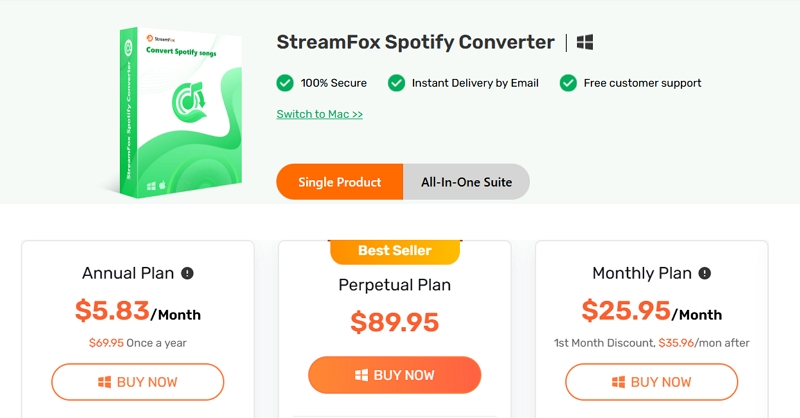
To Purchase StreamFox for Music
- Click the Buy Now button under the corresponding service to subscribe to its plan.
- If you want to purchase the complete suite that can download music from 9 music services, switch to All-in-One Suite and select your desired plan. You can also directly go to the online shop via the official site.
To Register StreamFox for Music
- Copy the license key or password from your email which is used to purchase the software. Here, please note that whether you receive a password or a license key depends on your payment method.
- Head back to the StreamFox software screen and click the profile icon in the menu bar.
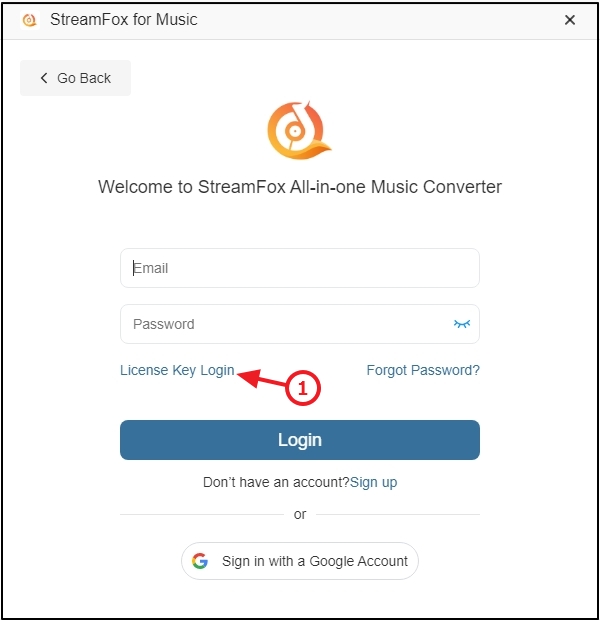
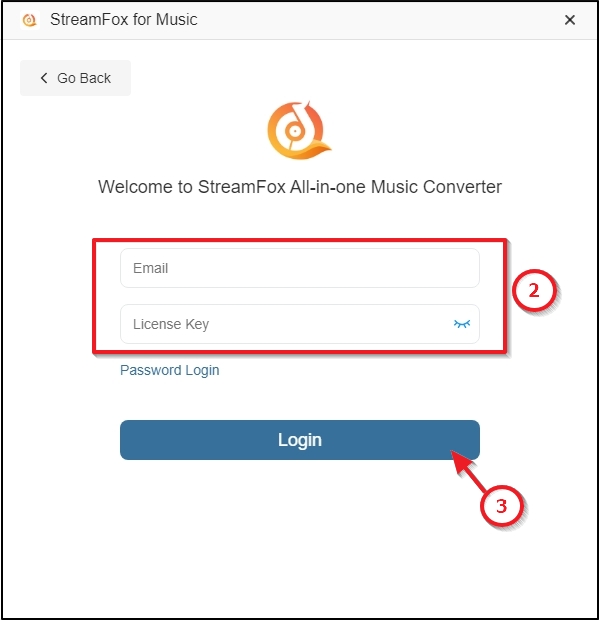
- Click License Key Login under the password field, enter the email and license key and click Login to access the full version of StreamFox.

2. Convert Streaming Music to Local Files with Free or Premium Account
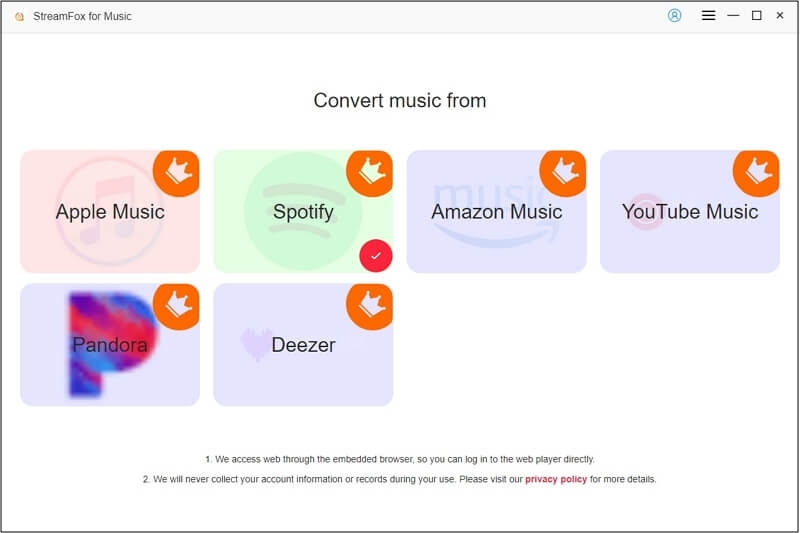
Select the music platform where you want to convert tracks from on the software interface.
To switch to another platform, click the Switch Platforms icon in the upper pane and choose the new service.
You can use the free or premium account to sign into the music platform.
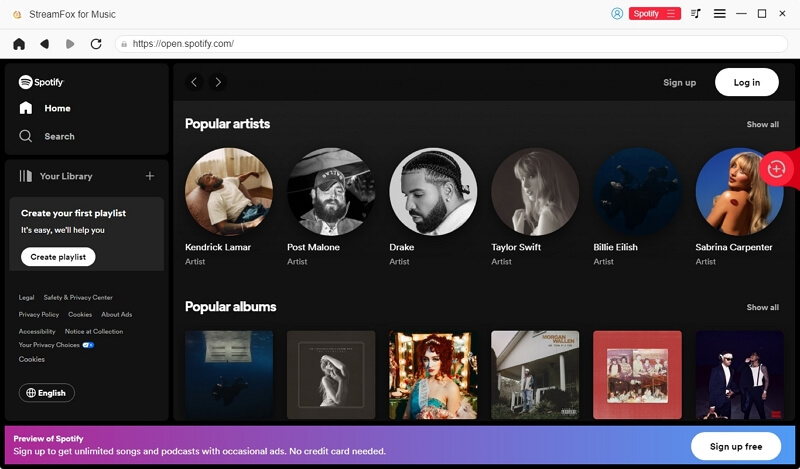
There are 3 ways to add your favorite music for StreamFox to download:
- Hover over the desired songs, playlists, albums, podcasts, etc., and click Add to Conversion List.
- Drag the songs, albums, playlists, podcasts, etc., that you want to convert to the “+” conversion icon on the right side of the screen.
- Click the Add button to select the playlists, albums, podcast series, or audiobook series you want to download.
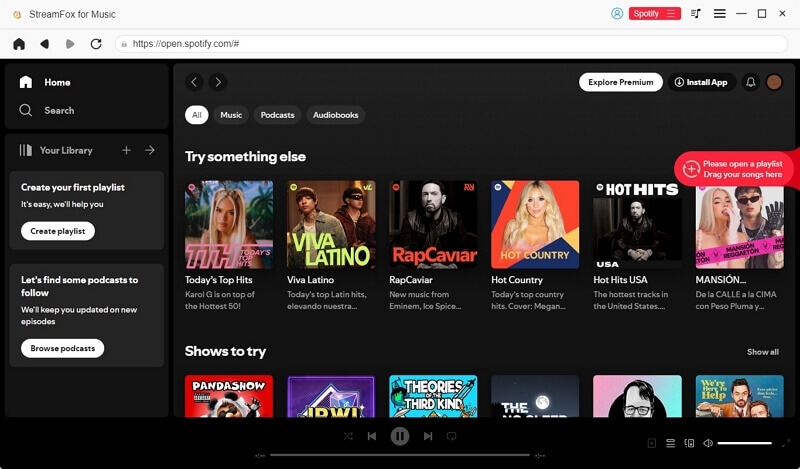
The songs you add for conversion will appear in the right pane. You can click Convert All to save them locally using the default settings.
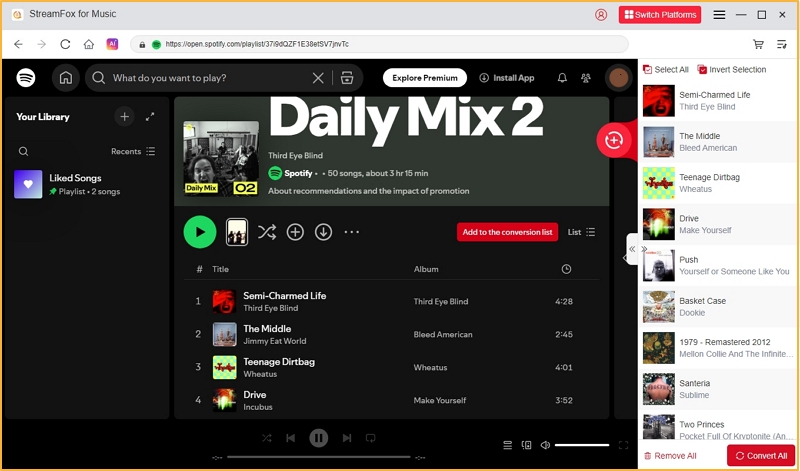
Alternatively, you can expand the conversion window to adjust output settings.
Simply open the conversion list by clicking the left arrow or the conversion icon at the top right corner and then set up the output presets.
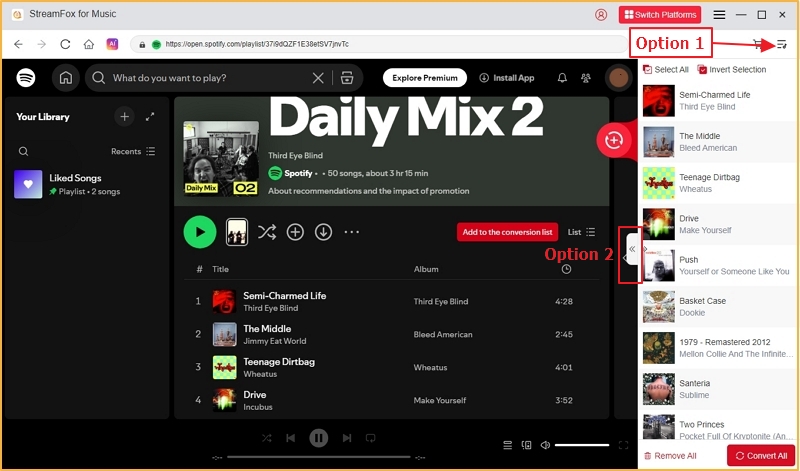
- Output Format: Support MP3, M4A(AAC), WAV, FLAC, AIFF and M4A(ALAC).
- Sample Rate: Range from 22050hz to 48000hz.
- Bitrate: Range from 128Kbps to 320Kbps.
- Output Destination: Specify where to save converted music by clicking Browse and selecting a folder.
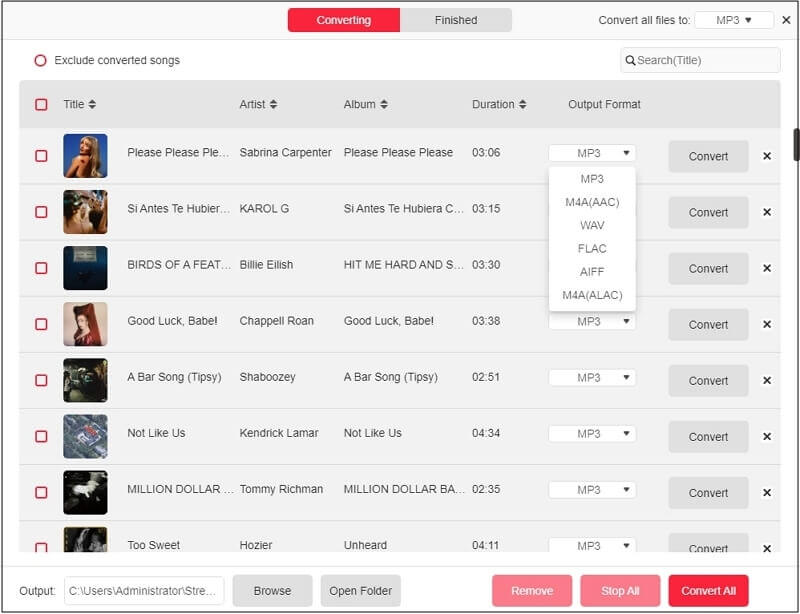
To apply a setting to all tracks, use the Apply to All option.
More Settings
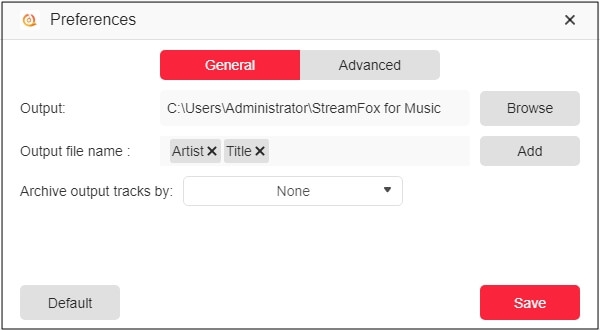
StreamFox supports customizing further output settings and audio parameters, which helps you better manage your music files. To access other output settings, locate the upper pane, click the Hamburger icon and select Preferences.
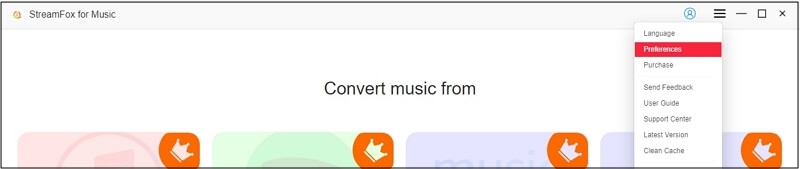
In the General section of Preferences window, you can make the following advanced settings.
- Output File Name: You can name the output songs using Playlist/Track Number, Title, Artist, Album, Release Date, Conversion Date, or Playlist.
- Archive Output Tracks by: This feature organizes converted tracks into folders according to your chosen archive setting: Playlist, Artist, Album and more.
- Audible Output Settings: You can split audiobooks for easier listening or saving, based on chapters, preferred time intervals, or other criteria.
In the same Preferences wizard, switch to the Advanced tab and adjust audio parameters.
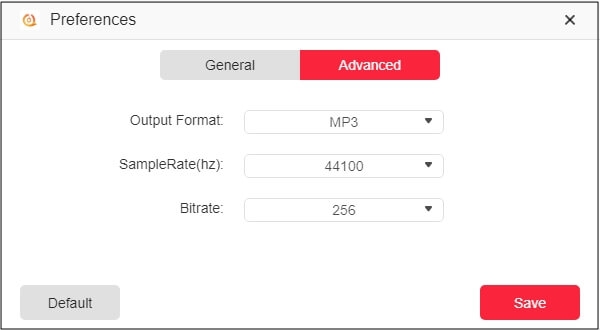
Tip: You can click Default in the lower left corner to purge your customized output settings or audio parameters.
Once you have completed the corresponding settings, click Convert All at the lower right corner to start the conversion.
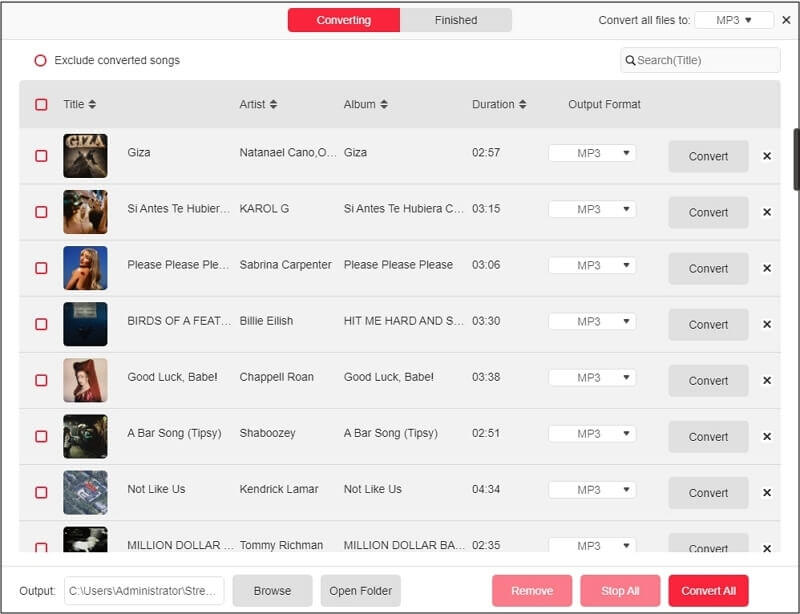
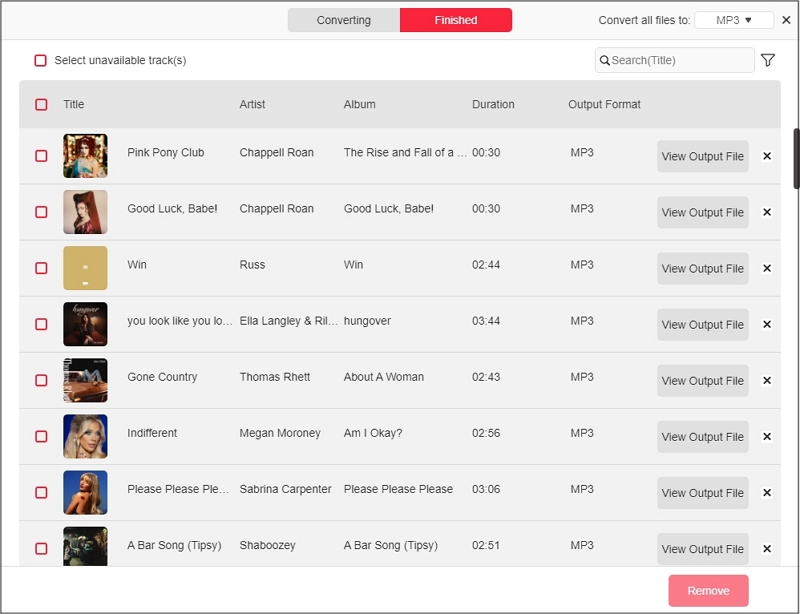
You can check the music being converted in the Converting section or view the completed conversions in the Finished section. To listen to the converted songs, simply click View Output File(the folder icon) to open and play the local file.