



Explore how to activate, convert, customize, and manage StreamFox for Video for personal offline viewing across supported video platforms.
Part 1. Free Trial & Premium Plan
StreamFox for Video provides a free trial that allows users to experience its core features before subscribing to a premium plan. Trial rules vary depending on the type of platform.
| Platform Type | Supported Platforms | Trial Limitations | Notes |
|---|---|---|---|
| Major Streaming Platforms | Amazon Prime Video, Netflix, Disney+, Max (HBO), Hulu |
– Convert only the first 5 minutes of each video – Trial duration: 10 days – Each video can be tested once |
Helps users preview video quality, available audio tracks, subtitle options, and output formats |
| URL-Based Platforms (1000+ Websites) | YouTube, Facebook, TikTok, X (Twitter), Reddit, and other supported websites | – Trial duration: 10 days – Up to 3 videos per day – Videos can be processed in full length, subject to source availability | Allows users to test StreamFox’s URL recognition and conversion performance across publicly accessible websites |
| Premium Plan | All supported platforms | – Convert full-length videos – No daily limit – Access advanced output & subtitle settings | Unlocks unrestricted offline playback and enhanced features |
Tip: The free trial is meant for users to experience the software’s interface and capabilities. Upgrading to the premium plan removes trial limits and unlocks all features.
Part 2. Activate StreamFox for Video
To unlock full conversion capabilities, you need to purchase a license key.
- Single-Platform Plan: Choose a platform, click Buy Now, and receive a license key or password via email.
- All-in-One Plan: Click the orange Buy Now button on the top-right, select the StreamFox for Video, and receive activation details via email.
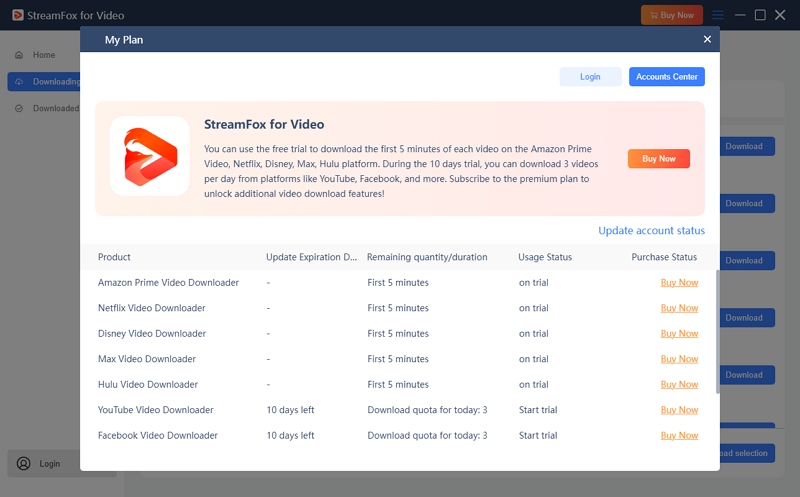
To unlock the full potential of StreamFox for Video, you’ll need to buy a license key or password to login. Here’s how to do it:
- Open StreamFox for Video.
- Click Buy Now > Login in the registration window.
- Option 1: License Key Login: Enter your email and license key.
- Option 2: Password Login: Enter your email and password.
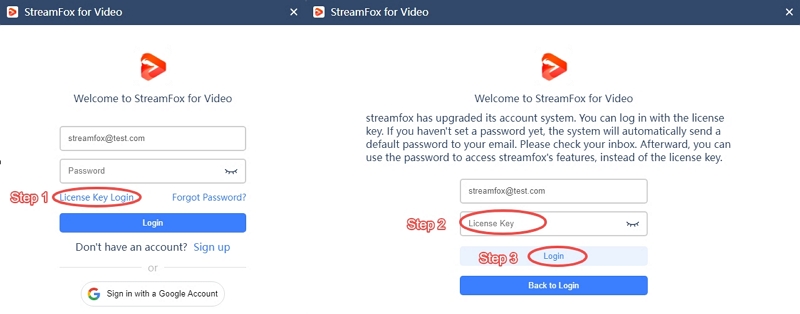
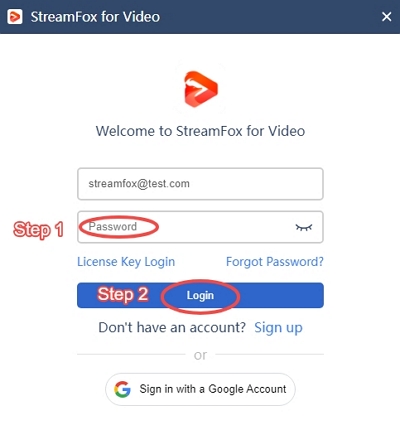
After logging in, premium features will be unlocked.
Tip: Existing account users should click Update Account Status after purchasing to refresh subscription.
Part 3. Convert Videos for Offline Viewing
- Paste a supported video URL into the search bar at the top, or select a platform and log in.
- Once the video is detected, click the cloud icon next to the URL to add it to the conversion list.
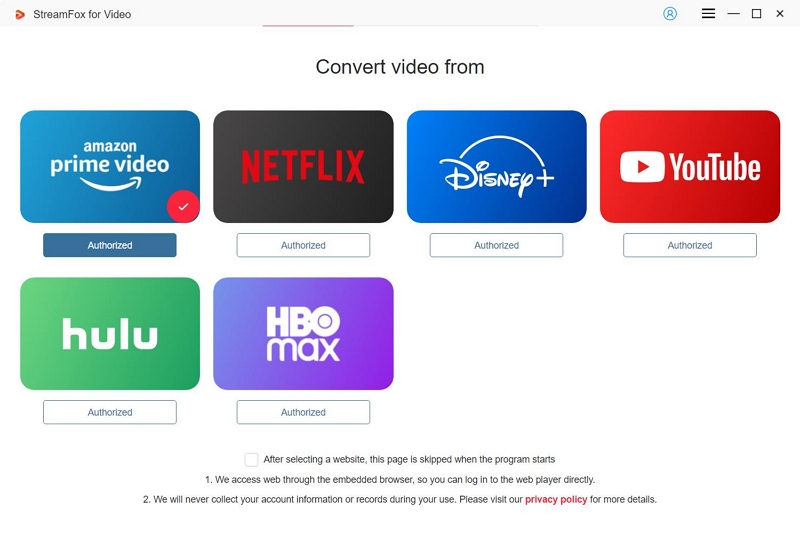
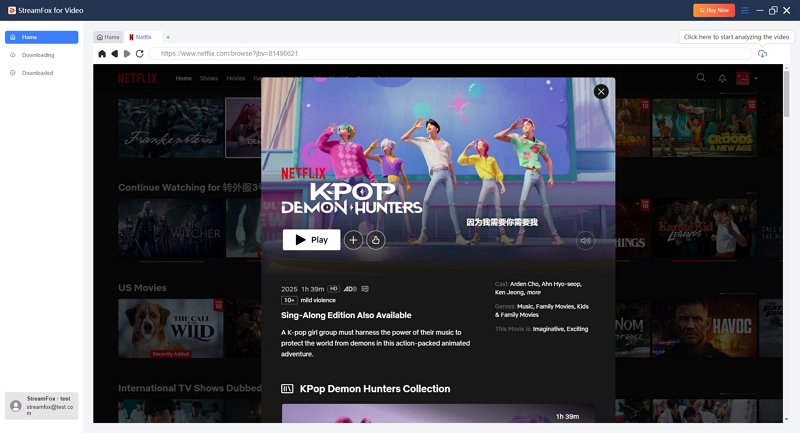
Supported Platforms: Over 1000 publicly accessible websites for personal offline viewing.
Tip: You can add multiple URLs at once for batch conversion.
Important:
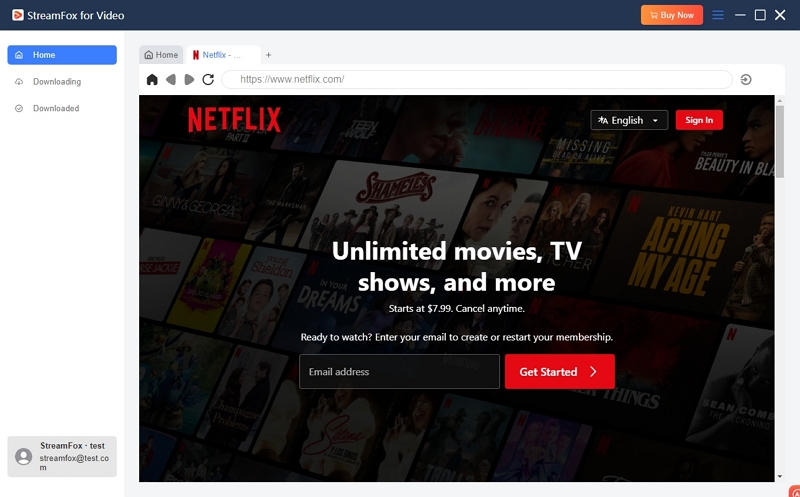
- For platforms like Netflix, Amazon Prime Video, HBO Max, Disney+, Hulu, or OnlyFans, you must first log in to your account on the embedded site.
- StreamFox also provides built-in links to TikTok, Facebook, and Instagram, allowing you to access and download videos more easily.
- StreamFox does not collect or store any personal account information. Logging in is solely for accessing content for conversion purposes.
Example: For Netflix, you can log in directly on the embedded player to access your videos. StreamFox only uses this login to enable downloading for offline viewing.
In the Convert Option window, choose your preferences:
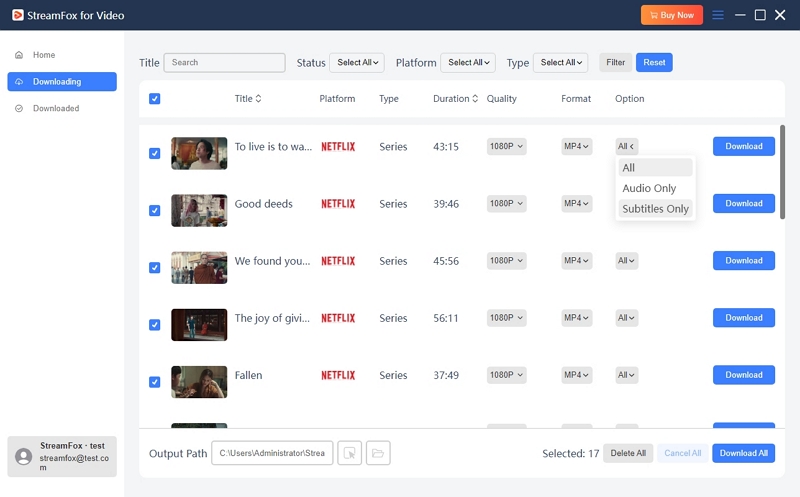
- Download Option: All / Audio Only / Subtitles Only
- Output format: MP4 / MKV / MOV
- Video quality: 1080P ~ 432P
- Audio language
- Save Subtitle As: Hardcoded / Soft / External
- Output path
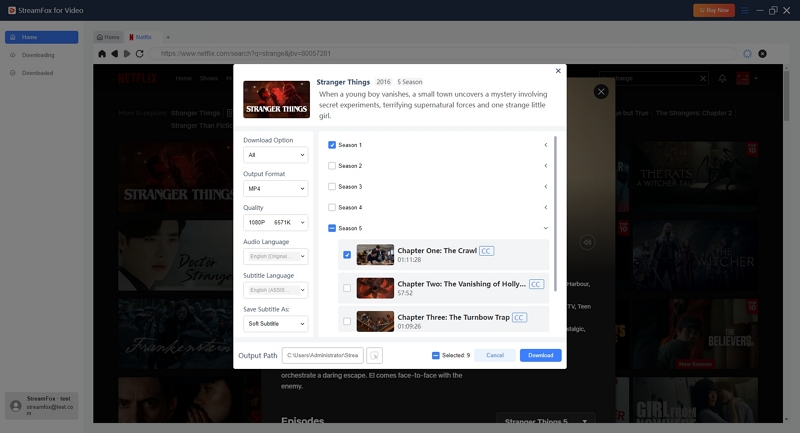
Select the videos you want to convert, then click Download to start the conversion process.
Note: Settings can be applied globally or individually per video.
- While conversion is in progress, go to the Downloading section to view progress, cancel, or resume conversions as needed.
- After conversion is complete, navigate to the Downloaded section.
- Click View Output File to open the output foldern.
- Play the videos offline using any media player installed on your device. Access Converted Videos
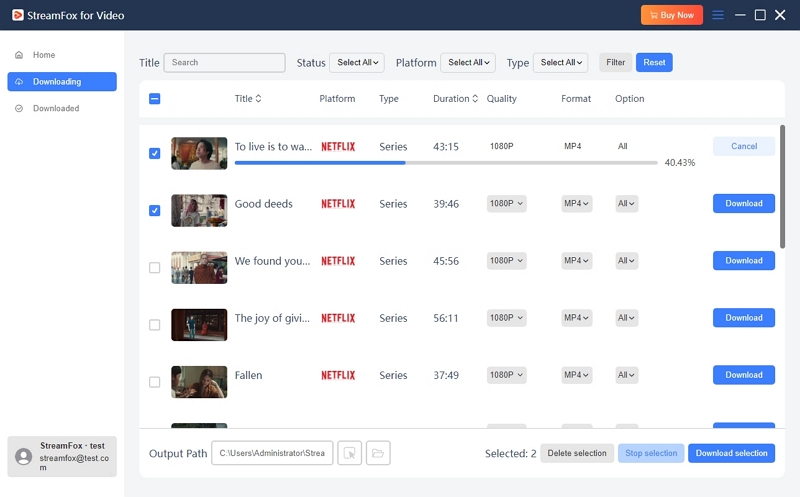
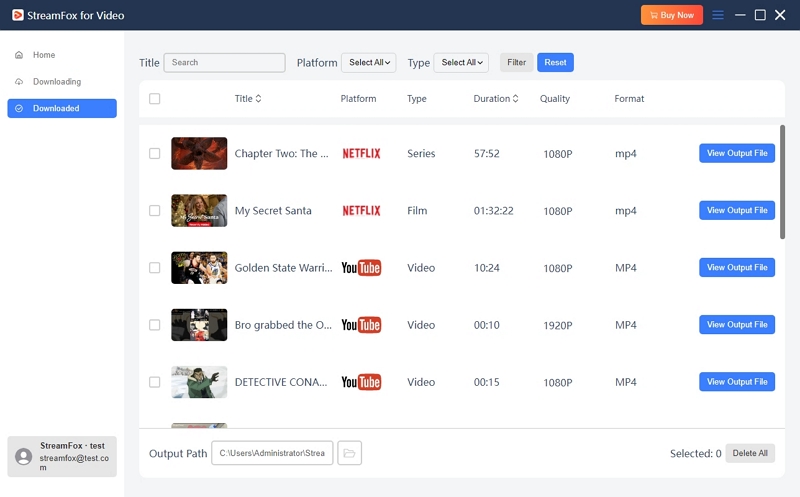
Filter Videos in Downloading & Downloaded Sections
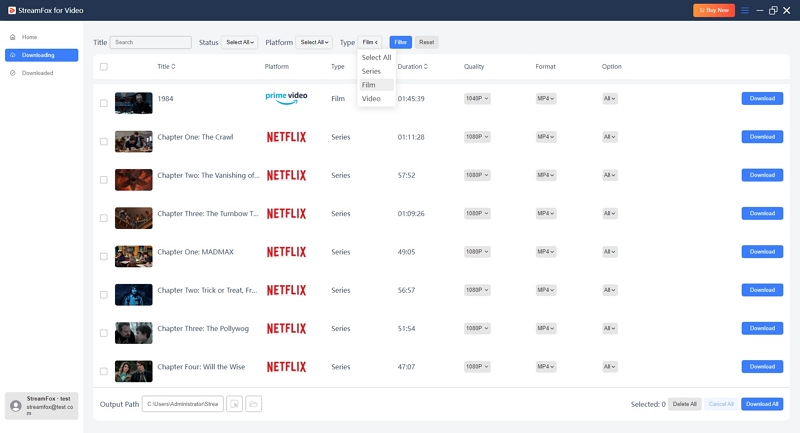
StreamFox for Video allows you to filter and organize videos in both Downloading and Downloaded sections.
Available Filter Options
| Filter Category | Options | Description |
|---|---|---|
| Title | Text input | Search videos by movie, episode, or video title |
| Status | Select All / On Trial / Authorized | Filter videos by trial or activated status |
| Platform | Auto-detected platforms | Show videos from a specific source platform |
| Type | Select All / Series / Film / Video | Sort videos by content type |
Steps to Filter the Video List
- Go to the Downloading or Downloaded section.
- Select one or more filter conditions from the dropdown menus (Status, Platform, or Type).
- Click Filter to apply the selected criteria.
- The video list will refresh and display only the matching items.
Tip: You can adjust filters at any time to reset or refine the list view based on your current needs.
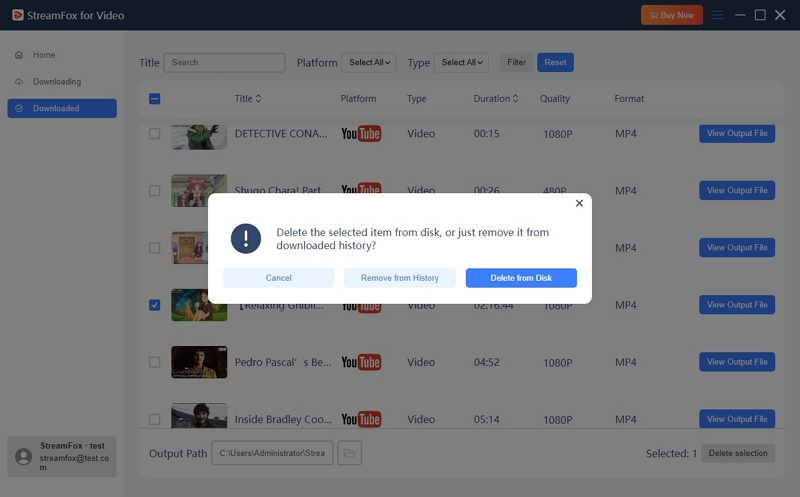
You can manage completed conversion records directly from the video list.
- Select one or more videos by checking the box on the left side of each item.
- Click Delete Selection in the bottom-right corner of the interface.
- In the confirmation dialog, choose one of the following options:
- Remove from History (keeps the output files on your device)
- Delete from Disk (removes the output files from your device)
Part 4. Convert Audio or Subtitles Only
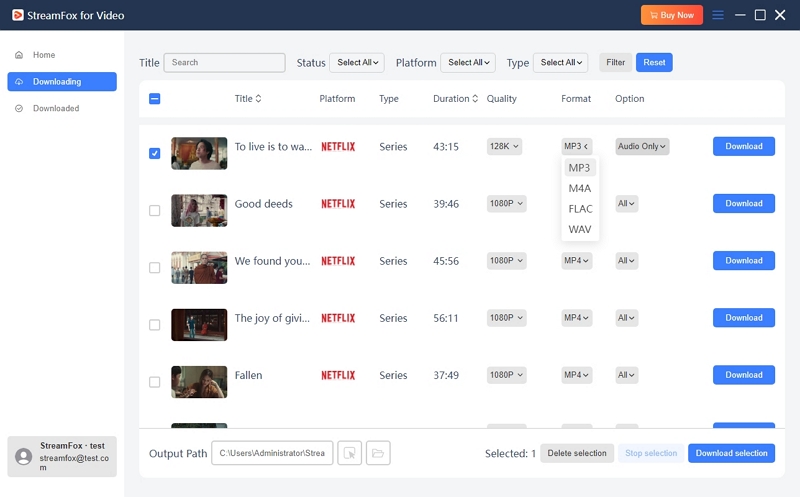
- In Downloading section, select Audio Only.
- Save audio tracks in MP3, M4A, FLAC, or WAV.
- Select Subtitles Only.
- Extract subtitles in SRT or VTT format for use in compatible media players.
Note: Useful for language learning or offline subtitle viewing.
Part 5. Preferences & Output Customization
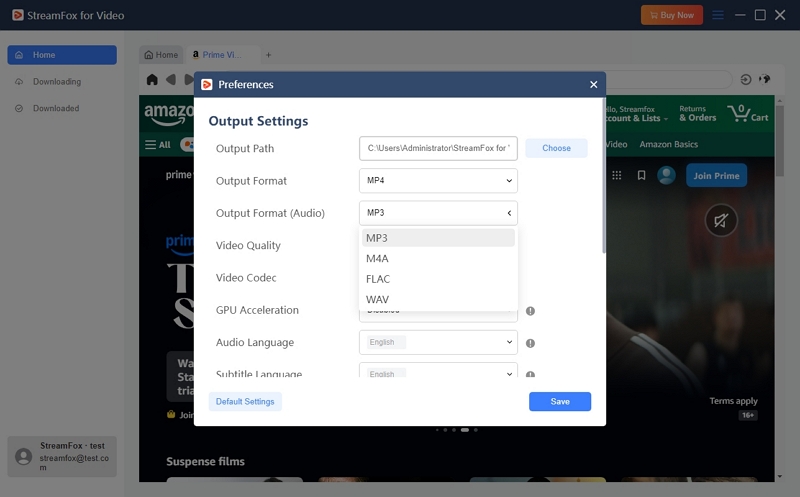
To customize output behavior, video quality, subtitles, and network settings, go to: Menu (☰) → Preferences → Output Settings
| Setting Category | Option | Description |
|---|---|---|
| Output Path | — | Choose where converted files are saved locally |
| Video Output Format | MP4 / MKV / MOV | Set the default video container format |
| Audio Output Format | MP3 / M4A / FLAC / WAV | Available when audio-only conversion is supported |
| Video Quality | Best / Medium / Low | Resolution depends on source availability |
| Video Codec | AUTO / H.264 / H.265 | Controls video encoding method |
| GPU Acceleration | Enabled / Disabled | Improves conversion efficiency on supported hardware |
| Audio Language | Multiple languages | Determined by source video |
| Subtitle Language | Multiple languages | Automatically detected when available |
| Save Subtitle As | Hardcoded / Soft / External | Controls how subtitles are stored |
| After All Videos Converted | None / Turn off the Computer / Sleep / Exit the Program | Define system behavior after all conversion tasks are completed |
Subtitle Type Explanation
| Subtitle Type | Description | Editable | Toggle On/Off |
|---|---|---|---|
| Hardcoded | Permanently embedded in video | ❌ | ❌ |
| Soft | Saved as selectable subtitle tracks | ❌ | ✅ |
| External | Saved as independent files (.srt / .vtt) | ✅ | ✅ |
Supported media players for Soft & External subtitles: VLC · Media Player Classic-BE (MPC-BE) · PotPlayer
| Setting | Options | Description |
|---|---|---|
| Simultaneous Conversion | 1 / 2 / 3 | Number of videos processed at the same time |
| Proxy Mode | Automatic / Manual / Disabled | Configure network access when needed |
These settings ensure consistent results and a personalized offline viewing experience.
Disclaimer
StreamFox for Video is designed for personal offline viewing and format conversion. Users are responsible for compliance with local laws and content providers’ terms of service. StreamFox does not host, store, or distribute video content.