DJing with Spotify is no longer limited to workarounds. As Spotify integration becomes available in more DJ platforms, you can now choose from several ways to bring your favorite tracks into a DJ workflow. In fact, some DJ software can connect to Spotify directly, while other options still rely on locally stored music files.
To help you choose the right approach, we tested five DJ software options that work with Spotify. Four of them offer direct Spotify integration, while the fifth requires you to manually import your Spotify music. If you prefer the latter approach, we’ll also show you how to use StreamFox for Music to convert Spotify tracks into common formats such as MP3 and FLAC for use with your DJ software.
4 DJ Software That Works Directly with Spotify
Several DJ software options now offer direct Spotify integration, making it easier to access your Spotify library while DJing. In this section, we’ll take a closer look at four options.
1. Mixonset (iOS & Android)
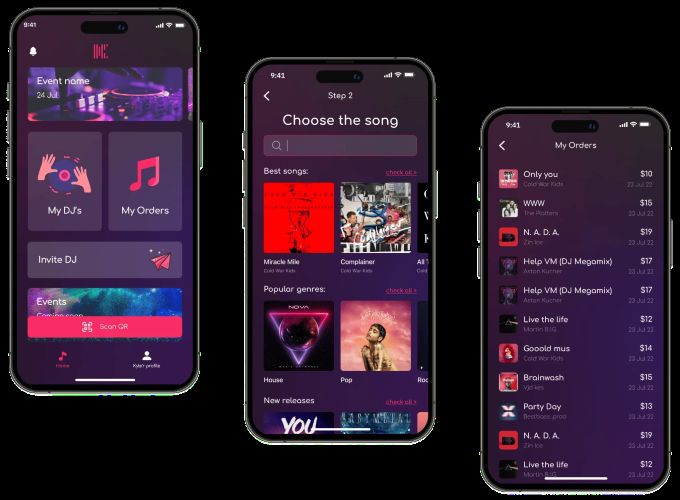
Mixonset, or Offtrack(as it is now called) is one of the early DJ software with direct Spotify integration. To use it, you’ll need a Spotify Premium account and even then, it currently supports only about 80% of Spotify’s catalog.
Here’s how it works: you pick a playlist, Offtrack scans each song for BPM, energy levels, and tonal harmony and it then auto-builds a Smart Mix queue. The real magic? It identifies the best 25-50% of every song, smoothly transitioning to the next while handling all the beat-matching in real time. This all happens with a single tap. However, it lacks any manual control options.
There’s a free version, but if you want to ditch ads native to Offtrack, the Pro version costs US$4.99/month (on top of Spotify Premium).
2. Rekordbox (Windows, Mac, iOS, Android)
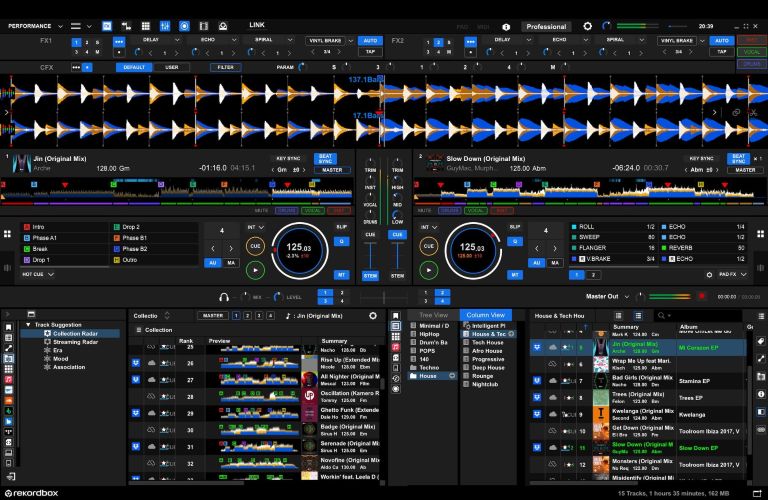
Rekordbox combines direct Spotify integration with powerful cloud features. With a Spotify Premium account, you can browse Spotify’s music and playlists directly in Rekordbox and load tracks for mixing. For your own music, the cloud-based library lets you sync and manage your collection across supported devices with a paid plan. Even with the free version, there are no ads and most core tools stay unlocked. In terms of workflow, it gives you almost everything you’d expect from Virtual DJ — plus a few extras. For instance, it even directly integrates with platforms like Beatport and TIDAL, making it easier to work with streaming tracks if needed.
Its analysis engine enjoys a solid reputation, especially for accurate key detection. Although when it comes to pure scanning speed, Virtual DJ still edges ahead. You’ll also find batch analysis, so loading entire folders is quick work. The real showstopper? Real-time stem separation. Vocals, instruments, drums, everything gets split cleanly, whether the track lives online or offline.
3. Serato DJ (Windows and Mac)
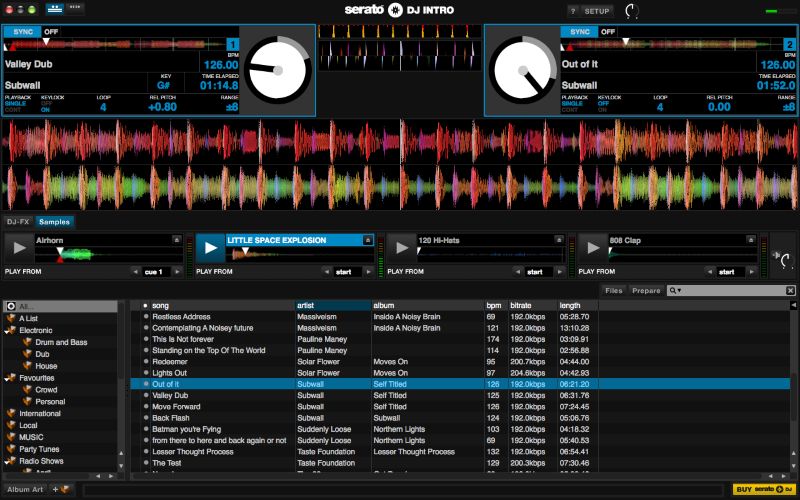
Another contender is Serato DJ. It’s built for full 2-deck or 4-deck mixing. However, with Serato, the free version barely scratches the surface. Features like key analysis, beat jump, plugins, and slip mode are locked behind the Pro paywall.
That said, when it comes to scratching and turntablism, Serato still holds its crown, thanks to its ultra-low latency performance, rock-solid beat and key matching. Serato’s FX suite, powered by iZotope, deserves a mention too. Basic effects are included, but high-quality filters, echoes, reverbs, delays, and flangers all sit behind the US$11.99/month Pro plan.
At the end of the day, Serato DJ makes the most sense if you’re willing to pay, especially if scratching, FX quality, and pro gear compatibility are high on your list.
4. djay (Windows, Mac, iOS, Android)
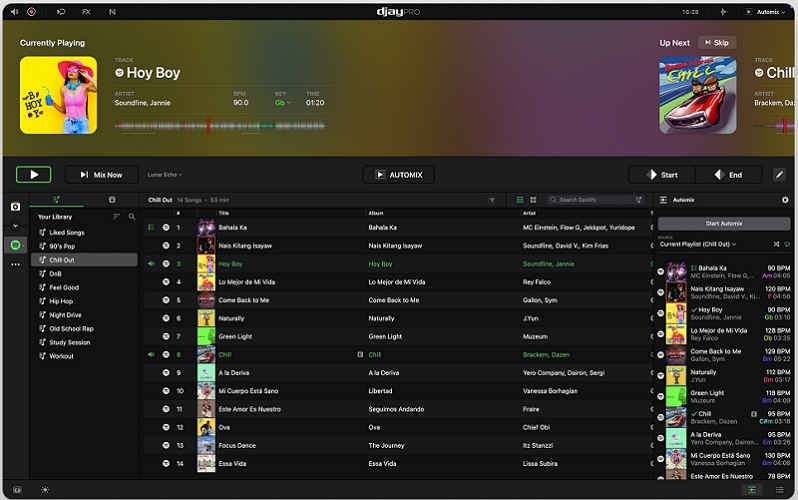
djay is a versatile DJ software developed by Algoriddim, with direct Spotify integration as one of its key features. For beginners, djay offers useful tools such as Automix, beat matching, loops, cue points, and audio effects. The free version covers the basics for getting started, while the paid Pro version unlocks more advanced features and professional DJ tools. More experienced users can also connect compatible DJ controllers for hands-on mixing.
Stable DJ Software That Works with Spotify Music via Manual Import
Most DJ software out there work best with local files and there’s a reason for that. Even when software leans toward stream-first Spotify integration, there’s always the risk of lag spikes, buffering pauses, or awkward stutters right in the middle of a set. For any serious DJ, that’s non-negotiable. We will introduce a solid DJ software option that handle custom MP3 or FLAC files effortlessly. You can download your Spotify songs into these open formats first. Once that’s done, it’ll slip into your DJ workflow without a hitch.
Virtual DJ (Windows, Mac, Remote Apps for Android and iPhone)
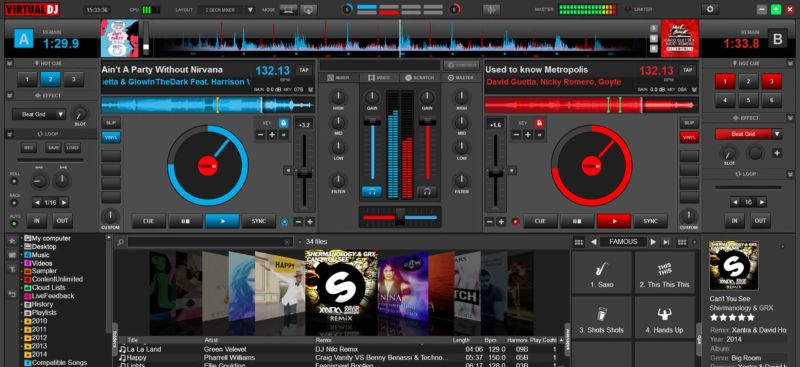
For over two decades, Virtual DJ has earned its stripes where it matters the most — handling local files.
Yes, it now features its own catalog, but it doesn’t chase the streaming-first approach. And that’s clear the moment you look at its feature set. It still packs the most sophisticated media folder management system and advanced library tagging to handle your local files. Even the drag-and-drop importing and batch file processing feel like a visual cue to this core identity.
Of course, needless to say, you’ll get every feature you expect. We’re talking instant BPM, key, and waveform analysis. Full audio mixing with EQ, gain, filters, whatever you want. It also brings its own audio effects suite and custom sample pads for quick drops, loops, or one-shots.
Now, add to that Virtual DJ’s iPhone and Android remote apps allow you to trigger tracks, blend transitions, nudge volume or pitch, all from across the room. Just know this — it’s no “push-button DJ” app. It demands some learning curve. However, just give it a serious week and you won’t just mix for yourself. You’ll run the whole damn room.
How to Manually Add Spotify Music to DJ Software
When your music library lives inside Spotify, you will hit a wall. All downloads remain locked inside Spotify’s own app. Even if you save Spotify playlists offline with a Premium account, they won’t appear in Virtual DJ or others. To make your favorite Spotify music work with any DJ software, you need a dedicated converter that delivers everything, from high audio quality to automatic file organization and StreamFox for Music is a recommended option.
Why Is StreamFox for Music Recommended
StreamFox for Music, lets you convert audio from Spotify into open formats like MP3, M4A, FLAC, or WAV. Once saved, these tracks live directly on your computer and are ready to import into any DJ software you prefer, like Virtual DJ, Serato and Rekordbox.
The conversion process itself is quick and direct. Inside StreamFox, there’s a built-in Spotify browser that allows you to log into your account, pick any playlist, album, or track, and save it straight to your hard drive.
The real game-changer, though, is StreamFox’s ODSMRT technology. While conversion, it preserves music’s original yet pristine quality. That way, when your DJ software scans the track, it can read the complete musical DNA, from BPM and energy levels to the full frequency breakdown (bars, mids, treble), making analysis simple and precise.
- Spotify tracks arrive in crystal-clear 320 kbps or lossless quality.
- Every file lands with full ID3 tags intact: artist names, album titles, even cover art stays, so your DJ library is visually appealing.
- Batch downloads fly at 30x speed, bringing whole playlists or albums onto your system fast.
- Beyond Spotify, you can also pull music from Apple Music, Amazon Music, YouTube Music and more.
Step 1. Save Spotify Songs as MP3
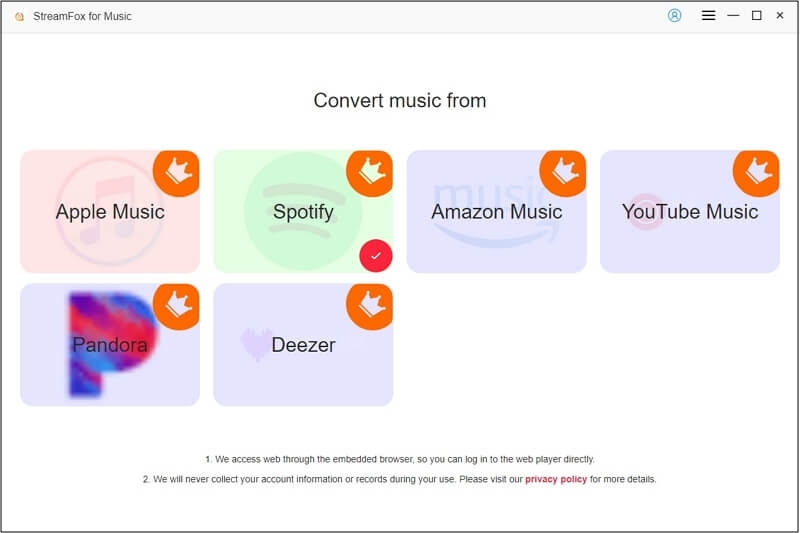
Step 1. Install StreamFox for Music on your computer, whether you’re on Windows or Mac. Once you open the software, you’ll see a home screen filled with supported platforms. Here, pick Spotify.
Step 2. StreamFox will take you to its built-in Spotify browser. Hit Log in and enter your account credentials. Whether it’s a Premium or Free account, it will make no difference to the final quality.
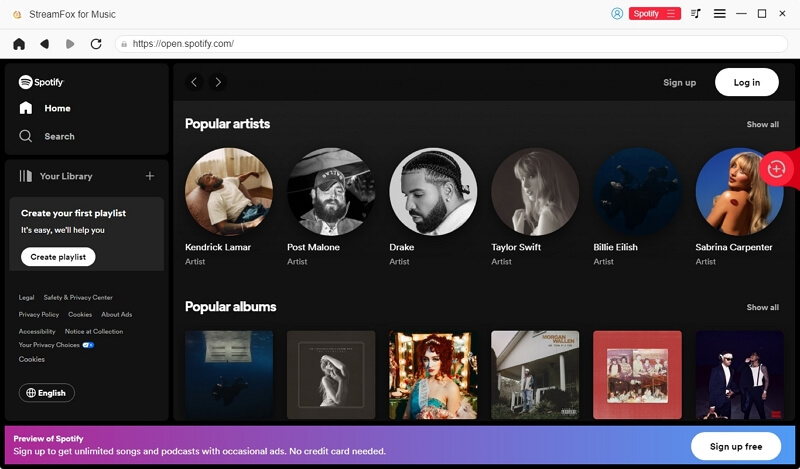
Step 3. From your Spotify library, drag any track, album, or playlist over to the red plus (+) ribbon sitting at the top-right corner. Alternatively, you can click Add to the conversion list to add songs to convert.
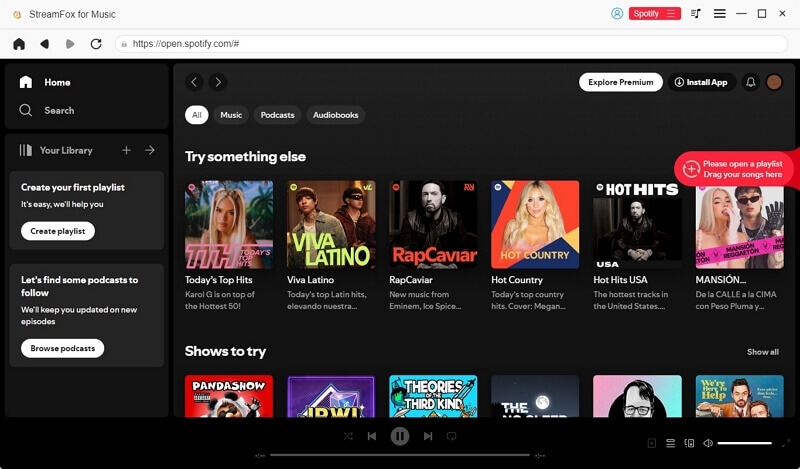
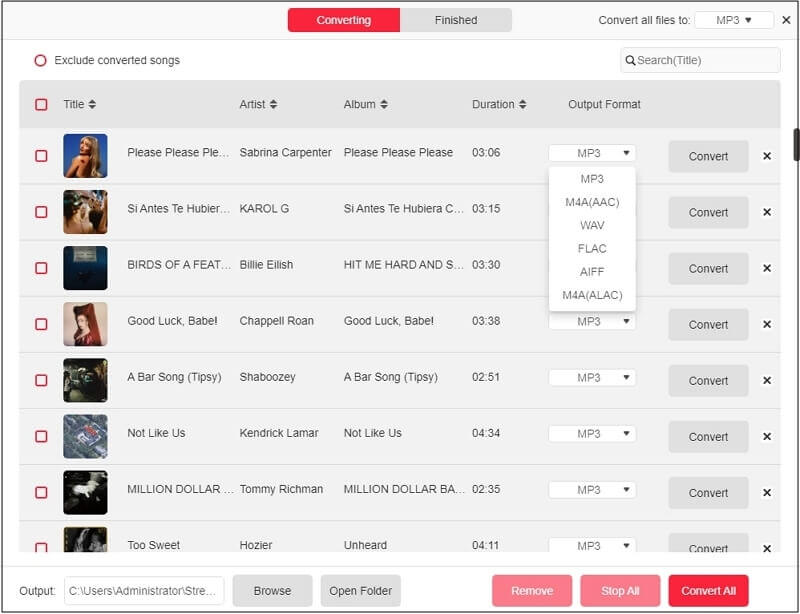
Step 4. Click Convert at the lower right corner to directly export chosen songs as MP3. You can also expand the conversion pane to choose your preferred output format, such as FLAC, M4A and WAV, either for every file in one go or track by track if you prefer. Once ready, hit Convert All.
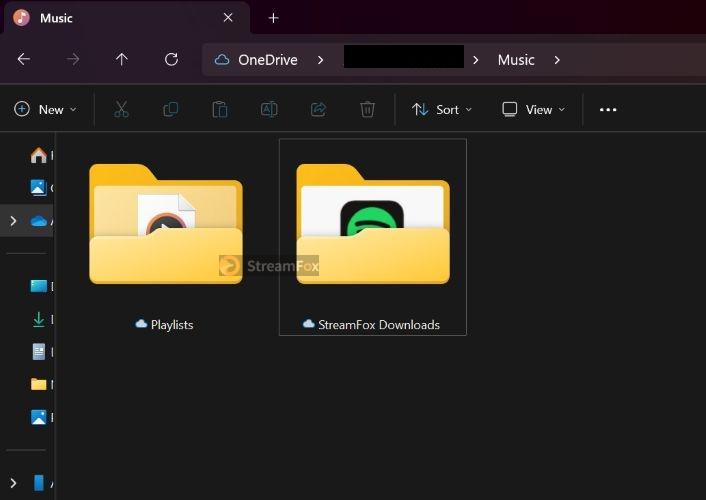
Step 5. When it’s done, head to your Downloads folder. Everything you saved (songs, playlists, albums) will be there, sorted into folders, with cover art and all tags intact.
Step 2. Import Spotify MP3 to DJ Software
With the Spotify music saved locally, the hard part is done. All that’s left is adding those tracks to your DJ software and let’s say you’re using Virtual DJ.
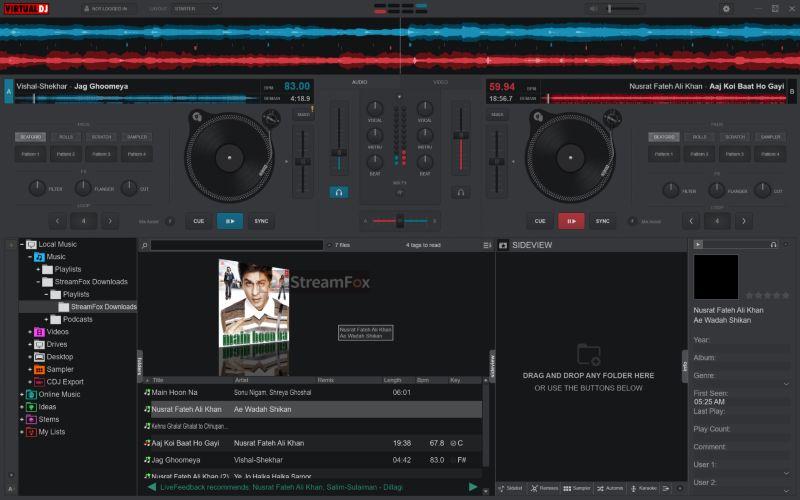
The moment you launch Virtual DJ, it automatically scans every corner of your hard drive. You can just locate them easily via the left pane. Simply, select Local Music and expand the file tree. Right there, you’ll find the StreamFox downloads tucked neatly inside the Downloads directory.
You can drag and drop the songs to the desired decks in the Virtual DJ software.
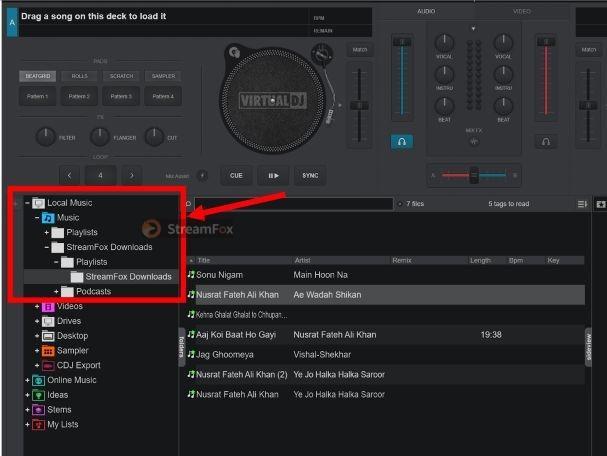
And here’s the sweet spot. As StreamFox for Music keeps every ID3 tag intact, Virtual DJ can read them easily.
What Is Spotify AI DJ?
Spotify also has its own built-in DJ. The magic comes from Spotify’s Sonantic acquisition. Put simply, Spotify uses the data it already has on your tastes, moods, skips, and repeats, and uses it to create a seamless blend of tracks it knows you’ll love.
Between songs, you’ll even hear commentary from Spotify’s own editors — little insights about why a track fits the moment, or what makes the next song worth hearing.
Well, that’s the pitch, at least. In reality? It’s limited to select countries and only works if you’re a Spotify Premium subscriber. If you’re eligible, you’ll spot the AI DJ banner right on the home screen. However, you can still find it through Search. Here are the steps to start a DJ session on Spotify:
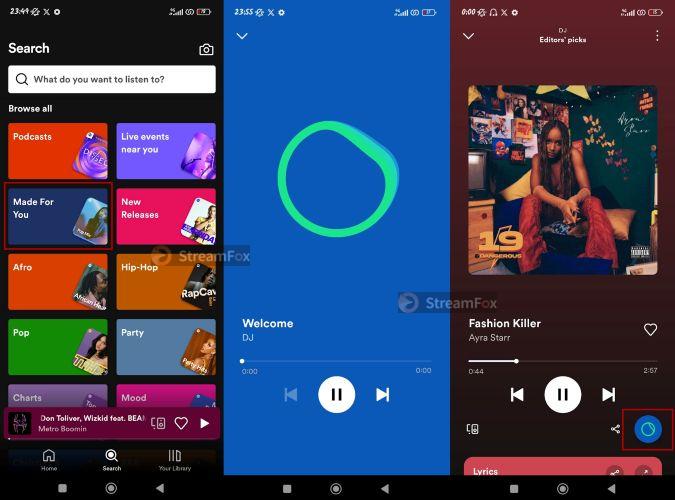
Step 1. Just tap Search at the bottom, choose Made For You, and you’ll find the AI DJ card.
Step 2. Once you hit the card, the voice takes over. It sets the vibe with a short commentary. And your personalized tracks kick in, one after the another, while blending into each other like a proper DJ set.
Step 3. You can tap the DJ icon at the bottom-right corner of the Now Playing screen if the current mood doesn’t sit well with you. Spotify will flip the playlist into a fresh vibe, without needing to start again.
Other Streaming Services with DJ Software Integration
Spotify isn’t the only streaming service that works with DJ software. TIDAL, Apple Music, Beatport Streaming, and SoundCloud also integrate with selected DJ platforms, though supported software and features vary. Let’s take a quick look at these options.
| DJ Software | Streaming Services Supported | Key Features |
|---|---|---|
WebDJ |
Beatport, SoundCloud | Beginner-friendly, optimized for Pioneer controllers, mobile-first |
edjing Mix |
BeatSource, Tidal, SoundCloud, Beatport, On-device Library | One-tap mixes, works without hardware, mobile-first |
Cross DJ |
SoundCloud Go+ | Basic mixing, cross-platform support, customizable layout |
Traktor DJ 2 |
Beatport, BeatSource, SoundCloud Go+ | Direct integration with NI gear, beginner-friendly layout |
Conclusion
That’s all for today. In this guide, we’ve covered the best DJ software that works with Spotify, including options with direct Spotify integration and one that lets you manually import Spotify music. We’ve also looked at other streaming services that support DJ software integration, giving you a clearer idea of how to choose the right setup for your DJing needs.