Sonos is one of the best home audio systems out there, and pairing it with Spotify takes your listening experience to the next level. Whether you want to stream Spotify on Sonos for free, control playback remotely, or even listen offline without an internet connection, there is a method that fits your setup. In this guide, we cover three ways to play Spotify on Sonos with clear, step-by-step instructions, so you can spend less time figuring things out and more time enjoying your music.
How to Play Spotify on Sonos Online for Free
As long as you have a Spotify account, even a free one, and your Sonos system is set up, you are ready to get started. There are two ways to do this online: through the Sonos app, which lets you add Spotify directly as a music service, or through the Spotify app using Spotify Connect.
Way 1. Use the Sonos App
Sonos works across generations. From Play:5 Gen 1 to the latest Arc and Five, its integration with Spotify bridges the gap between legacy and modern devices. The same holds true whether you’re on S1 controllers or the advanced S2 system. To start, we’ll cover adding Spotify using the Sonos app on mobile or desktop. Once that’s done, we’ll move on to the playback steps.
Step 1. Add Spotify on Sonos
On iPhone/Android
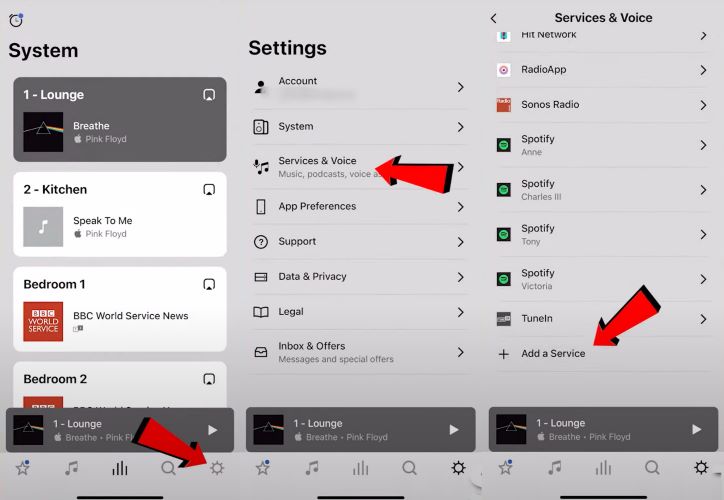
1. Launch the Sonos app. Navigate to the Settings tab that is tucked in the bottom-right corner.
2. Select Services & Voice and then tap Add a Service.
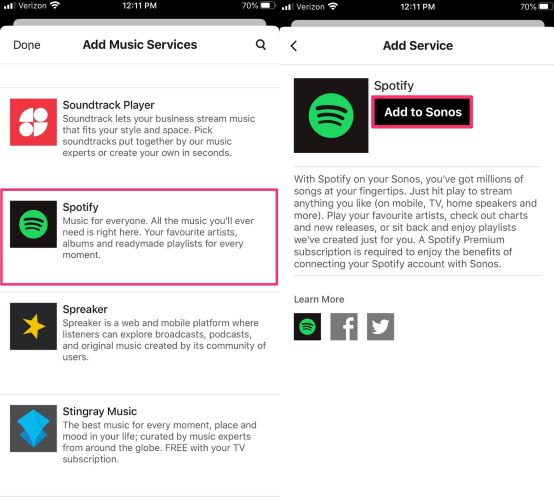
3. Select Spotify. On the next screen, tap Add to Sonos.
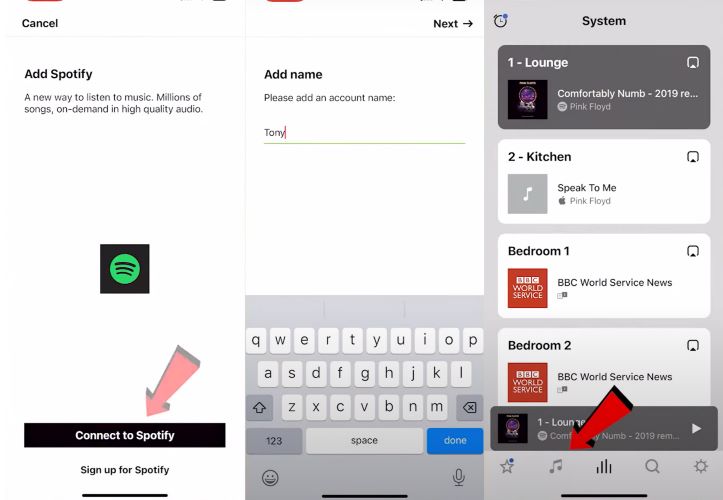
4. Tap Connect to Spotify on the next screen. This will redirect you to the Spotify app for authorization. A confirmation tick will appear once the link is successful. You’ll then return to the Sonos app to complete the setup.
5. Name the Spotify account you just added (useful to manage multiple Spotify profiles), which is mandatory. And that’s it: Spotify is now part of your ecosystem.
On Windows and Mac
Ensure both your computer and speakers are on the same Wi-Fi network. After that, here’s how to integrate Spotify into your Sonos setup:
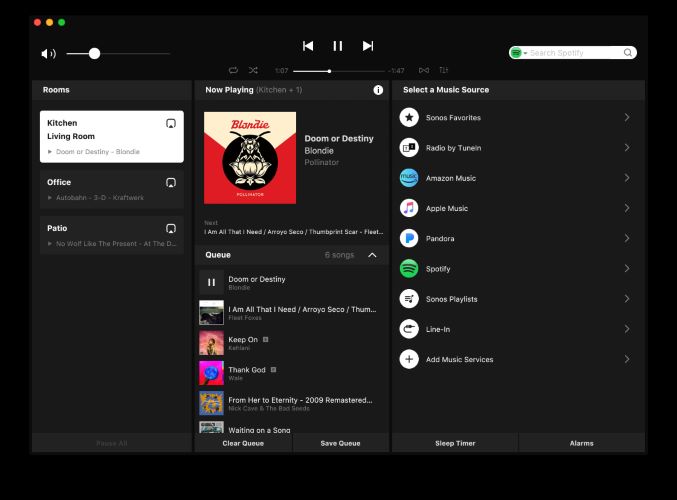
Step 1. Open the Sonos app and choose Add Music Service in the right pane. Select Spotify on the next screen and follow the on-screen to log in.
Step 2. Once linked and you’re redirected to the Sonos app, choose Spotify as your Music Source. Choose the album or playlist to play.
Step 2. Listen to Spotify on Sonos
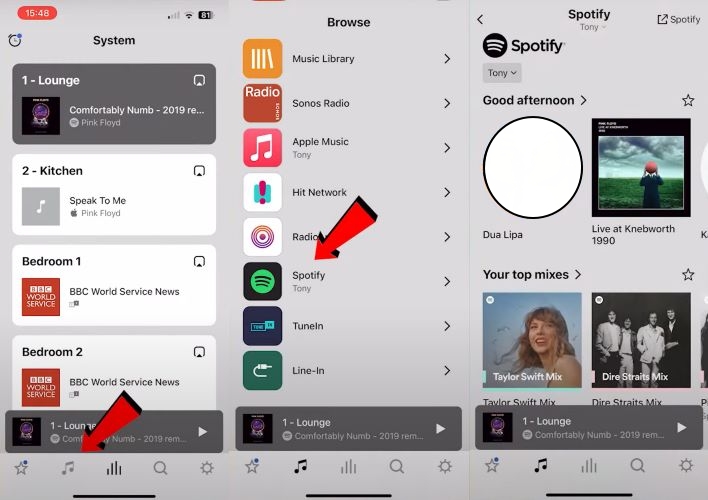
1. Switch to the Music section of the Sonos app.
2. You’ll see Spotify waiting in your linked accounts section. Once you’re on the Spotify tab, start playing any track. To control playback seamlessly: skip forward or backward, add songs to your queue, explore your playlists and favorites.
Alternatively, you can use your voice to control Spotify playback on Sonos — a one-time setup that makes controlling your music effortless going forward.
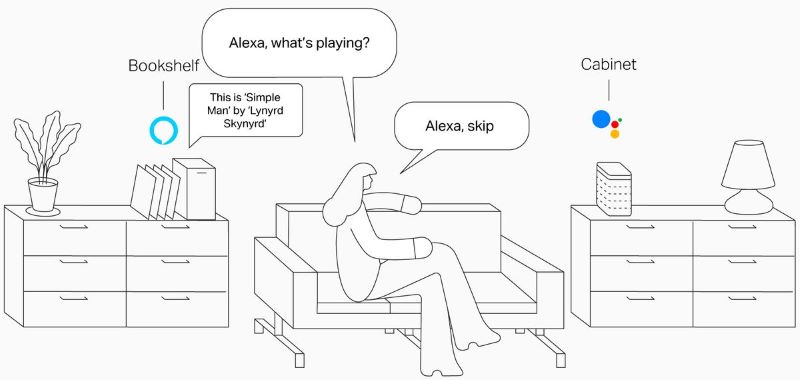
Option 1. Sonos Voice Control
Sonos Voice Control isn’t limited to playback. Voice control also lets you sculpt your Spotify library. You can Like a Song, Remove Items from Favorites, Add an Album, and make real-time automatic changes to your library too. Here are the steps:
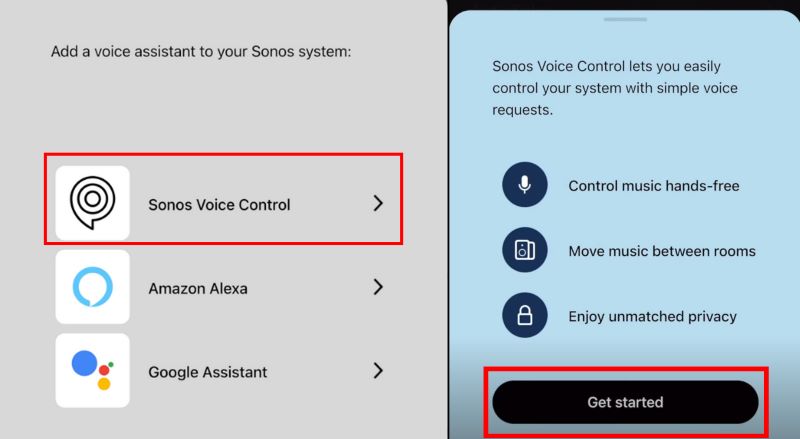
1. Open the Settings tab in the Sonos app and navigate to System. Scroll until you spot the Voice section and tap Add a Voice Assistant.
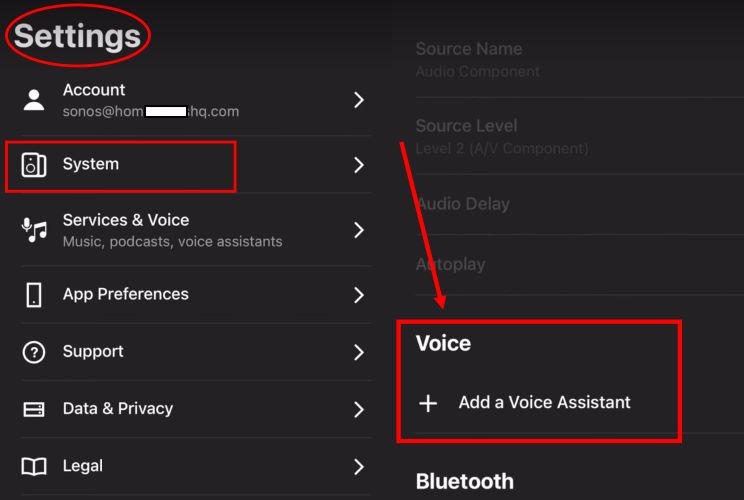
2. Select Sonos Voice Control from the list. Tap Get started and let the assistant load the latest package. Hit Continue, and test it out with a simple command like, “Hey Sonos, play my Liked Songs on Spotify”.
Option 2. Alexa
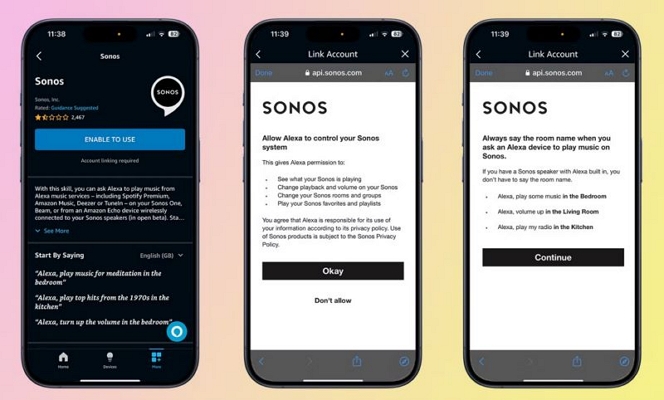
1. From the Sonos app’s Voice Controls menu, pick Amazon Alexa as your assistant. Follow the prompts to open the Amazon Alexa app.
2. Tap Enable to Use to authorize permissions. Then, configure preferences like chimes or wake words. Once linked, issue commands to Alexa and your Sonos speaker will respond immediately.
Option 3. Google Assistant
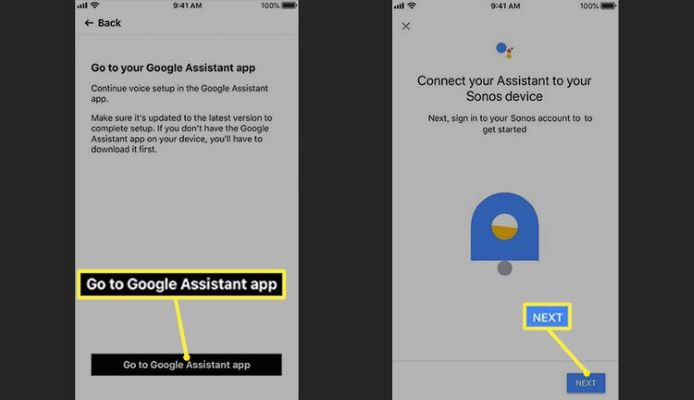
1. Proceed to the Google Assistant app and go to the Voice Control options.
2. Agree to the terms, set up permissions, and confirm the wake word. Return to the Sonos app to complete the pairing. Finally, it’s time to control Spotify playback on Sonos with your voice commands.
Note: The voice control method mentioned above does not apply to both Sonos S1 and S2 systems.
| Feature | Sonos S1 | Sonos S2 |
|---|---|---|
| Spotify Account Support | Free and Premium | Free and Premium |
| Add Spotify | Add via Sonos app under Settings > Services & Voice. | Same process with smoother integration. |
| Spotify Connect | Limited functionality. | Fully supported and you can control it from Spotify app. |
| Voice Control (Spotify) | Only Alexa and Google Assistant | Support Sonos Voice Control, Alexa, and Google Assistant. |
| Control Spotify via Voice | Basic playback commands only. | Advanced commands like skipping tracks, playlist navigation, and playback adjustments. |
| Spotify Playback Sync (Multiple control points) | Sync limited to Sonos app or Alexa/Google Assistant. | Seamless syncing across Spotify and Sonos apps. |
Way 2. Use the Spotify App
Sonos has come a long way. It now offers more flexibility instead of locking users into its own app for every action. This makes the connection between Spotify and Sonos easier. You stay in the Spotify app, play your music as you like, and let Sonos handle the sound. There is only one condition which is keep everything on the same Wi-Fi network. Needless to say, your friends or other family members can jump in too.
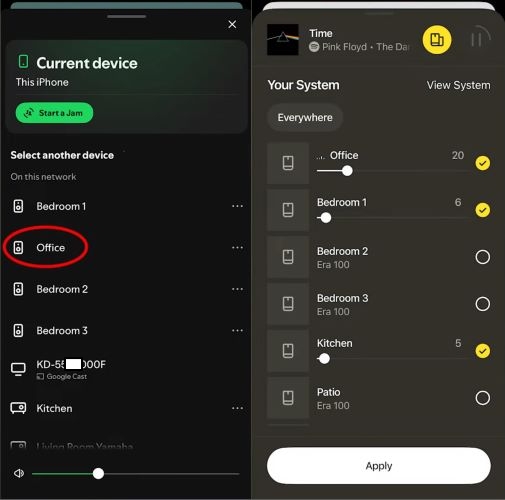
Step 1. Open Spotify. Choose a song, a playlist, or whatever feels right. As it starts playing from the phone speaker, glance at the bottom of the mini player. Tap the speaker icon.
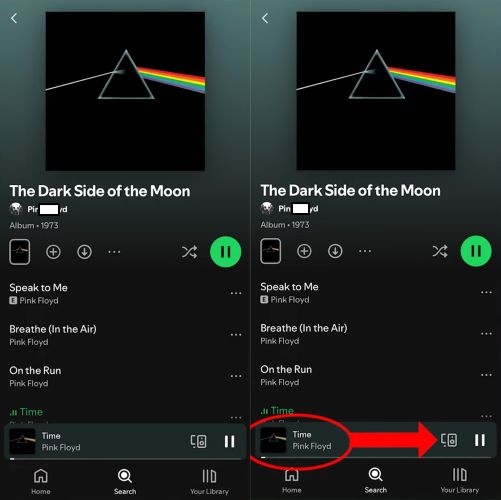
Step 2. A list pops up includes every speaker riding the same Wi-Fi wave. Scan the list and pick the desired Sonos device. One tap and the music will move from your phone to the room.
Keep in mind: You’ll still need to configure the multi-speaker playback from the Sonos app itself. However, after grouping, you can switch back to Spotify.
How to Play Spotify on Sonos Offline
Ads or unstable internet connection will disrupt your Spotify experience on Sonos. StreamFox for Music offers a way to enhance your experience: convert and save tracks directly from Spotify. This way, you can play your saved tracks directly on Sonos from a computer, freeing you of interruptions, glitches, or limitations. Every converted song from StreamFox maintain the original quality of Spotify. The sound quality is up to lossless and all ID3 tags are preserved.
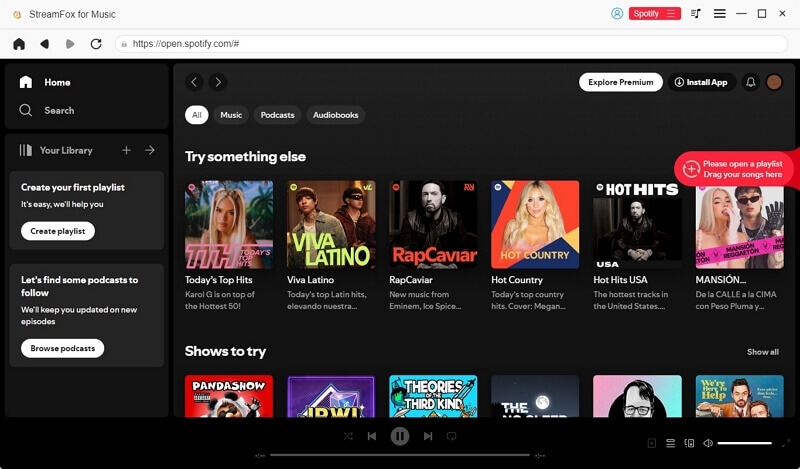
Setup is effortless. Install StreamFox on your computer, log in through the built-in Spotify browser, and select the tracks you want to save. Then, import the Spotify playlist to Sonos desktop app and enjoy the ad-free listening experience.
- All music files are automatically categorized on your local storage after the conversion.
- Metadata of converted music like titles, cover art, artist info remains exactly as they appear on Spotify.
- Provide various output formats: MP3, FLAC, WAV, M4A, etc.
- Compatible with multiple services: Apple Music, Pandora, Amazon Prime, Deezer, and more.
Steps to Play Spotify Offline on Sonos
Step 1. Convert and export your favorite Spotify tracks with StreamFox on your Windows or Mac.
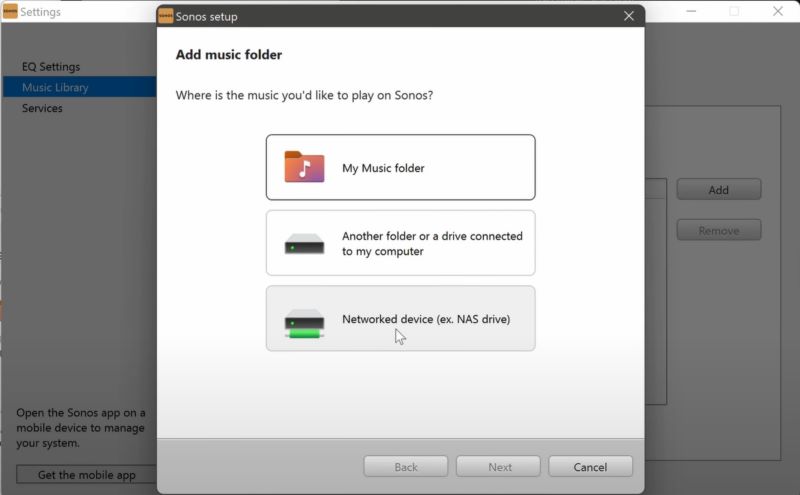
Step 2. Go to the Downloads folder to locate StreamFox saved songs. Move them to the Music folder and add its path to Sonos desktop app to play on the speakers.
FAQ: Can’t Add Spotify to Sonos [Fixed]
The Spotify and Sonos connection isn’t always trouble-free. Here’s a look at the most common linking issues and how to resolve them:
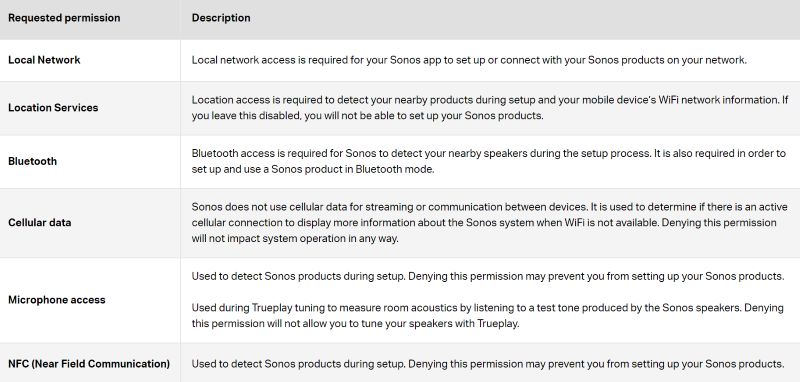
Fix 1. Grant Sonos Permissions for Bluetooth, Wi-Fi, and NFC
Sonos asks for specific permissions when connecting to your mobile device. Each request appears as a pop-up notification, where you decide to “Allow” or “Deny”. Some accesses are vital for connections with streaming services. Rest assured, you can view the details about each request and learn about its user privacy stance. But ensure to grant permissions for your device to connect to Spotify.
Fix 2. See If There is Spotify Outage
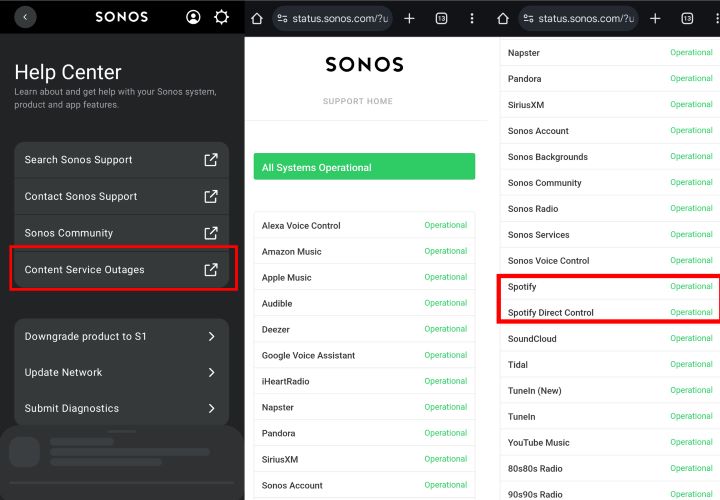
Sonos depends on its connected services like Spotify to function without interruption. If its playback stops or fails, try to confirm Spotify’s status.
Open the Sonos app, navigate to Help, and tap the Content Services Outages section to see if Spotify is listed as operational.
Conclusion
We explored far more than just the basics in this guide. You’ve learned how to add Spotify on Sonos and how to start the playback with manual controls or voice commands. Troubleshooting common Spotify and Sonos playback issues is now part of your skillset as well.
Most importantly, you don’t have to be bound by Spotify’s limitations. Ads and restricted playback options don’t have to interfere anymore. StreamFox for Music offers a solution: convert Spotify tracks in high-definition audio and add them to Sonos for an uninterrupted listening experience.