If you prefer listening to a Spotify playlist in its original order, having it resume from an earlier track can be frustrating. Spotify does not provide a simple option to reset a playlist and always start it from the first song, but that does not mean you are stuck with its current playback position. In this guide, we’ll show you how to restart a playlist on Spotify using several practical methods. Some methods are available to both Free and Premium users, while others depend on the type of Spotify account you have.
How to Restart a Playlist on Spotify Mobile Without Premium
Spotify’s free mobile version confines you to shuffle mode. So, you cannot restart Spotify playlists in their original sequence. Choosing specific tracks or resetting playback, you’re at the mercy of randomness. Yet, there are still ways around this and we’ll show you three useful ones here.
Tip: The ways in this part are also available to Spotify Premium users.
Way 1. Create a Duplicate Playlist
Many free users create a duplicate playlist to reset the queue. Yes, it is unofficial, but it’s a solution that works. Here’s what to do:
Step 1. Open Spotify and head to Your Library. Locate the playlist you want to restart.
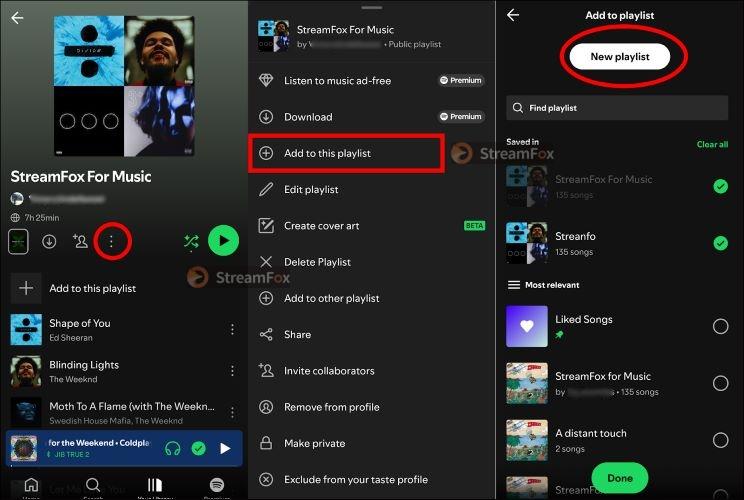
Step 2. Tap the three dots under its name and then select Add to Other Playlist. When prompted, create a new playlist, give it a name and save the playlist. Or stick to the original playlist for convenience.
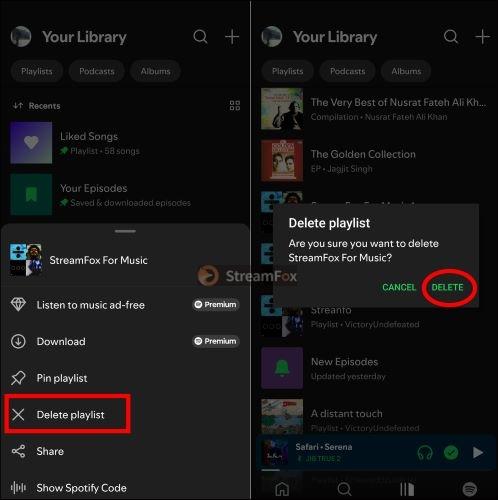
Step 3. Return to the library. Long-press the playlist where you added to another playlist and choose Delete to remove it.
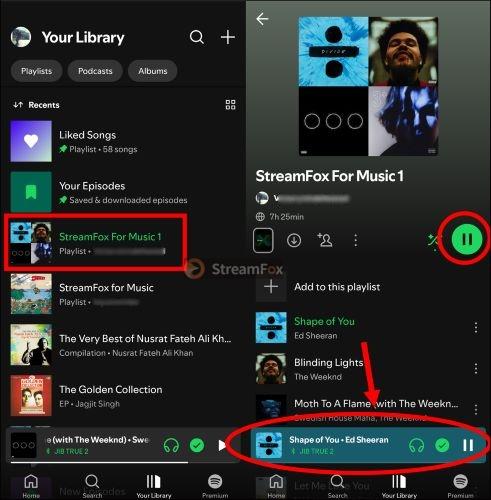
Step 4. Open the new playlist from Your Library. Hit the play button, and your songs will begin from the very first track (no Premium subscription needed).
Way 2. Listen to Spotify Playlists with Another Media Player
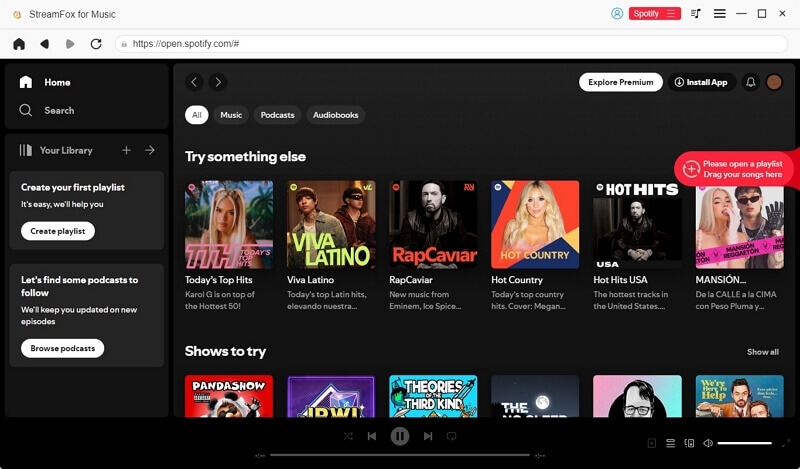
There are media players that let you start playback from the first track and foobar2000 is one of them. You can therefore use a player like this to play your Spotify playlists from the beginning whenever you want. However, you’ll first need to convert your Spotify playlists into local audio files. StreamFox for Music can help with this. Whether you use Spotify Free or Premium, StreamFox lets you save songs, albums, and playlists as MP3, FLAC, WAV, M4A, and other formats. It preserves audio quality, including lossless quality, as well as ID3 tags such as song titles, artist names, and cover art. The original track order in your playlists is also retained.

- 30X download speed ensures your playlists are ready to play before your coffee finishes brewing.
- Organize your playlists into folders by album, artist, or playlist name automatically.
- The inbuilt Spotify browser simplifies the conversion process.
- Work with Spotify, Apple Music, Amazon Music and other 6 music services.
How to Listen to Spotify Playlists Offline from the Beginning
Step 1. Save your Spotify playlists as local files using StreamFox.
Step 2. Download and install both foobar2000 and its Playlist Attributes component.
Step 3. Run foobar2000 and import the converted Spotify playlists to it. Then, create a new playlist and drag and drop the imported songs to it.
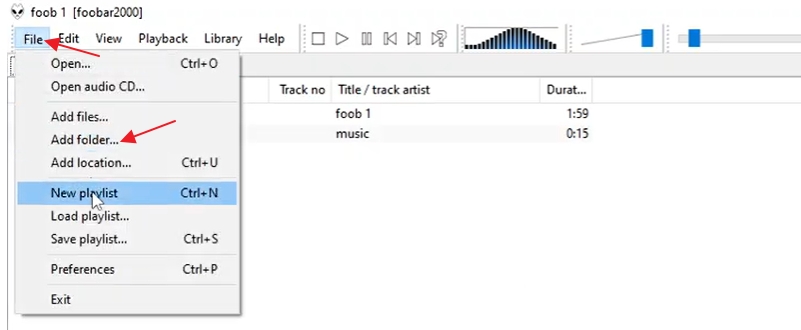
Step 4. Right-click the playlist tab and select Playlist Attributes.
Step 5. Find the option Start Playback on First Track in the playback settings and turn it on. Then, click Apply or OK to save your changes.
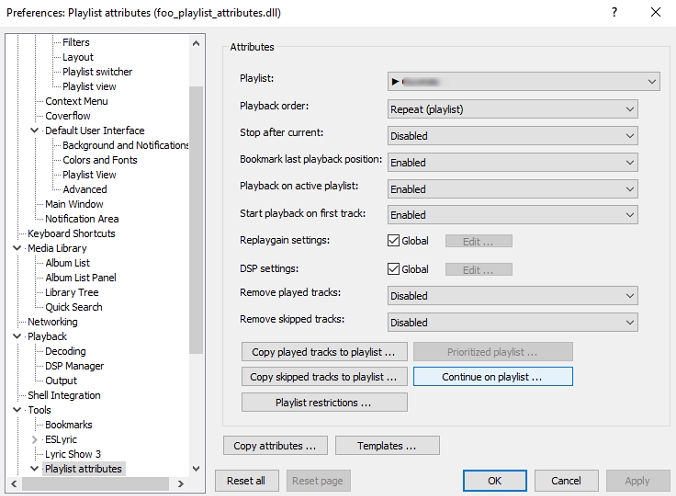
Step 6. Play the playlist and foobar2000 will start from the first track instead of resuming from the previous playback position from now on.
How to Restart a Playlist on Spotify Mobile with Premium
Premium Spotify users have the advantage of full playback control. Unlike free users, they can pick individual songs, shuffle less, and enable advanced features for uninterrupted listening. It’s a seamless way to enjoy playlists just the way they were meant to play.
Way 1. Directly Tap the First Song
You can also instantly restart the Spotify playlist by starting from the first track, which is a straightforward option.
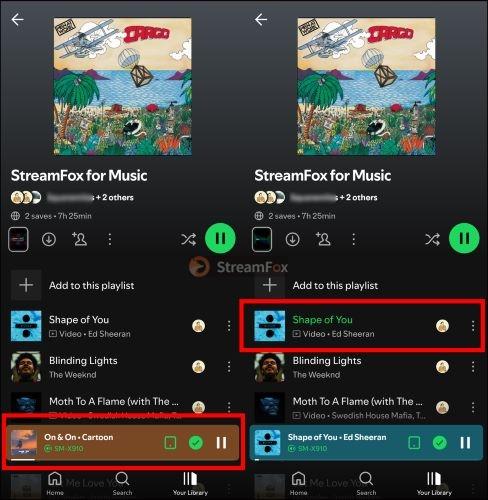
Simply head to your playlist and scroll to the very top. Tap the first song to begin playback in its original order.
Way 2. Disable Shuffle Mode
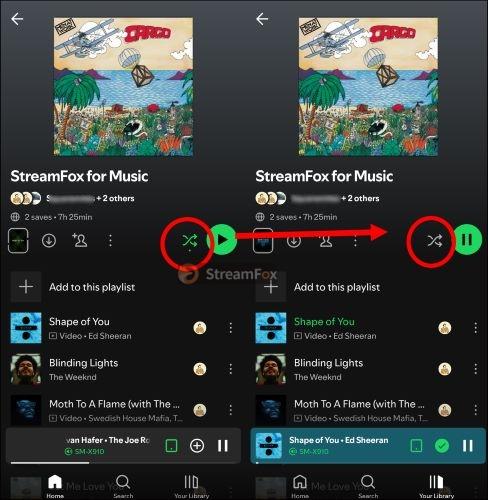
Shuffle mode disrupts the intended flow of songs. When enabled, it will scramble tracks and add unpredictability to playback, which means starting the playlist randomly. As a Premium member, you can switch it off entirely and restart the playlist in order from the beginning. To disable shuffle:
Step 1: Open the playlist you want to listen to. Tap the shuffle icon (two crossed arrows) below the playlist title. The icon will change from green (active) to gray (disabled).
Step 2: Then, tap the play button and the songs will follow their original sequence. The playlist will restart playing from the top now.
Way 3. Enable Repeat Mode
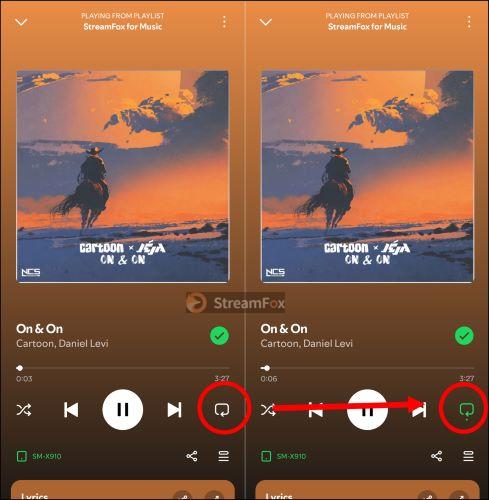
Premium subscribers can also use Repeat Mode to keep playlists looping automatically. Once the final track finishes, the playlist will start over from the beginning without any manual intervention. To activate Repeat Mode:
Step 1. Navigate to the Now Playing screen of your current playlist. The repeat icon is present in the music toolbar.
Step 2. Tap the repeat icon once and it will glow green. This signals that Repeat Mode is active for the entire playlist.
Note: Make sure not to tap it a second time, as this will restrict the loop to the currently playing song.
Fixed: Can’t Restart a Spotify Playlist on Mobile
Although it’s not difficult to restart your Spotify playlists, some users reported that they fail to get it done. Here are some issues you might encounter when you want to play your Spotify playlists from the beginning.
Issue 1: Playlists resume at the last song
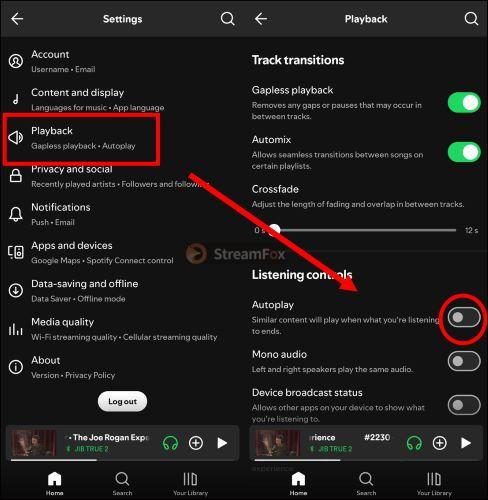
Autoplay is the hidden culprit. When it’s on, Spotify queues similar tracks after the playlist ends. So, you are unable to restart it seamlessly. Switching off this setting will ensure you stay within the playlist and loop back to the start effortlessly. How to turn off Autoplay:
Step 1. Go to the Spotify Settings page and find the Playback section. There, you’ll spot the Autoplay toggle. If it’s glowing green, toggle it off.
Step 2. Once it turns gray, the change is active and no unexpected tracks will sneak in anymore.
Issue 2: Shuffle Mode Switches on Automatically
Shuffle mode is still chaotic and frequently misbehaves, even when you’ve the paid tag. Many reports in Spotify’s community reveal that frustration. If this sounds familiar, a few quick adjustments can resolve this:
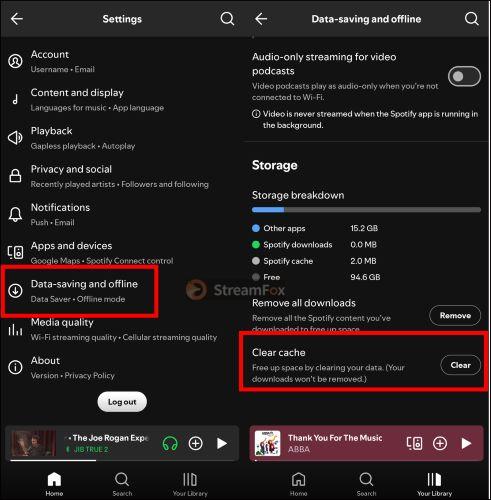
- Clear the Cache: On the Settings page, choose Data-Saving and Offline. Scroll down and tap on the Clear Cache button. Then, restart your device and see if the Shuffle responds to your will.
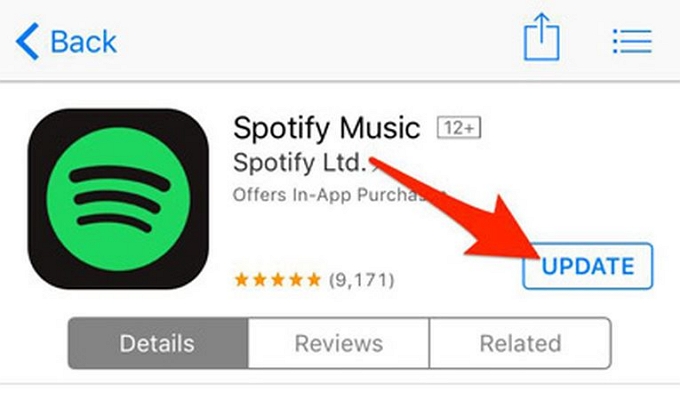
- Ensure your Spotify app is updated by visiting your application store. Install the latest version if available.
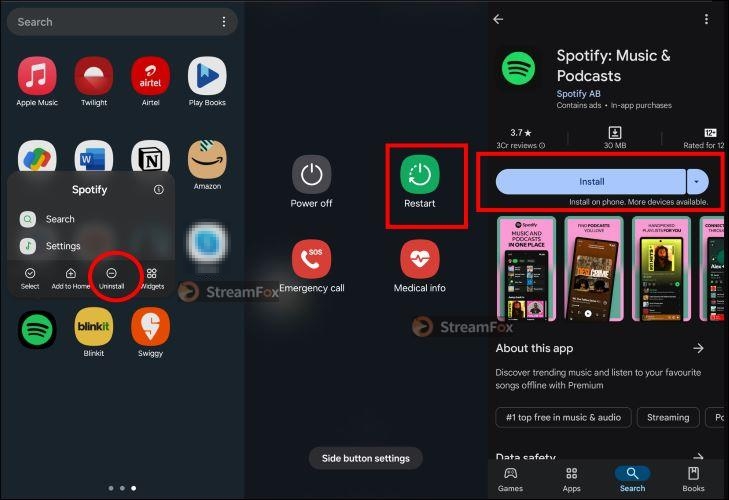
- For persistent issues, uninstall Spotify entirely. Restart your device and then reinstall the app.
Conclusion
There you have it: every way to restart a Spotify playlist on your iPhone or Android. You can play the first song in the playlist within Spotify or listen to your Spotify playlist from the beginning every time with third-party players like foobar 2000.