Have you ever connected your phone to your car and suddenly heard Spotify start playing without tapping anything? Or noticed Spotify resume playback when your Bluetooth earbuds connect or a phone call ends? These unexpected playback triggers are usually caused by app settings, device permissions, or connected accessories. If you want to stop Spotify automatically playing songs, this guide covers solutions for different situations.
Stop Spotify from Automatically Playing Songs: Ways for All Cases
In most cases, Spotify automatically playing songs is related to its playback settings or the current queue. The following steps help you turn off unwanted playback and prevent Spotify from starting songs without your input.
Way 1. Turn off Spotify Autoplay feature
Autoplay is the culprit behind Spotify continuing music after your playlist ends. It is switched on by default and adds similar songs to keep the sound going. To stop it:
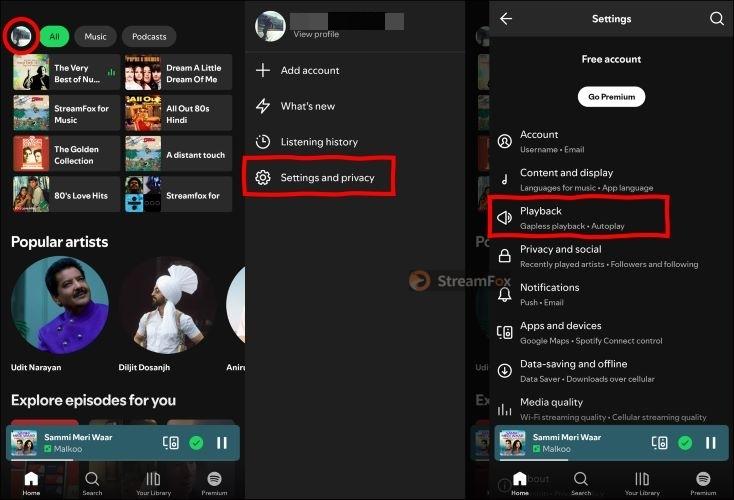
Step 1. Go to Settings & Privacy by tapping your profile icon (top-right corner) and choose Playback.
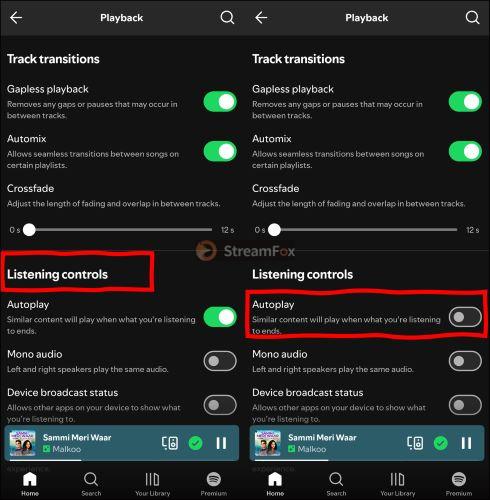
Step 2. The Autoplay toggle will be in the Listening Controls section. Switch it off by sliding it from right to the left.
Way 2. Clear Queue
The Queue, often overlooked, is another source of Spotify’s automatic playback. It stores tracks from previous sessions, causing Spotify to “automatically” play songs you did not select. Here’s how to empty the queue and ensure only your playlist plays:
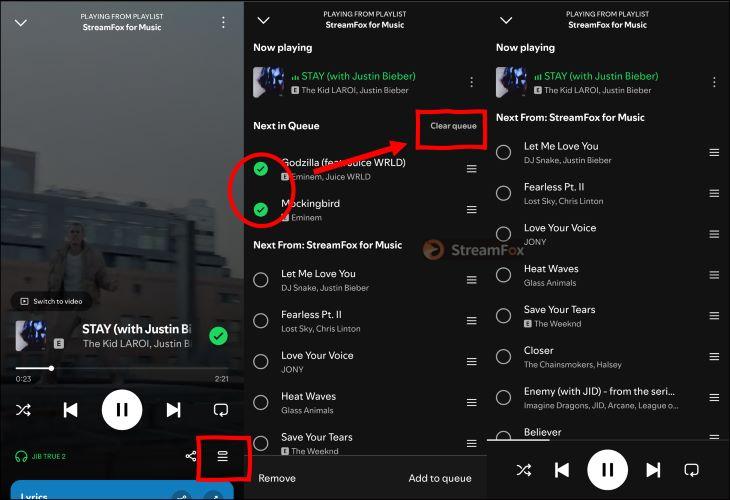
Step 1. Tap the Now Playing bar at the bottom to open the current track view. Look for the queue icon (three stacked lines) in the bottom-right corner and tap it.
Step 2. Highlight unwanted songs in the queue using the circle before each and then tap Clear Queue to wipe them out completely.
Case 1: Stop Spotify from Automatically Playing Songs When Connected to Bluetooth/Earbuds
When you plug in earphones, some Android devices jump to conclusions: they assume you’re eager to press play. Spotify isn’t calling the shots here. Your operating system is configured in a certain manner to decide when the music starts. For devices where this behavior is common, we’ve mapped out tailored methods. For others, broader solutions have also been included.
Way 1. Turn off Phone’s Earphone Mode
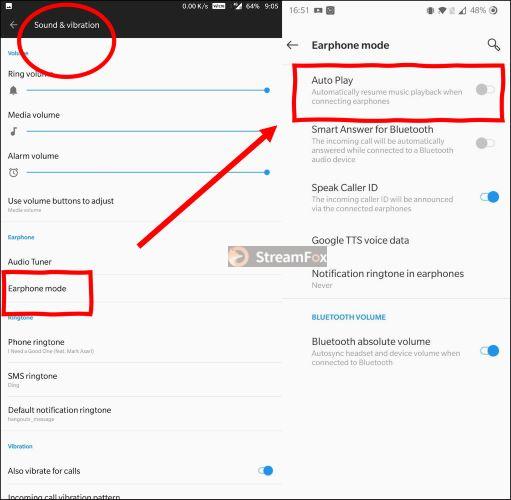
Certain Android devices like OnePlus provides “Earphone Mode” which is designed for magnetic earphones but can trigger auto-playback when earphones or Bluetooth devices connect. Here’s how you can fix this:
Step 1. Open your device’s Settings app. Use the search bar to find Sound or Sound & Vibration.
Step 2. Look for Earphone Mode and select it.
Step 3. Within the Earphone Mode settings, look for Auto Play toggle. Switch it off and the slider will change from blue to gray.
Now, disconnect and reconnect your earphones and you’ll find that Spotify no longer starts automatically.
Way 2. Check Bluetooth Settings of Music App for Automatic Play
Some Android devices hand over playback control to built-in music apps as soon as Bluetooth connects. These apps, often integrated with Spotify’s API, allow the most recent music service take charge.
Take Samsung Music, for example. Its default settings are designed to keep the music alive, but they override Spotify, creating unexpected disruptions. Here is how to modify its settings:
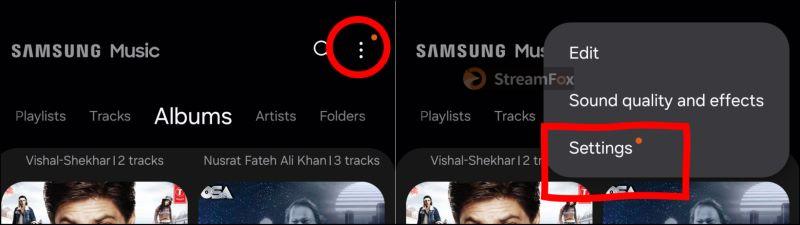
Step 1. Open the Samsung Music app.
Step 2. At the top-right corner of the app, tap the three-dots icon. And choose Settings to enter the app’s core configuration area.
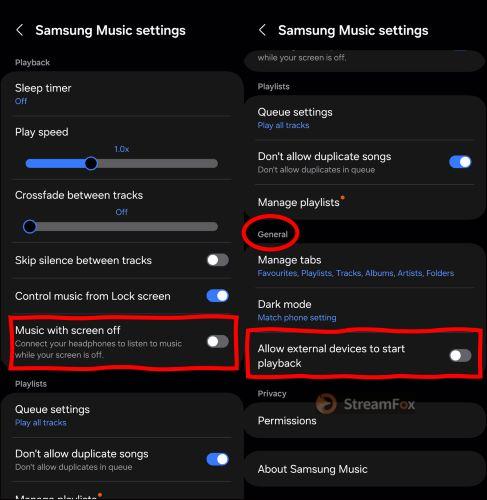
Step 3. Under the Playback options, switch the toggle off next to Music with Screen off.
Step 4. Scroll down further to the General section. Find the option titles Allow external devices to start playback and switch it off.
Way 3. Sign out of Spotify
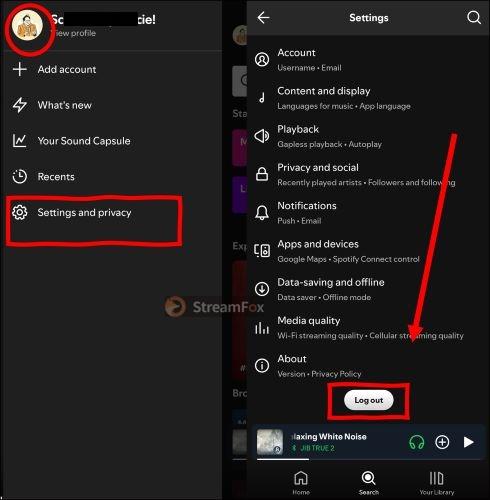
Signing out and back in sounds basic, but it holds real potential to clear off session glitches. These can interfere with Bluetooth connectivity and trigger Spotify automatic playback issues. It’s a quick fix that takes less than a minute and is worth trying. Follow these steps:
Step 1. Head over to Spotify’s Settings. Scroll to the bottom of the menu and you’ll find the Log Out button waiting there. Tap it, close the app for a moment, and restart the app.
Step 2. Sign back into your account. Reconnect your Bluetooth device and check if the issue is resolved.
Way 4. Disallow Spotify from Run on the Background
Spotify once had a built-in feature to block background activity, but it’s no longer available. Instead, Android settings are your workaround. This won’t stop music when your screen is off or when switching apps during active listening. It will only minimize Spotify’s power usage in the background and stop Spotify from starting automatically.
Be cautious: This setting will delay notifications and reduce Spotify’s priority when resources run low.
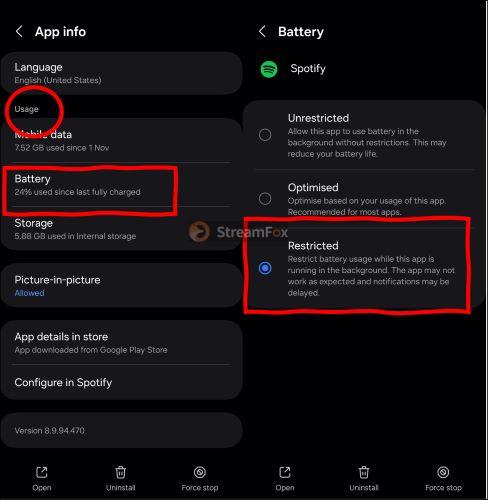
Step 1. Open Settings on your device. Scroll down or use the search bar to locate the Apps or Application Management section.
Step 2. In the app list, find Spotify and tap on it to access its settings.
Step 3. Go to the Battery section within Spotify’s settings.
Step 4. Slide the toggle of All background activity from right to left.
Case 2: Stop Spotify from Automatically Playing During/After Phone Calls
Spotify is usually polite during phone calls, stepping aside when it’s time to talk. However, it doesn’t sometimes. A clean reinstall can fix this once and for all. It’s not just uninstalling the app: it clears every trace of Spotify data from your device and lets you truly refresh.
The steps on Android and iOS aren’t complicated and are just a little different. Let’s walk through the process:
On Android:
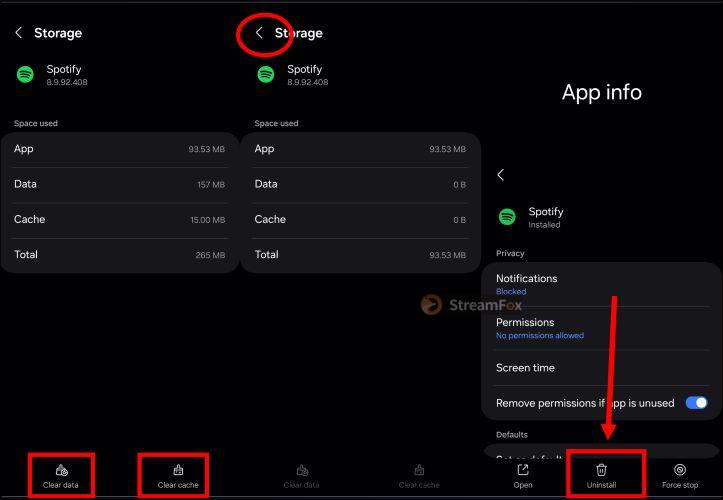
Step 1. Open your phone’s Settings and find Spotify in the Apps list. Once on Spotify’s info page, head to the Storage section and tap Clear Data and Clear Cache at the bottom.
Step 2. Go back to the Spotify App Info screen. Scroll down and tap Uninstall to remove the app completely. But don’t stop there: open Internal Storage, navigate to Android > data, and delete the folder named com.spotify.music.
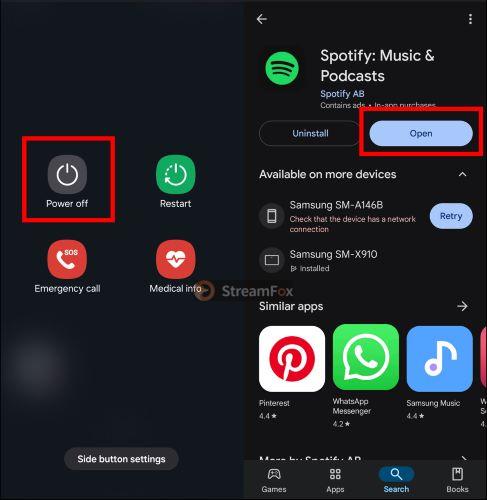
Step 3. Restart your device to refresh the system. Then, head to the Play Store, download Spotify again, and sign back in.
On iPhone:
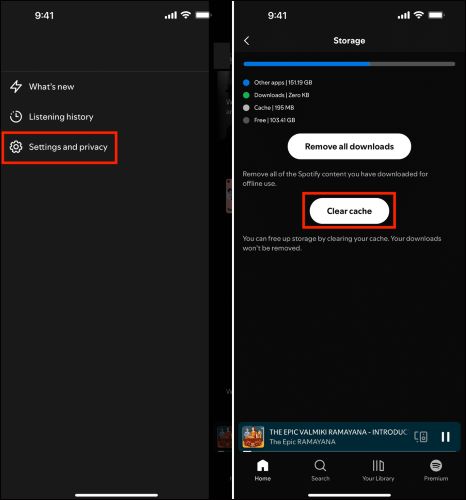
Step 1. Open Spotify’s Settings from within the app. In the Data-saving and offline tab, scroll down to tap Clear cache and Remove all downloads to remove all data remaining.
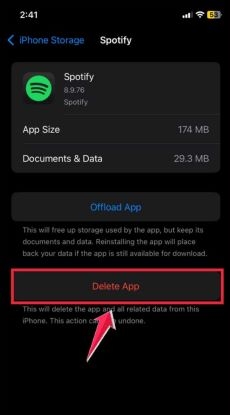
Step 2. Go to your iPhone’s Settings app and select General. From there, tap iPhone Storage, locate Spotify, and tap Delete App to remove it completely. Restart your iPhone, then head to the App Store to reinstall Spotify.
Case 3: Stop Spotify from Automatically Playing Songs in Car
If Android Auto or Apple CarPlay is already set up on your car’s infotainment system, they come pre-configured to start playing music as soon as your phone connects.
Method 1. Disable Android Auto
For older Android versions, you must use the Android Auto app itself to disable this functionality. On newer devices, it is conveniently accessible through the phone’s system settings.
Step 1. Open your device’s Settings and use the search bar to look for Android Auto.
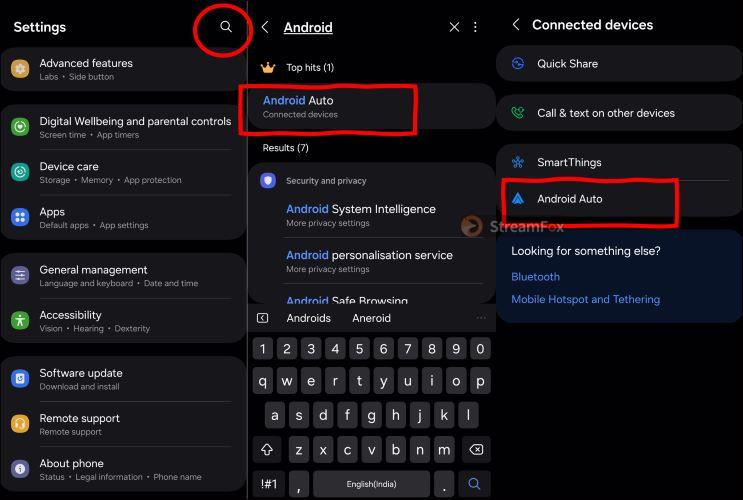
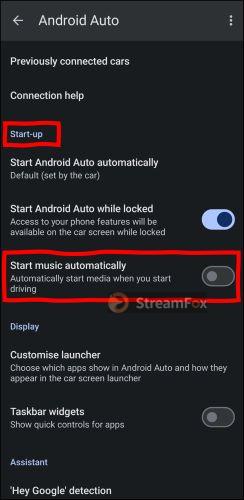
Step 3. Within Android Auto’s settings, scroll down to find the Startup section. Find the toggle for Start Music Automaticallyand turn it off. From now on, the system will no longer launch Spotify (or any other music app) the moment it syncs.
Method 2. Turn off CarPlay
Apple’s CarPlay is more in line with the Music app. You get a lot of controls when you use Music app. However, if your preferred option is Spotify, here are two ways to stop automatic playback of Apple Music:
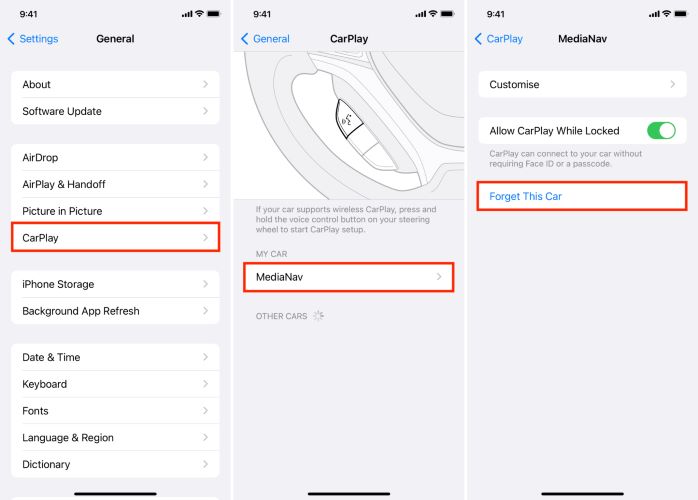
Option 1: Disable CarPlay for individual cars. This is ideal if AutoPlay bothers you on a specific vehicle. Head to Settings > General > CarPlay. Then, choose the car causing trouble and tap Forget This Car to stop automatic connections.
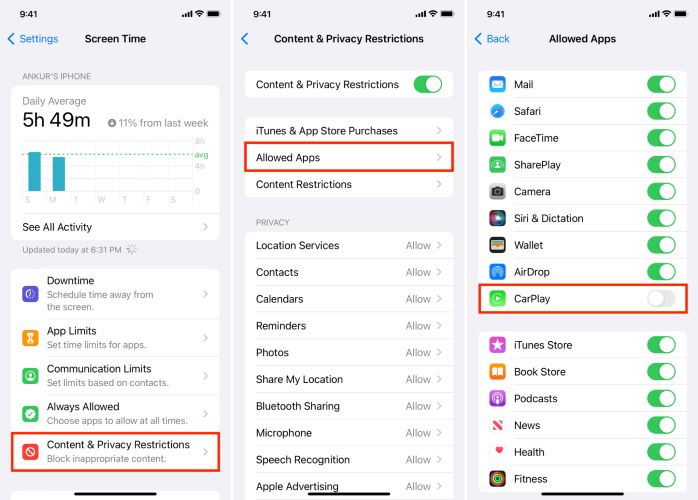
Option 2: Turn off CarPlay entirely and revert to Bluetooth or Aux for more manual playback control. Here’s how to disable CarPlay across all devices:
Step 1. Open your iPhone’s Settings and scroll down to find Screen Time. Tap to open.
Step 2. Select Content & Privacy Restrictions and activate it if it’s not already enabled.
Step 3. Go to Allowed Apps, locate CarPlay, and toggle it off to disable the feature system-wide.
Case 4: Stop Spotify from Playing Automatically When Connected to FaceTime
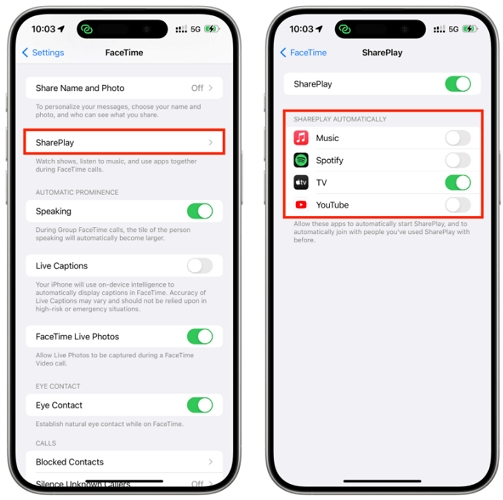
Some users notice that Spotify starts playing music during FaceTime calls, even when they are not actively using the app. This issue can happen when Spotify’s SharePlay integration is triggered, allowing music playback to continue through a FaceTime session. In some cases, a previous SharePlay or Spotify Jam session may remain active in the background, causing Spotify to resume playback unexpectedly.
Steps to Disable Spotify in FaceTime SharePlay Settings
Step 1. Go to the Settings app on your iPhone.
Step 2. Scroll down, tap FaceTime and select SharePlay.
Step 3. In the list of apps, locate Spotify and toggle it off.
Fixed: Can’t Stop Spotify from Automatically Play Songs
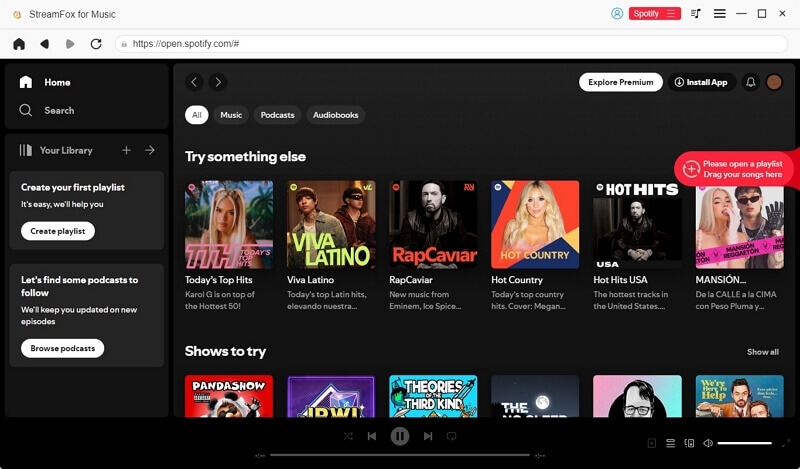
Spotify does deliver a seamless music experience most of the time. Yet, there are moments when no amount of tweaking works when you want to stop automatic playback. StreamFox for Music ensures that you stay in control of music playback. It simply lets you convert Spotify music to local files and eliminate the dependency on the app for playback. By playing Spotify songs with another media player, you can avoid issues like Spotify starts playing by itself and shuffle your music without Premium.
StreamFox for Music supports output formats like MP3, FLAC, WAV, and AAC, making the music files compatible with every device, such as your car audio system, home speakers, MP3 players or smartphones. You can transfer it to any device you own for personal use. The output quality is excellent too, supporting up to 320kbps and lossless audio. In addition, each converted song retains complete metadata, including the song title, cover art, artist name, and other track information.

- The integrated Spotify web player simplifies the conversion process, allowing you to pick your tracks and save them directly to your computer.
- Support 9 major music services, such as Spotify, Apple Music, Amazon Music, YouTube Music, etc.
- Powered by 30x conversion speed and ODSMRT technology to deliver high-quality audio in moments.
- Songs, playlists, audiobooks, albums or podcasts, StreamFox will handle all your needs.
Conclusion
Spotify automatic playback won’t be a hassle anymore. The above fixes allow you to take full control over when and how the Spotify music starts, whether it is in-app or when connecting to external speakers.
If you want an even better Spotify experience, offline playback remains the best option and StreamFox for Music makes this effortless. It captures every detail of converted Spotify songs, including audio quality, ID3 tags, or organization of music on the computer.