Seeing Spotify songs greyed out can be frustrating, especially when only certain tracks are affected while others play normally. The problem may involve unavailable songs, playlist restrictions, account or region settings, app glitches, or device-specific issues. This guide explains how to fix Spotify songs greyed out in different cases, whether one song, an entire playlist, an artist’s catalog, or all songs are affected. You’ll also find a practical way to save Spotify songs as audio files, giving you local copies that you can play independently when a track later becomes unavailable on Spotify.
Case One: All Songs on Spotify Are Greyed Out
When all songs on Spotify are greyed out, the cause may be related to your Spotify account or the app itself. This issue commonly occurs after traveling to another country or when the Spotify app encounters an issue. Let’s look at these causes and corresponding fixes below.
Reason 1: You Are Abroad
For Spotify Free users, if Spotify detects that your device has moved to another country, especially if you’ve been away from the country where your account is registered for more than 14 days, you may find that all songs in the Spotify app are greyed out or that you’ve even been signed out. In this case, you need to update your account country or region before you can use Spotify normally again. Spotify applies this restriction because content availability and service terms can vary by country.
Fix 1: Update Location in Spotify
- Open Spotify in your web browser and log in to your account.
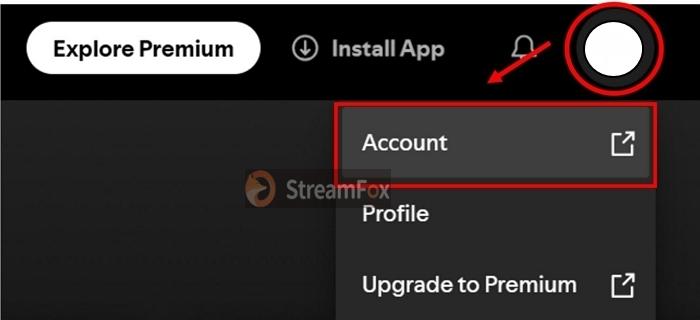
- Click your profile picture in the top-right corner and select Account.
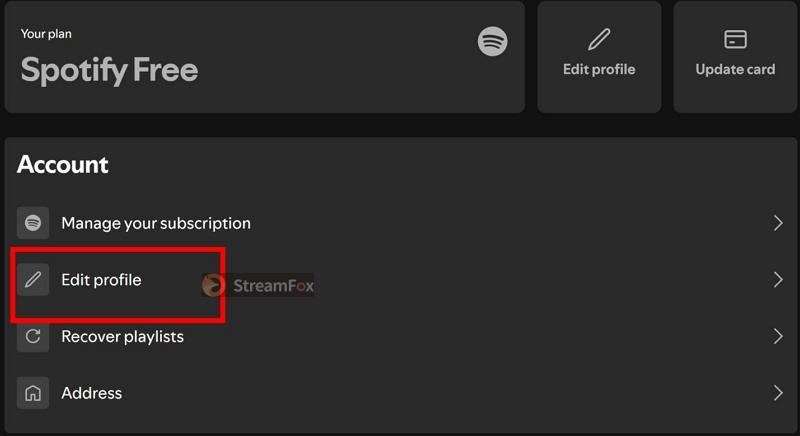
- Locate Account section and choose Edit profile.
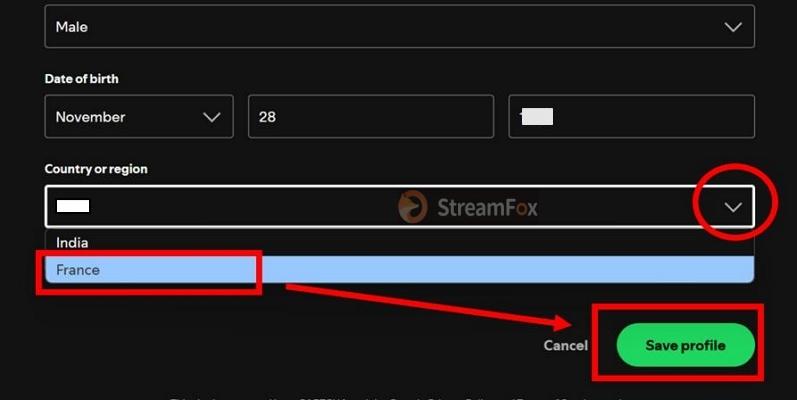
- Find Country or region, click it and select your new location.
- Click Save profile to apply the change.
- Reopen the Spotify app and check whether the songs are available again.
Reason 2: Spotify App Issues
If all songs are greyed out even though your Spotify account is in the correct country and there are no account restrictions, the Spotify app itself may be malfunctioning. This can happen when the app fails to load your music library or process playback information correctly, causing every song to appear unavailable.
Fix 2: Reinstall Spotify
Reinstalling the app can clear the corrupted data or files responsible for the problem. This is particularly useful when the issue persists after restarting Spotify or clearing its cache.
- Uninstall Spotify from your device.
- Restart your device.
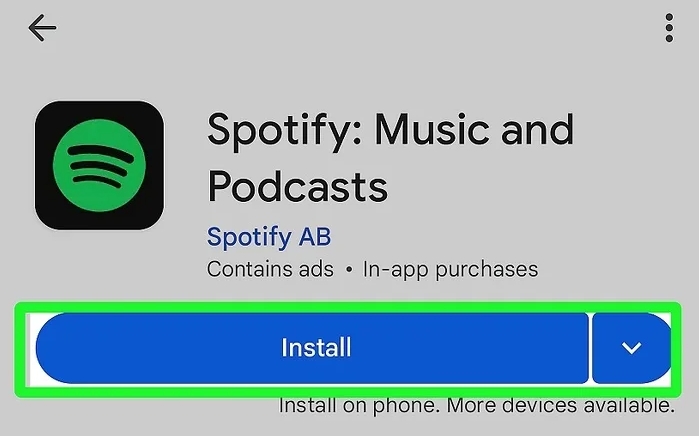
- Download and install the latest version of Spotify.
- Sign in to your Spotify account and you will find all songs available again.
Case Two: A Song or Some Spotify Songs on Your Playlist is Suddenly Greyed Out
Some users have reported that specific songs in their playlists are suddenly greyed out and stopped playing, even though the songs were working fine the day before. If this is your case, then this part must be helpful.
Reason: Songs Are Unavailable in Your Countries
Spotify doesn’t own its library outright. It borrows music through deals with artists, labels, and distributors, which often change. So, when the licensing terms change, so do the song available in your region.
And here’s the flaw: if you’ve enabled the Show Unavailable Songs option, you’ll see them as ghosts in your playlists, meaning that they exist but are out of reach.
Fix: Change IP Location via VPN
By using a VPN, you can change your IP location to a country where the track is still accessible. Spotify will treat the new region as your current location, unlocking the unavailable tracks as if they are never greyed out.
Step 1. To check song availability beforehand, use the Spotify Album Availability Tracker.
Step 2. Just paste the album’s URI (not its URL) into the tool. You’ll see a precise list of regions where the music still plays.
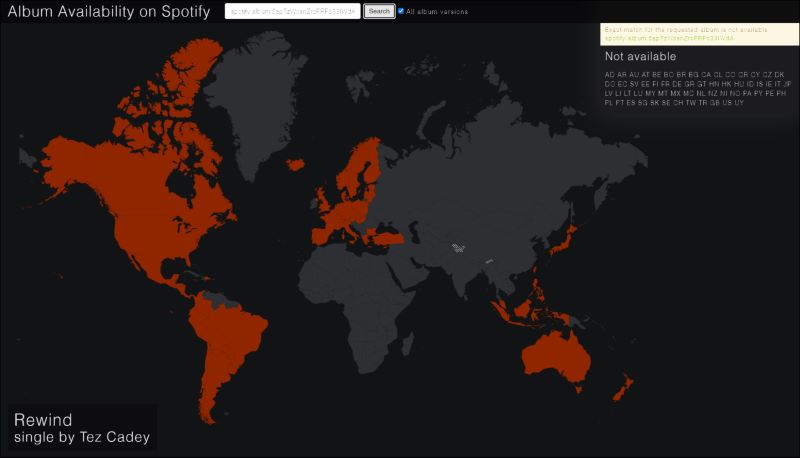
When songs are pulled globally, you can take note of the locations where the songs are available.
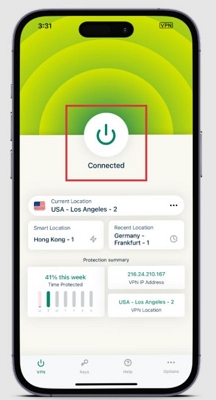
Step 3. Install a VPN on your device and run it. Then, change the location to the one you noted.
Case Three: Spotify Songs by Certain Artists are Greyed Out
If the graying issue on Spotify only affects one artist’s songs, don’t miss this part that can get rid of the issue for you.
Reason: You Have Blocked the Artists
A simple misclick, like tapping Don’t Play This Artist, can silence an artist’s music. Once again, Spotify doesn’t sound an alarm when this happens. The tracks from the blocked artist will sit in playlists, searches, and recommendations, but you will be lead nowhere if you tap them. Plus, their collaborations will slip through the cracks and still play, but their solo tracks will remain muted entirely.
Fix: Let the Artist Back in
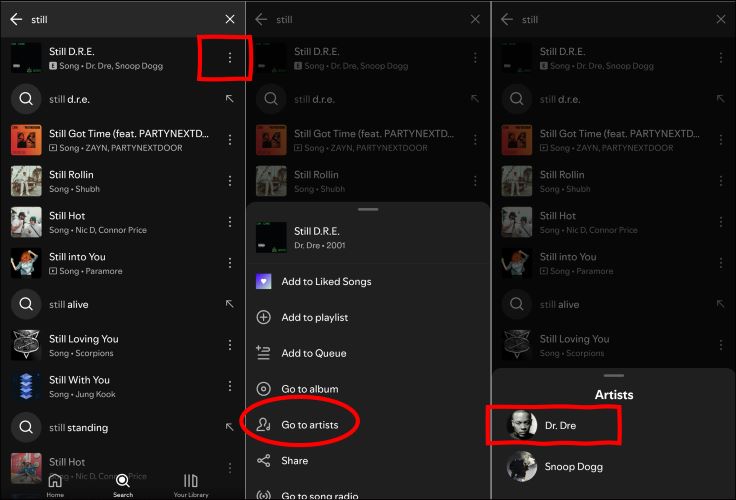
Undoing the block will open the doors to their music again. Head to their pages:
Step 1. Tap the three dots next to one of their tracks and select Go to Artist. This will land you directly on their page. Alternatively, you can type the artist’s name into the Spotify search bar.
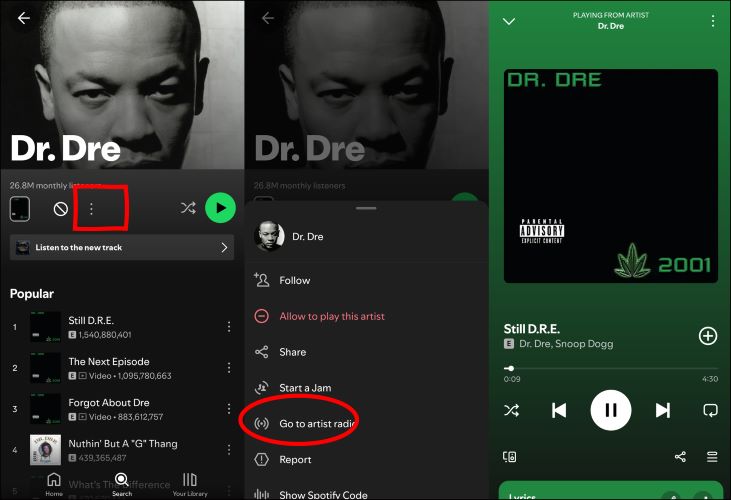
Step 2. In their profile pages, press the three dots on their profile. You’ll see Allow to Play This Artist in red. Tap the red words and the block will dissolve.
Case Four: Spotify Songs are Only Greyed out on One Device
Greyed-out songs on just one device often signal a device-specific issue. Outdated browsers, unsupported software, or corrupted cache files could be at fault. Sometimes, the problem may even extend to playback controls, leaving them unresponsive alongside the songs. Here are more details on the reasons and fixes:
Reason 1: Outdated Browser

Outdated browsers struggle to keep up with Spotify’s advanced web technologies. Compatibility issues arise, leading to grey songs and a frozen interface. Spotify officially supports a select few browsers:
- Chrome (87 or above)
- Firefox (115 or above)
- Edge (87 or above)
- Opera (80 or above)
- Safari (15 or above)
Browsers older than these versions will trip up the web player.
Specific Fix: Update Browser
Updating your browser will improve Spotify’s functionality in moments. Here’s how to set Chrome back on track:
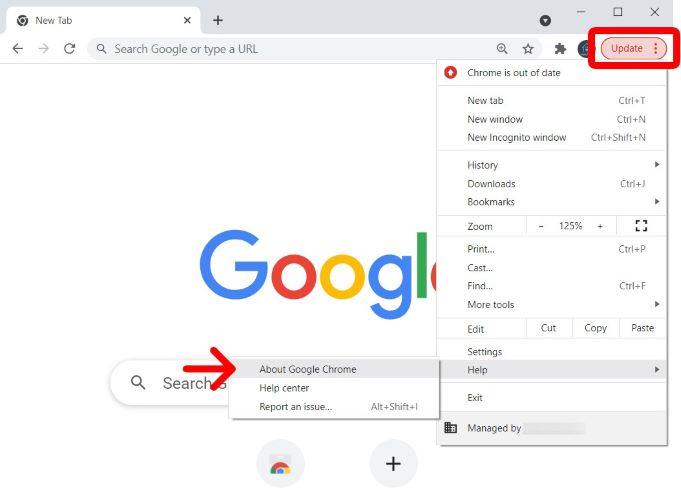
Step 1. Open Chrome and then click the three-dot menu at the top-right. Hover over Help and choose About Google Chrome.
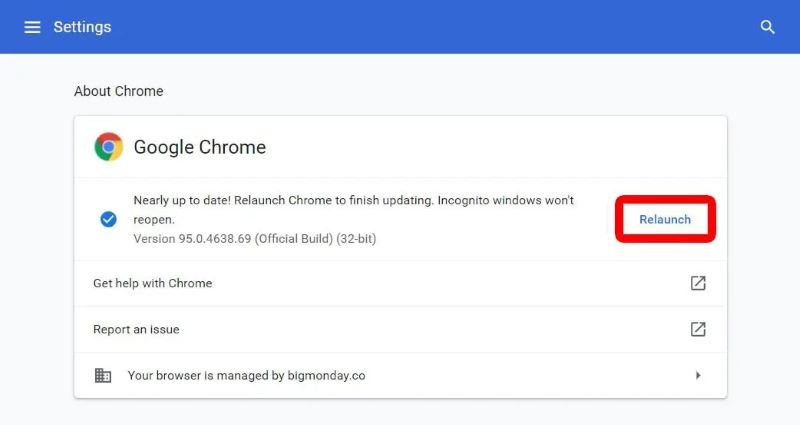
Step 2. Let Chrome check for updates. If one is available, hit Update Google Chrome. Relaunch the browser to lock in the changes.
Reason 2: Outdated Spotify App

Spotify evolves constantly. Each update does more than fix bugs or refresh the interface: it shifts how content is delivered and played. And older app versions simply can’t keep up. So, songs appear grey and the app no longer supports updated licensing protocols or playback changes. This applies equally to both mobile and desktop platforms.
Specific Fix: Update Spotify
On Mobile:
- Open your device’s app store (Play Store or App Store).
- Search for Spotify.
- If an Update button appears, tap it. The app will automatically download and install the latest version.
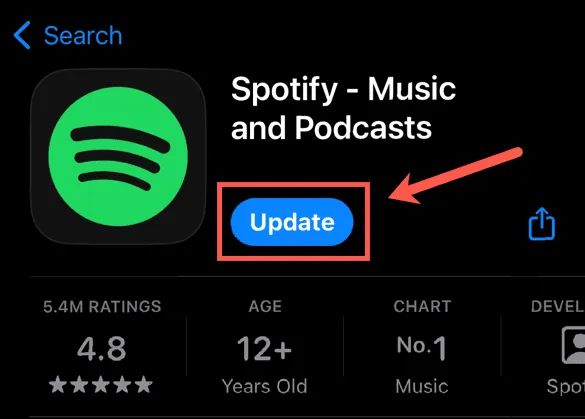
If an update doesn’t resolve the issue, contact the Spotify support for the stubborn cases.
Case Five: Spotify Local Songs are Greyed Out in Library
Spotify’s Local Files feature allows you to bridge your personal music collection with its app. But there’s a catch: local files must meet Spotify’s compatibility standards to work. Ensure your files are properly tagged and saved in one of these formats: MP3, M4A, or audio-only MP4. Songs outside these formats will remain inaccessible. If the audio format you uploaded is correct, the following reason might be causing your Spotify local files to appear grey.
Reason: You Haven’t Downloaded Local Songs on Spotify Mobile
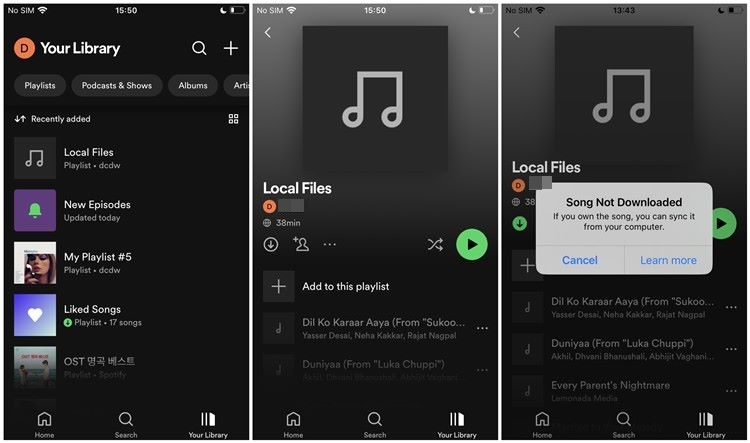
Adding or uploading local files to Spotify is only half the process. Once synced through the desktop app, you also need to download the local audio onto your Spotify mobile app to make them playable. If not, these tracks will show as grey, signaling they’re unavailable.
Fix: Download Local Spotify Songs
To bring your synced local files to life on your mobile device, downloading them is the missing link. Here’s how to do it:
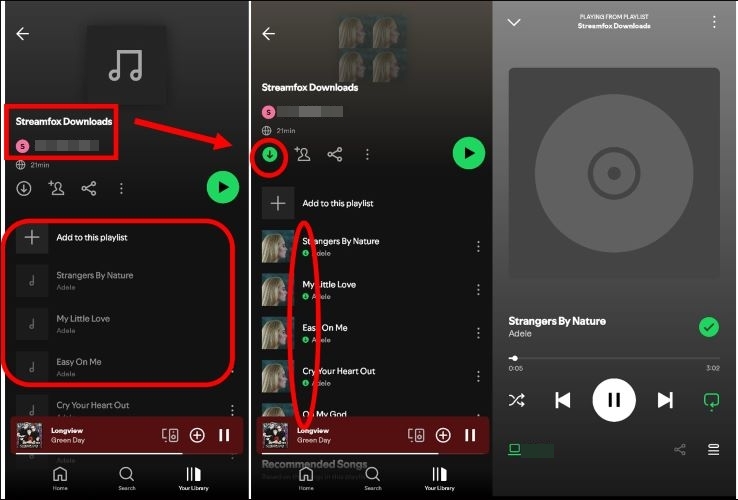
Step 1. Locate the folder or playlist in your Spotify mobile app where the local files were uploaded from your desktop.
Step 2. Tap the Download button. You’ll find it at the top of the folder or playlist view.
Step 3. Once the download is completed, the songs will light up in your library and you can play them as usual.
Case Six: Spotify Downloaded Songs are Greyed Out
If the song you’re downloading suddenly turns grey, the cause and solution are simple. The following content will provide more details.
Reason: Premium Subscription Has Ended
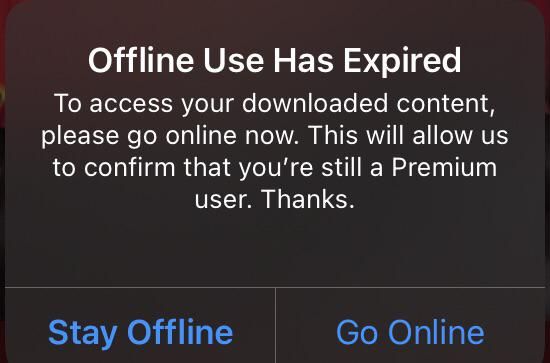
Spotify’s offline access comes with strings attached. Once your Premium subscription lapses, all downloaded songs are disabled immediately, leaving playlists and albums greyed out. Podcasts, however, remain unaffected, as they’re accessible to even free users.
Even with an active subscription, Spotify enforces a 30-day online check-in. Miss that window, your downloads face the same fate until your membership is verified again.
Fix: Renew Your Subscription
Start by confirming your subscription status. It will give you clarity:
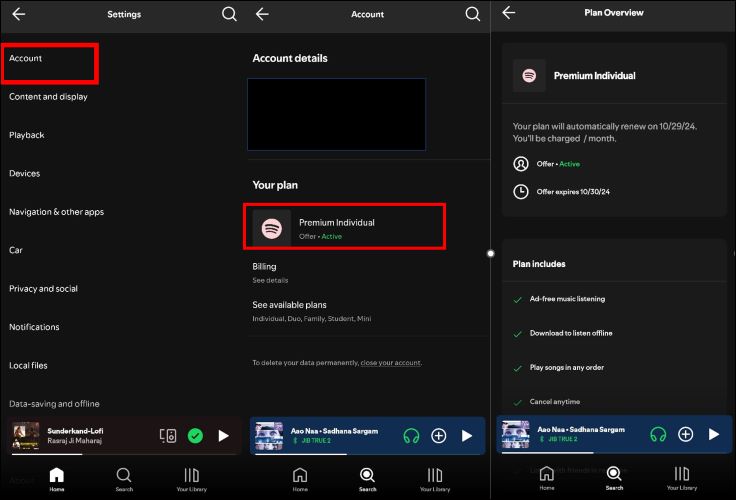
Step 1. Open Settings in Spotify and select the first Account option.
Step 2. Look under Your Plan. If your subscription shows as inactive, select the Update button and follow the on-screen instructions.
Listen to Spotify Songs Without Worrying About Them Being Greyed Out
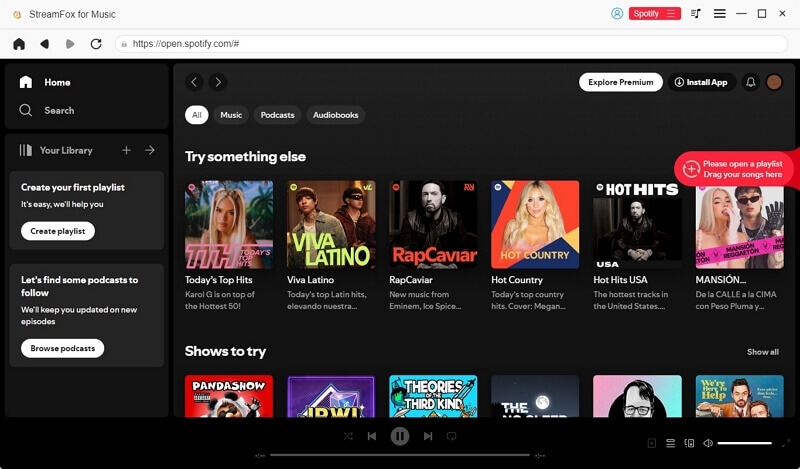
Keeping your Spotify music as local audio files means you don’t have to worry about Spotify app issues preventing playback, such as songs suddenly turning grey or the app repeatedly signing you out. StreamFox for Music can convert your selected songs, playlists, or albums to MP3, FLAC, WAV, and other formats. You can then play the local files with a media player without ads or an internet connection, or transfer them to other devices for personal listening. Simply sign in to Spotify through the built-in Spotify player, select the songs, playlists, or albums you want, and start converting your favorite music.

- Let Spotify Free users listen to their music offline.
- Every converted song retains its identity. Expect complete metadata details, including song titles, album names, artist info, and even original cover art.
- Files are automatically sorted on your computer, based on your settings.
- Enjoy up to 30x conversion speeds and batch-save the entire library.
Conclusion
That post covers all the bases. No matter why your Spotify songs are greyed out, these fixes will bring them back. Remember, greyed-out songs doesn’t mean the songs are gone from Spotify. Most of the time, they’re still on Spotify. Your access has simply been cut off. To ensure smooth playback, you can use StreamFox for Music to convert favorite tracks as local files in high quality to play them offline.