Spotify stopped being an audio-only platform a long time ago. Plenty of songs now come with music videos. Plus, there are canvas loops, clips, and video podcasts sitting in the app. So how do you download them as MP4s for offline playback? You won’t find any stable Spotify-to-MP4 converter for this. Even the ones that claim to convert Spotify videos to MP4 seldom work. But you can always rely on workarounds and this article will show you them. Besides getting a Spotify video as an MP4, with the original visuals and clean audio, we will also show you how to save Spotify songs as MP4.
Spotify to MP4: How to Convert Videos to MP4
Whether it’s a music video, a video podcast, a clip, or an entire playlist, these methods let you convert Spotify videos to MP4.
Way 1. Via Screen Recorder
The easiest way to convert a Spotify video to MP4 is to screen record it while it is playing. Note that you cannot point just about any screen recorder at Spotify and expect clean video in MP4, as they will often spit out a black screen. Even the default recorders on your computer or mobile phone come with their own shortcomings. For instance, take QuickTime on Mac. It cannot capture system audio at all. So it will capture the video, but the audio it captures will come through your microphone. This will naturally include all the distortions and room noise.
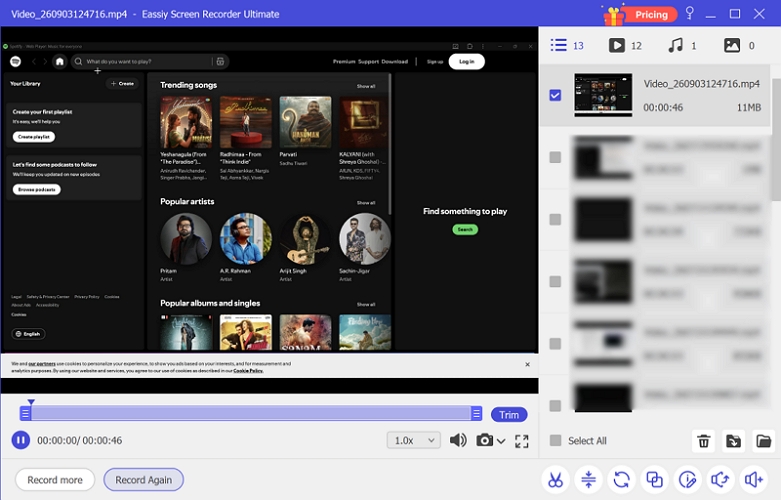
That’s why you need a recorder built specifically for recording streaming videos from platforms like Spotify. That is where Eassiy Screen Recorder Ultimate comes in. It has a Window Recorder feature that records a single app—its visuals and audio. So you can use it for Spotify. Eassiy will capture the video of the song as it plays, along with its original high-quality audio. It does not matter how long you record.
Key Features:
- Record anything on the screen — the full Spotify window, music videos, canvas visuals, clips or video podcasts.
- Smart functions like scheduled recording and auto-stop — useful for a long playlist or podcast where you want it to start or stop on its own.
- Export as MP4, MOV, WMV, F4V, AVI, and more. You can even get audio-only exports.
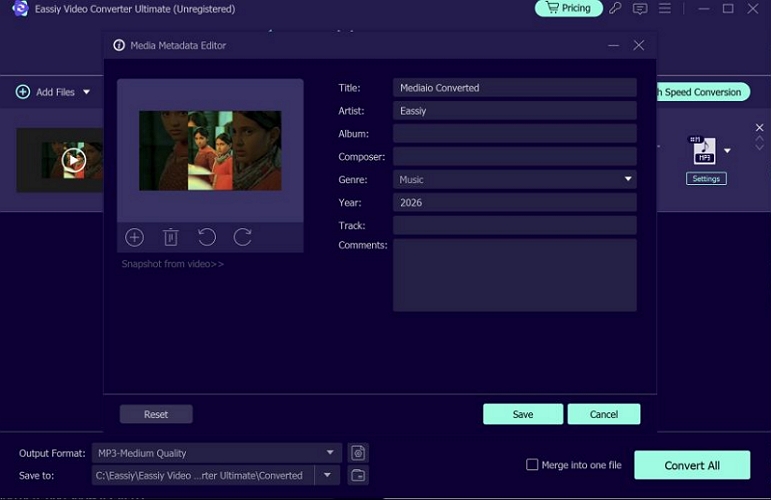
- The built-in editor lets you trim the clip and tag the file with title, name, and artist.
Steps to Screen Record Spotify Videos as MP4
Step 1. Download and install Eassiy Screen Recorder Ultimate. Launch it and keep Spotify open alongside the video, ready to play.
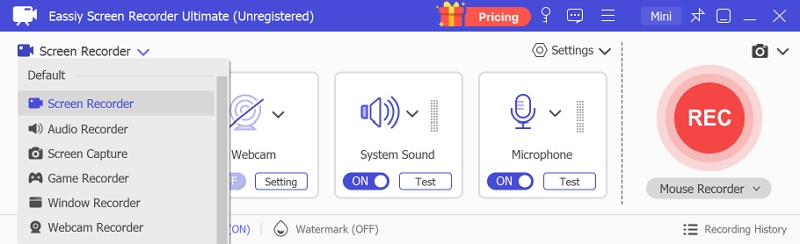
Step 2. On the main interface, click the Screen Recorder drop-down at the top left and pick Window Recorder. Leave the system sound switched ON.
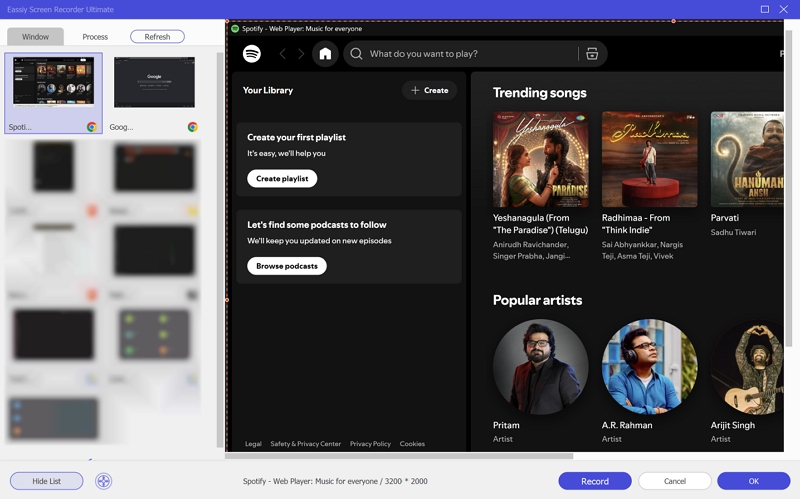
Step 3. Eassiy will show you every application running on your computer. Just pick Spotify here. The preview on the right will show you exactly what is being recorded. Click Record.
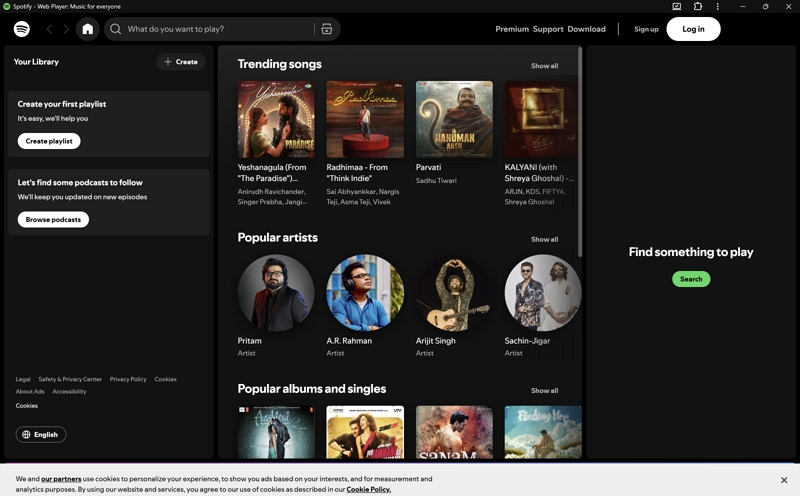
Step 4. A floating bar will appear once the recording starts. You can use it to:
- Pause and resume so a Spotify ad break never makes it into the recorded file.
- You can also bring up the annotation tools to mark something on screen.
Click the Stop icon when the song ends.
Step 5. Your recording will open in Eassiy’s built-in editor. Here, you can trim, merge, compress, and convert it. The metadata editor even lets you tag it. You can then export it as an MP4 to the folder you want. From there, you can move the video song to any device you like.
Way 2. Through Video Converter
A video converter is another route. However, you won’t find any reliable tools that can directly take a Spotify song and turn it into an MP4. Some tools advertise that, but they don’t deliver MP4s. Instead, they redirect you to ad pages. So the route is to search for the same music video on YouTube and use a dedicated YouTube converter to convert the video into a high-quality MP4.
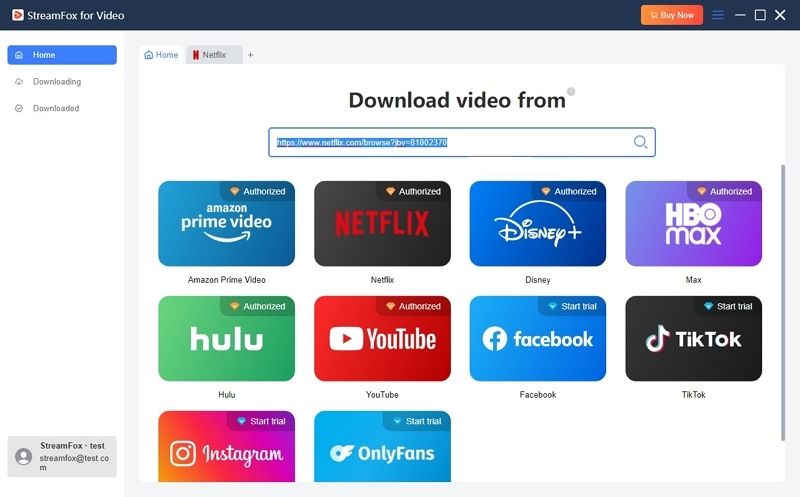
That’s what StreamFox for Video does. It includes built-in support for YouTube. So you can log in with your account credentials, select the desired video you want on Spotify and convert it easily.
And StreamFox for Video isn’t limited to YouTube. It has built-in support for Netflix, Amazon Prime Video, Disney+, Hulu, Max, and TikTok. So the same app will let you download movies and TV series from those sites too.
Key features:
- Export as MP4, MKV, and MOV at the highest quality (up to 4K).
- Batch convert a long YouTube playlist in a single go. After conversion, you can set it to shut down and sleep on its own.
- Choose different codecs like H.264 and H.265 with GPU acceleration.
- Built-in browsers let you search within the app, so you don’t have to copy and paste links.
Steps to Convert Spotify Videos to MP4
Step 1. Download and install StreamFox for Video. Launch it.
Step 2. On the Home screen, click the YouTube tile in StreamFox and search for the music video inside the built-in browser.
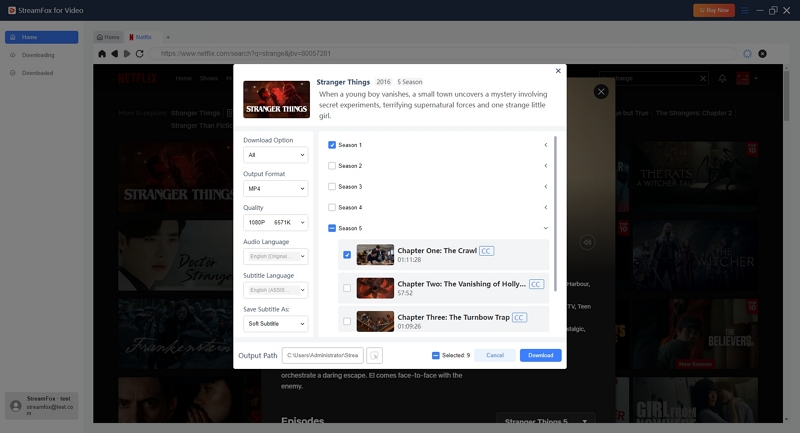
Step 3. The Convert Option window will open with the video details. Here, you can:
- Set Download Option to All.
- Output Format to MP4.
- Pick your Video Quality and choose the Output Path.
Click Convert All.
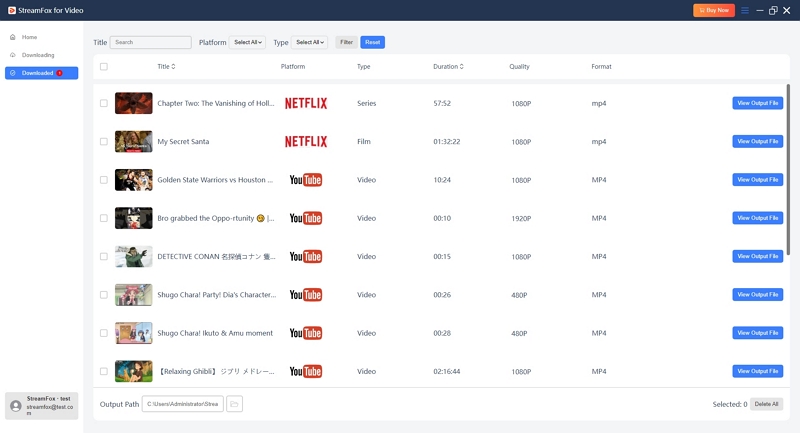
Step 4. The video will move to the Downloading tab. When it finishes, open the Downloaded tab and click View Output File. Your Spotify music video is now on your computer in MP4 format. You can move it to any other device.
Spotify to MP4: How to Convert Music to MP4
MP4 is not a good format for a song, which is simply for places that won’t accept MP3. For instance, YouTube is one platform that doesn’t accept MP3s. So how do you upload a song and build a private playlist? You’ll need a workaround for this and we have one. Here’s how you can convert a Spotify song, even one without a video, into an MP4 file.
Step 1. Convert Spotify Music to MP3
The first tool you will need is StreamFox for Music — the twin brother of StreamFox for Video. It comes with built-in support for Spotify, so you can log in to your own Spotify account and pull out whatever you need: individual songs, playlists, albums, or your entire library, in MP3(320kbps) or lossless formats like WAV and FLAC.
StreamFox lets you save songs in batches, so hundreds of songs convert in one run and everything lands on your computer properly organized with metadata intact—cover art, artist name, song name, and the rest.
- Built-in support for 9 services, such as Spotify, Apple Music, YouTube Music, and SoundCloud.
- Batch conversion for songs, playlists, albums, podcasts and audiobooks.
- Work with a free or premium account.
- Output in MP3, M4A (AAC), WAV, FLAC, AIFF, or M4A (ALAC).
How to Use StreamFox for Music
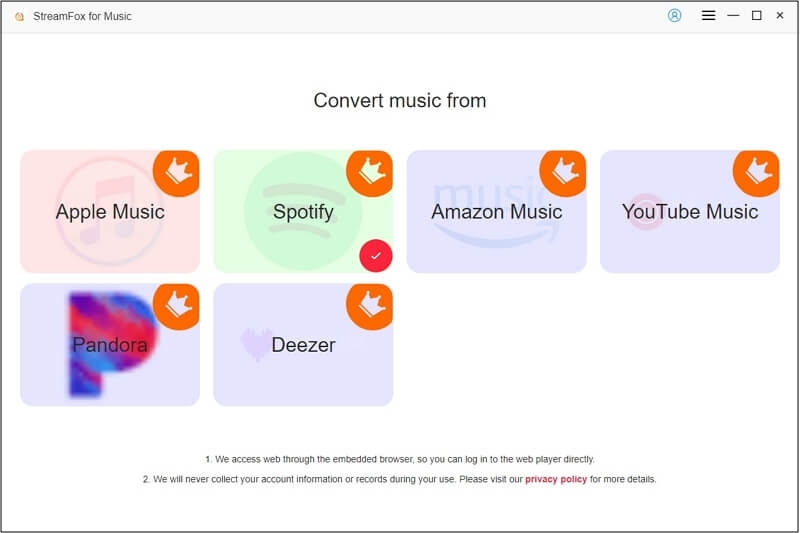
Step 1. Launch StreamFox for Music on Windows and macOS. Pick Spotify from the main interface.
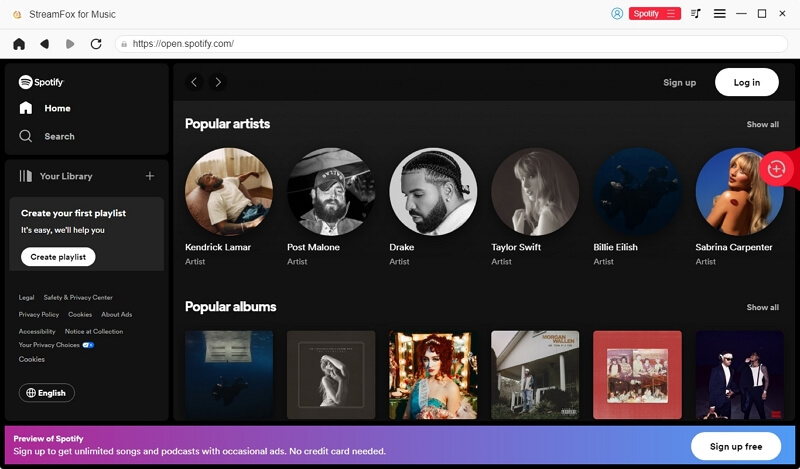
Step 2. Log in to your Spotify account via the built-in Spotify web interface. You can use a free or paid account.
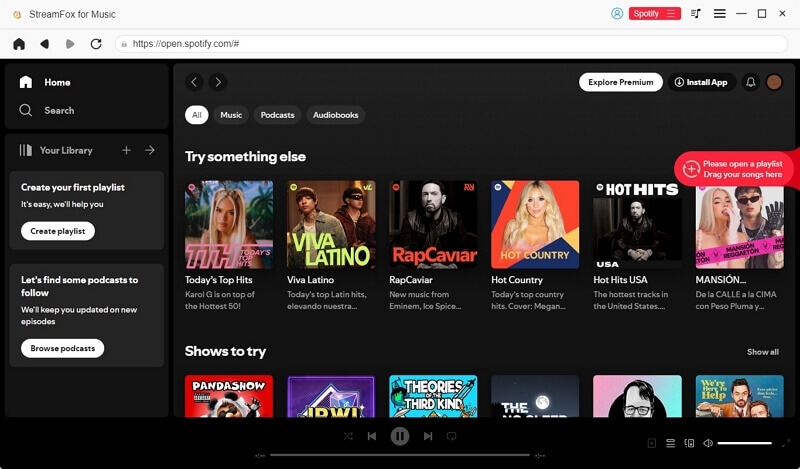
Step 3. Once you’ve located the song or playlist, just drag the selections onto the red + button on the right. Or, click Add to the conversion list to send the whole playlist across in one go.
Step 4. Click Convert All to export your Spotify tracks as MP3 by default.
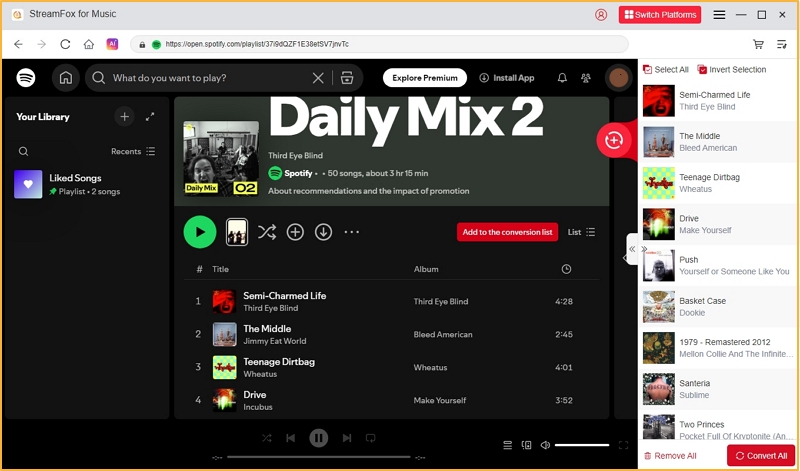
Step 5. Your songs will land on your computer’s Downloads folder as MP3 files. The songs will be sorted into folders by artist and album, with the cover art intact.
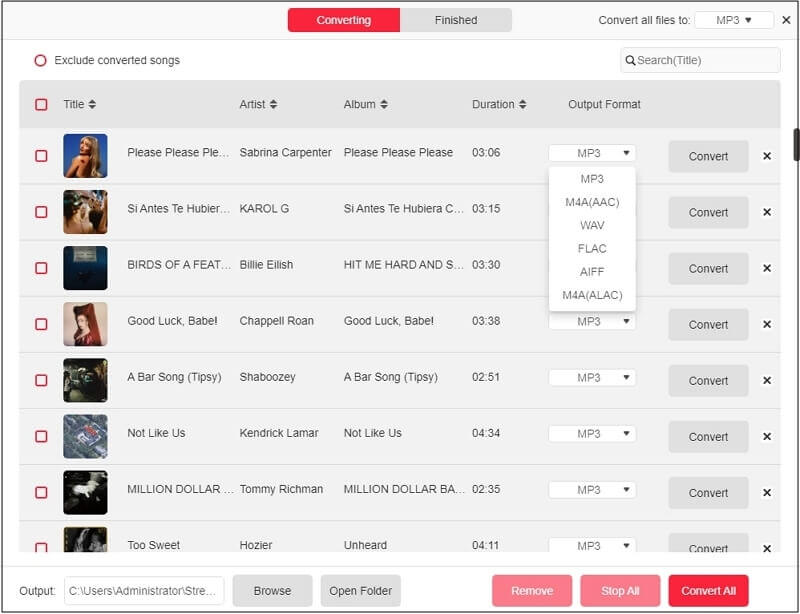
Step 2. Convert Spotify MP3 to MP4
For the final MP4 conversion, you will need to use Eassiy Video Converter Ultimate. It is a professional conversion tool that can process and convert multiple songs to other formats in a single go without any errors. More importantly, the conversion can be done without unnecessary compression or loss of audio quality.
It also offers plenty of customization options. So you can set the output bitrate to match what StreamFox gave you. Your final MP4s will have the same crispness as your 320kbps MP3s. If you converted the songs to FLAC using StreamFox, Eassiy will preserve that fidelity in the MP4 container.
How to Convert MP3 to MP4 with Eassiy
Step 1. Install Eassiy Video Converter Ultimate on your Windows or Mac.
Step 2. Open the app and click Add Files to import the MP3s you just saved with StreamFox – one song or the whole folder at once.
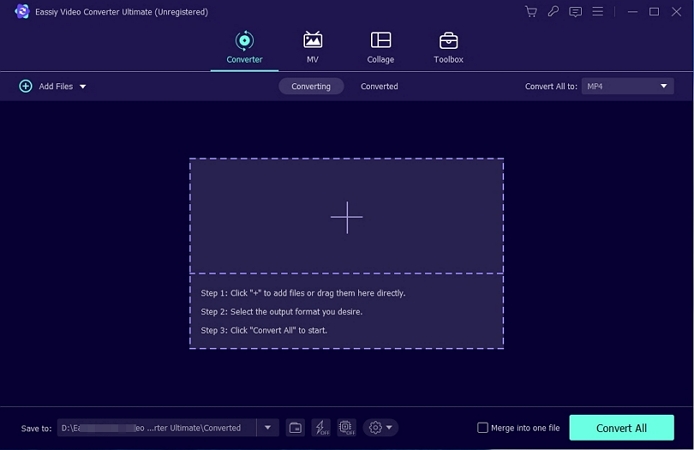
Step 3. In the Converter tab, click Output Format at the bottom left. Switch to the Video tab and pick MP4.
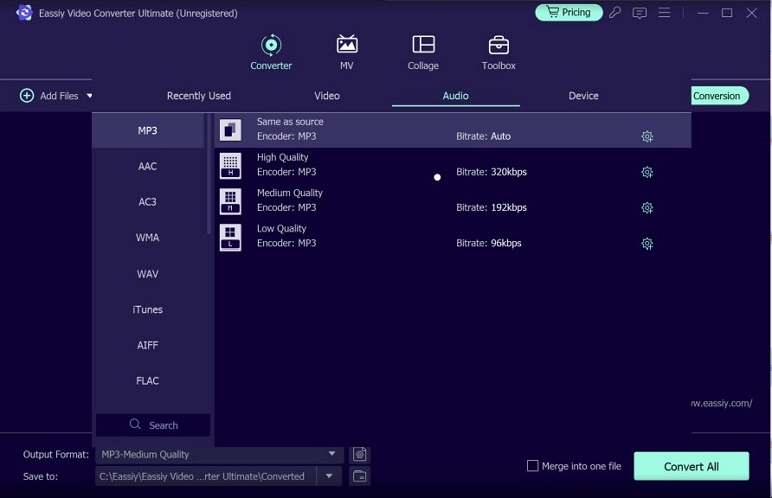
Step 4. Set the destination with Save to at the bottom left, then click Convert All.
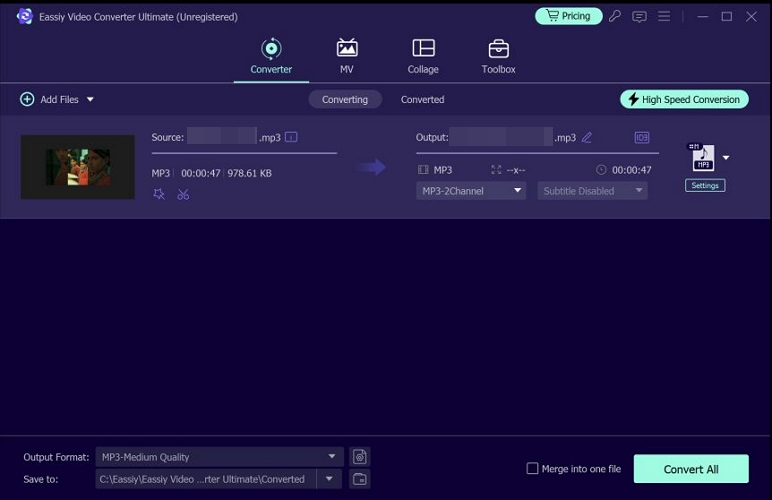
Every audio file in the batch will convert quickly and land in your folder as an MP4, ready for your MP4 player.
How to Transfer Spotify MP4 Files to an MP4 Player
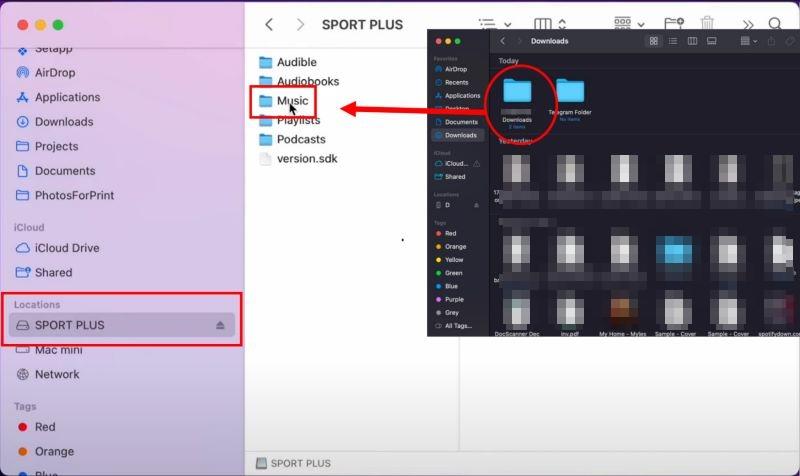
Once your Spotify songs and videos are sitting on your computer as MP4 files, moving them onto an MP4 player is a drag-and-drop job. Here are the steps you can follow.
On Windows
Step 1. Connect the player to your PC with its cable.
Step 2. Choose File Transfer or USB storage when the option appears on the player’s screen.
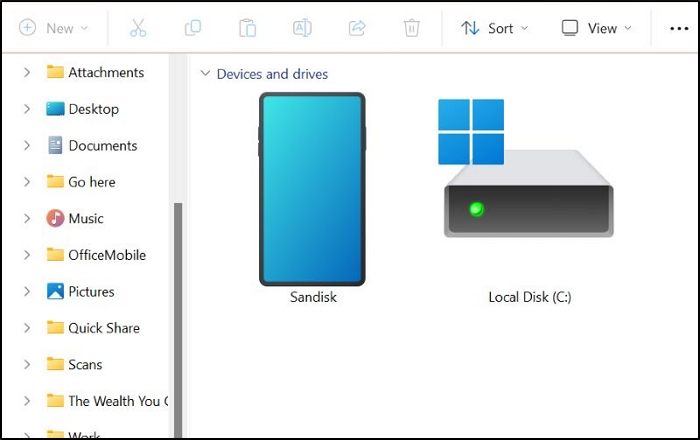
Step 3. Open File Explorer and click the player under This PC.
Step 4. Open the folder where your files are saved — the StreamFox for Music or Eassiy Output folder, or wherever you sent them. Then select the files you want and drag them into the player’s music or video folder.
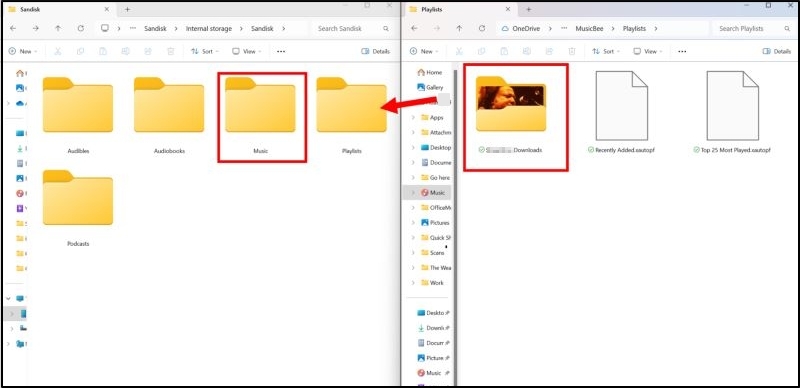
Step 5. Wait for the copy to finish. Then right-click the player and choose Eject before you unplug it.
On Mac
You can open Finder and follow the same drag-and-drop process here, with one exception. Android-based players like the Sony Walkman and the innioasis G1 will not show up in Finder on their own. So you will need OpenMTP installed first.
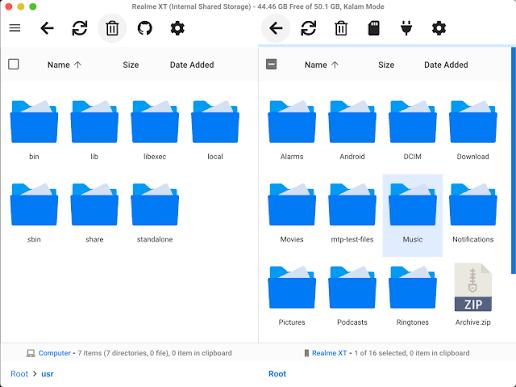
However, if your player connects as a plain USB drive, open Finder, find it in the sidebar, and drag your files across from the StreamFox or Eassiy folder.
Note: Many of you may be also seeking about the best MP4 players on the market, so we have reviewed them and here are 3 worth considering.
However, watch for one thing first. A lot of devices sold as “MP4 players” only carry the name for marketing. They will not read a real MP4 file at all but work with AVI or WMV instead. So check the video formats printed on the spec sheet before you buy.
| Player | What Stands out | Price | Best for |
|---|---|---|---|
TIMMKOO Q3E 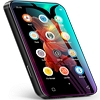 |
4-inch touchscreen that plays 720p and 1080p video. Reads MP4 alongside MKV, AVI, MOV, and more. Up to 50 hours of music or 8 hours of video on a charge. Expandable up to 512GB. | US$59 | A pocket device that carries both your songs and your videos, so you can leave the phone behind. |
innioasis G1 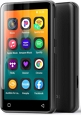 |
4-inch touchscreen, and it runs Android. Comes with Spotify, Amazon Music, Tidal, and Deezer. Plays MP4, MKV, AVI, MOV, WMV, and more. Expandable up to 1TB. | US$89.99 | Keep your converted files and your streaming apps on the same screen. |
Sony NW-WM1AM2 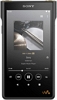 |
Sony’s high-end hi-res Walkman. 5-inch HD touchscreen running Android. Up to 40 hours of 96kHz FLAC playback. 128GB built in, with an SD slot. | US$949.99 | Anyone converting Spotify or Apple Music to FLAC and WAV with StreamFox for Music, who wants a player that can actually resolve the difference. |
Final Words
That covers everything on converting Spotify to MP4, whether you want the Spotify music video with its original visuals intact or just an audio track wrapped in an MP4 container.
More importantly, you have four tools worth keeping in your toolbox:
- StreamFox for Music — it can save songs, playlists and albums from Spotify and eight other services, in MP3 or FLAC.
- StreamFox for Video — converts movies, TV series, and playlists from Netflix, Prime Video, Disney+, Hulu, Max, and TikTok, in up to 4K.
- Eassiy Video Converter Ultimate — 20+ video editing toolkit for all your video editing and converting needs.
- Eassiy Screen Recorder Ultimate — whatever is on your screen, you can capture it cleanly, with system audio and annotation tools, webcam, etc.
So you can use them not only to convert Spotify songs or videos to MP4, but also to take care of other stuff.