Spotify is playing, the progress bar keeps moving, and everything seems normal—except you can’t hear a thing. This frustrating Spotify playing but no sound problem can happen on phones, computers, TVs, and other supported devices, often leaving you wondering whether the issue is with Spotify or your device. While the cause can vary from muted settings and incorrect audio output to app glitches and connection problems, most cases can be fixed without much hassle. In this guide, you’ll learn why Spotify may play songs without producing any sound and discover practical solutions tailored to different devices. We’ll skip the usual vague advice and focus on fixes you can actually try. Plus, if you frequently run into playback problems, we’ll cover a reliable way to enjoy your Spotify music with fewer interruptions.
Quick Checks Before Fixing Spotify Playing but No Sound
Spotify relies on your device’s audio settings to produce sound. The music will play as usual, but whether you actually hear it will depend on various system-level sound settings: mute controls, incorrect audio output, or media volume set too low. These small settings are easy to overlook.
So, before making unnecessary changes, let’s rule out these simple issues first.
1. Unmute the Device
Let’s begin with the system’s audio output, as any muted volume settings will leave the app playing in silence. Each platform handles volume controls differently, so here’s how to check and unmute your device based on what you’re using:
On Windows
The sound settings are right in the system tray on Windows. You don’t even need to leave Spotify to adjust them. Here are the steps:
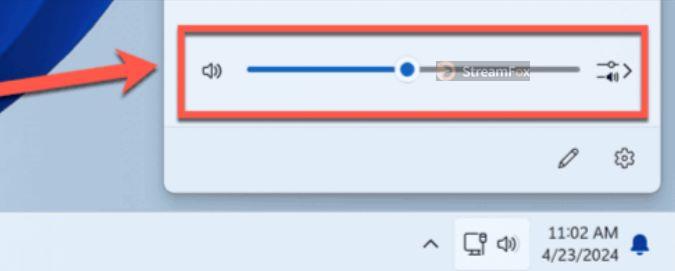
Step 1. Click the volume icon in the far-right corner of the taskbar.

Step 2. A flyout panel will open, displaying your volume level. If the speaker icon has an X next to it, the system audio is muted. Click the speaker icon to unmute.
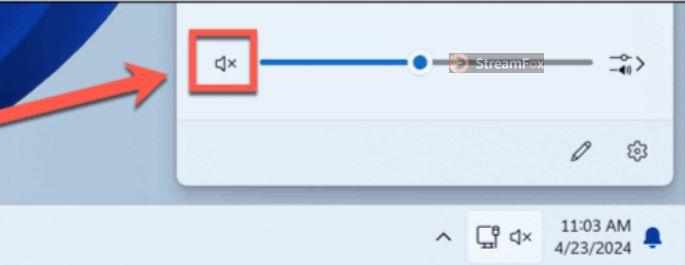
Step 3. Once clicked, the X will disappear and Spotify music can be heard. If needed, use the volume slider to adjust the sound level.
On Mac
You can access the system volume directly from the menu bar. Follow these steps:
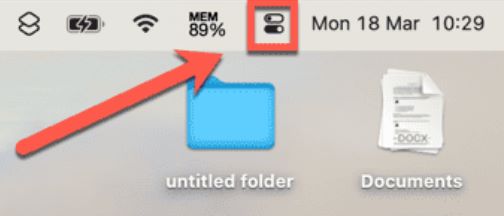
Step 1. Click the Control Center icon in the top-right corner of the menu bar.
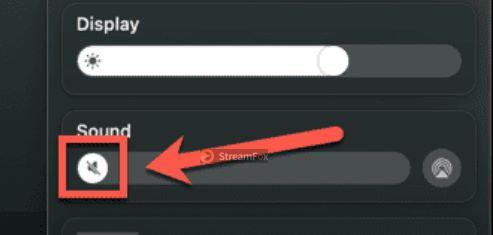
Step 2. In the pop-out, you’ll find the Sound card. If the speaker icon is struck-through, the audio is muted. Simply click on the speaker icon to unmute Mac’s sound.
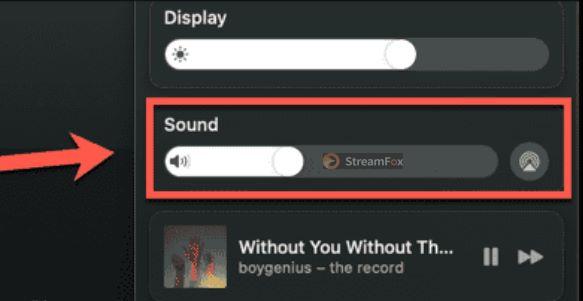
Step 3. Once unmuted, macOS will restore system sound to its previous level. Use the slider to adjust the volume of Spotify’s playback.
On iPhone
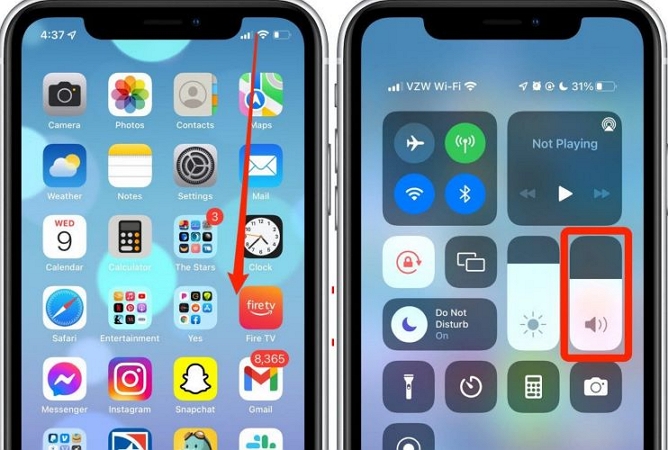
You can unmute the iPhone system sound in several ways. The most straightforward is to simply press the volume up button. Or, you can adjust the media slider using these steps:
Step 1. Open the Control Center on your iPhone.
Step 2. If the Volume Slider is completely darkened (grayed out) with a strike-through speaker icon, it means the media volume is muted. Simply drag the slider upwards to hear whatever’s playing on Spotify.
On Android
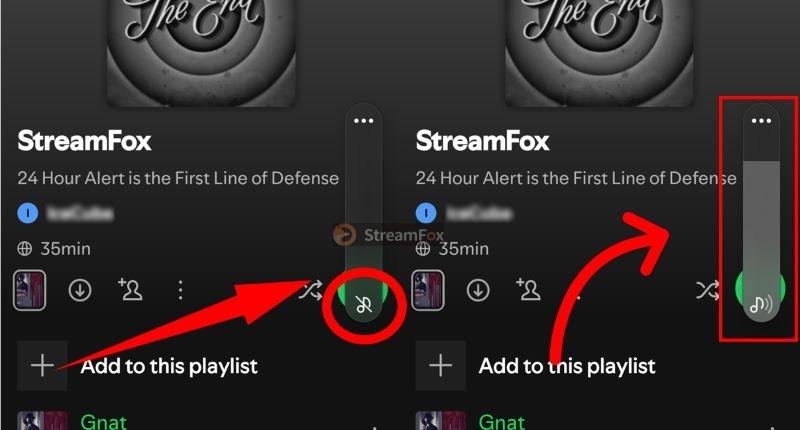
A press on the volume button easily reveals whether your Android device is muted or not. Simply follow these steps to unmute sound and hear the Spotify music:
Step 1. While a song is playing, press either volume up or volume down button.
Step 2. If the music icon is struck through in the volume slider, it means that your Android device is muted. Simply drag the volume slider upward.
On TV
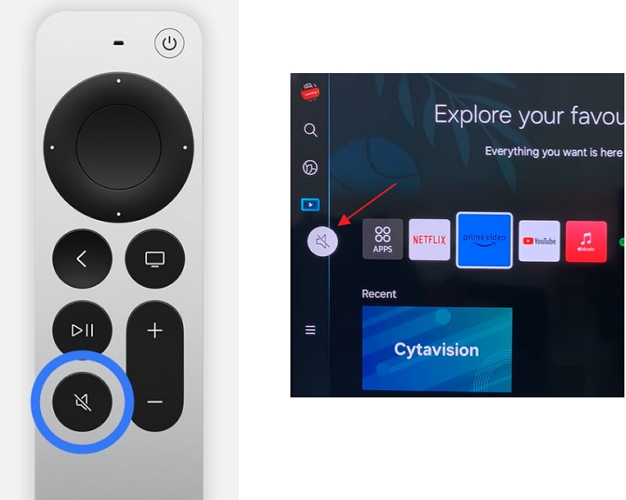
To check whether your TV is muted, simply look for the mute icon on the screen. If you see it, pick up your remote and press the mute button to turn the sound back on.
2. Choose the Correct Output
Another possible reason for Spotify playing with no sound is that audio is being directed somewhere else, like sent to a disconnected Bluetooth device or an inactive output, not your speakers. And this is actually very common on Windows and macOS.
So, let’s confirm where the sound is going. This will just take a minute on Windows and macOS, but will save you a lot of trouble if that’s the case.
On Windows
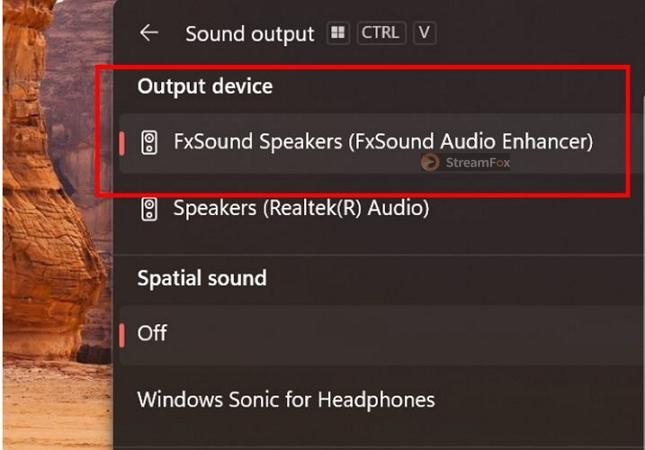
Step 1. Head back to the system sound settings via the system tray. This time, look beside the volume slider: you’ll notice an output selector icon, represented by a speaker symbol with an arrow. Click it.
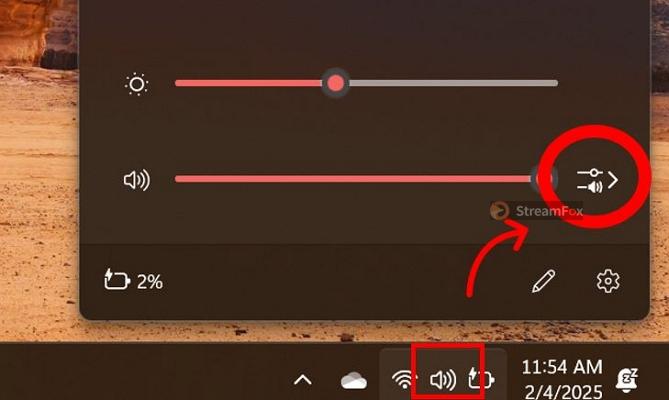
Step 2. A list of active and inactive audio outputs will drop down. Then, make sure you select your Windows default speakers or the device you actually want to hear sound from.
Step 3. Once selected, the Spotify music will immediately reroute through the correct channel and you can hear the sound.
On Mac
Mac can also redirect audio output: sometimes to an unintended or previously connected device. This happens often, especially if you switch between Bluetooth accessories, AirPlay devices, or external monitors with built-in speakers.
Luckily, you can adjust it right from the menu bar:
Step 1. In the Sound card, you’ll find a right-facing arrow. Select it.
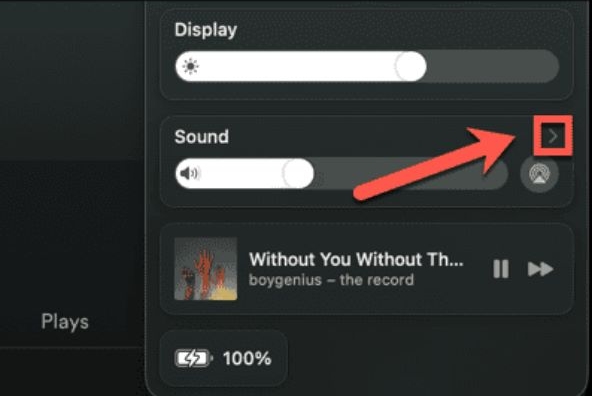
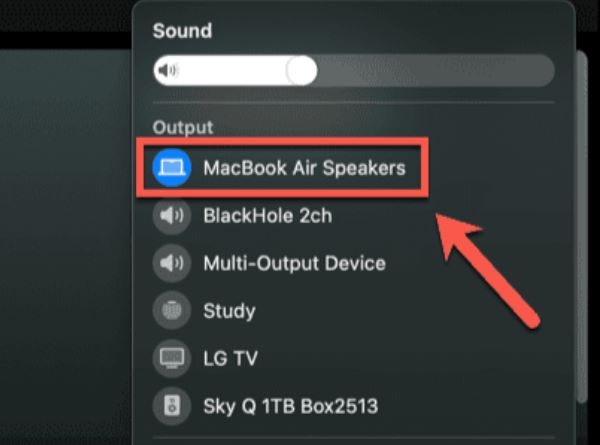
Step 2. A list of recognized audio outputs will appear. Ensure that MacBook Speakers (or your intended output) is selected.
3. Check Specific Audio Settings
This one applies to Android users specifically because Android devices manage different audio categories separately: meaning you can have ringtone sound but still no media sound. So, if Spotify isn’t producing sound, the issue is likely muted or low media volume. Here’s how to check and fix it:
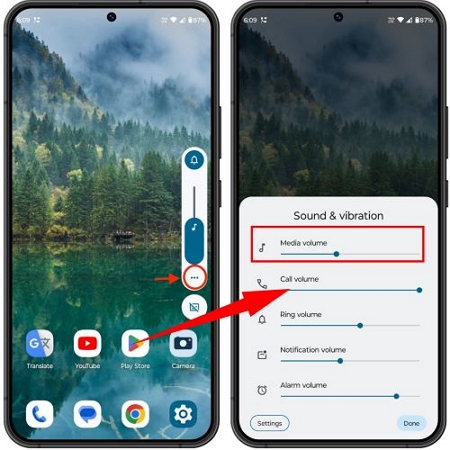
Step 1. Press the Volume Up or Volume Down button.
Step 2. Tap the three-dot icon next to the volume slider. This will let you view the sound management settings.
Step 3. There, make sure that the media volume slider (the one denoted with a music note icon) is not too low or muted. Simply drag the slider to restore the Spotify or media sound.
4. Test the Device’s Sound Output
By now, we’ve ruled out the obvious. Your media volume is up, your output device is correct, and nothing is muted. By all logic, Spotify should be playing sound. However, if it isn’t, there’s one last thing to check:
Is your device itself capable of producing sound? So, do a quick sound test:
Step 1. Open any other media app: take YouTube, for instance.
Step 2. And play a video or song.
If you are not hearing the sound, you’re dealing with a hardware issue. Fix that first or listen to Spotify on another device.
However, if only Spotify is silent, but everything else works fine, the problem isn’t your phone or laptop: it’s Spotify itself. And we’ll discuss how to fix that in the next section.
Fixes for Case: No Sound in the Spotify Windows App
You open Spotify on the Windows app, hit Play, and there is only silence. However, strangely enough, Spotify works fine in the browser. That means the issue is that you will need to tweak the Spotify app itself or Windows settings. Let’s fix that.
Fix 1: Reinstall Spotify App
Over time, Spotify builds up cache files, temporary data, and glitches, causing the issue. And sometimes, the easiest way to fix everything is a clean reinstall.
Here’s how to uninstall Spotify on Windows:
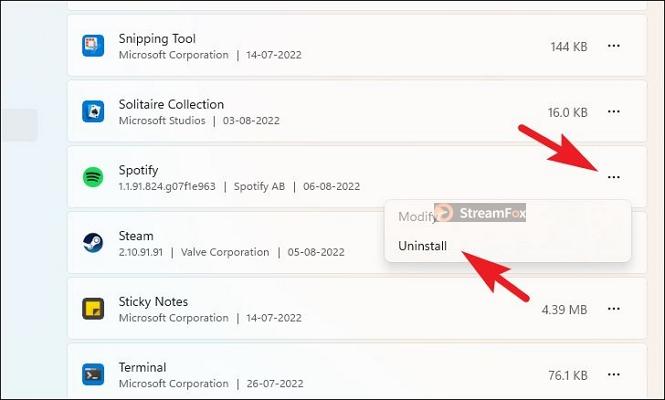
Step 1. Uninstall Spotify from Windows Settings.
- Open the Settings app and go to Installed Apps.
- Find Spotify, click the three-dot menu, and select Uninstall.
- Confirm the uninstallation when prompted.
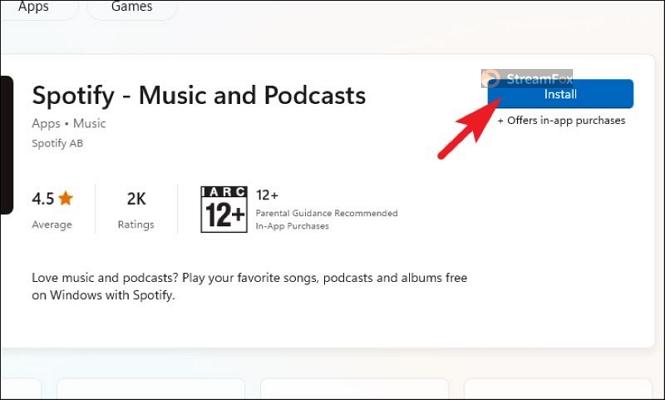
Step 2. Reinstall Spotify.
- Open the Microsoft Store.
- Search for Spotify and click Install.
Fix 2: Reset Volume Mixer
Windows gives you separate volume control for each application, meaning Spotify’s sound could be turned down while everything else plays normally.
So, if Spotify is working fine in the browser but not in the app, the app could be muted in the Volume mixer. Here’s how to fix this:
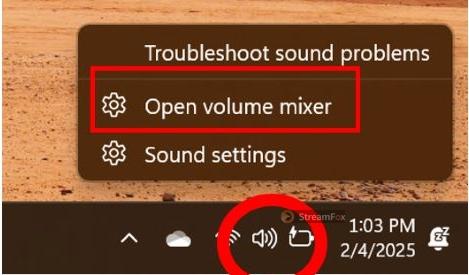
Step 1. In the system tray, right-click on the Sound icon. Click Open Volume Mixer.
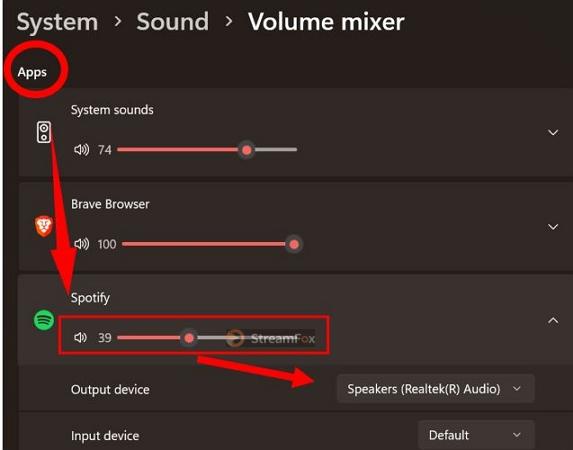
Step 2. Under Apps, locate Spotify. Check the volume slider: if it’s too low or muted, drag it up to restore sound.
Furthermore, check the Output Device at the bottom that is set for the Spotify app. Ensure it’s set to the correct speakers or headphones.
Fix 3: Switch Back to Windows PC
The Spotify Connect feature effortlessly lets you switch between devices connected to the same Wi-Fi network without you even realizing it.
So, there is a chance that the Spotify app might not be playing the music through your Windows device at all. Here’s how to check and switch the audio back to your computer:
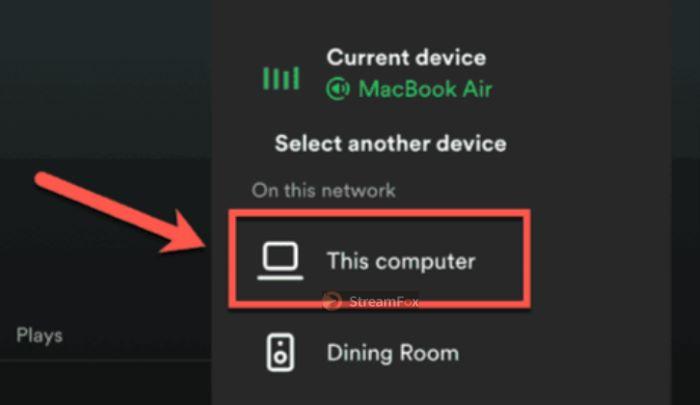
Step 1. In the Spotify app, click on the Spotify Connect (speaker with a screen)icon next to the playback controls.

Step 2. If Spotify is playing on another device (like a smart speaker, TV, or another computer), it will be highlighted. Select This Computer to force Spotify to play through your Windows device instead.
Once you do that, Spotify will immediately play through your computer’s speakers and you can listen to music as usual.
Fix 4: Turn off Audio Enhancement
Windows includes built-in audio enhancement features, designed to boost sound quality. However, Spotify prefers to handle its own audio processing. So if Windows is applying additional sound effects, it might disrupt playback entirely. Luckily, the fix is simple. Here are the steps:
Step 1. Right-click the Sound icon and choose Sound Settings.
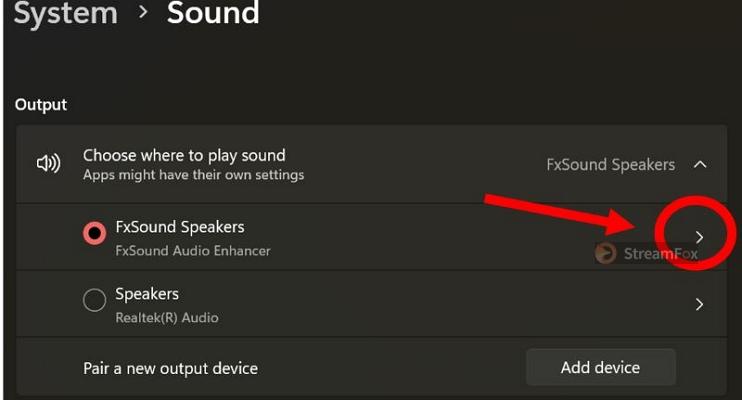
Step 2. Under the Output section, you will find the device’s speakers. Click the arrow next to it to open its properties page.
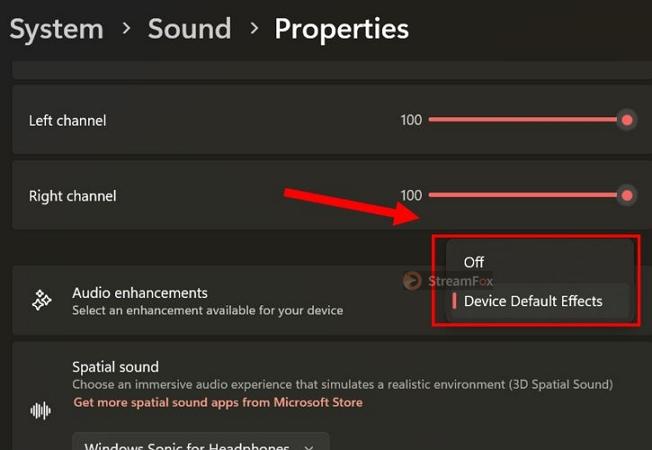
Step 3. Scroll down to Audio Enhancements. If it’s set to Device Default Effects or something else, change it to Off.
Once disabled, restart the Spotify app. And it should play songs with sound again.
Fixes for Case: Songs Going Silent on Android App
Even on Android, it’s common to experience sudden silences while playing songs on Spotify. For instance, you will sometimes notice there’s a long gap of silence before the next track starts. In some cases, you might not hear any sound at all, even when the song is playing. Let’s go over the solutions.
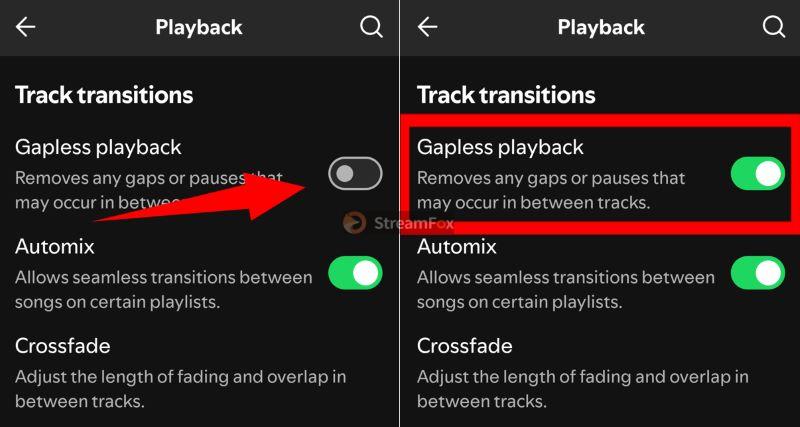
Fix 1: Turn on Gapless Playback
Spotify understands that some users don’t like gaps or silences in between songs. That’s why, it provides a Gapless Playback option that allows songs to flow continuously from one to the next without breaks. However, you will have to turn these settings on first.
To turn Gapless Playback on:
Step 1. Open Spotify and tap your profile icon (top left).
Step 2. Select Settings & Privacy and tap Playback.
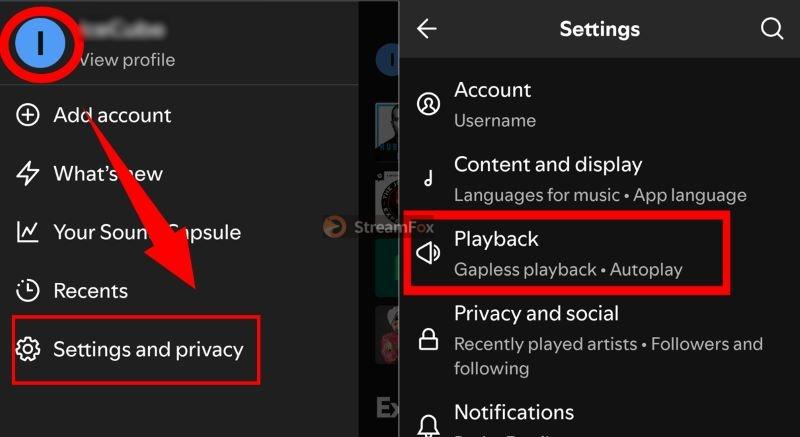
Step 3. The first toggle you’ll see is Gapless Playback. Turn it on to make sure Spotify moves from one track to another without silence in between.
Fix 2: Disable Equalizer
Equalizers are meant to fine-tune your audio, enhancing bass, treble, or vocals. However, on Android, they do more than that. They interfere with system sound, sometimes even silencing Spotify entirely.
However, Spotify doesn’t have its own built-in sound engine on Android. Instead, it taps into your phone’s native equalizer. That means your device’s sound settings control how Spotify plays music.
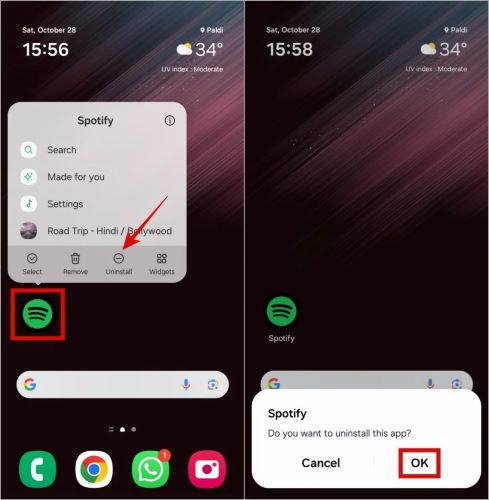
The only way to remove Spotify’s access to the equalizer is by resetting it entirely. That means reinstalling the app. Here’s how:
Step 1. Long-press the Spotify app icon on your home screen. Then, select Uninstall and confirm the removal.
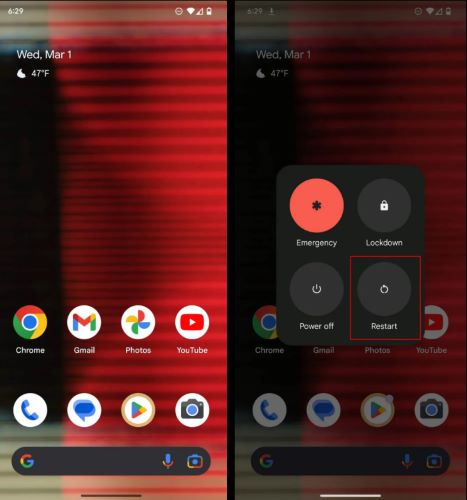
Step 2. Restart your device to clear any cached settings.
Step 3. Install Spotify from Play Store again.

Fixes for Case: No Sound in the Spotify Browser
Sometimes Spotify runs smoothly in the Windows or Mac app, but it is the web player that is acting up. Of course, the issue is caused by the browser. To be more specific, corrupted cache files and cookies that pile up in your browser over time.
Tip: Check If Spotify Web Player Is Muted First
Most browsers allow you to mute individual tabs, so first check whether you accidentally muted the tab where Spotify is playing. Look at the speaker icon on the Spotify tab. If the icon indicates that the tab is muted, usually with a slash through the speaker, the tab’s audio is turned off. Simply click the speaker icon to unmute the tab, then return to Spotify and play the song again to see if the sound is back.

Fix: Clear Cookies or Cache
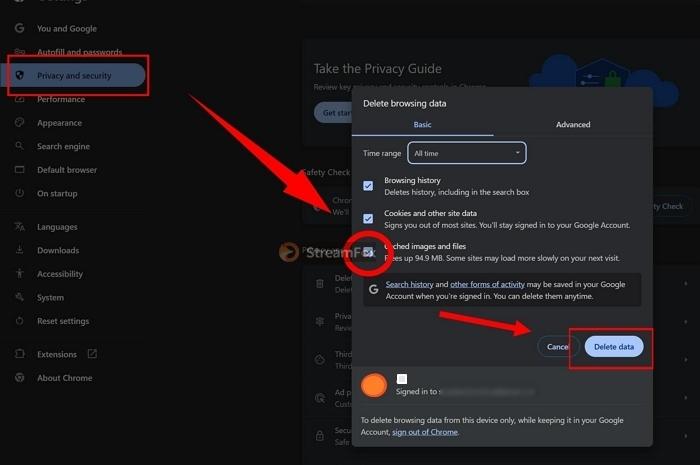
Here’s how to clear cache memory in the browser, taking Chrome as an example:
Step 1. Hit the three-dot menu in the corner of your browser. Choose Settings from the drop-down options.
Step 2. Look for Privacy & Security in the left-side menu. Then, click Clear Browsing Data (or Delete Browsing Data).
Step 3. A pop-up will appear for you to set the time range to All Time.
Step 4. Make sure to check Cached Images and Files.
Step 5. Finally, click Delete Data and let the browser flush out the junk.
Fixes for Case: No Sound on Spotify on TV
Network issues can sometimes cause Spotify to go silent on your TV. This may happen when the TV has trouble maintaining a stable connection with Spotify’s servers. If this is the case, don’t worry. Below, we’ll walk you through two fixes that can help restore sound: disabling IPv6 on your router and resetting the network settings on your TV.
Fix 1. Disable IPv6 on Your Router
IPv6 is a newer Internet protocol that allows devices to communicate over the Internet. Although it usually works without problems, compatibility issues between your router, TV, and Spotify can sometimes affect how the audio stream is delivered. Disabling IPv6 forces your network to use IPv4 instead, which can bypass these IPv6-related connection issues and restore Spotify’s sound.
Step 1. Connect your phone or computer to the same Wi-Fi network as your TV.
Step 2. Open a web browser and enter your router’s IP address.
Step 3. Log in to your router’s administrator panel.
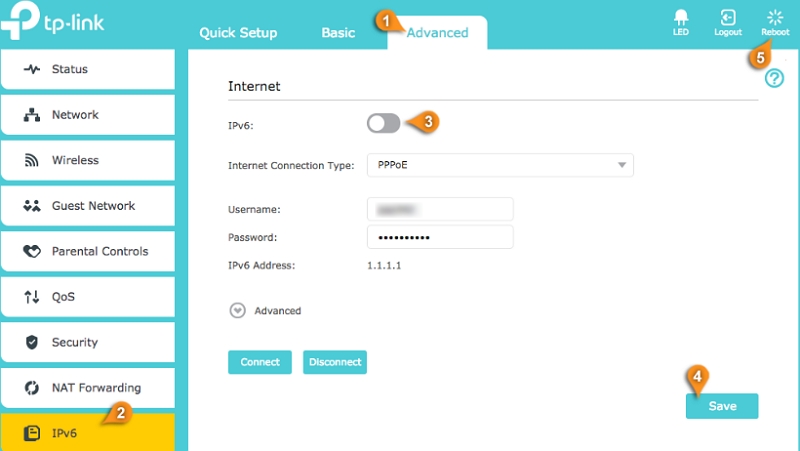
Step 4. Find IPv6 under Advanced Settings, Internet, Network, or a similar section.
Step 5. Turn off IPv6 and click Save or Apply.
Step 6. Restart your router, reconnect your TV to the network, and open Spotify again.
Fix 2. Reset TV Network
The TV may have outdated or incorrect network settings that affect how Spotify works, even when the TV appears to be connected to Wi-Fi. For example, a temporary network glitch or an incorrectly assigned IP address can interfere with Spotify playback. Resetting the TV’s network settings clears the existing connection information and allows the TV to reconnect to Wi-Fi from scratch. This can remove temporary network errors and restore normal Spotify playback.
If you’re using a Samsung TV, you can reset its network settings with these steps:
Step 1. Press the Home button on your Samsung TV remote and select Settings.
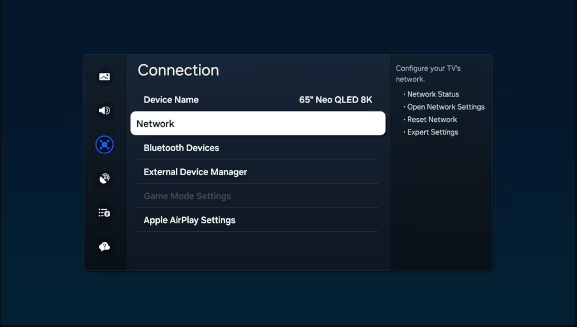
Step 2. Go to All Settings > Connection > Network.
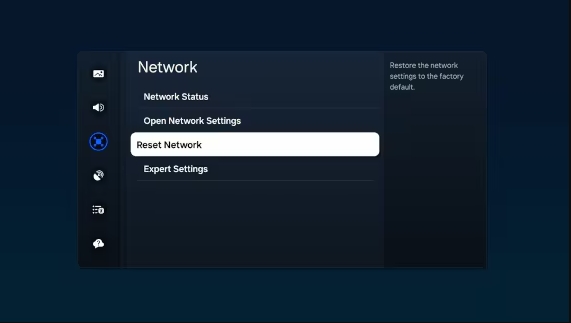
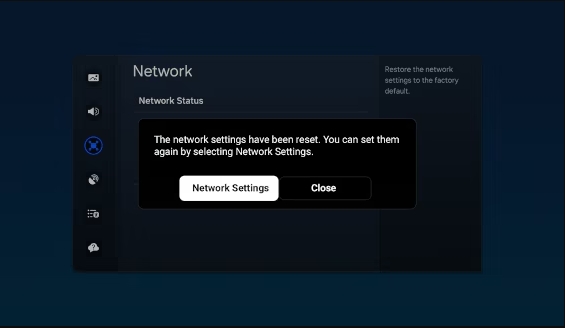
Step 3. Select Reset Network.
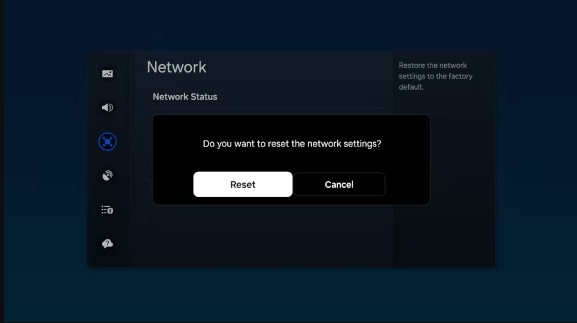
Step 4. Choose Reset when the confirmation message appears.
Step 5. After the reset is complete, return to Network Settings and select Open Network Settings.
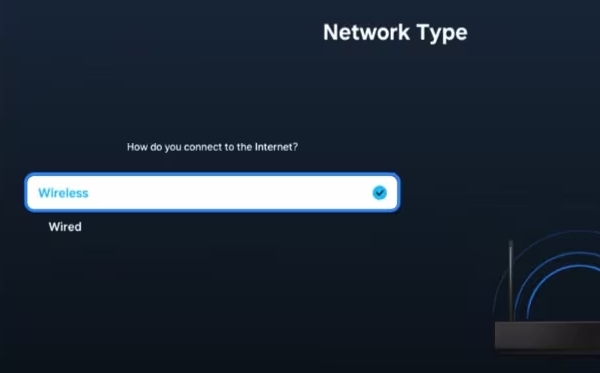
Step 6. Select Wireless.
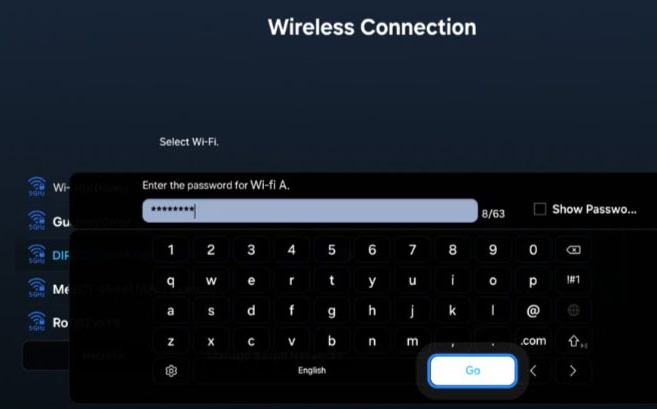
Step 7. Choose your Wi-Fi network and enter your Wi-Fi password.
Fixes for Case: Some Songs are Silent on Spotify
Some Spotify songs play with sound, while others have no sound means that the issue isn’t with your phone, tablet, or computer. Instead, it is a problem on Spotify’s end, either due to server outages or corrupted track data.
Fix 1: Check if Spotify’s Servers are Down
Server downtime can sometimes lead to playback issues, causing certain songs to remain silent.
To check if there’s an outage:
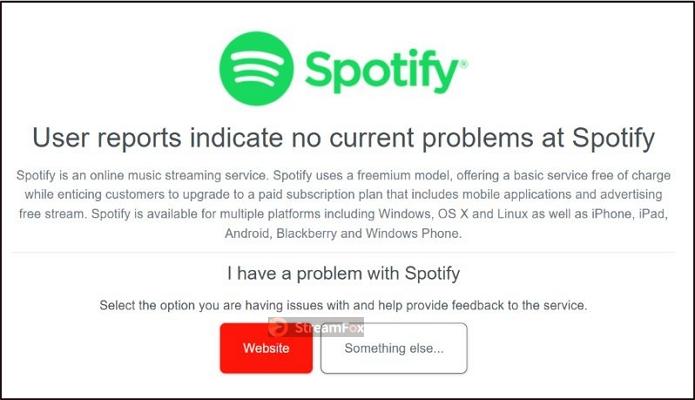
- Visit DownDetector and search for Spotify.
- If there’s a spike in reported issues, it means Spotify’s servers are experiencing disruptions.
- You’ll have to wait until Spotify resolves the issue on their end.
Fix 2: Contact Spotify for Help
If Spotify’s servers are up and running but some songs are still silent, the issue may be with the track’s stored data.
- Go to Spotify Support and report the specific song that isn’t playing.
- Spotify will review the track and fix any possible errors in their system.
Ultimate Fix for Any Case of Spotify Playing but No Sound
Spotify has one simple rule: its music stays locked inside its app, which means it is prone to glitches, misconfigured settings, and random issues that can leave you with no sound, even when playback is running. The ultimate fix here is to save the Spotify music offline using StreamFox for Music.
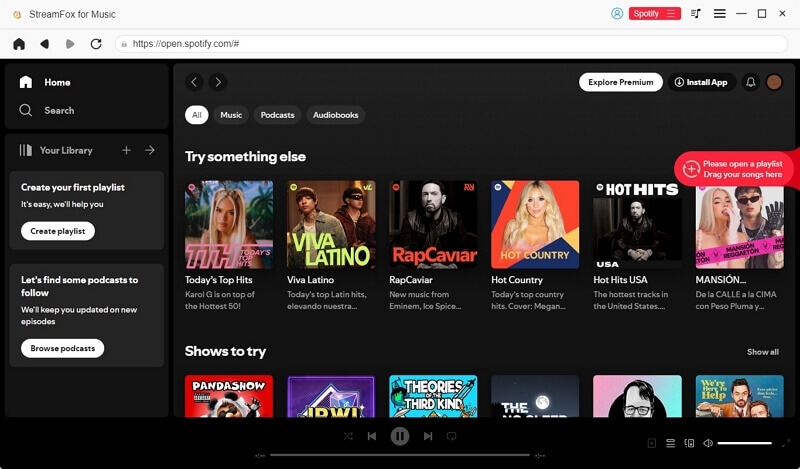
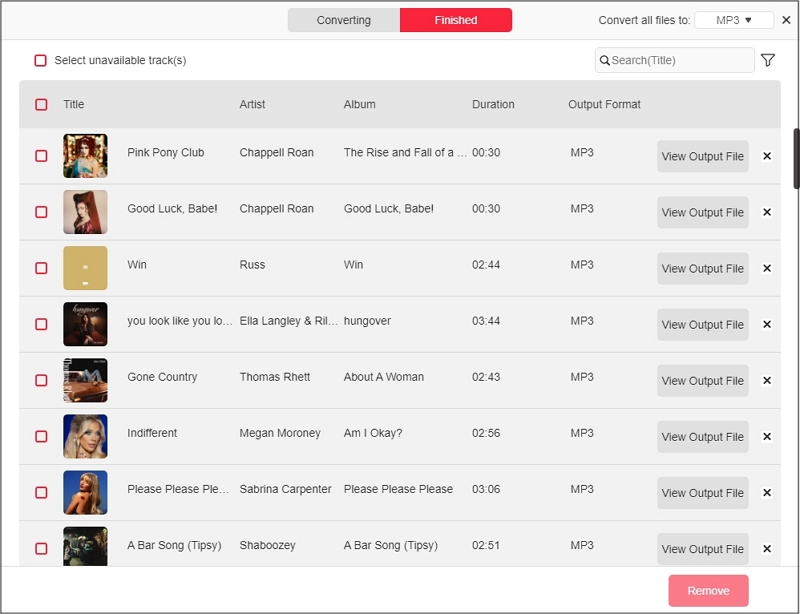
StreamFox lets you save Spotify songs on your device by exporting them as MP3, WAV, FLAC, and other open formats, so you can listen on any device, using any media player. This way, you can avoid troubleshooting Spotify playback issues and simply focus on enjoying your music.
Thanks to its ODSMRT technology, StreamFox also preserves high-fidelity audio(up to lossless quality) while saving them to your device. Even Spotify’s free-tier users can grab songs at full 320 kbps. StreamFox comes with a built-in Spotify browser, allowing you to log into your own account, browse playlists, albums, or even individual tracks (as well as audiobooks and podcasts), and download them instantly.

- Save your entire Spotify library at once without waiting. No need to download songs individually.
- Every track, album, and playlist is neatly arranged, so you don’t have to sort files manually.
- All saved music retains full details, including album covers, artist names, and track info.
- Support Spotify, Apple Music, YouTube Music, Pandora, and Amazon Music, letting you save all your music from one platform.
After saving Spotify songs to your local storage, you can play them using any media player like WMP or VLC with no sound issues.
Wrap Up
So that’s the thing about Spotify: an app entirely about sound, yet sometimes, sound is exactly what goes missing. It’s an issue that comes with online services. The good news? Everything can be fixed, as we’ve seen throughout this article.
And if you’re done playing the online game and just want your favorite Spotify music offline for uninterrupted listening, StreamFox for Music is the easiest way forward. You can convert desired songs, albums, and playlists directly from Spotify in the highest quality and save them on your device.