Nothing is more annoying than clicking a song on Spotify and seeing the “Spotify can’t play this right now” message instead of hearing your music. This error can appear suddenly when you play a track you’ve listened to before, use Spotify Web Player, or try to open a local file. Since the error can be triggered by different issues, such as unavailable songs, playback settings, or file access problems, finding the right solution depends on the situation. In this guide, we’ll break down the most common situations where this error occurs and provide targeted fixes to help you get Spotify working again.
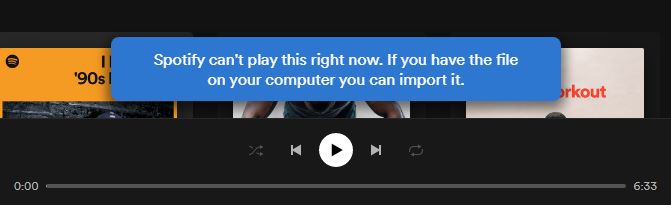
Case One: Spotify Can’t Play This Right Now “If You Have the File on Your Computer, You Can Import It”
This error often shows up when Spotify struggles to connect with your audio output settings or runs into system sound enhancement conflicts.
It commonly happens after system updates or hardware changes, or play tracks that require specific playback settings. Yes, some tracks make things trickier. Spotify checks for secure playback devices and if your setup doesn’t pass the test (like with certain Bluetooth codecs or HDMI outputs), the app will throw the “Can’t Play This Right Now” error. Here are all the fixes on Mac and Windows.
Fix 1: Set Sound Output for Spotify
Spotify gets stuck when it can’t sync with your audio setup, and the “Can’t Play This Right Now” error pops up. Sometimes the output isn’t configured right. Other times, it’s inactive or pointed to a disconnected device. It is common on Windows, but Mac users aren’t entirely spared. Let’s see one by one.
On Windows
The audio settings are a bit more tangled on Windows. Each app can have its own audio path. So, while your system might use speakers, Spotify could still be searching for a Bluetooth headset you used last week.
It sounds tricky, but the fix is simple: all you have to do is bring Spotify back to the right output. Here’s how:
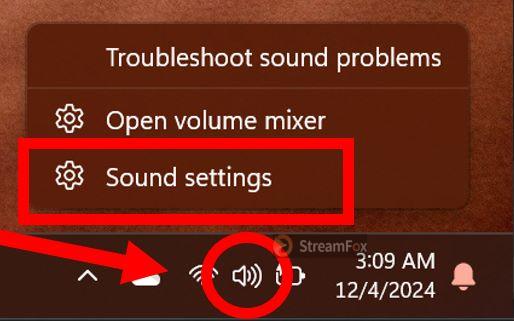
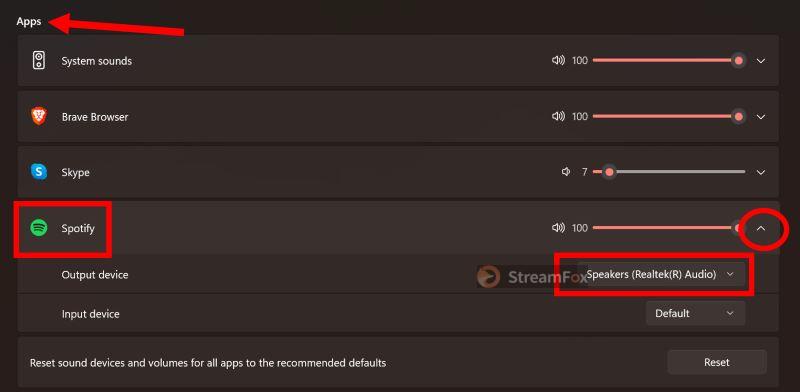
Step 1. Open the sound settings: right-click on the speaker icon near the clock and choose Sound Settings.
Step 2. Once in the sound settings, scroll to the Advanced section and click on Volume Mixer.
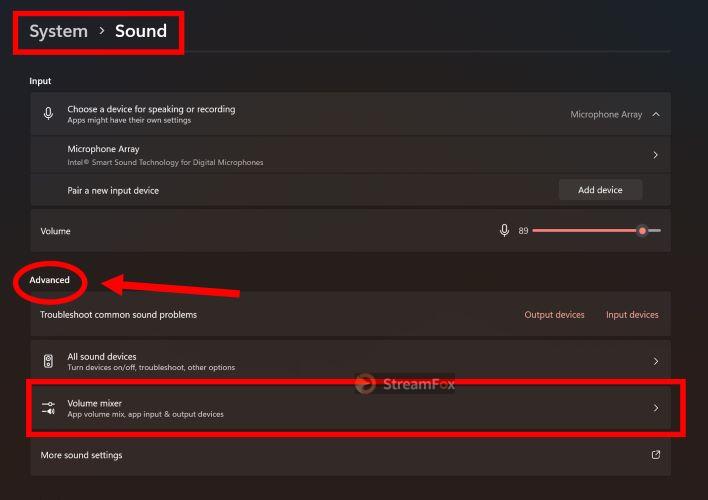
Step 3. The Apps section will show you a list of all active apps with their sound preferences.
Tips: If Spotify doesn’t appear, open the app, play a track and then check the app list again.
Step 4. Expand Spotify’s options by clicking the drop-down arrow next to its name. You’ll see all the available audio devices. Pick your preferred one (speakers, headphones, or any connected output device) and test the playback. If you’re unsure, try each device until Spotify starts playing directly.
On Mac
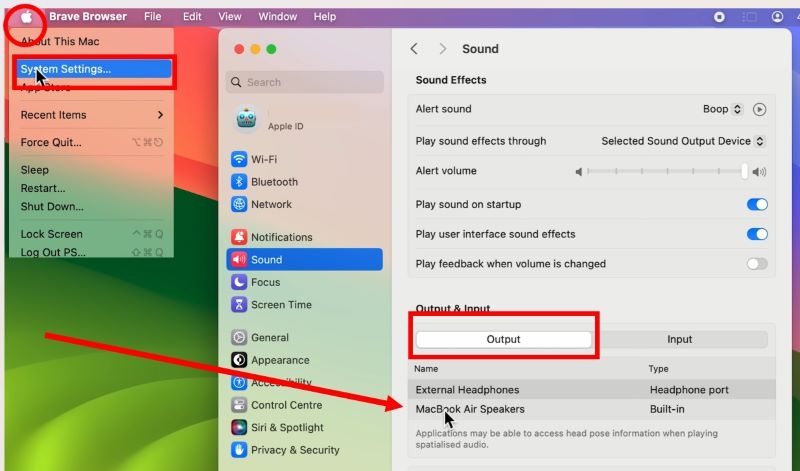
macOS doesn’t allow applications to switch outputs independently. So, Spotify relies entirely on your system’s default setup. Even so, misconfigured outputs could cause trouble. Plus, make sure that third-party applications like Audio Hijack or Loopback are disabled (as Spotify recognizes them). The steps:
Step 1. Click on the Apple logo at the top-left and choose System Settings. Then, navigate to Sound.
Step 2. Under the Output section, you’ll see all connected devices. Choose the one you want and your audio should reroute audio immediately. If no sound comes through, make sure the device is active and properly connected.
Fix 2: Clean Reinstall Spotify App
Suggesting a clean reinstall here is a calculated move. Yes, smaller tweaks can resolve some issues. We’ll get to those later. However, this step prevents you from over-adjusting or messing with configurations that don’t need changing.
A clean reinstall wipes Spotify’s slate. It clears cached data, resets its connection to your system, and lets the app rebuild from scratch. Here’s how it is done.
On Windows
Step 1. Start by fully closing Spotify properly. For this, open the app, click on the menu at the top-left and select File > Exit. Or, use the Ctrl + Shift + Q shortcut.
Step 2. Navigate to Settings > Apps and find Spotify. Select it, click Uninstall, and confirm.
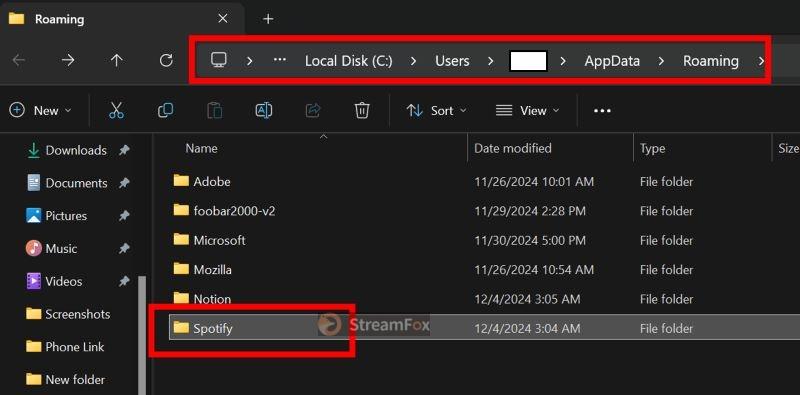
Step 3. Clean up leftover files.
- Open the search bar, type %appdata%, and press Enter. This opens the AppData\Roaming folder in File Explorer. Look for the Spotify folder and delete it.
- Repeat this process for %localappdata% to clear any Spotify remnants in the AppData\Local folder.
- Take a moment to search your system for any stray Spotify files. Type “Spotify” in the search bar, and delete anything that remains.
Step 4. Shut down your device completely. Wait a few minutes, then turn it back on.
Step 5. Finally, download the latest version from the Windows Store or Spotify’s official website. Install it, log in, and test playback.
On Mac
Step 1. Quit Spotify by using Cmd + Q or right-clicking the dock icon and choosing Quit.
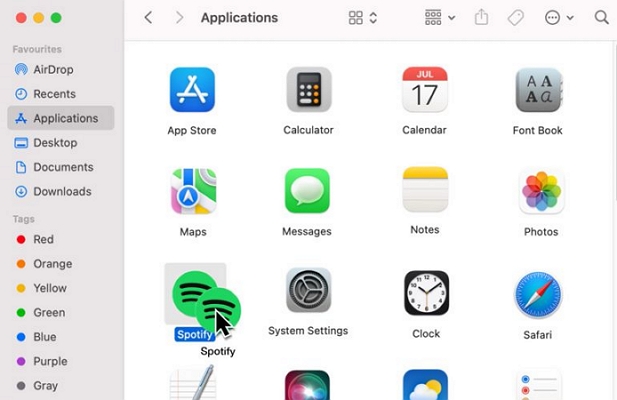
Step 2. Drag Spotify to the Trash from the Applications folder.
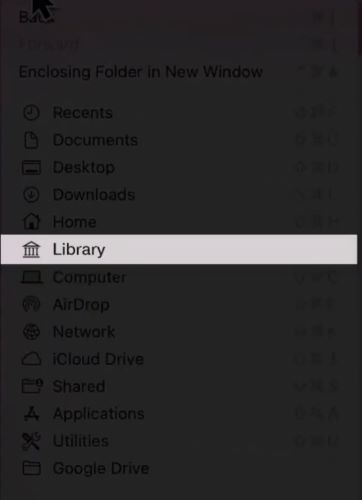
Step 3. Open Finder, go to Go > Library (hold Option key if Library isn’t visible).
Step 4. Open Caches and delete the com.spotify.Client and com.spotify.client.helper folders.
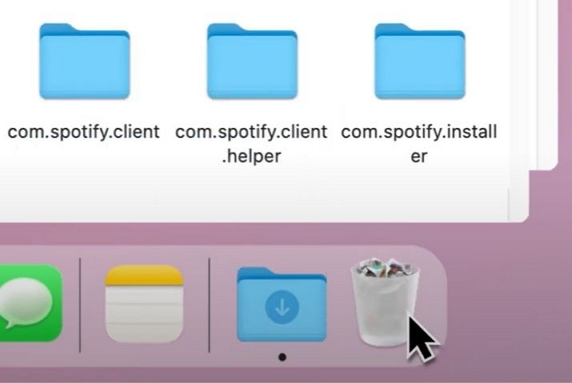
Step 5. Restart your Mac. Download Spotify again and log back in.
Fix 3: Turn off Audio Enhancements
Audio drivers on Windows, like Realtek and Conexant, come with built-in features that tweak sound by boosting bass, room correction, to name a few. And these process the Spotify audio before it can reach your speaker.
There’s nothing wrong with those, but Spotify’s output is already optimized for its format and bitrate. Put simply, adding extra processing to that stream can create conflicts: tracks skip and sound quality degrades. In certain cases: Spotify will flash the “Can’t Play This Right Now” error.
Mac models don’t include these enhancement features, but third-party audio apps like Boom 3D or EQ Mac can still create similar issues. If you use them on your Mac device, simply disable them temporarily.
On Windows, turning off enhancements is straightforward. Just head back to your sound settings and select your active output device. Here’s what to do next:
Step 1. Click on your active output under the Output section.
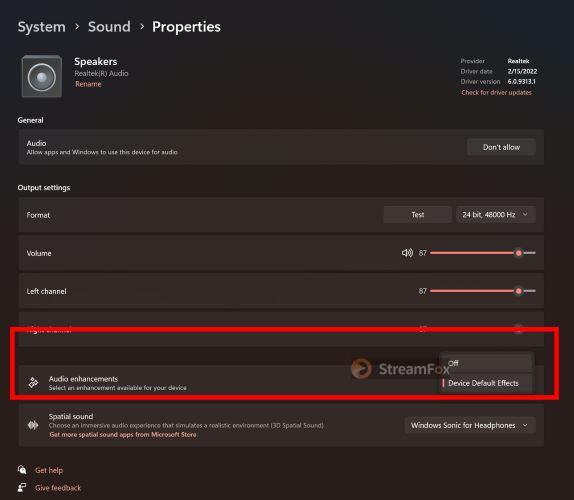
Step 2. Within the device properties, scroll to Audio Enhancements and look for the toggle labeled Device Default Effects (or similar, depending on your driver). Switch this off.
Note: If your driver doesn’t display this toggle, check for enhancement settings directly in your audio driver’s software (like Realtek’s control panel).
Fix 4: Reset Default Device Sound Settings
Spotify operates within strict limits when it comes to sample rates and bit depths. And it’s no secret: confirmed reports show that any sample rate above 192 kHz causes Spotify to fail during playback. Advanced DACs with PCM up to 768 kHz offer stellar audio quality elsewhere, but Spotify simply doesn’t support such configurations. To fix this, you’ll need to reset the default sound format below 192 kHz.
On Windows
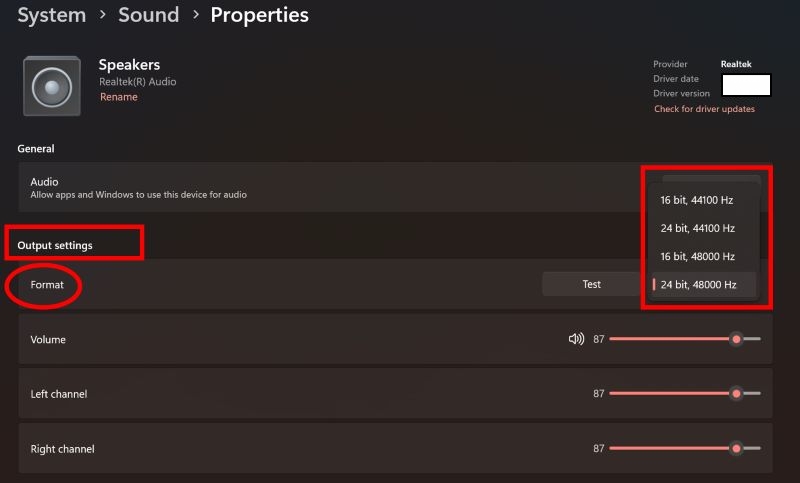
Step 1. Go to output device properties: System > Sound > Output and pick the active one. Then, scroll to the Output Settings section. Under this, you’ll find a Format option with dropdown choices for sample rates and bit depths.
Step 2. Select a supported format like 48,000 Hz at 24-bit depth (or a rate below 192 kHz). This ensures compatibility with Spotify’s playback engine.
If you’re using external DAC software like GSX or any proprietary audio driver control panel, access its configuration settings and adjust the format options to align with Spotify’s limits.
On Mac
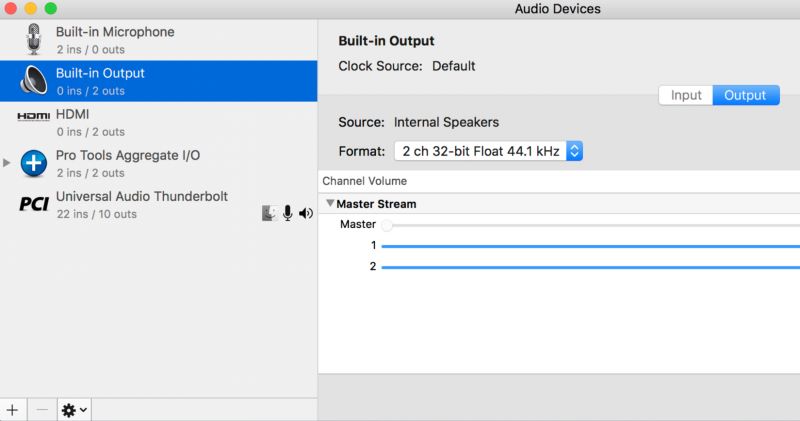
The Audio MIDI setup handles this. Here’s how to change:
Step 1. Open Applications > Utilities > Audio MIDI Setup.
Step 2. In the left panel, choose your active output device (e.g., Built-in Output).
Step 3. Switch to the Output tab from the right. Next to the Format, use the dropdown to select a sample rate: CD quality and Studio quality will work perfectly.
Fix 5: Reset App Data and Restart
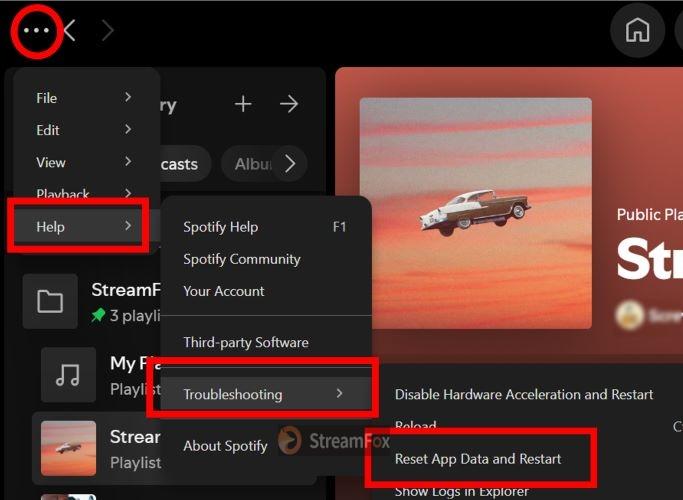
Resetting app data forces Spotify to forget everything stored locally, from equalizer settings, playback preferences, and cache files. The steps are simple and work the same on both Windows and Mac:
Step 1. Launch the Spotify application. Look for the menu at the top and click Help.
Step 2. Navigate to Troubleshooting, choose Reset App Data and Restart and confirm your action. Spotify will close, reset itself, and reopen fresh.
Fix 6: Re-enable Speakers in Playback
Re-enabling speakers sound like a checkbox task, but it’s more than that. Windows can prioritize the wrong output if multiple speakers are connected. By turning your active devices off and back on, you refresh its connection. This will clear conflicts with phantom devices or inactive outputs. Put simply, you’re telling Windows: Use this device for sound output.
Mac users don’t deal with this issue. Apple’s unified audio architecture ensures a consistent approach.
Here are the steps for Windows users:
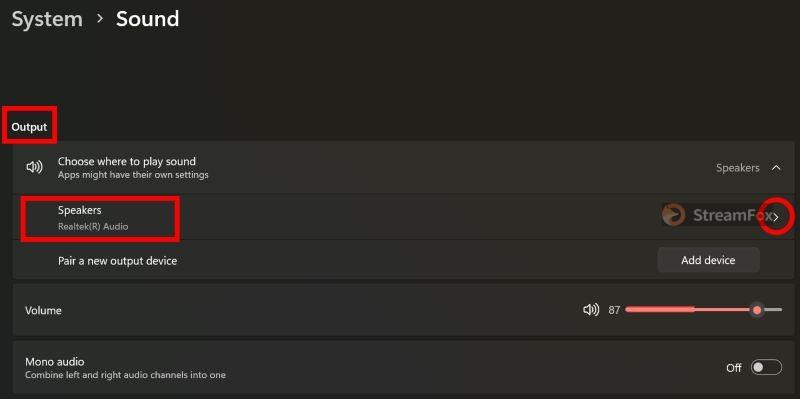
Step 1. Go to Settings > System > Sound. Under the Output section: click the arrow next to the speaker to open the Properties page.
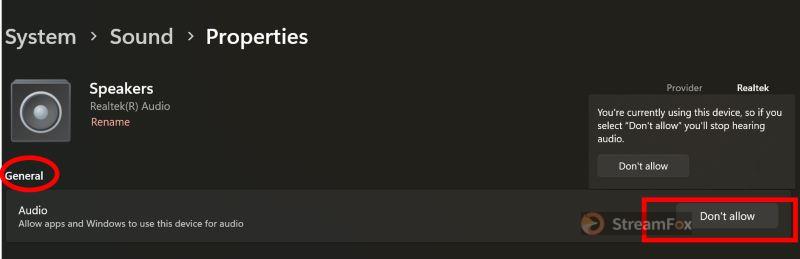
Step 2. Click the Audio toggle under the General tab and choose Don’t Allow to disable it. Confirm if prompted. Once disabled, toggle it back to Allow and confirm again.
Case Two: Spotify Can’t Play This Right Now Web Browser
When Spotify flashes the “Can’t Play This Right Now” error on the web, the culprit is usually the browser. Here’s a quick rundown of fixes to sort things out:
Fix 1: Clear Browser Cookies and Cache
Cookies and cache are handy until they’re not. Over time, they can create conflicts, disrupting apps like Spotify. Clearing them is more than routine, which is necessary.
On Google Chrome
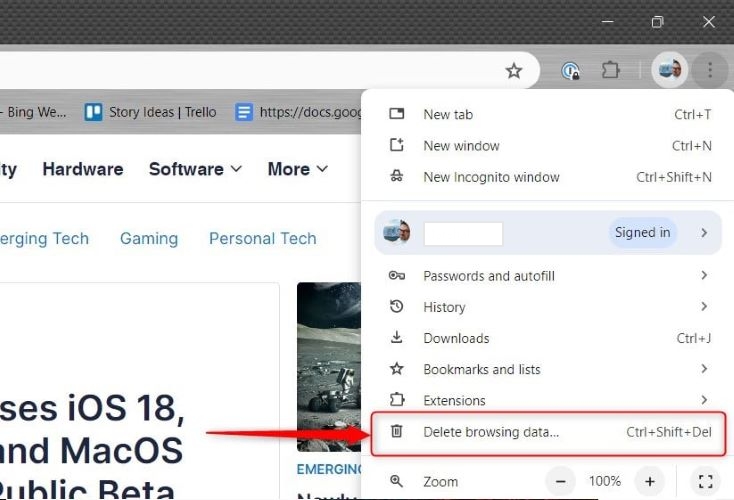
Step 1. Click on the three-dot menu (near the top-right corner) and select Delete Browsing Data.
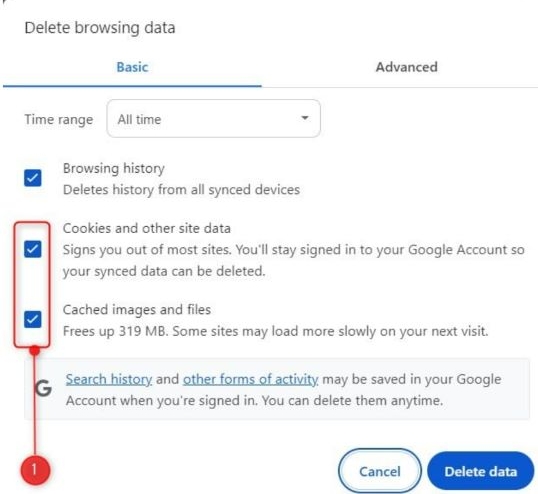
Step 2. You’ll automatically be taken to the Clear Browsing Data settings page.
- Make sure Cookies and other site data and Cached images and files are checked.
- Set the Time Range to All Time.
- Click Clear Data to confirm.
Fix 2: Change to Another Browser
If Spotify’s still acting out, it’s time to check if the problem’s browser-specific. Test Spotify in another browser like Firefox or Edge. If it works fine there, your main browser needs attention, like updating it.
Fix 3: Update Browser
Almost all browsers nowadays come with automatic-updates, but it’s worth a double-check.
On Google Chrome
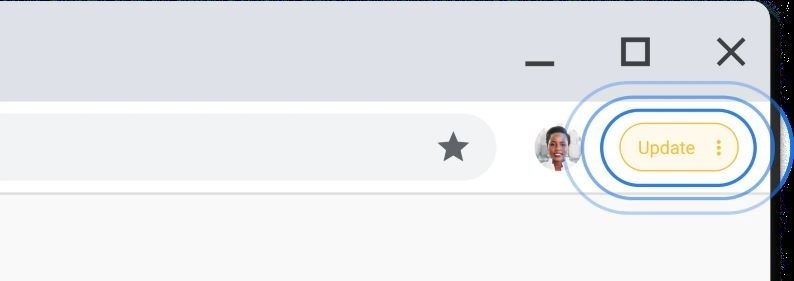
Look for the Update button near the three-dots menu. If it’s visible, hit it and Chrome will relaunch after the update. Now, test the Spotify playback.
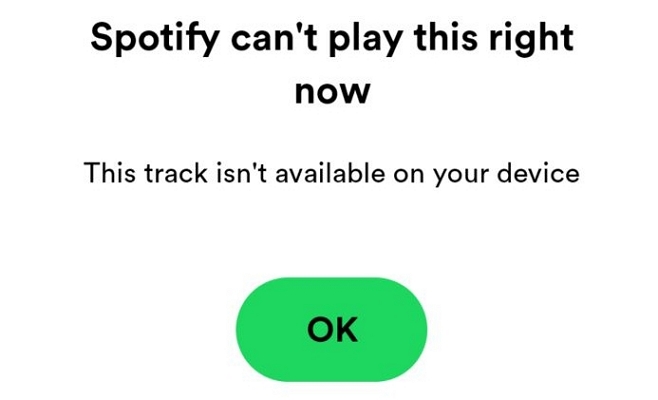
Case Three: Spotify Can’t Play This Right Now, The Song isn’t Available on Your Device
This error pops up frequently on mobile, especially if Local Files are enabled. On desktop or web: it’s tied to greyed-out songs or the ones unavailable in your region that you try to play. But if it happens frequently and you’re using the desktop app downloaded from the Spotify site, switching to the Microsoft Store version can fix it. It will offer tighter system integration and automatic updates, plus prevent playback errors.
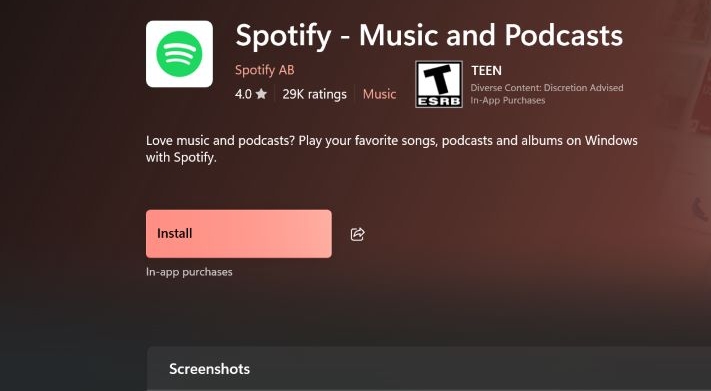
Fix: Download Spotify from Microsoft Store
Download the app directly from the Microsoft Store, log back in, and test your playback. That’s all it takes to solve most availability issues and keep things running smoothly.
How to Listen to Spotify Without Playback Issues
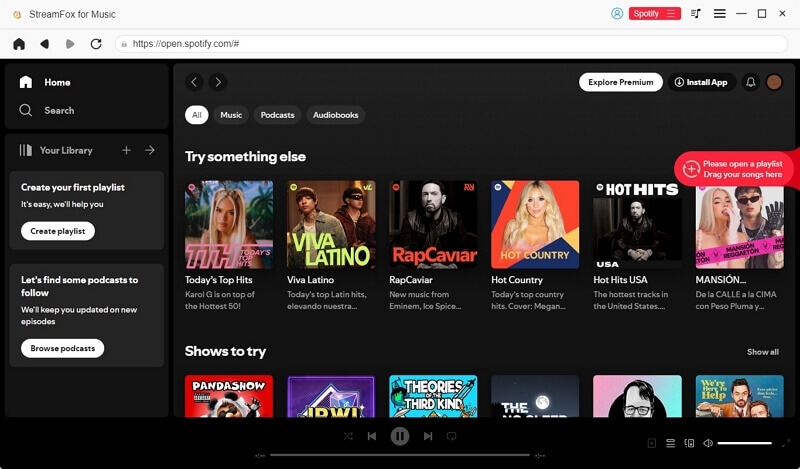
Saving Spotify songs as local files can help you avoid these playback issues in the future. Since you can play the music offline with other media players, you don’t have to rely on a single player. If one player has problems, you can simply switch to another one without spending time troubleshooting playback errors. StreamFox for Music can convert your favorite Spotify songs into common formats like MP3, FLAC, and WAV, allowing you to enjoy them on almost any music player. The audio quality will not be compromised, as StreamFox supports output up to 320kbps or lossless quality. When you play the converted songs offline, you can still keep complete music information, including album covers, song titles, and other metadata.

- 30X conversion speed makes large playlist conversion fast.
- Enable both free and premium users to save Spotify music offline.
- Support converting all Spotify content, including music, audiobooks, and podcasts.
- Built-in Spotify browser makes selecting and saving tracks simple.
Conclusion
That’s how you resolve Spotify “Can’t Play This Right Now” error. Not with the usual fixes, but advanced ones tailored for every scenario. By now, the problem should be sorted. If not or if you’re simply looking for something fresh, there’s always StreamFox for Music that converts Spotify tracks in high-quality formats like FLAC, WAV, and MP3.