Android Auto makes it easier and safer to enjoy Spotify music while driving. Instead of picking up your phone, you can use voice commands or your car’s display to control playback, browse playlists, and listen to your favorite songs hands-free. However, the experience is not always smooth. Many users encounter issues where Spotify is not working on Android Auto, such as the app failing to connect, songs not playing, or Spotify not appearing on the car screen. These problems can be caused by various factors. In this guide, we’ll explain the common reasons why Spotify not working on Android Auto happens and provide practical solutions to get it running again.
Spotify Not Working on Android Auto: Common Issues and Fixes
When Spotify stops working with Android Auto, the problem may appear in different ways. Some users may encounter error messages, while others may notice missing features or unexpected playback issues. Identifying the exact problem is the first step toward finding an effective solution.
| Common Cases | Recommended Fixes |
|---|---|
| Spotify Android Auto “Something went wrong” | Fix 2: Clear Spotify Cache and Restart Your Phone Fix 6: Force Exit Spotify and Then Run It Fix 8: Turn off Battery Optimization for Spotify |
| Spotify Requires a Newer Version of Android Auto | Fix 2: Clear Spotify Cache and Restart Your Phone |
| Spotify Not Showing in Android Auto Customize Launcher | Fix 5: Change Spotify App Notifications Fix 7: Enable Unknown Sources |
| Spotify Doesn’t Seem to Be Working on Android Auto | Fix 1: Use USB Connection Instead Fix 3: Enable Autoplay Fix 4: Turn on Device Broadcast Status Fix 8: Turn off Battery Optimization for Spotify |
Quick Fixes for Spotify Not Working on Android Auto
Each of the fixes below is designed to address the above scenarios which are caused by device connection, Spotify glitches, improper settings, etc. Simply follow them to get Spotify back to work on Android Auto.
Fix 1. Use USB Connection Instead
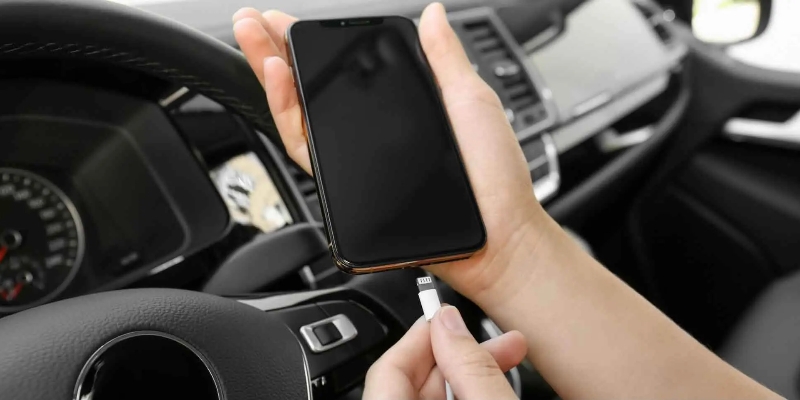
If you are using Bluetooth to connect your phone and Android Auto, try to use a USB cable to build the connection instead. This is because a wired connection often provides better stability. If a USB cable is currently used, replace it with another one and check whether Spotify works again on Android Auto.
Fix 2: Clear Spotify Cache and Restart Your Phone
This fix can remove possible glitches causing the issue from both Spotify and phone. It’s approved to work by some online users. So, don’t hesitate to try it.
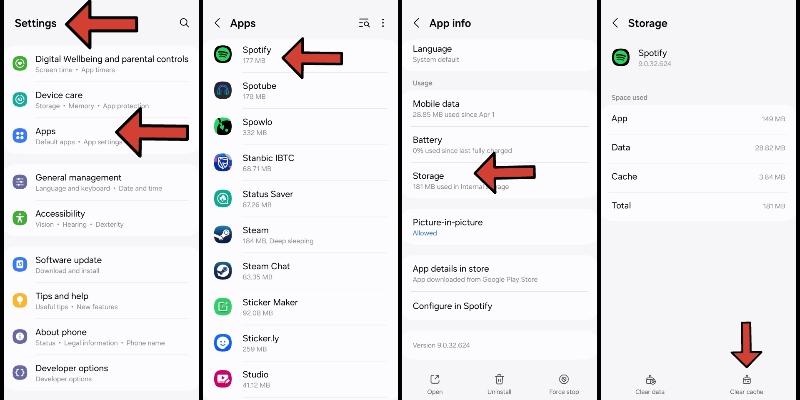
- Open “Settings” on your Android phone and tap “App”.
- Select “Spotify” from the list and tap “Storage”.
- Press “Clear cache”.
- Press “Power” + “Volume up” buttons at the same time and choose “Restart” to complete the process.
Fix 3. Enable Autoplay
When you enable Autoplay, the action prevents Android Auto from force-closing Spotify due to background restrictions, keeping playback stable. Here is how to use this fix on iPhone and Android.
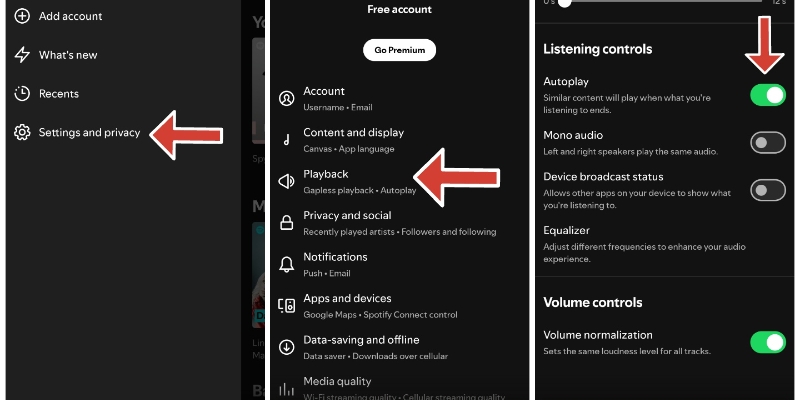
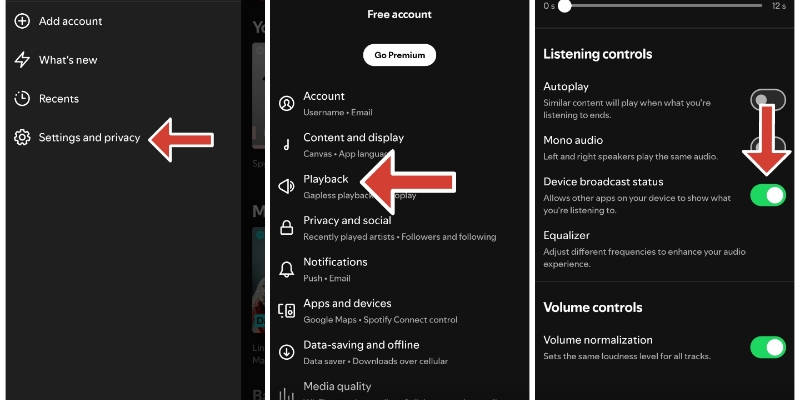
- Launch Spotify on your phone, tap your avatar, and go to “Settings and Privacy”.
- Tap “Playback”, locate “Autoplay” and toggle it on if it is off.
Fix 4. Turn on Device Broadcast Status
This Device Broadcast Status option helps Spotify communicate properly with Android Auto, but the setting is only available on Spotify Android currently. So, if you’re using an iPhone, try any of the other options.
- Open the Spotify app and tap your profile picture in the upper left corner.
- Tap “Settings and Privacy” and then “Playback”.
- From there, scroll down a bit to find the “Device Broadcast Status” option.
- Turn on “Device Broadcast Status”.
Fix 5. Change Spotify App Notifications
Doing this ensures that background activity is maintained and the glitch preventing Spotify from functioning properly on Android is resolved.
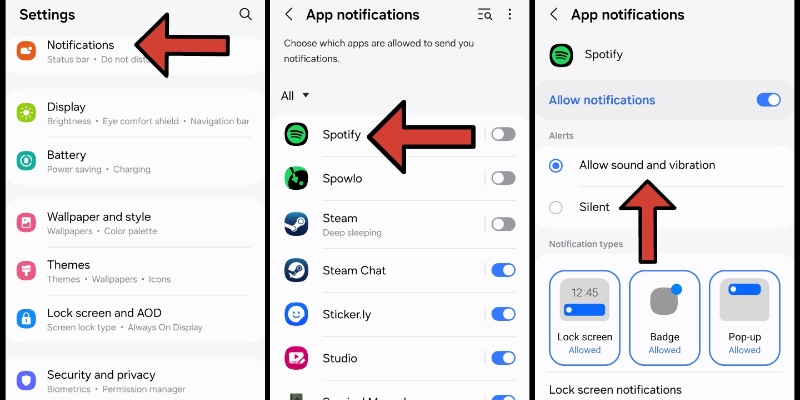
- Go to “Settings” on your Android phone and tap “Notifications”.
- Search for Spotify, choose it, and tap “Allow sound and vibration”.
Fix 6. Force Exit Spotify and Then Run It
This works like a quick reboot but it goes deeper. You can try this way on Android and iPhone by following the steps below.
- Open the Settings app and go to “Apps”. Next, choose “Spotify”.
- Hit “Force Stop” at the bottom right.
- Tap “OK” to confirm the exit and then open Spotify again.

Fix 7. Enable Unknown Sources
Some third-party integrations require this option to function properly. Enabling “Unknown Sources” on Android devices lets Spotify bypass Android Auto’s strict app verification which often blocks playback for no apparent reason.
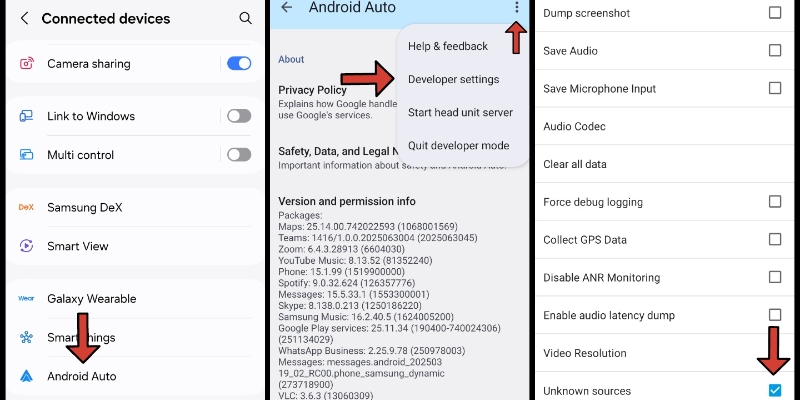
- First, go to your phone’s settings and tap “Connected devices”.
- Scroll down and tap on “Android Auto”.
- Scroll down again and tap “Version” 10 times to unlock “Developer Mode”.
- Tap the 3-dot icon at the top right of the screen and then tap “Developer Settings”.
- Scroll down one more time and tick “Unknown Sources”.
Fix 8. Turn off Battery Optimization for Spotify
Choosing this option guarantees your phone won’t kill Spotify’s background processes and prevent disconnections in Android Auto.
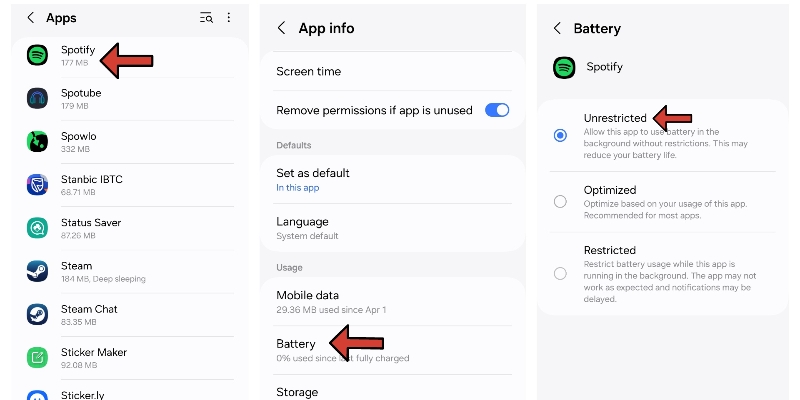
- Pick up your phone, go to “Settings”, and tap “Apps”.
- Navigate to “Spotify” and tap “Battery”.
- Then, choose “Unrestricted”.
Ultimate Fix for Spotify Not Working on Android Auto
This last fix is the most effective because it tackles the issue in one go and you don’t need to try the fixes one by one. Besides, it lets you use Spotify with Android Auto offline without premium. What you need is a tool called StreamFox for Music that converts Spotify music locally. Therefore, you can transfer Spotify music to a USB drive and play Spotify on Android Auto without the app.
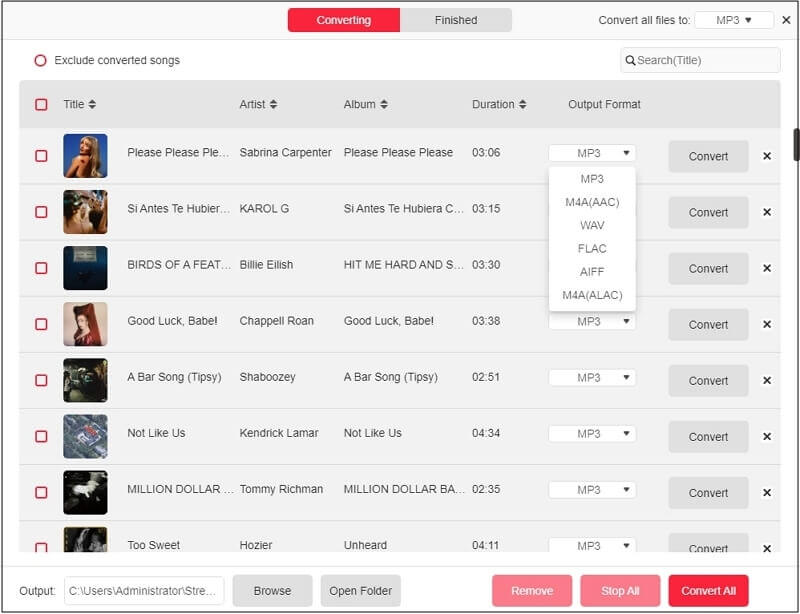
StreamFox for Music is a powerful music converter. It converts Spotify tracks to high-quality MP3 (320kbps), lossless FLAC, or WAV formats for universal compatibility and at 30x speed while preserving original ID3 tags for perfect organization. Its batch-download feature handles entire playlists, albums, and podcasts in one go. It makes it available to listen to Spotify on a car that even doesn’t support Android Auto or Apple CarPlay.

- Built-in Spotify web player to directly select songs for conversion.
- Retain full ID3 tags including song titles, artist names, cover art, etc.
- Support converting audio from other music services like Amazon Music, YouTube Music, and Apple Music.
- No obtrusive ads to ruin the usage experience.
How to Play Spotify in Car Without Android Auto
Step 1. Save the desired Spotify songs to USB drive with StreamFox for Music.
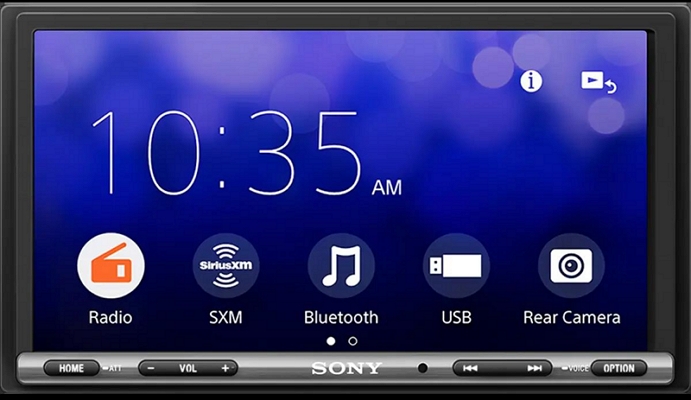
Step 2. Next, plug the USB drive into your car’s USB port, select “Media” and then “USB” on your car’s screen, and then click “Play” to access and play your songs.
Conclusion
Do you see how quick and easy it can be to fix Spotify not working on Android Auto error in common cases? All these quick fixes work great commonly. However, if they don’t work for you or you want an easier and quicker way to get Spotify to work on your Android Auto again, just convert the Spotify songs using StreamFox for Music and listen to them on Android Auto via USB!