Want to save your favorite Spotify songs as MP3 files so you can play them outside the Spotify app? While Spotify Premium lets you download music for offline listening, these downloads remain within Spotify and aren’t available as regular MP3 files. If you need MP3 files for local playback or to use with other compatible media players, you’ll need another way to save the songs in this format. In this guide, we’ll show you how to extract Spotify songs to MP3 using several practical methods, including free options. Whether you’re using a Windows or Mac computer, an Android phone, or an iPhone, you’ll find a suitable method here.
How to Extract Spotify Songs to MP3 on Windows and Mac
On computers, ripping Spotify tracks to MP3 comes with more options and flexibility. There are different ways: using a dedicated converter, an audio recorder, or web tools. Each caters to different needs. Let’s see each one by one.
Way Overview
| Feature | StreamFox for Music | Eassiy Screen Recorder Ultimate | Spotisongdownloader |
|---|---|---|---|
| ID3 Tag Retention | Full support (song title, artist name, album name, cover art retained) | Need manual editing. | Manual entry required for tags. |
| Audio Quality | High-quality with adjustable bitrate (up to 320kbps and lossless formats) | Variable, dependent on real-time recording and capture ads unless skipped. | Dependent on source, quality varies with YouTube audio. |
| Interface Ease of Use | Intuitive, with built-in Spotify player integration. | Simple, but manual start/stop required. | Basic, link-based and minimal interaction needed. |
| Batch Downloads | Support batch conversion and playlists. | No batch functionality | Available, up to 100 tracks free, 500 tracks in premium version. |
| Efficiency | Optimized with ODSMRT technology, fast processing. | Moderate, records in real-time, so less efficient. | Quick download, but sound quality dependent on third-party sources. |
| Platform | Windows, Mac | Windows, Mac | Web-based, accessible on all platforms. |
Way 1. Use Professional Music Converter
Professional music converters are exclusively designed to fetch audio data from Spotify’s server and convert it into an MP3 file. Among the many options available, one name that stands above the rest is StreamFox for Music, which is celebrated for its flawless output, unparalleled success rate, and stellar performance.
Integrating the Spotify player at its core, StreamFox makes it possible to browse using the main window of the converter. Its in-house ODSMRT technology ensures that the processed songs retain their original richness and clarity. However, one of the biggest beauties of StreamFox is how it retains all that crucial info: song title, artist name, album name, and even the cover art.
- Support batch conversion and playlist downloads.
- Allow bitrate adjustments (320kbps/lossless) to ensure nothing gets lost in conversion.
- Along with MP3, it also lets you save in lossless formats like FLAC, WAV, M4A and more.
- Also extract music from YouTube Music, Deezer, Pandora, Amazon Music, and more.
How to Export Spotify Songs or Playlists as MP3 Using StreamFox for Music
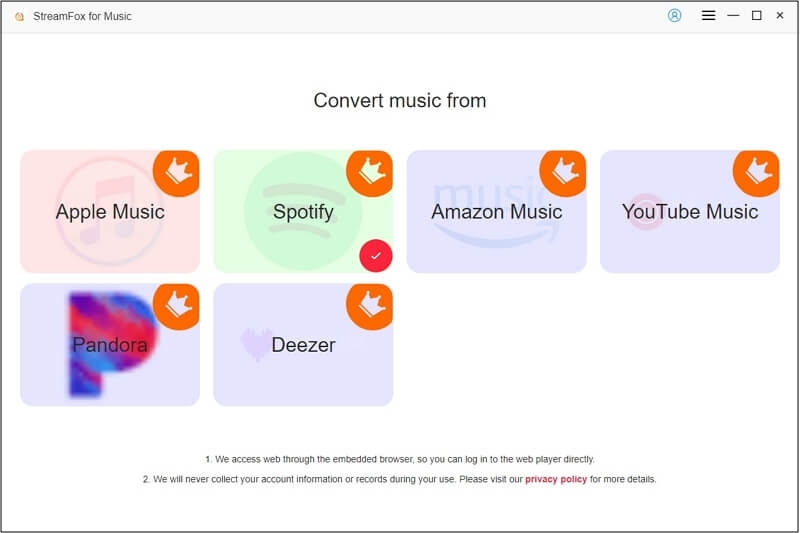
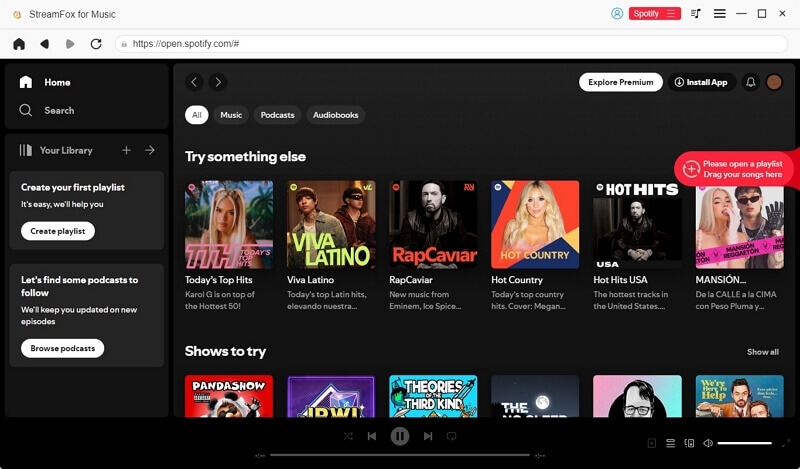
Step 1. Download and open StreamFox on your Windows PC or Mac. From the main interface, choose Spotify as your streaming platform to start the process.
Step 2. Log in to Spotify within the app’s built-in Spotify player. You can use your free account credentials, because StreamFox doesn’t need you to have Premium to extract audio from Spotify.
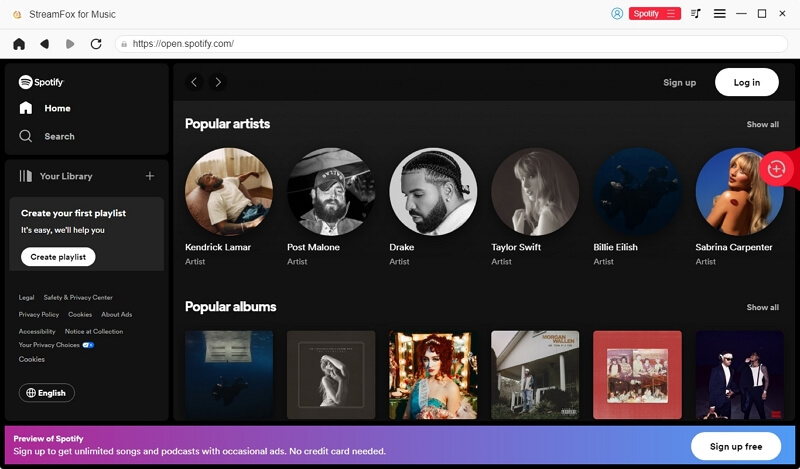
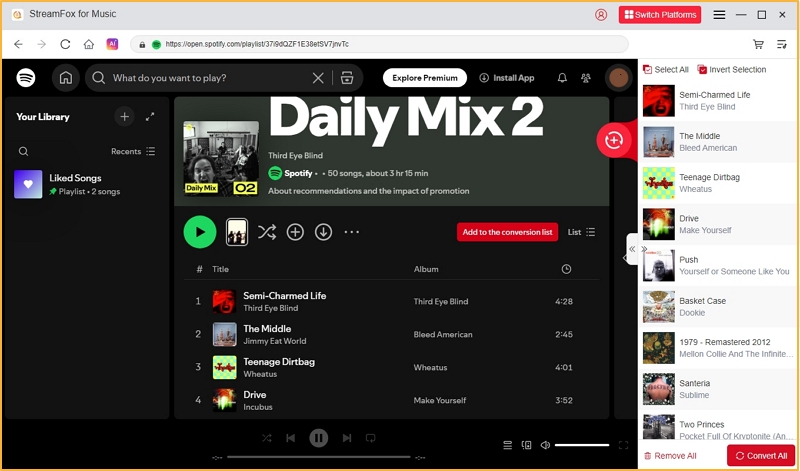
Step 3. Simply drag and drop the songs or entire playlist you wish to convert onto the prominent red Add button located at the top-right corner of the screen.
Step 4. After listing all the songs to be converted, hit the Convert All button.
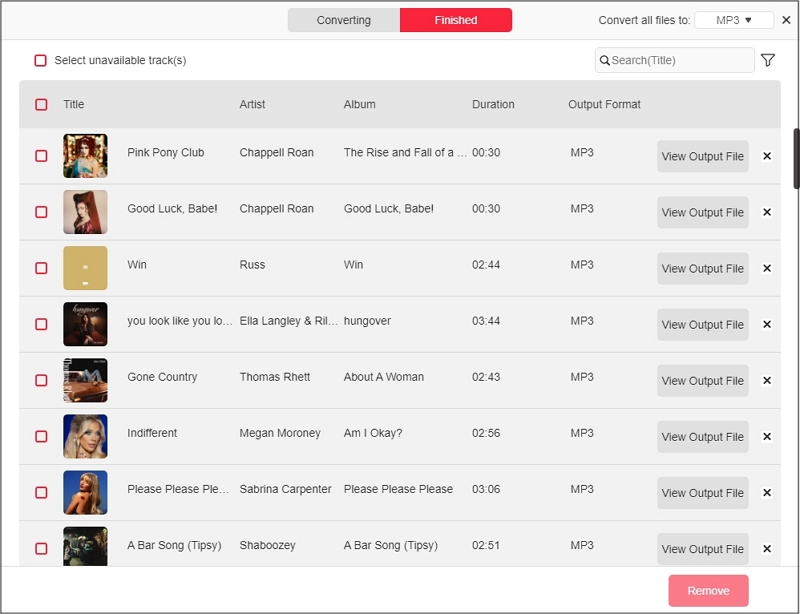
Step 5. Head over to the Finished tab and select View Output File to access the MP3 songs on your device, ready to be played.
Way 2. Through Audio Recorder
Audio recorders, not the basic ones built into your phone and computers, are designed to capture the exact sound playing on your system. To record Spotify music, you have to use internal sound recorders like Eassiy Screen Recorder Ultimate.
Eassiy Screen Recorder Ultimate, hands-on, features the most advanced gears to capture Spotify audio. You can record from start to finish, untouched by background noise or distortion. Once you are past the one-time paywall, you can record with muted sound, meaning Cinch will work quietly in the background while you focus on other tasks. Keep in mind that recording Spotify music with a free account will also capture ads. If you are seeking an ad-free and Spotify-to-MP3 experience, it’s better to stick with StreamFox for Music.
How to Use Eassiy to Extract Spotify Songs
Step 1. Download and install Eassiy Screen Recorder Ultimate on your desktop. Then, open the software.
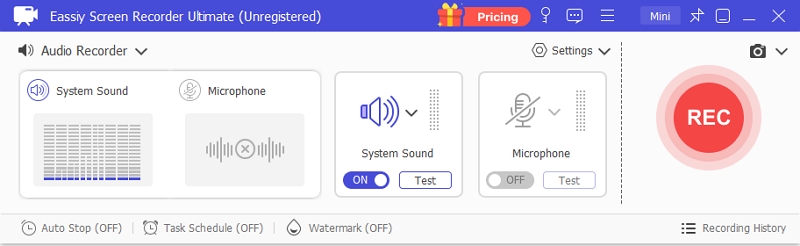
Step 2. In the top-left, click Screen Recorder and choose Audio Recorder in the drop-down menu.
Step 3. Toggle on System Sound and disable Microphone. Then, hit REC and play the Spotify track that you want to record as MP3. Eassiy will capture the audio stream.
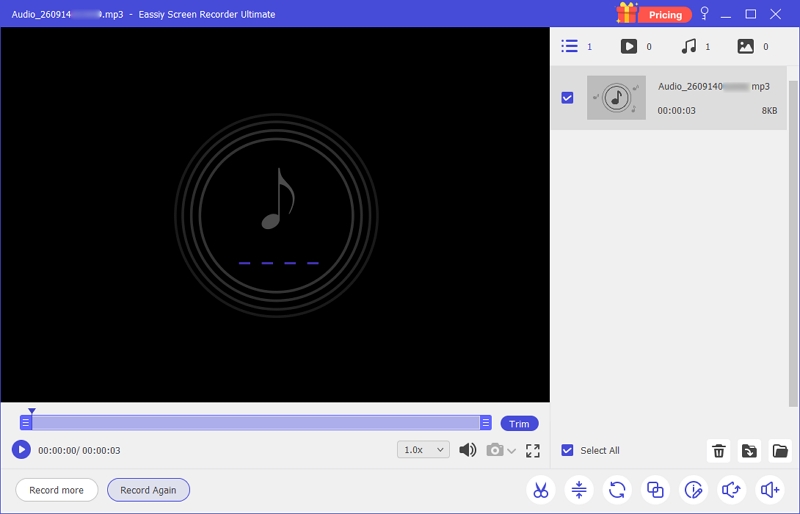
Step 4. Stop recording the Spotify song. Trim the recorded audio to remove unwanted parts and click Media Metadata Editor to add the song details. Finally, click the folder icon to locate where the recording is saved.
Way 3. Apply Online Tool
Web tools are possibly the most thrown solutions, when it comes to converting music from streaming platforms as MP3. For good 2 reasons: they are quick and simple. In reality, web apps pull audio from YouTube or other music sources.
“SpotifyDownloader” follows this trend but has one useful feature: bulk downloads. As a free user, you can convert a 100-strong playlist. Although you’ll need to click each song manually after the download links are generated. The real convenience comes with the paid upgrade (at US$7.99/mo) by unlocking the batch download 500-strong playlist in a ZIP format. This enables you to save everything at once with a single click.
Steps to Save Spotify Songs as MP3 Using SpotifyDownloader
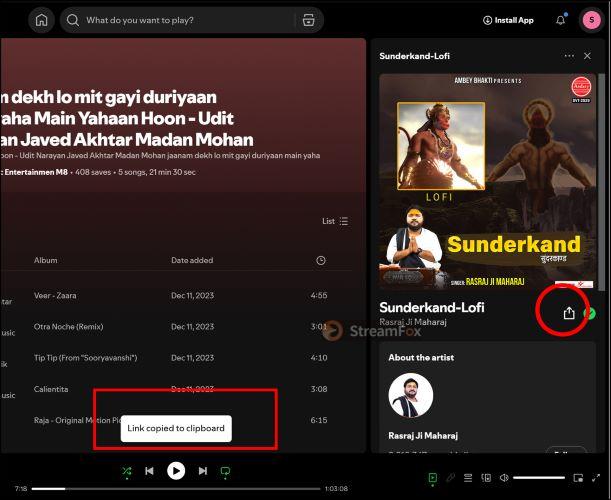
Step 1. Launch the Spotify desktop or web player. Copy the song link by clicking on the Share button.
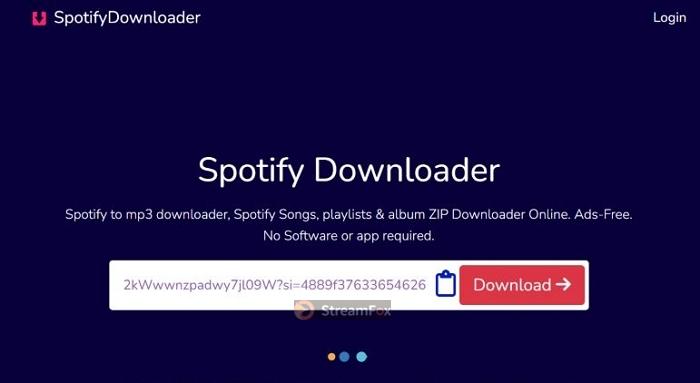
Step 2. Visit SpotifyDownloader website. Click on the clipboard icon to automatically paste the link.
Step 3. Hit the Download button after inserting the link and the tool will start analyzing the submitted URL.
Step 4. Click on Generate Download Link to select the audio quality and get the best available music source.
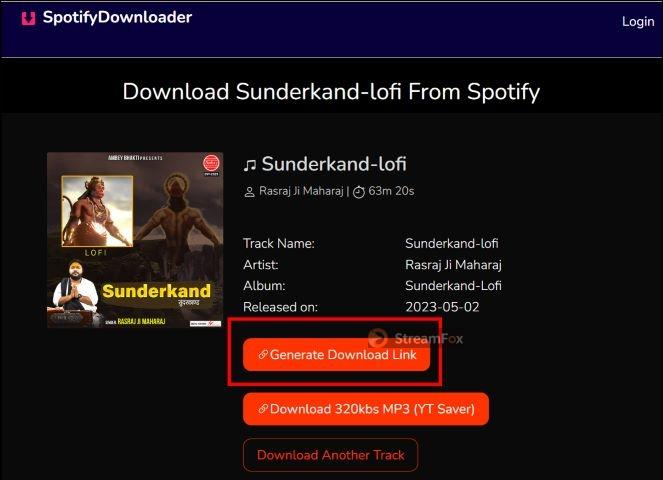
Step 5. Select your desired audio quality from the drop-down menu.
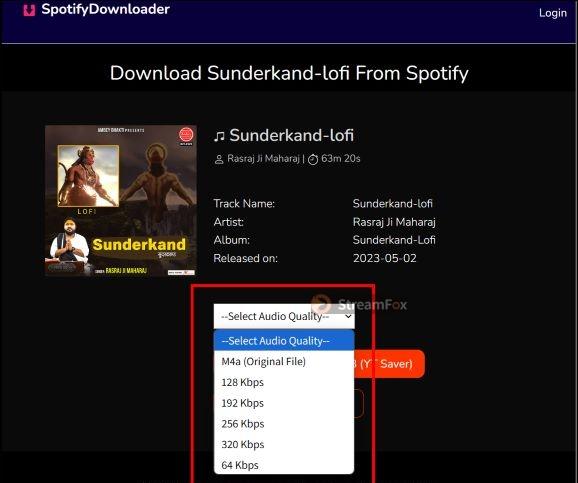
Step 6. Once you click on the desired audio link, SpotifyDownloader will fetch the audio file for you and automatically begin the process.
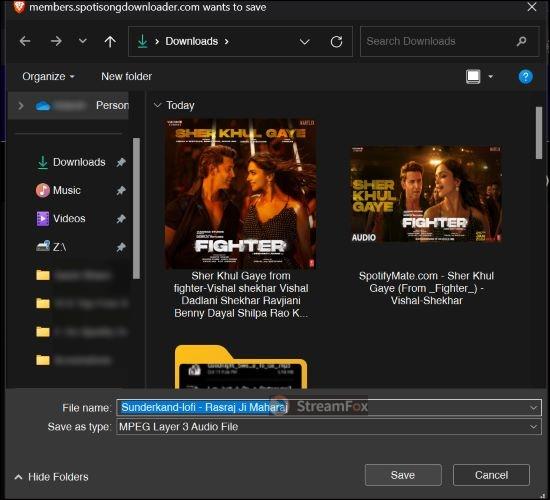
Step 7. The Save As dialog box will appear asking you to confirm and change the file name if needed. If the process doesn’t automatically start, simply use the Click here if download not started to manually trigger it.
How to Extract Spotify Songs to MP3 on Android and iPhone
The process on mobile devices can be handled quite efficiently if you have the right tools. While it’s not as seamless as compared to desktop, there are methods both for Android and iPhone. That gives you a quick and accessible way to export your favorite Spotify tracks to MP3 files.
Way Overview
| Aspect | SpotiFlyer (Android) | Spotify to MP3 iOS Shortcut | Mobile Browser (SpotifyDown) |
|---|---|---|---|
| Metadata Support | Partial support, filenames require manual edits. | Full support, depending on shortcut setup. | Minimal or none, manual tagging needed. |
| Audio Quality | Consistent 320kbps MP3 files. | Dependent on external sources. | Variable, depending on source file quality. |
| Interface & Usability | User-friendly link-input box, straightforward | Integrated with iOS Shortcuts and require setup. | Basic, browser-based and minimal interactions. |
| Efficiency & Speed | Efficient for single and batch downloads. | Multiple interaction needed. | Quick download for individual tracks, bulk download possible but less efficient. |
| Batch Downloads | Support playlist download. | No | Support bulk downloads but limited to single song per action. |
Method 1. Try SpotiFlyer
On Android, SpotiFlyer stands out as a lightweight yet versatile tool, particularly for extracting audio as MP3 from a variety of streaming platforms, including Spotify. It functions much like the link-based tools you’d find online, but with added mobile convenience. The tool is built around a link-input box, where you can easily paste URLs and extract MP3 audio. It’s worth noting that it couldn’t analyze some Spotify playlists and songs, but it largely delivers on its promise and gets the job done.
Steps to Set up SpotiFlyer and Extract Music from Spotify
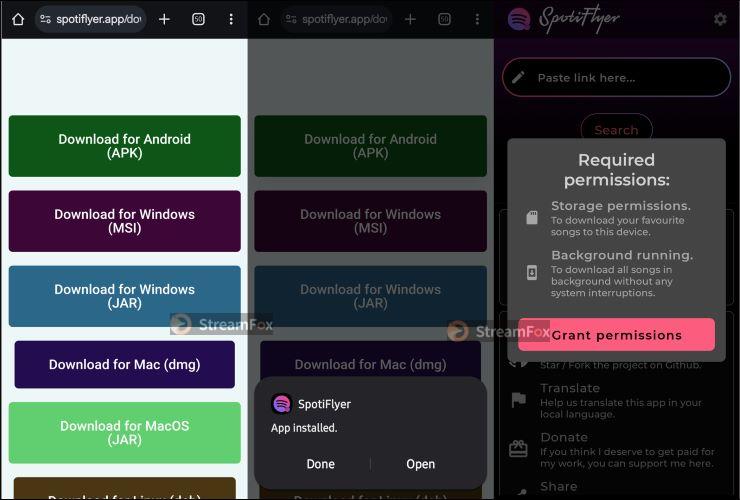
Step 1. Head over to the SpotiFlyer download page. Click the Download for Android (APK) button. Open the APK file to begin the installation.
Step 2. When finished, select Open to launch the application. Tap the Grant permission button and follow your phone’s prompts to allow necessary requests.
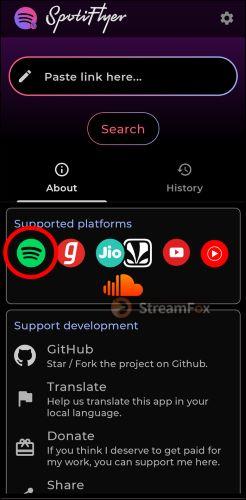
Step 3. Give the Spotify icon a quick tap to connect with the official Spotify app on your mobile.
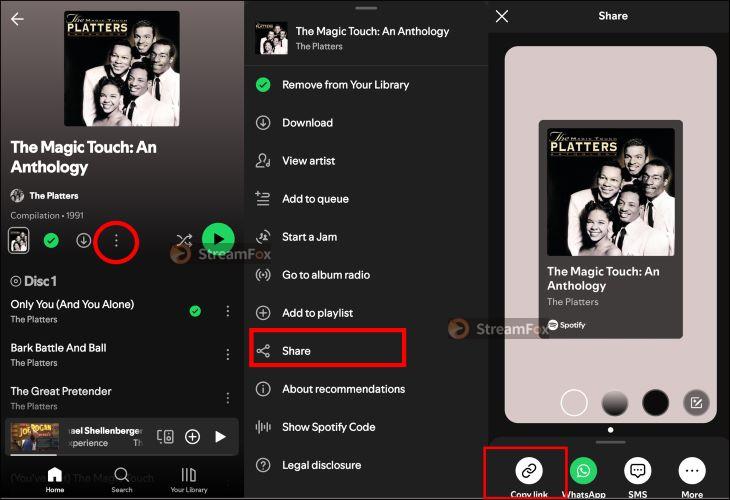
Step 4. Navigate to the track or playlist you want to extract on Spotify app. Tap More options (three dots) located next to the song title or beneath the banner. In the menu that appears, find and tap Share. Choose Copy link from the share sheet.
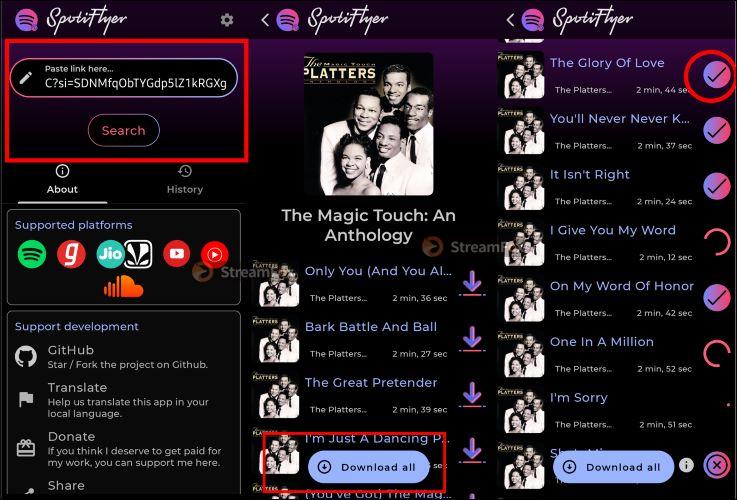
Step 5. Switch to SpotiFlyer app. In the Paste link here… box, paste the URL and hit the Search button for the program to begin processing.
Step 6. Once the tracks appear, tap the Download all button located at the bottom. As the songs begin downloading, you will notice a checkmark next to tracks indicating success.
A warning (exclamation icon) means it couldn’t download the track (it’s a common issue).
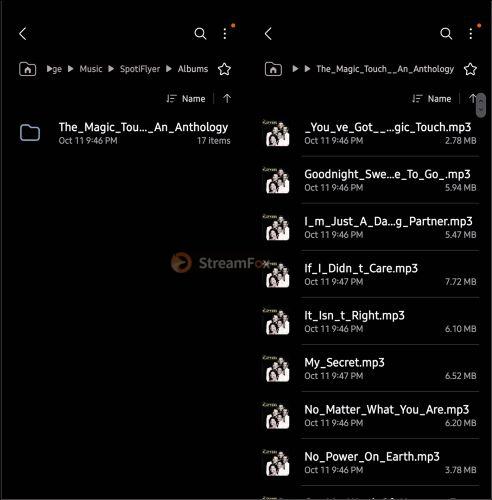
Step 7. You can find the extracted MP3 files in the SpotiFlyer folder under your internal storage. Take note that filenames display underscores instead of spaces. This is a minor issue, but the music itself remains unaffected.
Method 2. Use Spotify to MP3 iOS Shortcut
While Android users have to rely on external apps to extract Spotify songs in MP3, on the iPhone, you can use the pre-installed Shortcuts app to run custom workflows. There is also one for converting Spotify songs to MP3, aptly named Spotify to MP3.
How to Convert Spotify Songs to MP3 on iPhone
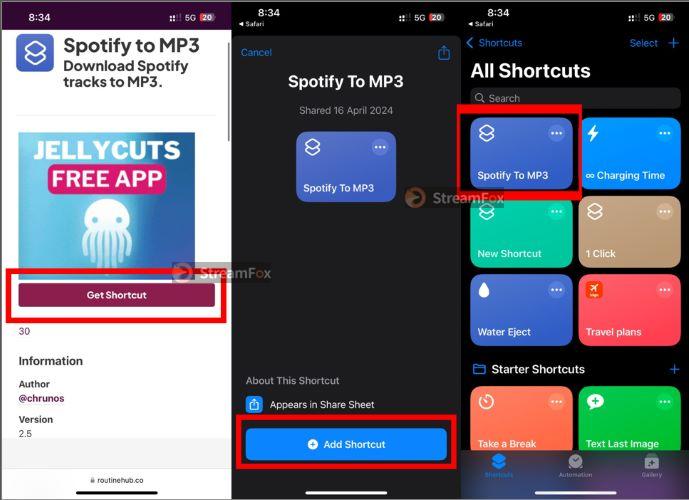
Step 1. Navigate to the RoutineHub site to find the Spotify to MP3 shortcut. Tap on Get Shortcut, select Add Shortcut to make it ready for use.
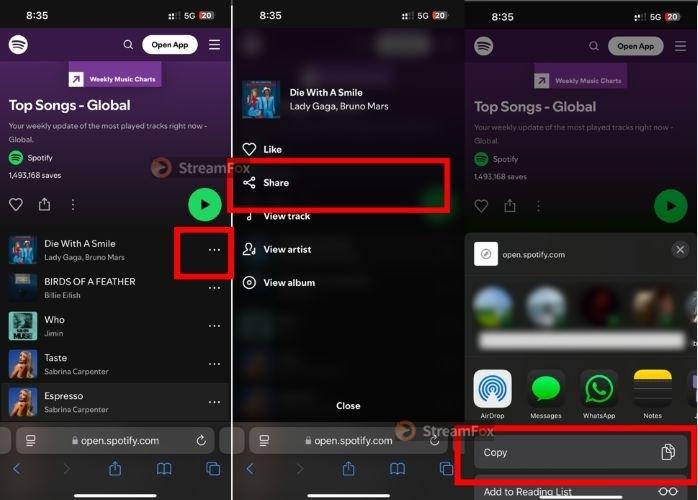
Step 2. Find the desired song on the Spotify app. Tap the three dots next to the song’s title. Select Share and then tap Copy to get the song’s link to your clipboard.
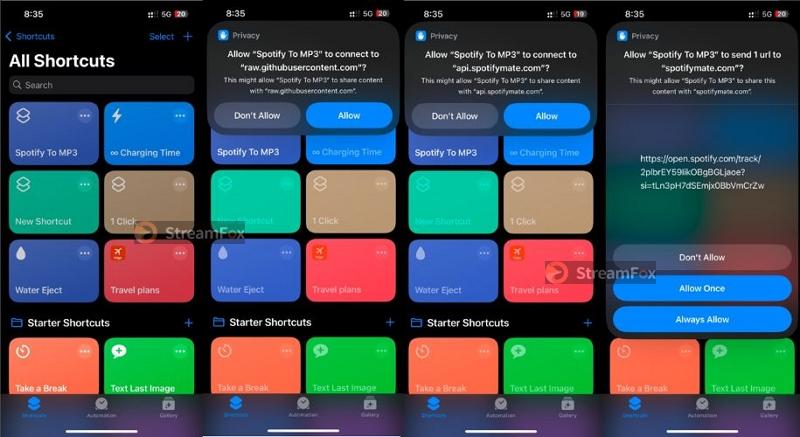
Step 3. Go back to the Shortcuts app and tap on Spotify to MP3. Grant the necessary permission to connect to various external sources.
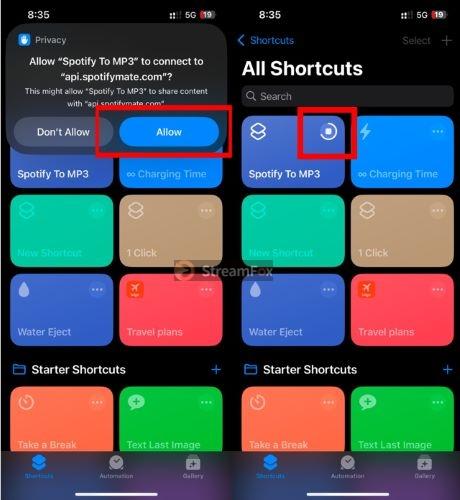
Step 4. Once you hit Allow on the final prompt, you’ll notice a progress indicator on the Spotify to MP3 tile.
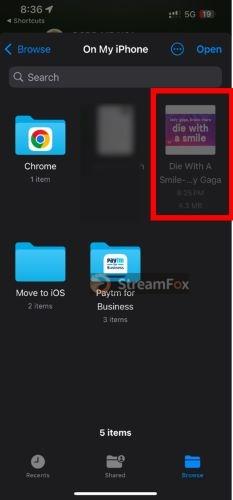
Step 5. Once successful, you can view and play the saved MP3 file under the On My iPhone section in the Files app.
Method 3. Use SpotifyDown
Many of the online Spotify downloaders are optimized for mobile views. So, you can simply visit the sites on the mobile and download the files as you’d on the computer. On Android, you can use just about any browser to save MP3 files without hassle. For iPhone users, they will find smoother results with apps like Aloha or Documents by Reddble.
Steps to Save Spotify Songs as MP3 via SpotifyDown
Step 1. Open the Spotify app and copy the desired song link.
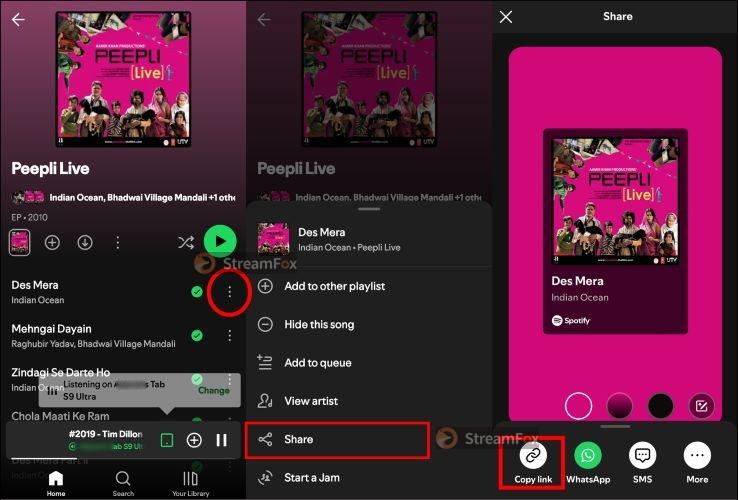
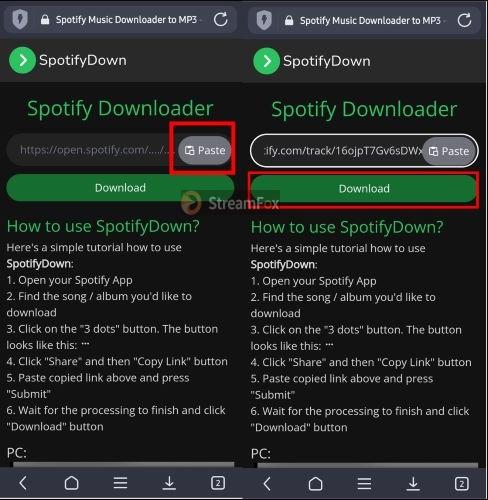
Step 2. Open the browser on your phone, such as Aloha or any browser. Navigate to the Spotifydown.com website. Paste the copied Spotify link into the designated box and tap the Download button.
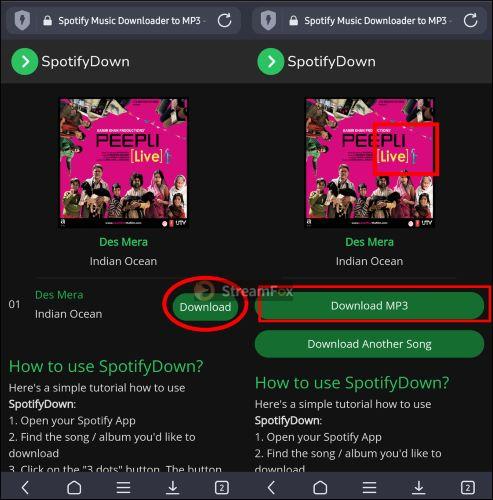
Step 3. SpotifyDown will start processing the submitted link and load the track details. Hit the Download button and then choose Download MP3 to extract the Spotify song in MP3 format.
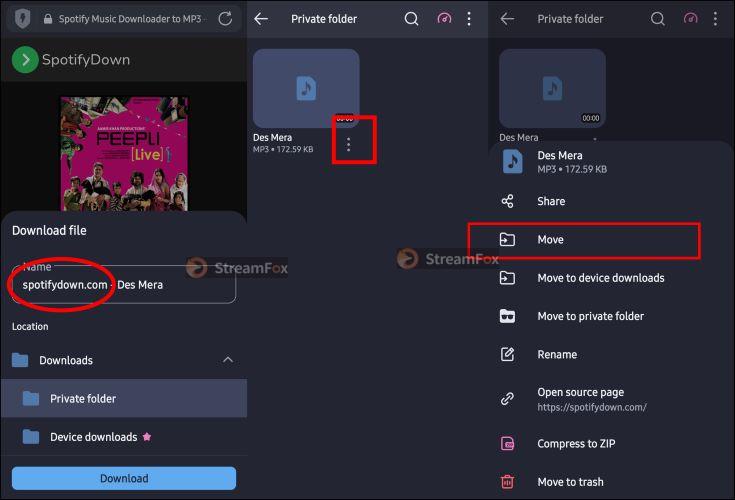
Step 4. Remove any unwanted information from the track’s label. Then, select a destination to save the file. If you are on the Aloha browser, you will have the flexibility to move the file to different locations as needed.
Conclusion
Mobile solutions to extract MP3 from Spotify aren’t as feature-rich, but they still get the job done. On the desktop, Eassiy Screen Recorder Ultimate is more ideal for simpler tasks, like creating ringtones using Spotify music. Web-based tools such as SpotifyDownloader offer bulk downloads, but it doesn’t actually pull the audio from Spotify, meaning that the audio quality isn’t guaranteed.
For those who value consistency, reliability, and more importantly, high-quality audio results, StreamFox is a robust option. Its unique technology allows it to source audio from Spotify and you’ve the convenience of accessing your Spotify account within the software.