You open a shared playlist or Blend, but it suddenly becomes unavailable. Does it mean that you are blocked? If you’re wondering how to know if someone blocked you on Spotify, it’s important to check more than one sign before reaching a conclusion. Spotify keeps blocking private, so the signs aren’t always exclusive to being blocked. Similar changes can occur if someone deletes their account or makes their content unavailable, making it important to check several indicators together.
This guide walks you through the signs that someone blocked you on Android or iPhone and the different ways to block another Spotify user.
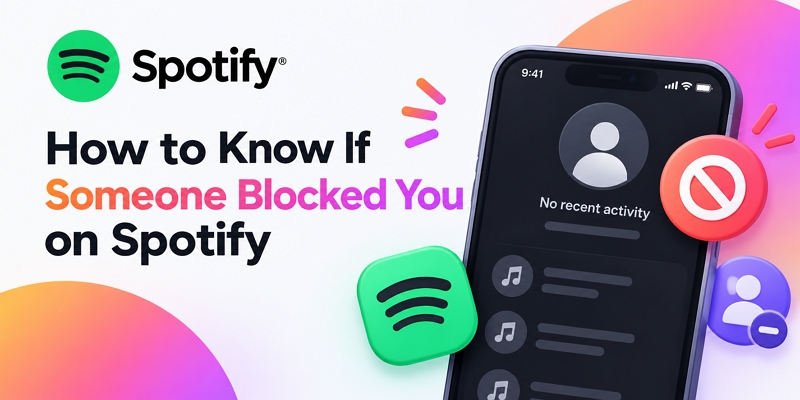
How to Know If Someone Blocked You on Spotify on Phone
Spotify doesn’t notify when someone blocks your account. Checking changes to the person’s profile, playlists, and shared features together provides a more reliable indication than relying on a single clue. Compare the checks below to determine whether you’ve likely been blocked.
1. Inaccessible Spotify Playlist
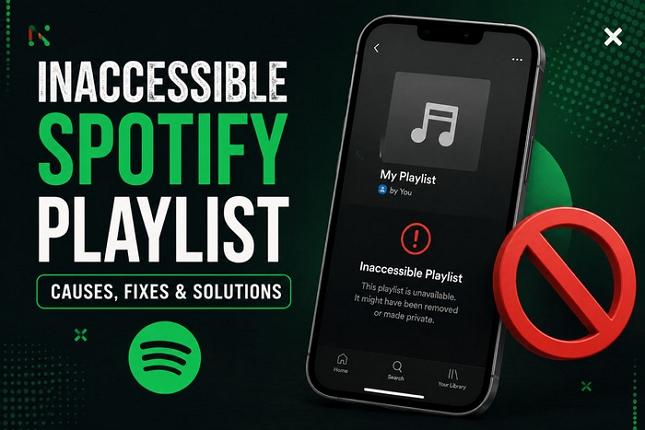
On Android and iPhone, a playlist you’ve previously liked, saved, or collaborated on is often the first place where you’ll notice something has changed.
Check whether any of these situations match your experience.
- A playlist you previously liked or saved suddenly disappears from your Library.
- Spotify displays “This playlist is not available. The owner made it private or removed it from Spotify.”
- Tapping the playlist owner’s name opens “Couldn’t find that page.”
- The collaborative playlist hasn’t disappeared, but the owner’s profile no longer opens from it.
2. Unavailable Spotify Profile
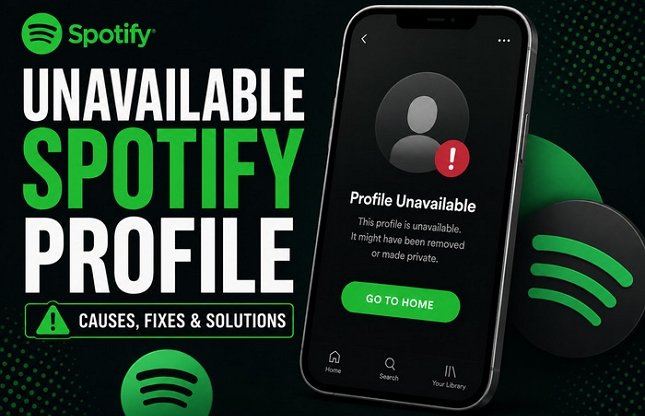
If the playlist raises suspicion, the next step is to check whether you can still access the person’s Spotify profile.
You may have been blocked if:
- Searching for their username no longer opens an accessible profile.
- Their profile appears as a gray default avatar through a mutual follower or following list.
- Selecting their profile displays “Couldn’t find that page.”
- You can no longer view their public playlists from their profile.
If their profile is inaccessible while the playlist changes above also occur, it’s a much stronger indication that they’ve blocked you.
3. Blend Playlist Suddenly Stops Working
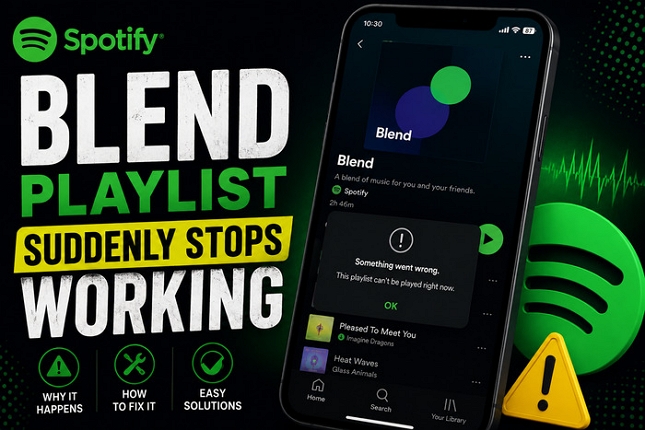
If you’ve created a Spotify Blend with that person, check whether it’s still available.
Possible signs include:
- The Blend playlist disappears from your Library.
- Spotify can’t load the Blend anymore.
- The Blend invite or shared playlist no longer opens.
Since either participant can leave or delete a Blend playlist, this sign alone doesn’t confirm that you’ve been blocked.
4. Changes to Followers and Following
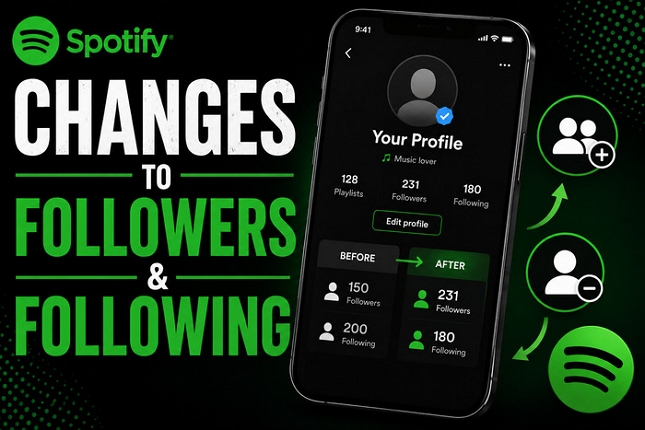
Blocking also affects how users appear in Spotify’s social features.
You may notice that:
- They no longer appear in your Following list.
- You disappear from theirs.
- You can’t follow their profile again because it isn’t accessible.
These changes are more meaningful when combined with an unavailable profile or inaccessible playlists.
Since Spotify features don’t always behave the same way across versions, use these observations to support your assessment rather than confirm it.
An inaccessible profile combined with unavailable playlists and a missing Blend is a much stronger indicator of a block than any one sign on its own.
How to Block Someone on Spotify on Phone
Spotify’s built-in blocking feature works only when you can access the person’s profile. If they’ve already blocked you, their profile will usually no longer be available, making the standard method unavailable. Otherwise, you can reach their profile through several areas of Spotify and block them in just a few taps. The sections below explain both situations.
How to Block Someone on Spotify Who Blocked You
Spotify only lets you block users through their profile page. If the person blocked you first, you’ll usually lose access to it. Since the standard blocking option isn’t available, your best option is to contact Spotify Support and ask whether they can help based on their current policies.
Steps to Contact Spotify Support for Help
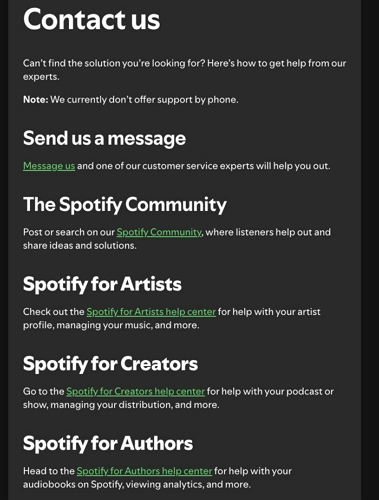
1. Go to the official Spotify Contact Us page.
2. Scroll to the “Send us a message” section and select the green “Message Us” button.
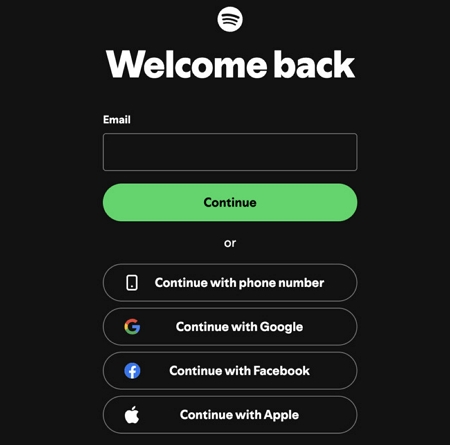
3. Login your Spotify account if prompted.
4. An automated support bot will open in a small chat window.
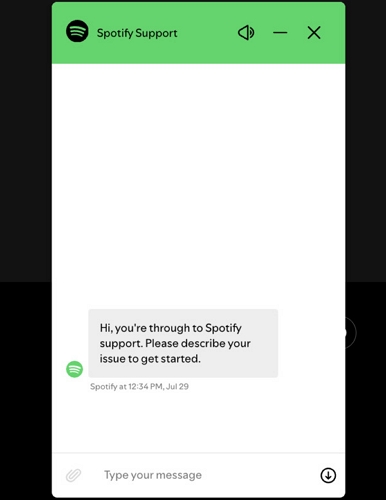
5. Start by describing your issue and request in the chat.
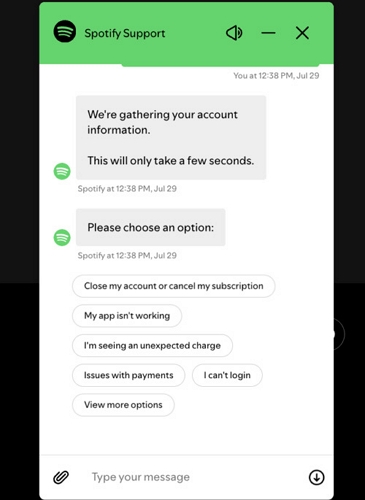
If the suggested answers aren’t helpful, continue requesting a human representative by typing “Talk to a human” or tapping “I still need help.“
How to Block Someone on Spotify Who Hasn’t Blocked You
As long as the person’s Spotify profile is still accessible, you can block them without contacting Spotify Support. The methods below are simply different ways to locate their profile before using the same blocking option.
| Way | Block Duration | Best For |
|---|---|---|
| Via Profile | Permanent (Until you manually unblock them) | Find and block someone quickly using their exact display name or username via the global search bar. |
| Through Followers List | Instantly cutting off access to someone who is already following you or whom you are currently following. | |
| By Blend | Users you share a Spotify Blend playlist with. Note that blocking hides your profile, but you must manually leave the Blend playlist to stop mixing music. | |
| Via One of Their Playlists | Find the profile of someone whose custom music playlist you have saved or have access to, without needing to know their username. | |
| Via a Spotify Profile Link | Quickly block someone using a shared or saved URL link without having to look them up inside the app. | |
| Through Friend Activity (Desktop Only) | Instantly block a user who appears in your real-time desktop sidebar feed while you are listening to music. |
Way 1. Via Profile
Searching for someone’s profile is the most direct way to block them. Once you open their profile, you can access the blocking option from the profile menu.
Steps to Block Someone on Spotify Via Profile
1. Access Spotify on your Android or iPhone.
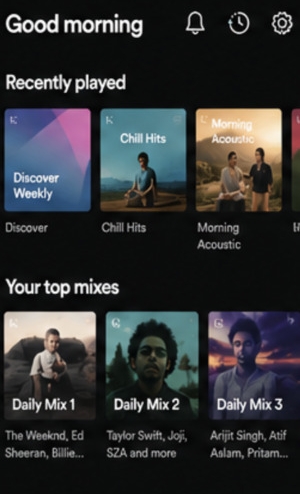
2. Tap Search. Enter the person’s username or display name.
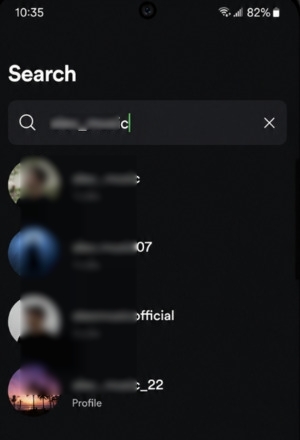
3. Open their profile.
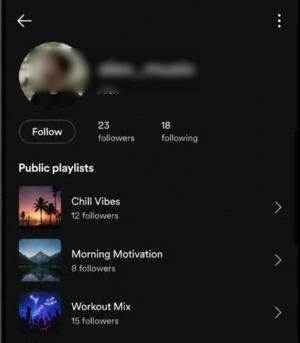
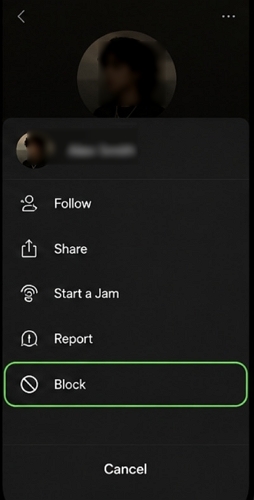
4. Hit the three-dot menu and select Block.
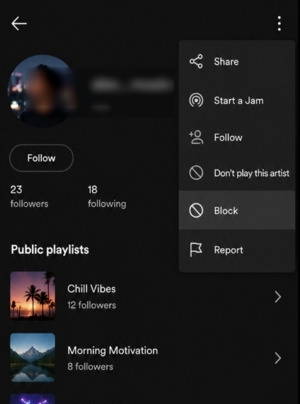
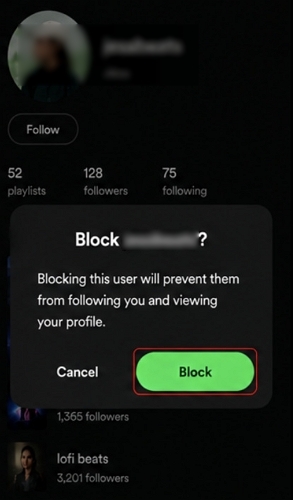
5. Select Block again to confirm.
Way 2. Through Followers List
For users you’ve already connected with on Spotify, the Followers or Following list offers a faster way to block them.
Steps to Block Someone on Spotify Via Followers List
1. Open Spotify and tap your profile picture.
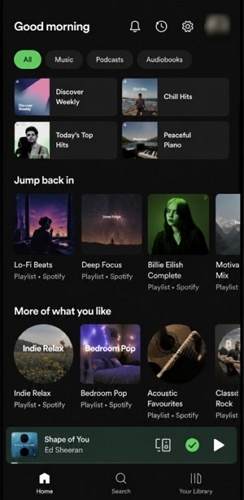
2. Go to Followers or Following and select the person’s profile.
3. Hit the three-dot menu and choose Block.
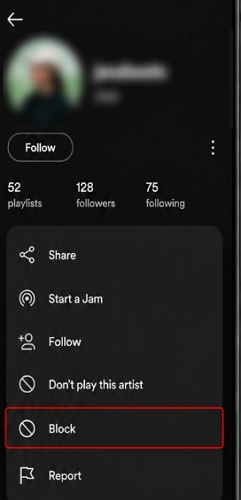
4. Confirm the action.
Way 3. By Blend
A shared Blend playlist also provides access to the other person’s profile. This saves you from searching for their account separately.
Steps to Block Someone on Spotify Via Blend
1. Open Spotify and open the shared Blend playlist.
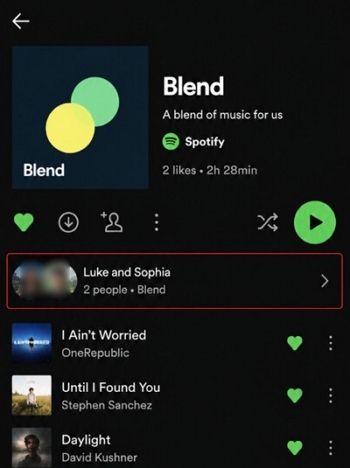
2. Hit the person’s profile picture or name.
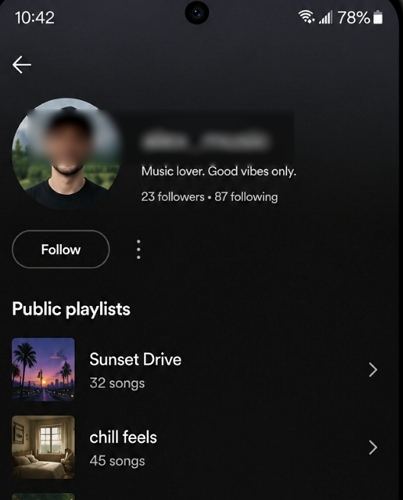
3. Press the three-dot menu.
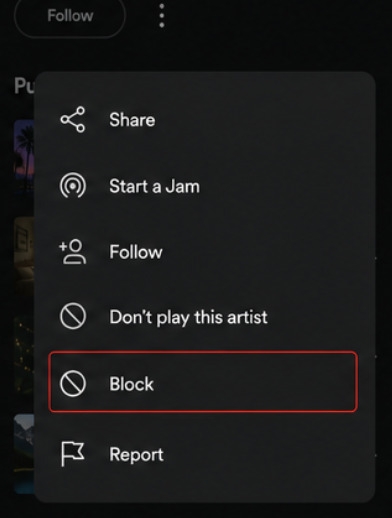
4. Select Block and tap Block again to confirm your choice.
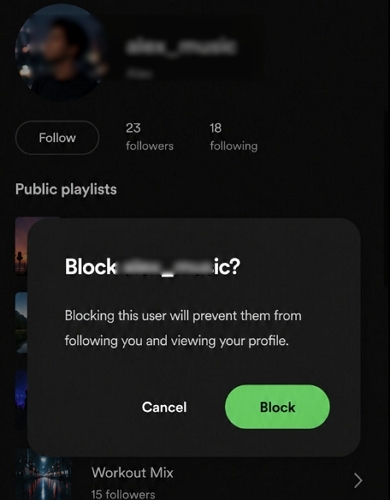
5. Return to the Blend playlist, tap its separate three-dot menu, and select “Leave Blend“.
Way 4. Via One of Their Playlists
A playlist created by the person provides another direct way to access their Spotify profile for fast accessing the block feature.
Steps to Block Someone on Spotify Via One of Their Playlists
1. Access Spotify on your Android or iPhone.
2. Open a playlist created by the person you want to block.
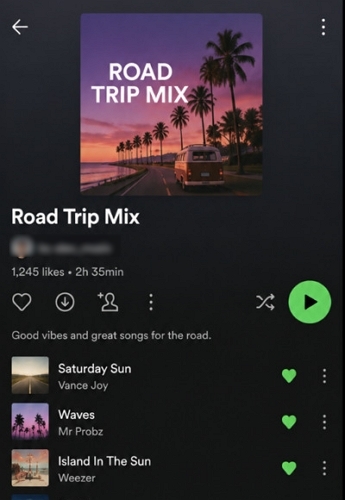
3. Press their profile name below the playlist title.
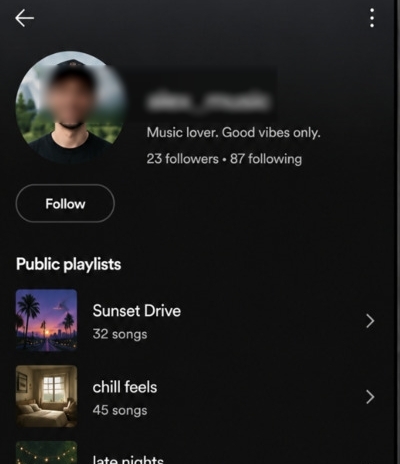
4. After their profile page is open, simply hit the three-dot menu in the top-right corner.
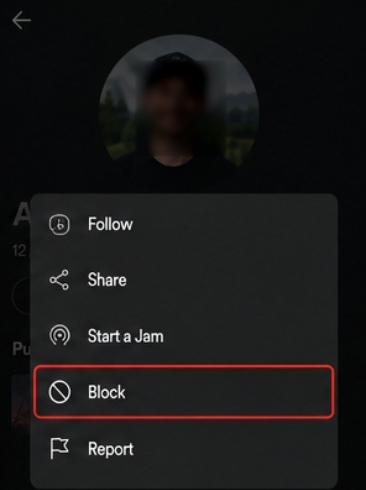
5. Select Block and confirm the action.
Way 5. Via a Spotify Profile Link
Instead of searching for the person’s username, simply open their Spotify profile using a saved or shared profile link.
Steps to Block Someone on Spotify Via Profile Link
1. Open the Spotify profile link on your Android or iPhone.
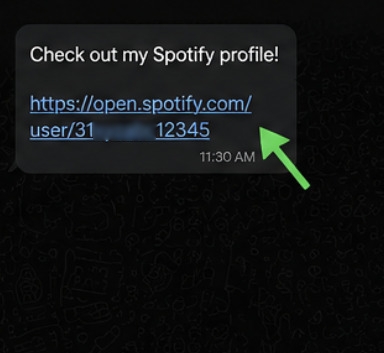
2. Your phone will automatically launch the Spotify app and load their profile.
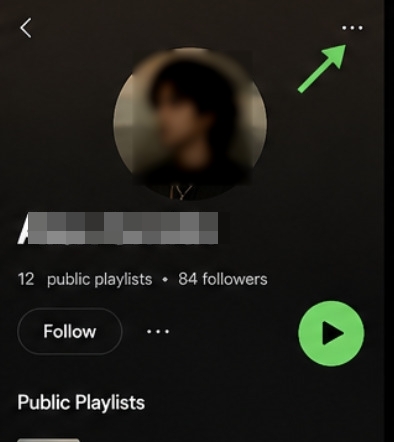
3. Navigate to the three-dot menu in the top-right corner of the profile and tap it. Finally, select Block.
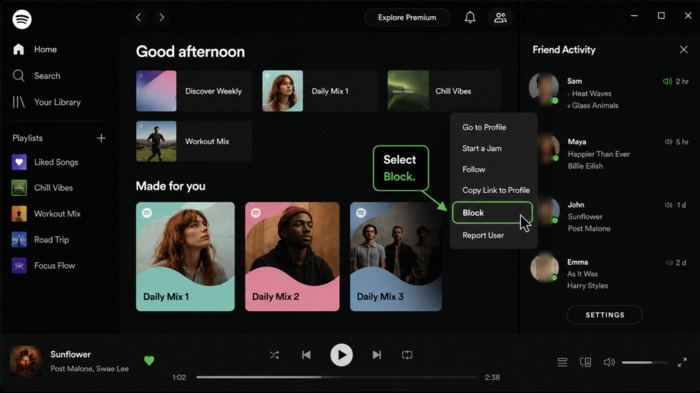
Way 6. Through Friend Activity (Desktop App Only)
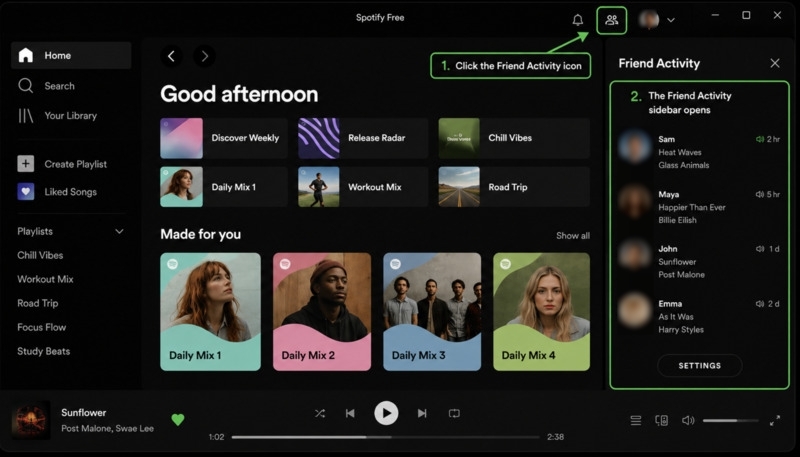
The Friend Activity sidebar in Spotify’s desktop app provides another way to access the person’s profile and block them.
Steps to Block Someone on Spotify Via Friend Activity
1. Access the Spotify desktop app.
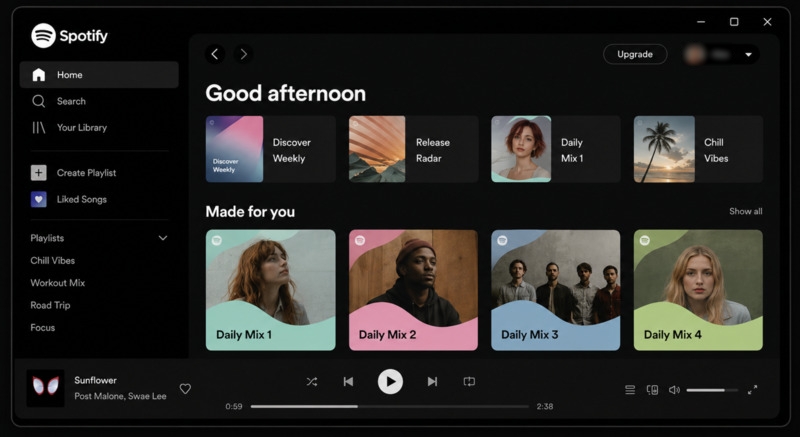
2. Open the Friend Activity sidebar if it isn’t already enabled.
3. Find the person’s name and right-click on their profile picture or username.
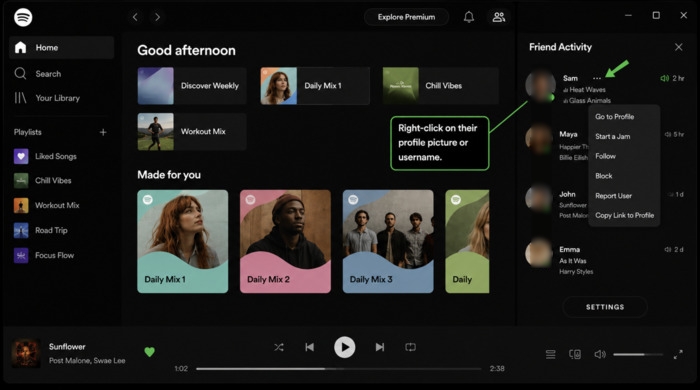
4. Select Block.
Conclusion
How to know if someone blocked you on Spotify comes down to checking several signs rather than waiting for a notification. Compare changes to their profile, playlists, Blend, and follower connections to identify consistent patterns. The more signs you notice, the more likely you’ve been blocked.
If you no longer want someone to access your Spotify profile, you can block them at any time and remove the restriction later by unblocking them.