SaveTheVideo is a free online site that lets you save videos from Vimeo, Dailymotion, Facebook, and hundreds of other sites with just a link. On paper, it looks like the only video downloader you’ll ever need. But some users can’t even open the site and its reputation is mixed: one security site calls it dubious, while URL scanners mark it clean.
So, can you trust it? In this SaveTheVideo 2026 review, we’ll show you what it can actually do and how to use it. We’ll also share our test results and suggest a better option if you save videos offline often.
SaveTheVideo Review: Features and Performance
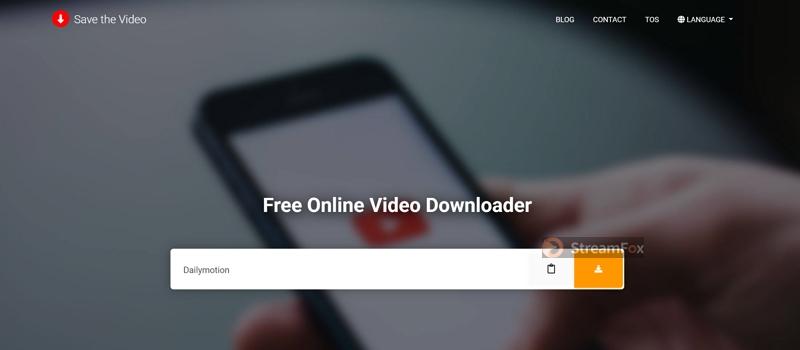
First, let’s get something straight. When you search for SaveTheVideo, you’ll see more than one site with that name. The two main ones are savethevideo.com and savethevideo.net. They look similar and do the same thing, but they come from different owners. Here’s a quick look at how they differ.
| Feature | savethevideo.com  |
savethevideo.net  |
|---|---|---|
| Owner | • The site names no company or team | • A one-person site – “Gordan” listed as the author |
| Supported sites | • Hundreds of sites, from news channels to social media | • 38 sites in its list |
| YouTube | • No longer supported | • Listed among its sources |
| Extra tools | • Converting, merging, cutting and subtitle downloads | • Mostly links to its own Chrome extensions |
| Popularity | • The most visited and most reviewed of the two | • Far less known |
Remember, savethevideo.net is less trusted, but it still works.
For this review, we’re focusing on savethevideo.com. It’s the most popular, gets checked by security scanners the most, and is the one users have the most questions about. So here’s what you need to know.
Savethevideo.com lets you download videos and audio from many sites. Most are news and TV channels from around the world, like BBC, CNN, and NBC. You’ll also see regional broadcasters such as ARD, ZDF, and RAI.
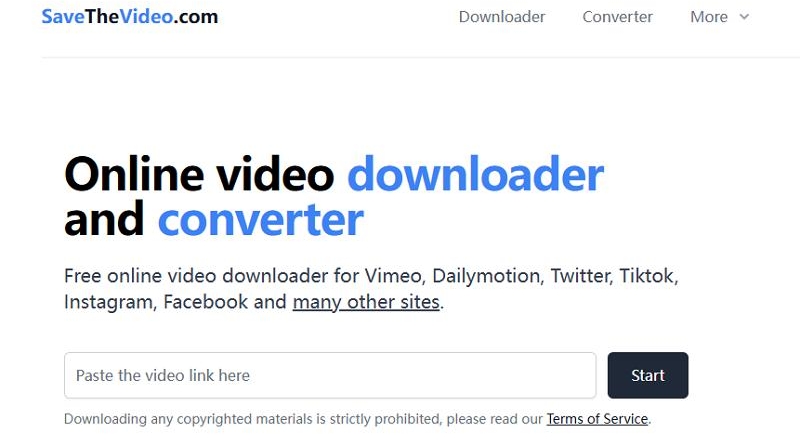
The list also covers social media sites like Facebook, Instagram, TikTok, X, and Reddit. It includes video platforms like Vimeo and Dailymotion, and audio sites such as SoundCloud and Bandcamp. However, YouTube isn’t one of them.
Also, streaming services like Netflix and Prime Video are not supported. This means SaveTheVideo is best for clips, news reports, and public uploads but not for movies or TV shows.
Besides regular downloads, the site can convert videos to formats like MP3, M4A, and WebM. You can also merge separate video and audio files into one high-quality video. Plus, you can even trim a part of the video before saving.
Be aware that the site will not open right away for everyone. Some networks and DNS filters block it, usually because of its ads. If that happens, try using mobile data or a different network.
How to Download Videos via SaveTheVideo
The steps are the same whether you’re on a phone or a computer. We started with a 50-second BBC news clip.
Step 1. Open the video on its site and copy the link from the address bar or the Share button.
Step 2. Go to savethevideo.com. Paste the link into the box in the middle of the page and tap Start.
Step 3. A window opens with the video’s title and length. Keep Download selected in the first menu.
Step 4. Tap the Select Format menu to choose the quality. Each option shows the format, resolution, bitrate, and file size.
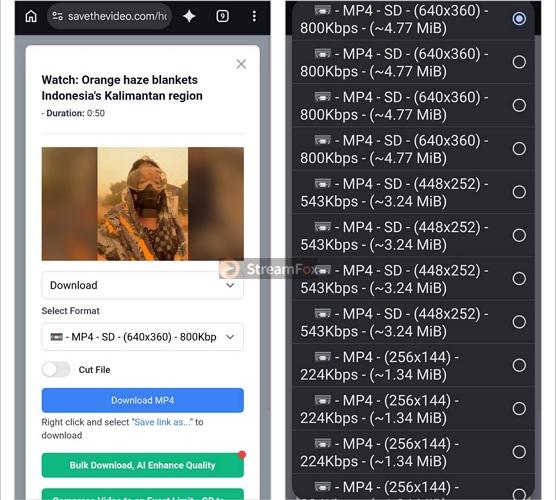
Step 5. Tap Download MP4. On a computer, you can also right-click the button and choose Save link as…. The video will be saved in your Downloads folder.
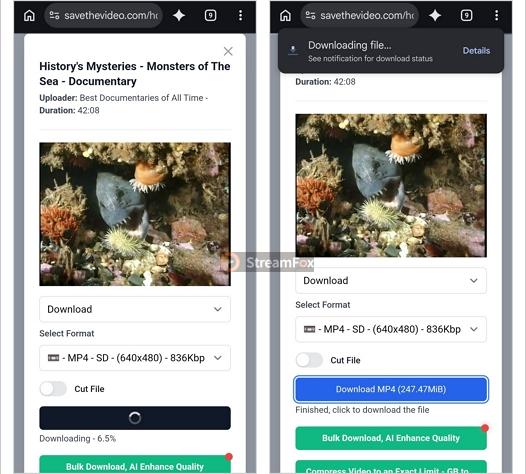
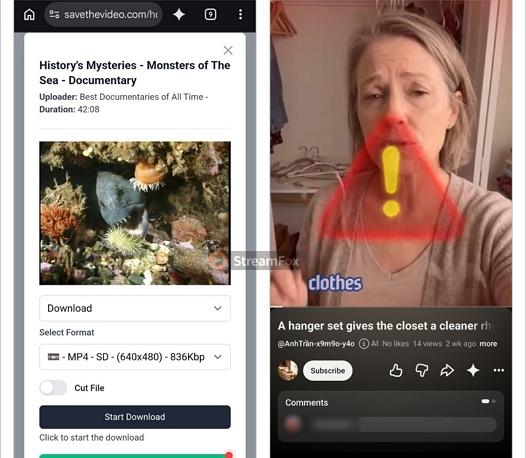
Note: For longer videos, the site will make you wait to process the file before you can save it. We tried a 42-minute documentary on Dailymotion. In this case, the button said Start Download, and a progress bar appeared below, like “Downloading – 6.5%”. Once processing finished, we could download the file.
Real Test
We tested savethevideo.com with three links: a 50-second BBC news clip, a 42-minute documentary on Dailymotion, and a YouTube video. Here’s how its claims held up.
| Feature | What it claims | Real results |
|---|---|---|
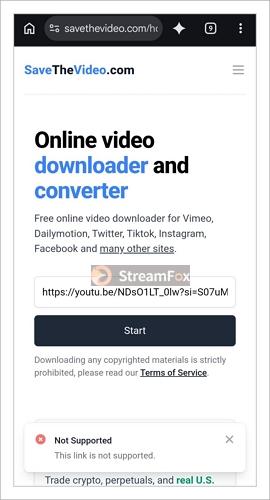
| Supported sites | • Vimeo, Dailymotion, Facebook and many other sites | • The BBC and Dailymotion videos both worked • The YouTube link showed “This link is not supported.” |
| Video quality | • Videos in the best quality | • The BBC clip came in at 640×360, the highest option offered • The documentary came in at 640×480, the same as its source on Dailymotion |
| Quality options | • Several formats for each video • Saves subtitles when a video has them |
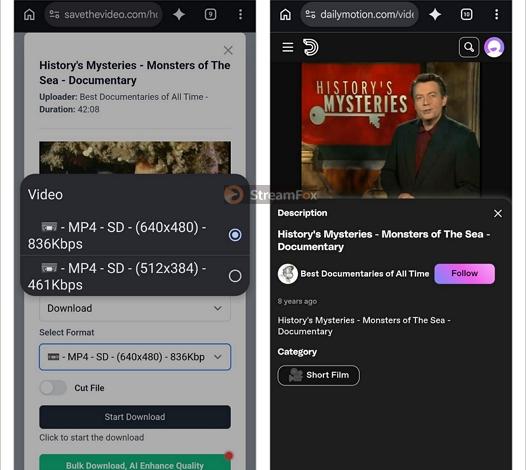
• The BBC clip had many options, from 640×360 down to 192×108, plus audio-only files • The documentary had only two: 640×480 and 512×384 |
| Video format | • MP4, MP3, M4A, WebM and more | • Both videos saved as MP4 files with H.264 video and AAC audio |
| Required time | • Fast downloads | • The BBC clip took about two minutes, mostly because of redirects • The 259 MB documentary took about three minutes after one failed attempt |
| File details | • It saves the same as the source | • Each file kept the video’s title as its name • The frame rate matched the source (25fps for BBC, 30fps for Dailymotion) |
| Batch downloads | • No | • One link at a time • The green bulk download button leads to a separate paid app |
Overall, SaveTheVideo gives you the same quality as the original source.

The number of quality options depends on the site. For example, BBC offered many versions of the same clip, while Dailymotion only had two.
Feedback
SaveTheVideo will get you the video, but it rarely works on the first try. It also gives you another way to download if the usual links don’t work.
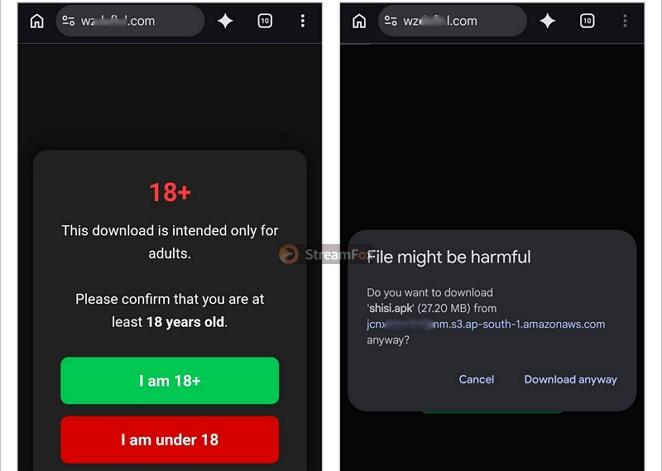
For example, when we tapped Download MP4 for the BBC clip, it first sent us to another site with an “18+” warning. The next tap tried to download an APK file, which Chrome flagged as a file that “might be harmful.” Then the phone asked if we wanted to install an app. We canceled both.
The third tap on the same button opened a random YouTube video. We went back and hit Download again, and the clip finally downloaded on the fourth try.
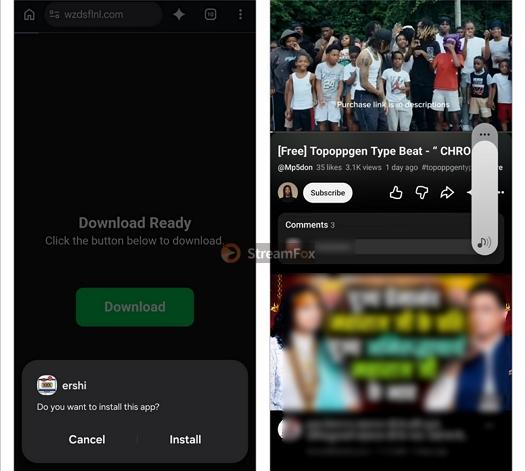
The longer video from Dailymotion acted the same way. It first redirected us to YouTube and other pages, but after a few tries, it processed the file and gave us the download link.
SaveTheVideo Review: Safety
Most of the confusion about SaveTheVideo comes from online sources, which often contradict each other. Some sites say it’s fine, while others warn you to stay away. For example:
- PCRisk, a site that tracks unwanted software, calls savethevideo.com a dubious website. The reason: the ad networks the site uses can send users to unsafe pages. Our test showed the same behavior, from the APK download to the “18+” page.
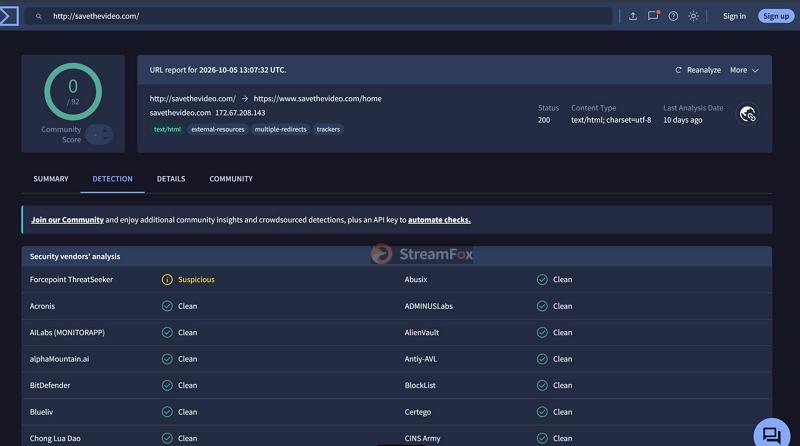
- VirusTotal shows a different result. When we scanned savethevideo.com, none of the 92 security vendors marked it as malicious. However, Forcepoint ThreatSeeker did flag it as suspicious. The scan also noted the site has trackers and multiple redirects.
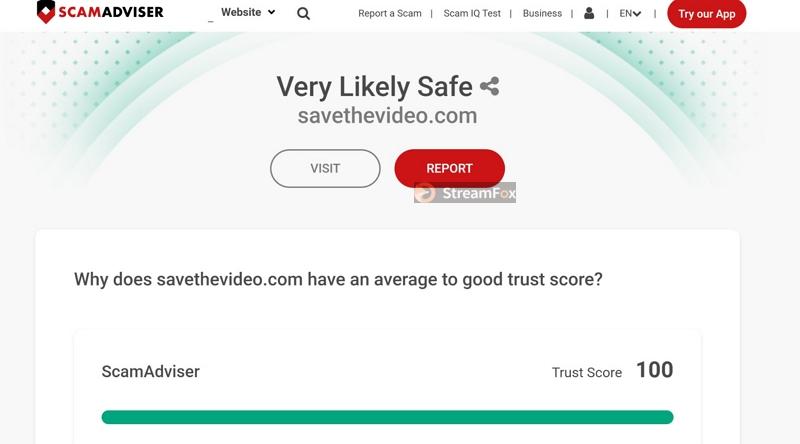
- ScamAdviser also rates it as very likely safe, mainly because the domain is more than 10 years old.
- Plus, a few users on Reddit say it has worked for them over the years.
So what should you know? The good news is SaveTheVideo doesn’t host harmful files, so URL scanners like VirusTotal and ScamAdvisor approve it. However, the risk comes from the pages its ads open, which is what PCRisk warns about.
Our team says SaveTheVideo is okay for one or two quick downloads if you’re in a hurry, as long as you don’t install anything it offers. For regular use, it’s not worth the risk, since every download is another chance to end up on an unsafe page.
Desktop Alternative to SaveTheVideo
SaveTheVideo doesn’t support YouTube. Besides, it lets you convert a video at a time and sends you through redirects for every file.
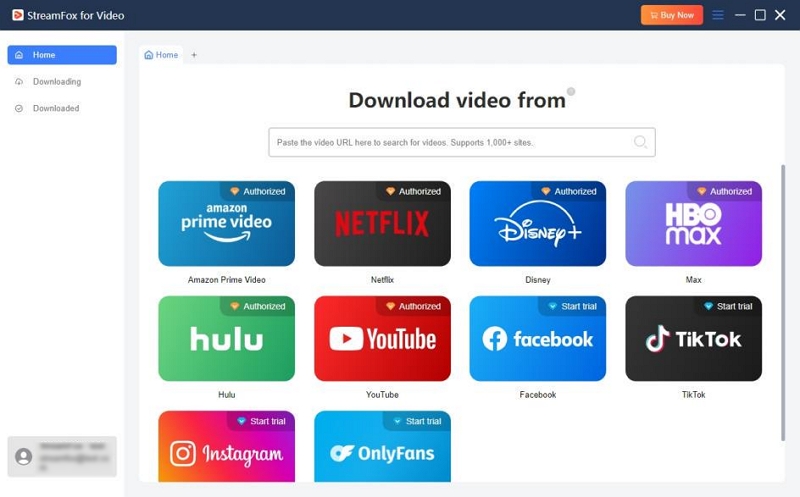
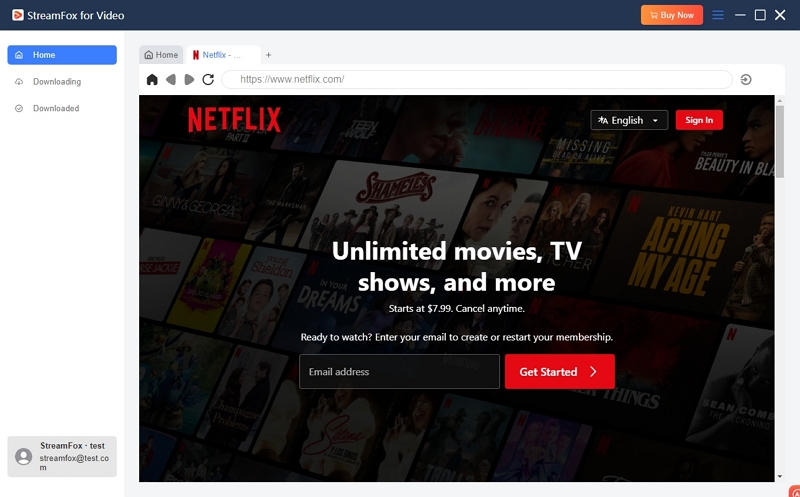
A much more robust option is StreamFox for Video. It supports more than 1,000 sites with just a URL, and that includes YouTube. Plus, it has dedicated built-in web player for streaming services like Netflix, Prime Video, Disney+, Max, and Hulu. So you can save movies and TV shows too, not only clips.
More importantly, StreamFox for Video exports videos in up to 4K quality. Besides, since it comes from a dedicated software company, so there are no ads, pop-ups, or fake download buttons in your way.

- Whole YouTube playlists download with one link, up to three videos at a time.
- Subtitles in several languages can stay as a track, burn into the picture, or save as a separate file.
- Audio-only files come out as MP3, M4A, FLAC or WAV, which helps with music videos and podcasts.
- Videos are named automatically by rules you set, so a large batch stays organized.
How to Save Videos as MP4 with StreamFox
Step 1. Download and install StreamFox for Video on your Windows or Mac computer. Click the YouTube tile.
Step 2. Browse YouTube inside the app. Locate the video you want to export as MP4.
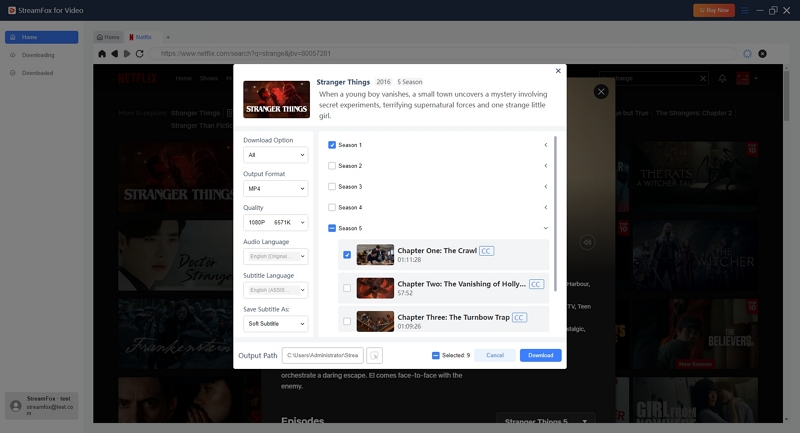
Step 3. Choose MP4 as the format. Pick the quality, up to 4K. You can also choose subtitles here.
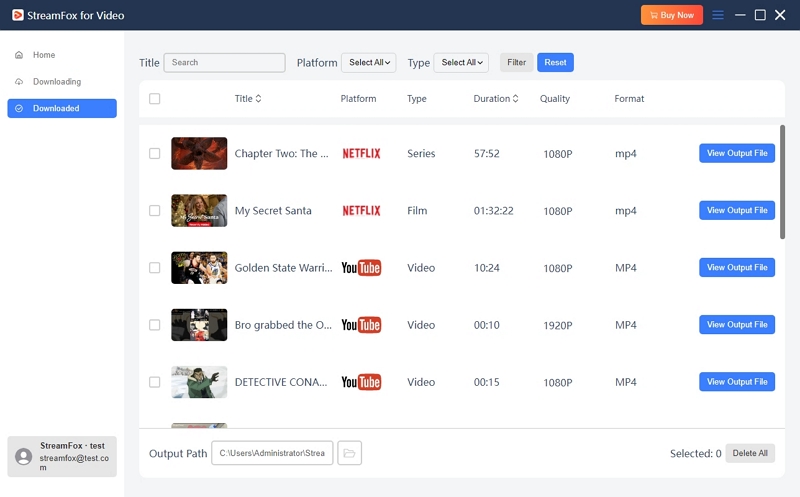
Step 4. Hit Download All. Finished videos will move to Downloaded. Click on the folder icon next to Output Path to open the folder where they’re saved.
Final Words
SaveTheVideo is a decent choice for a quick clip from a news site, Dailymotion, or social media. However, it isn’t one you should stick with. YouTube has already dropped off its list. Plus, redirects make every download risky.
If you want videos from YouTube or streaming services, StreamFox for Video is the better choice. It handles online sites and streaming services in one app, so you can keep your movies and shows on your computer without ads.