At WWDC 2026, Apple announced that iOS 27 lets you play videos right on your CarPlay screen while your car is parked. Before that, iOS 26.4 allowed you to send video to your car screen with AirPlay. So it’s natural to expect YouTube to show up on your car screen after updating your iPhone, but if it’s still missing from your CarPlay app list, there’s more you need to know.
Don’t worry. We’ll answer your questions here. We’ll also walk you through how to watch YouTube on CarPlay, whether you’re on an older iOS version or the latest, like iOS 26 or 27.
Can You Watch YouTube on CarPlay?
Yes, you can. Starting with iOS 26.4, you can cast any video playing on your iPhone to the CarPlay screen while the car is parked. This means you can play a YouTube video on your phone and send it to your car.
iOS 27 introduces a new category of video apps that you can browse right from your dashboard. This means you’ll start to see video apps directly on your CarPlay screen. But Apple has left the final choice to carmakers and app developers. Your carmaker needs to turn on the “video in the car” feature, and only a few have done this so far. App developers also need to make a CarPlay version of their video apps. For YouTube, Google hasn’t done this yet. That’s why, even after updating to iOS 27, YouTube doesn’t show up in your CarPlay app list. This is still true even with CarPlay Ultra. So as of now, you won’t find a YouTube app on your car dashboard.
How to Watch YouTube on CarPlay
We’ve listed six different methods here. The best option for you depends on your iPhone’s iOS version and your car.
Keep in mind that most of these apps only play video while your car is parked, like when you’re waiting at an EV charging station or outside your kid’s school. A few, however, let you keep watching while you drive. However, please never watch videos while driving.
Here’s a detailed look at each option.
Way 1. Via AirPlay (iOS 26.4 or later)
- Cost: Free.
- What You Need: iPhone on iOS 26.4, YouTube mobile app and your car supports CarPlay video.
This is Apple’s official method – AirPlay, available in iOS 26.4 and later. Any iPhone app that supports AirPlay video, like YouTube, can send video to the car screen without requiring any changes. For this to work, your carmaker needs to enable “video in the car” support. Right now, only a few carmakers have done this. We’ve only seen a few users confirm it, and we couldn’t test this feature ourselves.
Steps to Watch YouTube on CarPlay via AirPlay
Step 1. While you’re parked, connect your iPhone to CarPlay as you usually do (with a cable or wirelessly).
Step 2. Open the YouTube app on your phone and start playing a video.
Step 3. Tap the Cast icon at the top of the video, then tap AirPlay & Bluetooth devices at the bottom of the menu. Choose your car’s display from the list and tap it. The video will move to the car screen. Keep in mind that you still have to pause or skip it from your phone screen.
Way 2. Via APTV (iOS 27)
- Cost: Free (optional APTV Pro upgrade for US$4.99 adds extras like iCloud sync across your devices).
- What You Need: An iPhone running iOS 27, a CarPlay-compatible car, APTV and a live internet connection.
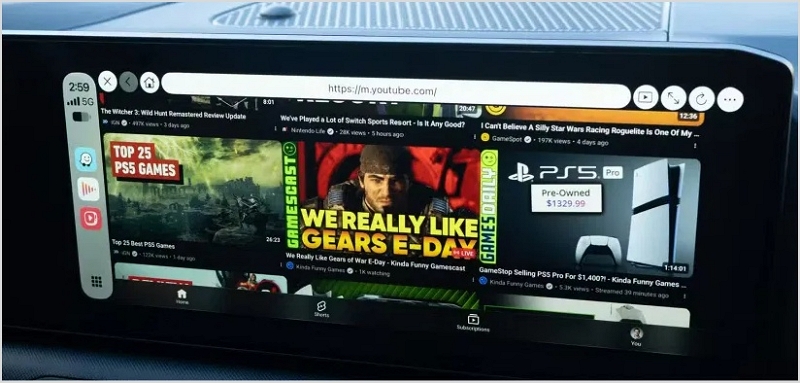
APTV is an IPTV player, but its CarPlay version includes a built-in browser that shows YouTube and Netflix tiles. You’ll also find other video platforms popular in China, like Bilibili and iQIYI.
APTV ranks high on this list because its browser appears directly on your car screen. That is, when you tap the YouTube tile in its browser, the video opens on the car dashboard itself, which is a feature CarPlay’s own video apps are just starting to offer. You don’t need screen mirroring, so you can keep your iPhone in your pocket. The layout will look like YouTube in a phone browser.
Steps to Watch YouTube on CarPlay via APTV
Step 1. Search for APTV in the App Store and tap Get. Pick the one by Suzhou Xiying Guangnian Technology, as several apps have similar names.

Step 2. Connect your iPhone to CarPlay. You will see the APTV icon on the CarPlay home screen itself.
Step 3. Open APTV from the car screen. Go to Quick and choose Browser.
Step 4. Tap YouTube in the list of platforms. Your YouTube feed will open on the car screen, and any video you tap will play right there. You can sign in or watch without signing in.
Way 3. Via a CarPlay AI Box (Any iOS)
- Cost: Usually US$150–300, one-time.
- What You Need: An AI box, such as an Ottocast or Carlinkit model. You also need mobile data from your iPhone’s hotspot or a SIM card in the box (if it has a slot).
AI boxes have become a popular way to bypass YouTube’s CarPlay limits. They are more expensive because you’re buying a small Android computer. These boxes plug into your car’s CarPlay USB port and sit on your dashboard or in the console. Your car thinks the box is an iPhone running CarPlay, so the car screen shows the box’s Android apps, including the real YouTube app. You get the full YouTube experience, and your account, subscriptions, and playlists stay the same. The best part is that it doesn’t depend on your carmaker or a beta app, so it usually works more reliably.
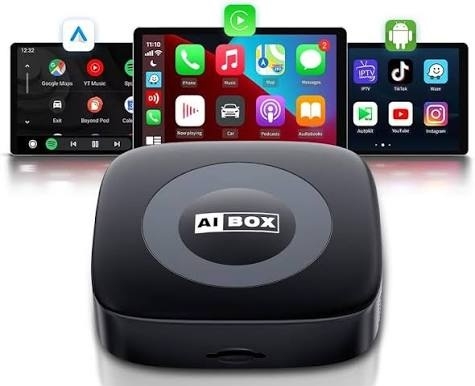
However, these boxes often have their own firmware, and some models can be slow or buggy, even in popular cars. Most importantly, most of them don’t stop the video while you drive. This means you need to pause it yourself and only watch when parked. Also, using one can break local laws, so check the rules before you order a box.
Steps to Watch YouTube on CarPlay via AI Box
Step 1. Choose an AI box that fits your car, as most models list the cars they support. Plug it into the USB port your car uses for CarPlay.
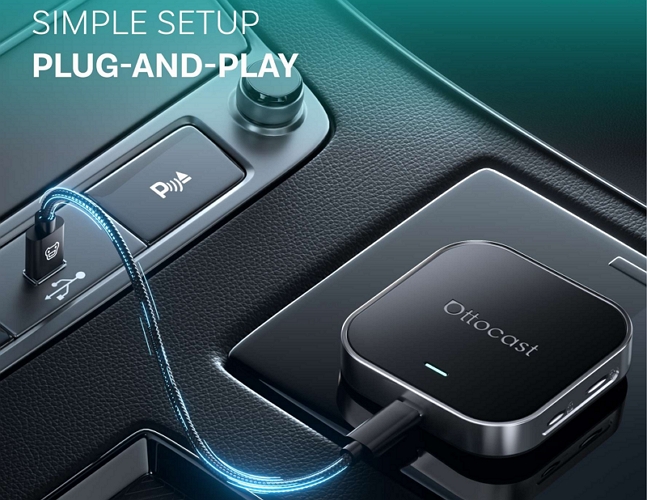
Step 2. Start the car. After a few seconds, the car screen will show the box’s Android home screen in place of CarPlay.
Step 3. Connect the box to the internet. Turn on your iPhone’s Personal Hotspot and pick it in the box’s Wi-Fi settings, or use a SIM card if your box has a slot.
Step 4. Open the YouTube app on the car screen and sign in once. From then on, you can play any video as you do on a phone.
Note: Most boxes offer a CarPlay app on their home screen that connects your iPhone wirelessly, so you can switch back to regular CarPlay.
Way 4. Via CarTube (iOS 17.0 and Earlier)
- Cost: Free.
- What You Need: An iPhone that still runs one of these older iOS versions. You will also need TrollStore.
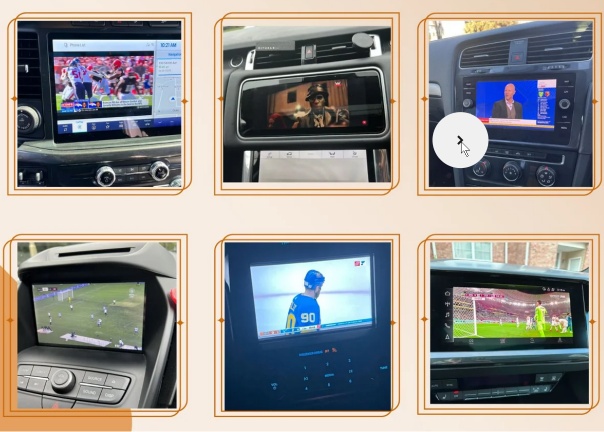
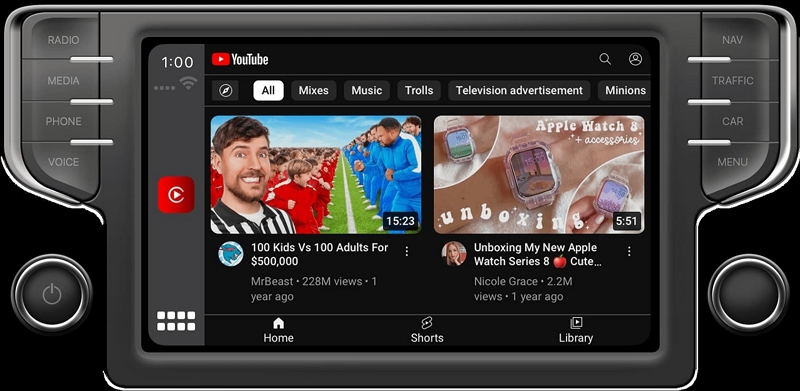
Before Apple allowed any video, CarTube is one of the popular tools people got YouTube onto CarPlay.
CarTube is a YouTube app designed for the CarPlay screen and was one of the first of its kind. You need to install it through TrollStore. Keep in mind that TrollStore only works on older iOS versions, and once you update iOS, you can’t go back.
Steps to Watch YouTube on CarPlay via CarTube
Step 1. Sign in to the CarTube app on your iPhone with TrollStore.
Step 2. Connect your iPhone to CarPlay while you’re parked. CarTube will show up as an icon on the CarPlay home screen.
Step 3. Search for any YouTube video and play it from there. Its settings also let you block ads.
Way 5. Via Cafari (iOS 26.4 or Later)
- Cost: Free.
- What You Need: iOS 26.4 or Later and the TestFlight app from the App Store.
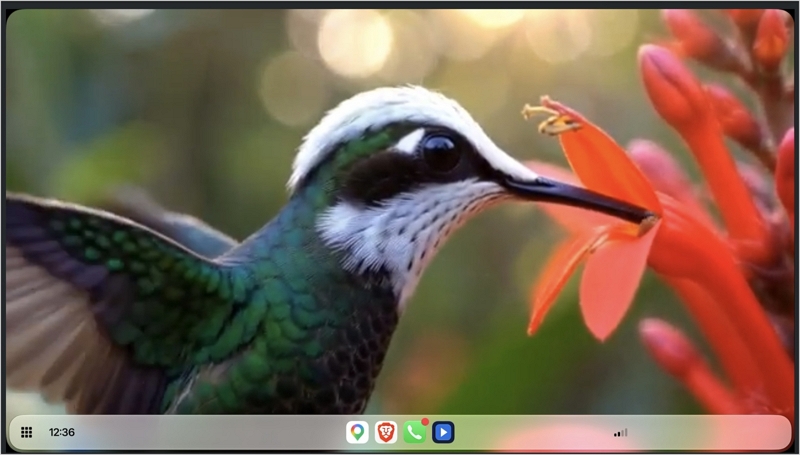
Cafari is a web browser that lets you cast video to your car’s CarPlay screen. It’s one of the first apps to build on the door Apple opened in iOS 26.4. You don’t need a dongle or a new head unit, and you don’t need any updates from your carmaker either. You can open YouTube in the Cafari app on your iPhone, play a video, and send the stream to your car. In our test, the sound stayed in sync, and the app even showed the resolution and frame rate on the screen. However, Cafari is still in beta, so some things don’t work perfectly yet. For example, there’s a green border around the video on the car screen right now.
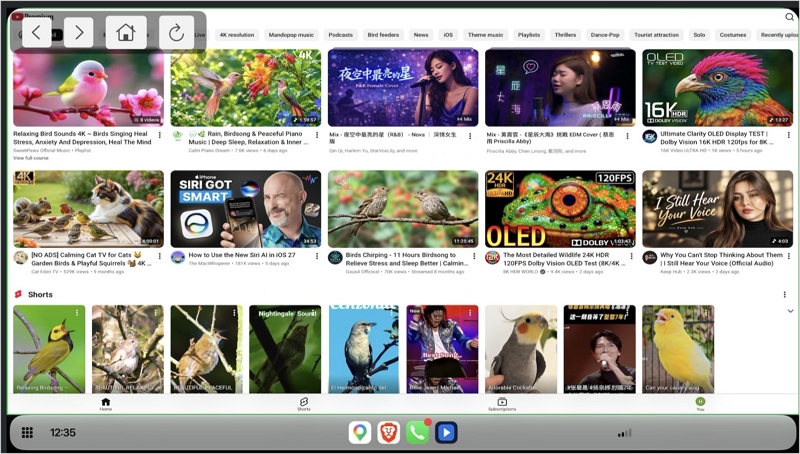
Steps to Watch YouTube on CarPlay via Cafari
Step 1. Install the TestFlight app from the App Store.
Step 2. Open Cafari’s open beta link on your iPhone, then tap View in TestFlight.
Step 3. TestFlight will open the Cafari page. Tap Install, then Open. You will also find Cafari in your App Library, with a small orange dot next to its name (marking it as a beta app).
Step 4. After connecting to CarPlay, type the YouTube address in Cafari’s address bar at the top. You can also sign in to YouTube. Then wait for the right side of the toolbar to show that the car screen is connected.
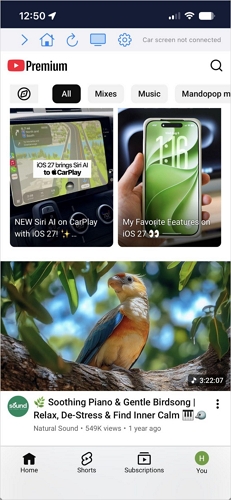
Step 5. Now play a video on your iPhone and tap the cast icon in the toolbar. Choose your car screen from the list and confirm. The media controls will appear, and the video will play on your car screen.
How to Watch YouTube Offline in Car Without CarPlay
Each method above comes with complications because it has to follow Apple’s CarPlay rules. You can skip all that by loading your favorite YouTube videos onto a USB drive and plugging it straight into your car’s media system. This also brings its own benefits, like you don’t need internet to watch videos.
To watch YouTube in car via USB, you can use StreamFox for Video. It lets you export YouTube videos to your computer as MP4 files, so you can easily copy them to a USB drive. You can pick the quality from 480p all the way up to 4K. It will even keep the subtitles inside the video. Plus, you can download a single video or a whole playlist, be it a four-hour podcast or a long compilation.
StreamFox also saves movies and TV shows from Netflix, Prime Video, Disney+, Max, and Hulu. So you can bring your family’s favorite shows on a long road trip, or watch them in a parking lot during a break.
Steps to Watch YouTube Offline in Car via USB
Step 1. Install StreamFox for Video on your Windows or Mac computer and open it.
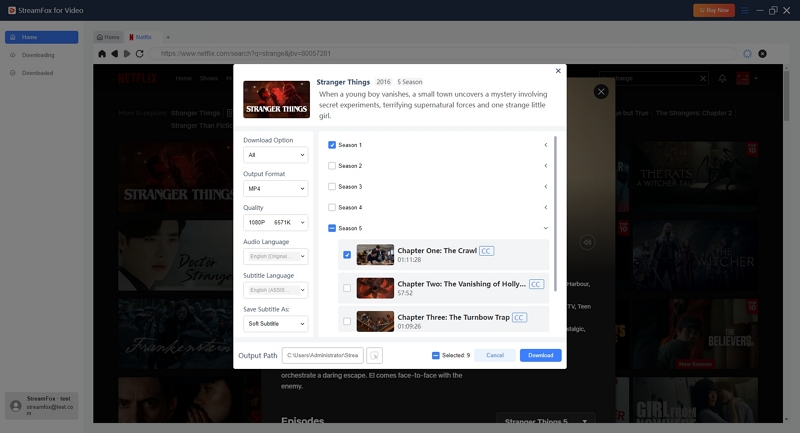
Step 2. Click the YouTube tile and find the video in the built-in browser, so you don’t have to copy any links.
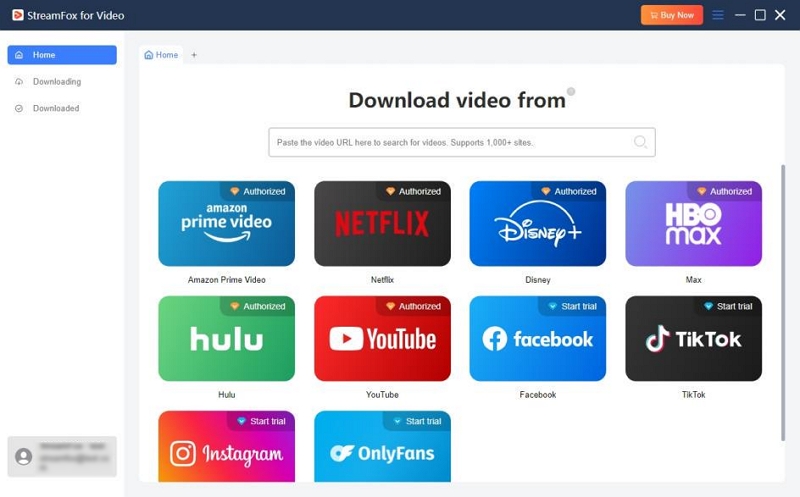
Step 3. Select the video you want by clicking the cloud icon next to it. In the window that opens, choose MP4 as the output format and pick the quality. Then hit Download.
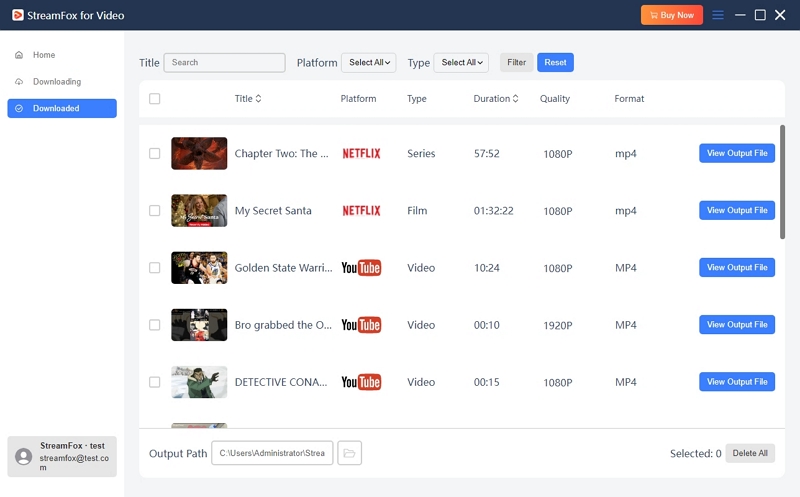
Step 4. Wait for the video to finish downloading. Then click View Output File in the Downloaded tab to open its folder.
Step 5. Connect a USB drive to your computer (formatted as FAT32 or exFAT). Copy the MP4 file into the main folder of the drive, since cars read it easily. Note that many cars don’t read subfolders.
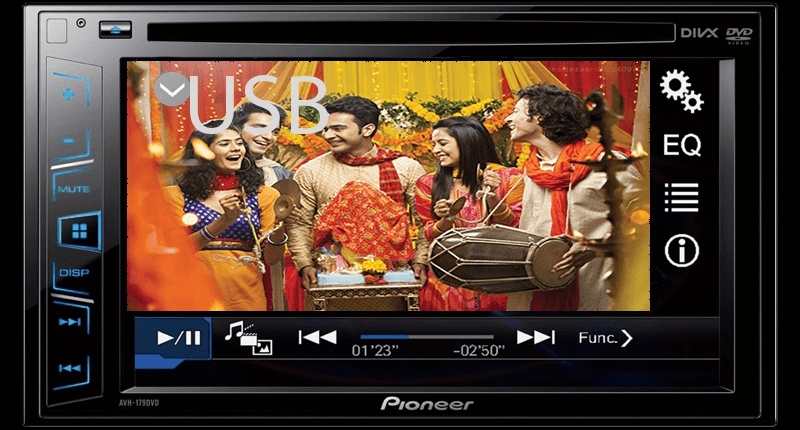
Step 6. When the car is parked, plug the drive into the car’s USB port. Choose USB or Media as the source on the screen and select your video.
Tip: StreamFox also has StreamFox for Music which saves songs and podcasts from platforms like Spotify. So you can keep your playlists and podcasts on the same USB drive or a separate one. That way, you can switch between audio and video by hand, without depending on an internet connection or CarPlay’s limits.
Final Words
That’s how you can watch YouTube on CarPlay while you’re parked. Native YouTube support will still take some patience, since both your carmaker and Google need to make it possible.
This guide also introduces an easier way to watch YouTube videos, movies, and shows in your car: StreamFox for Video. You can save any video you want from popular platforms onto your computer and copy it to a USB drive. Then, you can watch it on your car screen or the back-seat screen without any hassle.