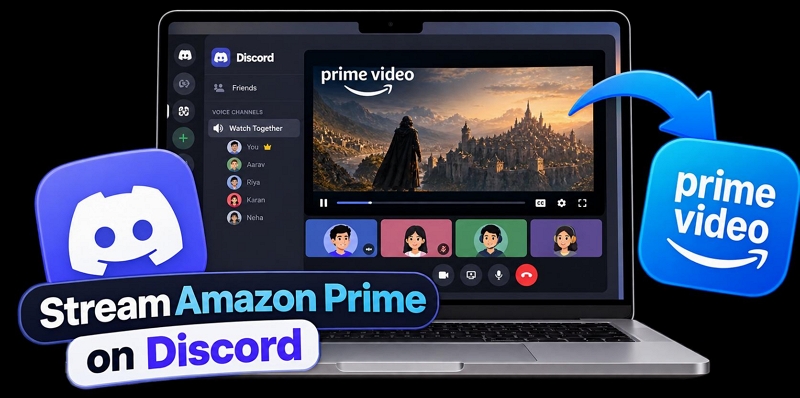
Discord makes it easy to watch shows and movies with friends. However, if you try to stream Prime Video, you’ll notice a problem: while you can see the video, your friends see only a black screen. This is because Amazon prevents its videos from being captured. Asking your friends to get their own Prime accounts won’t fix it either.
Luckily, there are ways to get around this problem. In this article, we’ll share three reliable methods for streaming Amazon Prime on Discord. These solutions work on both the mobile and desktop versions of the app.
How to Stream Amazon Prime on Discord Computer
There are two main ways to do this on a computer, and both work on Windows and Mac. You’ll need a Prime Video subscription, but your friends don’t need their own accounts. They can join from a computer or the Discord app on Android or iPhone to watch with you.
Remember, Discord has its own limits for both methods. Even if your video is set to 4K, Discord will stream at up to 720p and 30fps on the free tier. You can boost the quality to 4K at 60fps with Nitro or Nitro Classic. The good news is that only you need the subscription to improve the quality, and your friends can watch at that level without having Nitro themselves.
Way 1. Via Prime Video Web Player
Your friends see a black screen on Discord because the Amazon Prime Video app blocks streaming. You can get around this by adjusting hardware acceleration in any popular browser. This means you’ll have to stream the movie from primevideo.com instead. The good thing is you can use almost any popular browser, such as Chrome, Firefox, or Edge.
When you turn off the hardware acceleration toggle, the computer will be forced to stream the movie through the CPU (not the graphics card). Discord can then capture the window, just like it does with games or YouTube, so your friends can watch the movie with you in real time.
Likelihood of Black Screen
Think of it as 50/50. It doesn’t work every time. For instance, some Chrome users have streamed fine after turning the setting off. But while testing, we kept getting a black screen. Some other users confirm the same behavior. Success depends on your browser version, graphics card, and any changes Amazon makes. To improve your chances, start with Chrome, then try the same on other browsers.
Steps to Stream Amazon Prime Videos on Discord Using Browser
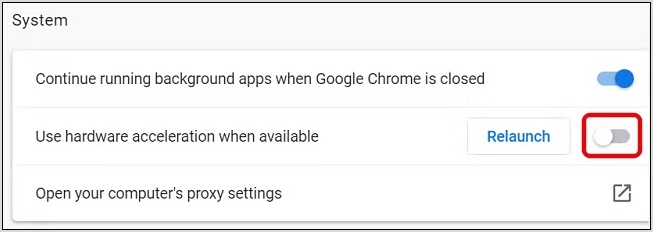
Step 1. Turn off hardware acceleration in your browser. On Chrome, for instance:
- Click the three-dot menu at the top right and open Settings.
- Head to System in the left menu.
- Switch off Use graphics acceleration when available.
- Hit Relaunch so Chrome restarts with the new setting.
On Firefox, you will find the setting under General > Performance.
Step 2. Next, set up Discord on your computer:
- Click the gear icon next to your name at the bottom left to open User Settings.
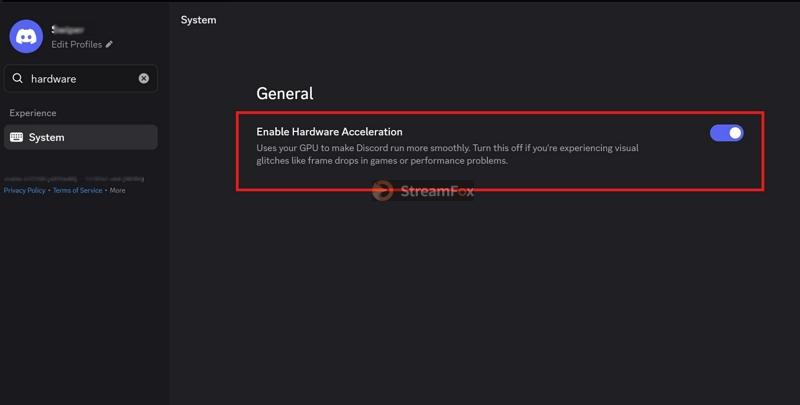
- In System, turn off Hardware Acceleration. Discord will restart.
- Under Voice & Video, switch off the hardware acceleration option for video as well.
Step 3. Go to primevideo.com in the same browser where you turned off hardware acceleration. Sign in with your Prime Video account. Start the title you want to watch with your friends. Then pause it right away so nobody misses the start.
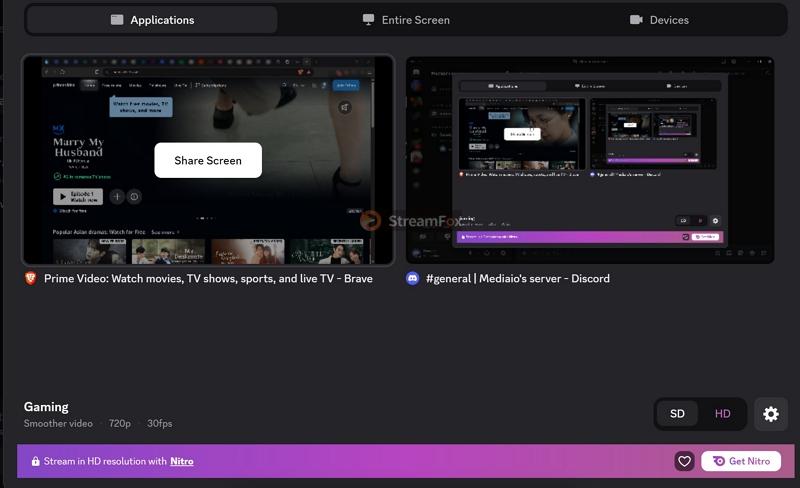
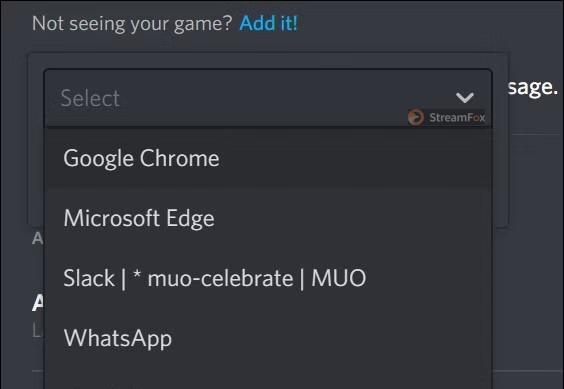
Step 4. In Discord, you’ll have to join a voice channel with your friends. At the bottom left, you will find the usual Share Your Screen icon. Click it and pick Chrome (or the browser you use) under Applications. You can also choose the resolution and frame rate here. Then hit Go Live.
Alternatively, you can stream in a direct message. Start a call with the phone icon at the top of the chat, then use the Share Your Screen icon the same way with everyone in the call.

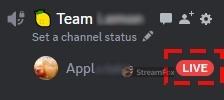
Step 5. That’s it. Your friends will now see a red LIVE badge next to your name in the voice channel. They just have to click your name and pick Watch Stream.
Before you press play, confirm that your friends can see the picture. For instance, sometimes they will only see a black screen. In that case, Way 2 will work.
Way 2. Use Local Prime Videos
The web player trick isn’t always reliable. Plus, it leans on your internet connection twice, once for Prime and once for Discord, so the picture can lag for your friends. StreamFox for Video lets you avoid both problems. It simply lets you convert Prime Video movies or episodes and save them to your computer as a normal video file, like MP4. This way, nothing from Amazon can interfere with your stream. Discord can stream the Prime video like any common video on a call, and your friends can enjoy the movie without problems.
StreamFox lets you export videos up to 4K, so your friends can watch the movie or series with you in crisp quality on their screens.
- You control quality and codecs, from the best quality to a smaller H.265 file that saves space.
- Save an entire TV series in one go, with up to three videos at a time and up to 10x speed.
- Netflix, Disney+, Max, Hulu, and 1,000+ other sites work the same way.
- Subtitles in different languages come with the video, which helps when your friends need them.
- Several audio languages fit into one file, so you can switch between them or watch a movie together while you learn a language.
Likelihood of Black Screen
The chance of a black screen here is almost 0%. The black screen comes from Amazon’s protection, and a saved file doesn’t carry it. Discord will show the movie or episode every time. You don’t have to touch any hardware acceleration setting either. You can simply open the file in VLC or any other player and stream it.
Steps to Stream Amazon Prime Videos on Discord via Local Videos
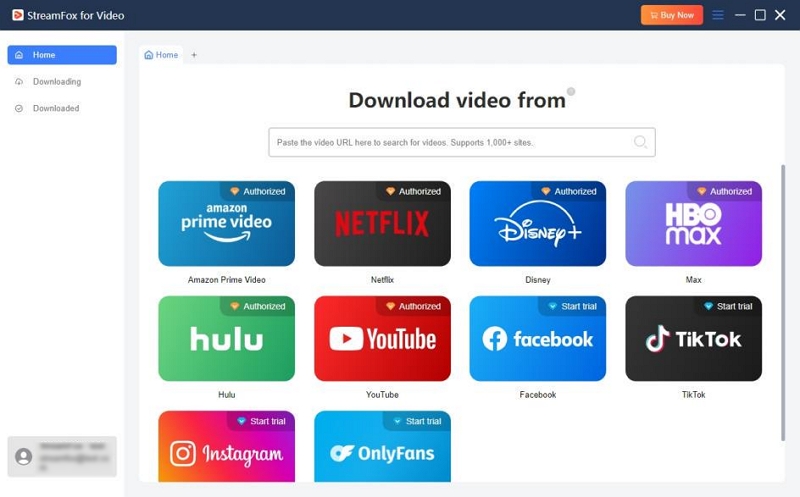
Step 1. Download and install StreamFox for Video on your Windows or Mac computer. Once it opens, click the Amazon tile.
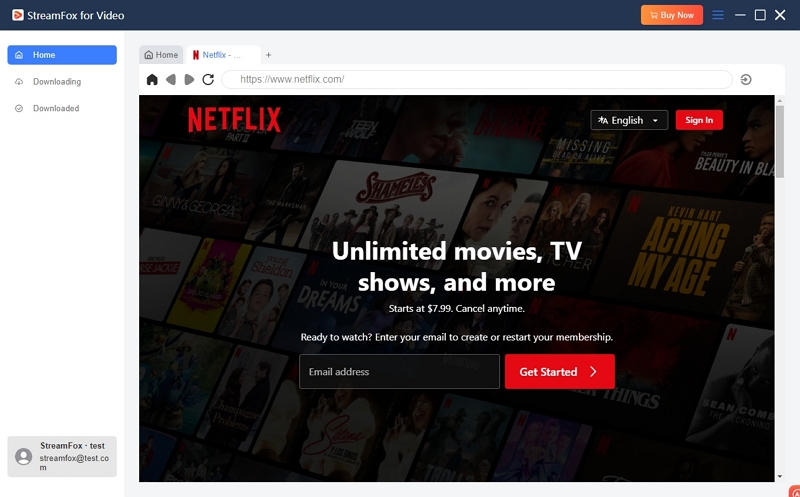
Step 2. The Prime Video page opens inside the app. Sign in with your own Prime account.
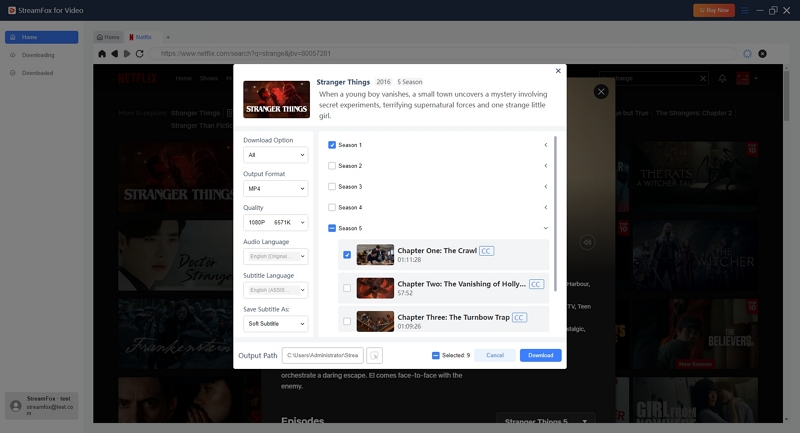
Step 3. Find the movie or TV show you want and open it. Choose the format, quality, subtitles, and audio language, then add it for convert. For a series, you can pick every episode at once. Hit Download All.
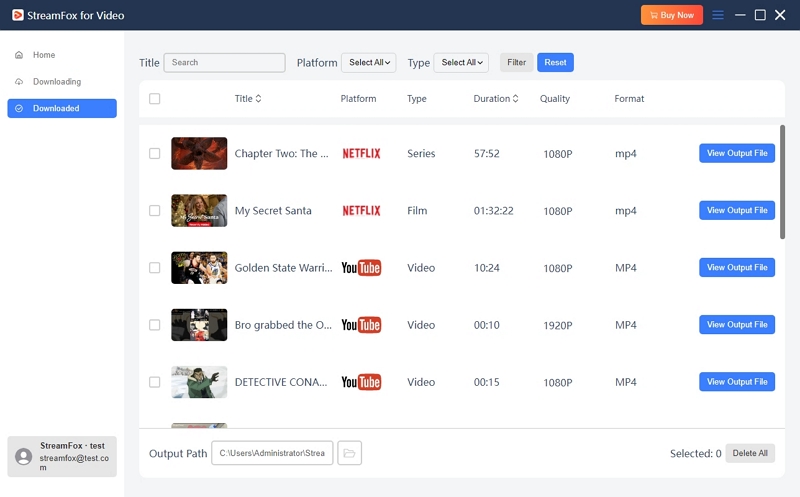
Step 4. Converted videos will be moved to Downloaded. Click the folder icon next to each video to open the folder where they’re saved.
Step 5. Open the video in VLC, a free player for Windows and Mac. The subtitles you picked in StreamFox will show up here too:
- Subtitles saved inside the file sit in the Subtitle menu under Sub Track.
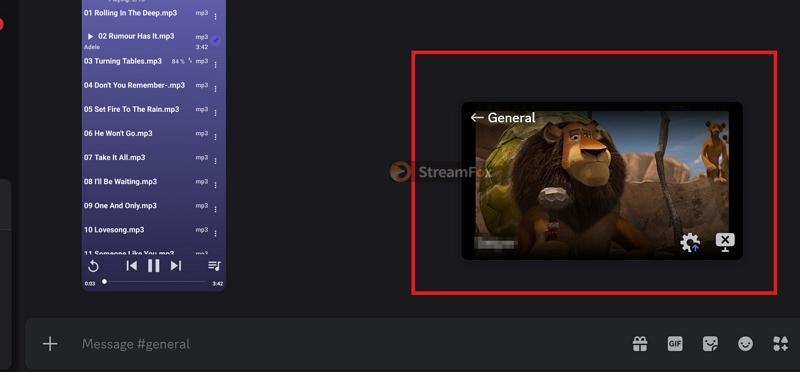
Step 6. In Discord, join a voice channel or start a call in a direct message. Click Share Your Screen, pick the VLC window under Applications, and hit Go Live.
Step 7. All you have to do now is ask your friends to click your name in the voice channel and choose Watch Stream. Then press play in VLC.
Note: Keep your internet connection stable for Discord itself, though the saved movie plays from your computer and needs no internet at all.
How to Stream Amazon Prime on Discord Phone
On a phone, the Prime Video app goes black as soon as you try to take even a normal screenshot, let alone share your screen on Discord. There’s also no setting like hardware acceleration to turn off.
To get around this, you can use StreamFox for Video. That is, you can export the movie onto your computer first, move it to your Android phone or iPhone, and play it in VLC. So when you share your screen on Discord, your friends will see the movie playing in VLC. You can even host the movie night from your couch or bed. The usual quality limitations will apply here too. You can only stream at 720p and 30fps. You can work around this if you have Nitro.
Steps to Stream Amazon Prime Videos on Discord Phone App
Step 1. Save the movie or show on your computer with StreamFox.
Step 2. Move the video to your phone.
- Android: Connect the phone to your computer with a USB cable. Tap the USB notification on the phone and choose File Transfer. Then copy the video into the Movies folder.
- iPhone: Install VLC from the App Store first. On a Mac, open Finder and select your iPhone. On Windows, use the Apple Devices app. In the Files tab, drop the video onto VLC. A Mac can also send it over AirDrop.
Step 3. Open the Discord app and join a voice channel. You can also start a call in a direct message with one or two friends.
Step 4. In the call, tap the Share Your Screen icon.
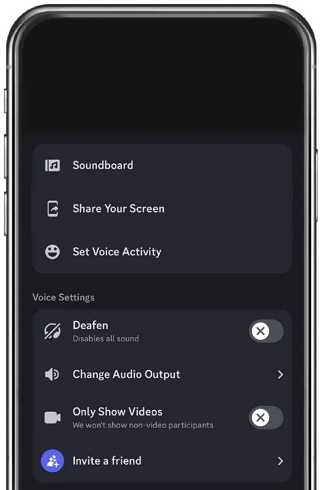
Android asks for permission with Start now. On an iPhone, the button reads Start Broadcast.
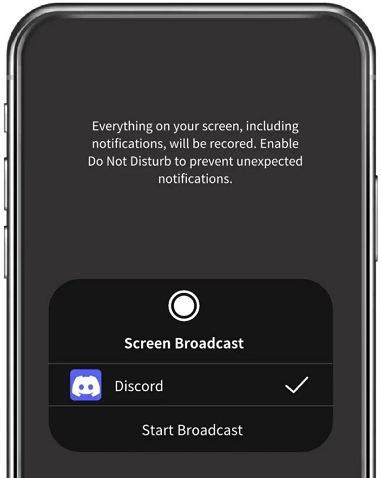
Step 5. Switch to VLC and play the video. Your friends tap your name and pick Watch Stream, and they will get the picture with the sound.
Conclusion
That’s how you can stream Amazon Prime on Discord from your computer or phone. Turning off hardware acceleration in your browser is the fastest method to try, but it doesn’t always work.
And if you want a movie night that always works, use StreamFox for Video to convert your Prime movies and save them as regular files. You can save everything ahead of time too. Plus, your friends will see the movie, whether you stream from a computer or a phone.