Pinning a playlist on Spotify is a simple way to keep your favorite music within easy reach. It helps you find frequently played playlists faster without scrolling through your entire library. This is especially useful when your Spotify Library is packed with playlists or when you frequently switch between different playlists. In this guide, you’ll learn how to pin a playlist on Spotify in your Library. We’ll also cover how to pin playlists to your Spotify Profile and add them to your Android or iPhone Home Screen.
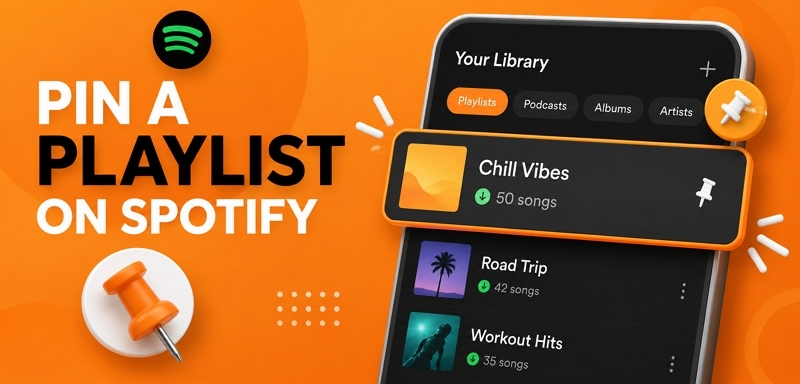
How to Pin a Playlist on Your Spotify Library
Pinning a playlist works a bit differently on mobile and desktop. However, only the method to pin varies and they sync together seamlessly. Change the pin and the update will reflect on all your devices. These selections arrange themselves in order too. The oldest will land at the top and the newest in fourth.
FAQ: How Many Playlists Can You Pin on Your Spotify Library
Spotify allows you to prioritize up to four items in your library. Anything goes: playlists or any other content in your collection. Once added, each item gains a small pin icon.
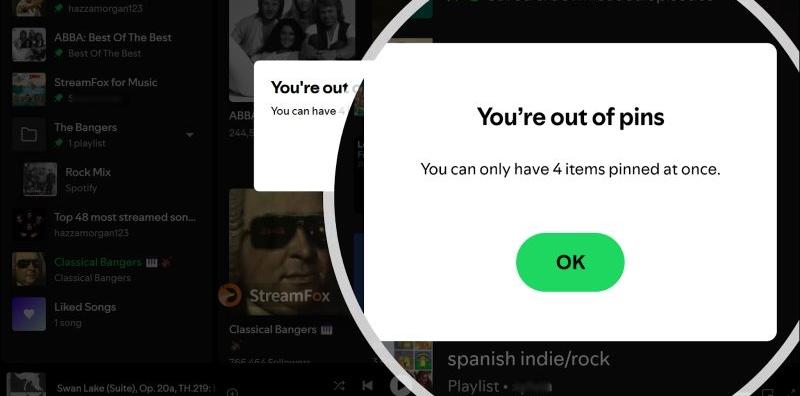
Plus, there’s a fixed rule: whether you’re on free Spotify or paying for premium, everyone has the four-item cap, no exceptions. Adding a fifth will only prompt a reminder to free up a spot first.
On Mobile (iPhone/Android/iPad)
Both Android and iOS users can follow any of these two methods to pin a Spotify playlist to the top library. Keep in mind that pinning happens one at a time: no bulk pins option for now. Plus, to shift things around on the mobile, simply unpin and re-pin to get a suitable lineup. That said, here are the steps:
Way 1. Long Press Method
This method is straightforward. Simply open Spotify and go to Your Library page. Then follow the steps below:
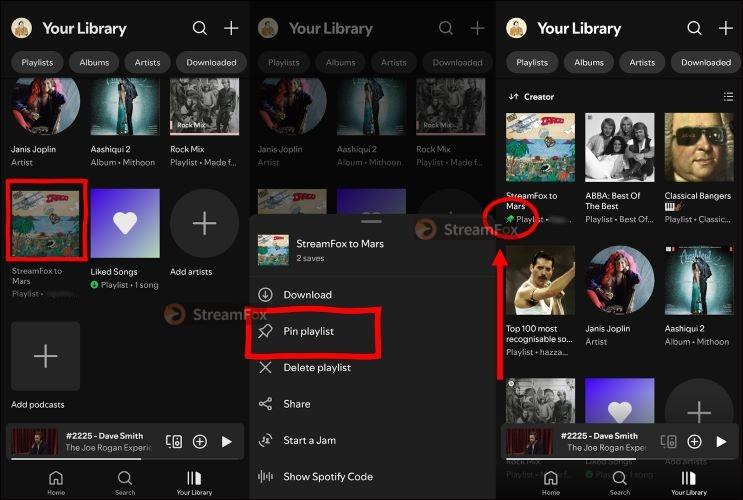
Step 1. Press and hold the playlist you’d like to pin. It will bring up a menu from the bottom.
Step 2. From the list of options, tap on Pin Playlist, and the item will jump right to the top of your library, with a little hook icon as a marker.
Way 2. Slide Method
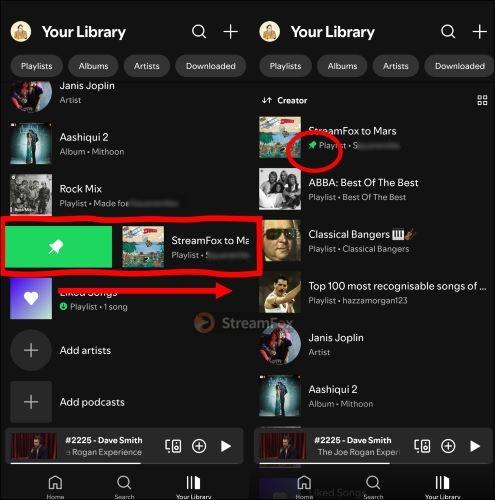
For an even quicker move on the mobile app: you can also swipe. However, make sure your library items are in List View (not Grid View). To pin:
Pick your playlist and slide it to the right. As you do, a green pin icon appears. Simply, let go of it and the item will claim its spot at the top.
How to Unpin a Playlist on Spotify on Phone
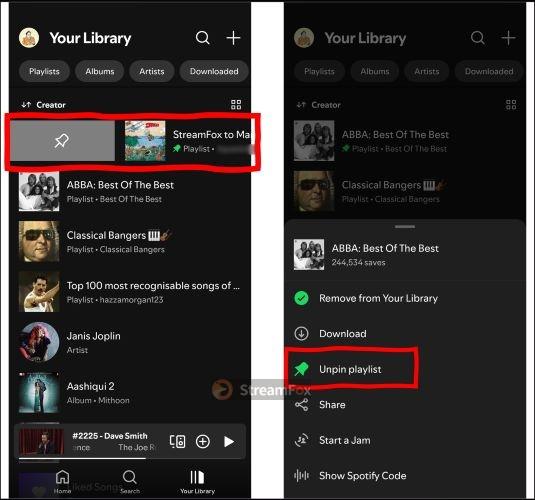
To unpin, slide right on any pinned item to release it back to its original position, which will depend on how your library is sorted. Or, if you prefer, long-press again and choose Unpin Playlist from the options. Either way, it’s the same as pinning one.
On Desktop (PC/Mac)
On the desktop, everything comes down to the right-click. Plus, unlike mobile, the slide method doesn’t apply either. One extra perk on the desktop is that you can rearrange the items by simply dragging them up or down the list. So, setting the order is easy.
The four-item limit does hold again, but the desktop app lets you pin folders. Folders can hold up multiple playlists and even nest other folders. Meaning, you can group your favorite playlists into one folder and pin the folder instead.
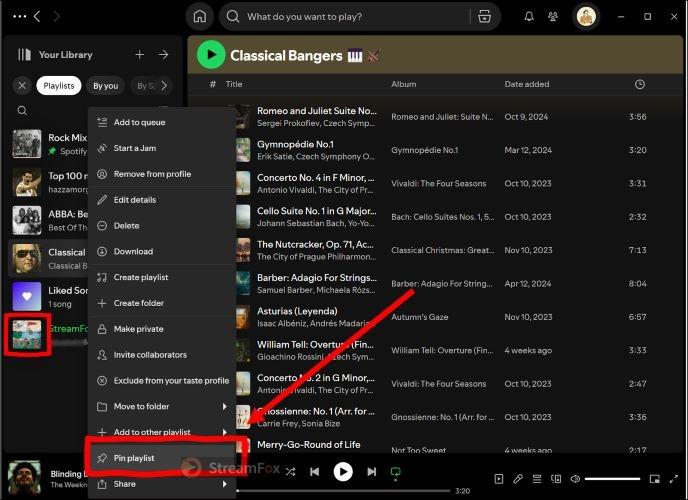
Here are the steps to pin a playlist on desktop:
- Go to Your Library and expand the view.
- Right-click on the playlist or folder you’d like to pin.
- From the menu that appears, select Pin Playlist.
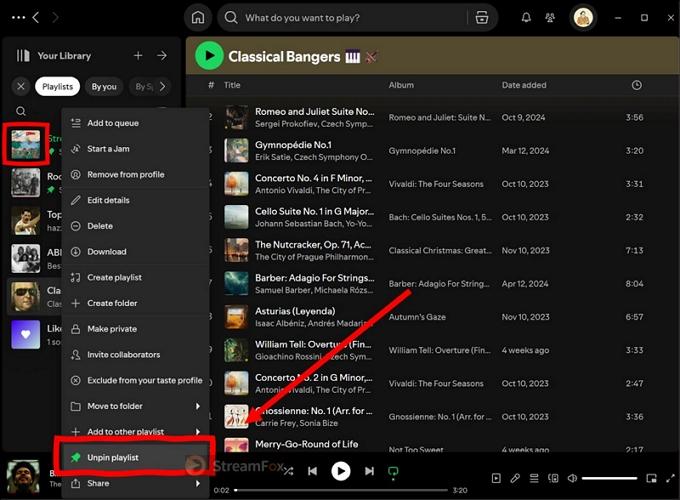
How to Unpin a Playlist on Spotify on Computer
To unpin, right-click again and choose Unpin Playlist from the options at the bottom.
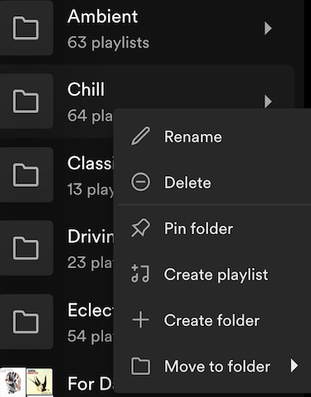
Tip: How to Pin a Playlist Folder on Spotify Desktop
As mentioned earlier, a folder lets you pin more than four playlists to the top of your Spotify Library. Here’s how to pin a folder:
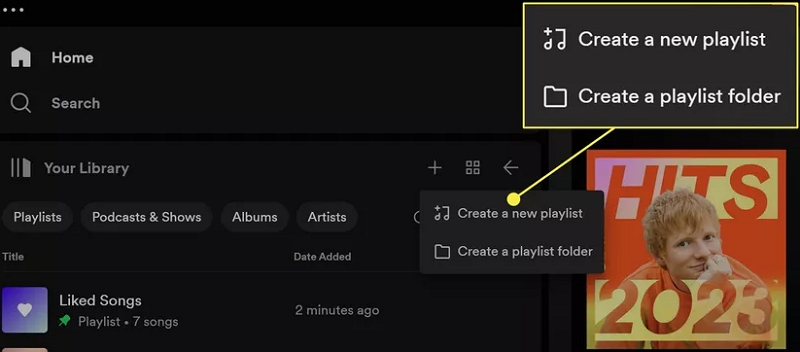
- Go to Your Library on Spotify desktop.
- Click the + button next to Your Library.
- Select Folder and name it.
- Drag the playlists you want to pin into the folder.
- Right-click the playlist folder and select Pin folder.
How to Pin a Spotify Playlist to Your Phone Home Screen
Once upon a time, Spotify offered the one-tap “Add to Home Screen” feature, but that disappeared back in 2022. It’s still possible today. However, there is a bit of a workaround that is using Android’s Add a Shortcut feature or the Shortcuts app on iPhone.
And since it’s Android and iOS-enabled features, there’s no limit: you can fill your screen with as many playlists as you like. Here is a look at the process.
On Android
Start by playing the playlist you want(you can pause it, as long as it’s the last thing you played). Then, follow the short guide here:
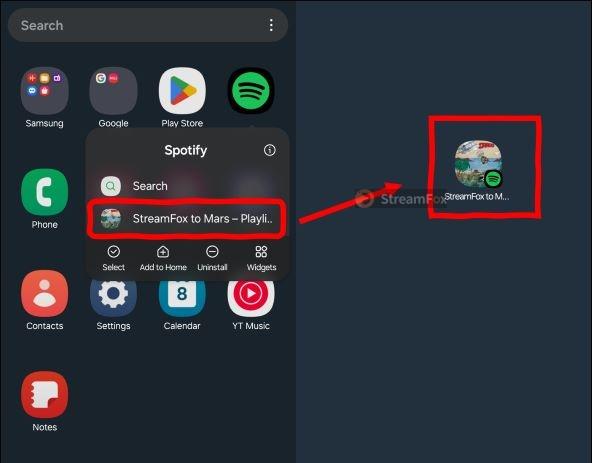
Step 1. Tap and hold the Spotify icon to pull up the Shortcuts menu.
Step 2. You’ll see the options like Search, along with the most recent playlist. Tap the playlist and move it to any open space on your home screen. You can locate the playlist with its original art and name, plus a small Spotify icon.
On iPhone
First, install the Shortcuts app if you don’t already have it. Then proceed as follows:
Step 1. In the Shortcuts app, choose to create a new shortcut.
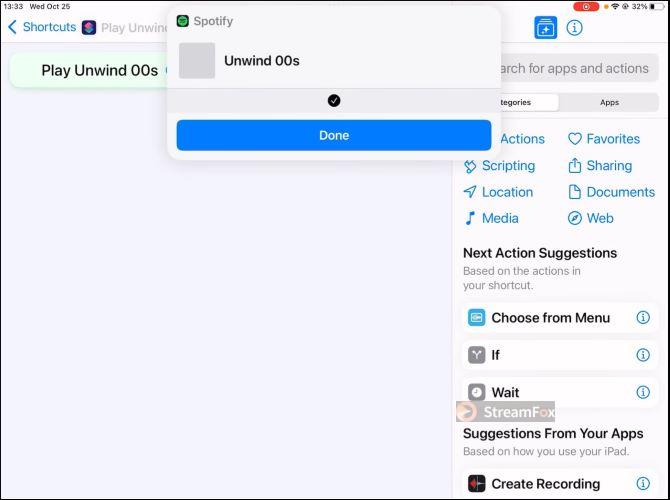
Step 2. Search for Spotify in the actions list and then find your playlist or paste its URL.
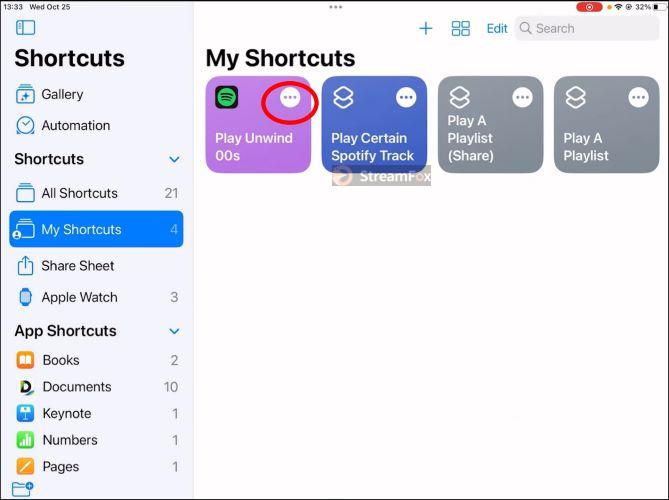
Step 3. Tap the three dots on the playlist shortcut to show its details. From there, select Add to Home Screen.
How to Pin a Playlist on Your Spotify Profile
Pinning a playlist on your profile is about visibility to others. Plus, unlike the library’s setup, pinning to profile comes with its own rule that folders, artists pages, and albums are not allowed to be pinned.
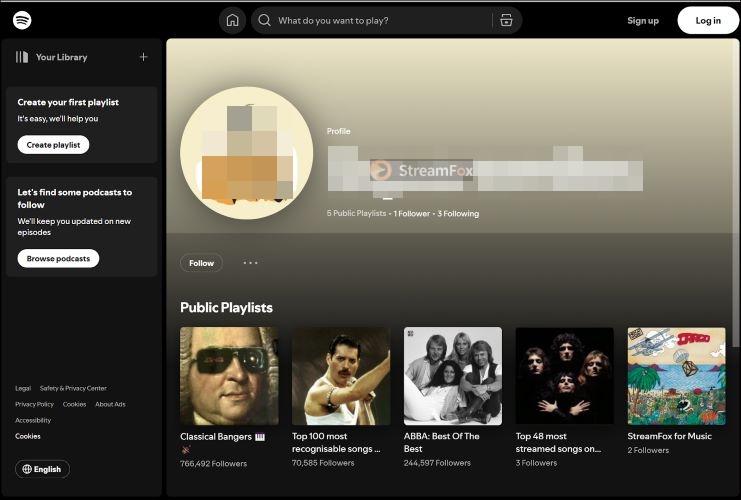
Only the playlist will make the cut, but Private playlists is excluded. The best part is that there’s no hard limit. You can add as many as you like and the pin order follows the newest addition sitting last rule.
Steps to Pin a Playlist to Profile via Spotify App on Mobile
Step 1. Open the playlist page via your Spotify library.
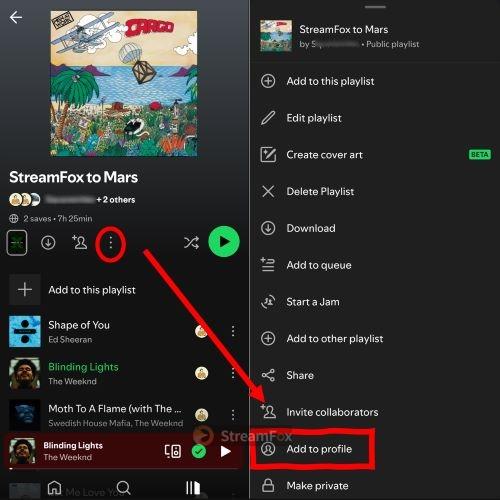
Step 2. Tap the three dots (ellipsis) near the title to open the options menu. Move all the way to the bottom and tap the Add to Profile option.
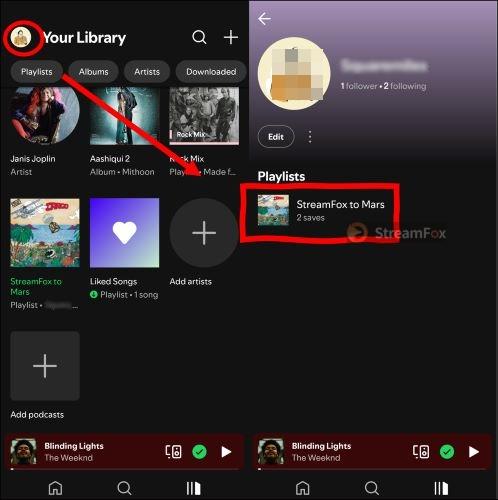
Head over to your profile and you’ll see the playlist listed under the Public Playlist section.
How to Download Pinned Spotify Playlists Offline
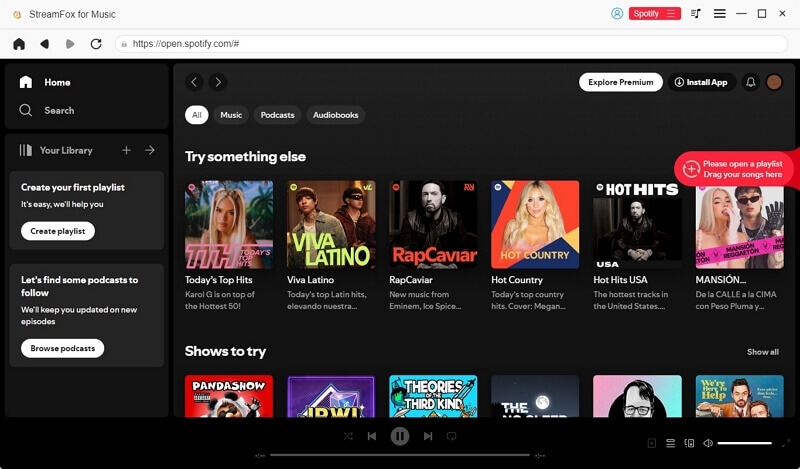
To save your pinned Spotify playlists for offline listening, you can use Spotify Premium if you want to listen to them directly in the Spotify app. Alternatively, you can use StreamFox for Music, a music converter that lets you convert your pinned Spotify playlists and export the songs as MP3, FLAC, WAV, and more. The songs will remain in the same order as they appear on Spotify, while playlist and track cover art, titles, artist names, and other metadata are also preserved. There’s also no need to worry about slow downloads, as StreamFox supports batch downloading and can reach speeds of up to 30× faster.

- Support saving single songs, playlists, albums, podcasts and audiobooks.
- Embed a Spotify browser for fast music selection and convenient conversion.
- Provide customizable output settings, including audio quality (up to lossless quality), save location, and output format.
- Handle conversions in all major formats: MP3, FLAC, WAV, M4A, etc.
- Download music from different platforms, such as Apple Music, Amazon Music, YouTube Music, Spotify, etc.
Conclusion
Pinning a playlist on Spotify is a small touch, but really makes a big difference. From pining and organizing to downloading a Spotify playlist, this guide discusses many things, even how to pin the playlist on your phone’s home screen. The best of all: you’ve learned how to make your Spotify library music offline even when you don’t have a Premium tag. With StreamFox for Music, it’s possible and easy! StreamFox is the best option if you want to save your entire playlists in one go, keep album art and metadata, and enjoy high-quality audio anywhere, anytime.