
Listening to the same Spotify playlist in the same order can quickly become predictable. When you want a little more variety, learning how to randomize a playlist on Spotify can make your listening experience feel much less repetitive. Spotify offers several built-in ways to mix up your music, from the standard Shuffle feature to less obvious playback options that can change how songs are selected. However, the results may differ depending on your settings, account type, and listening habits. In this guide, we’ll explain practical ways to shuffle your Spotify playlists on both phones and computers, including options available to Free and Premium users.

How to Randomize a Playlist on Spotify with Shuffle Feature
If you’re on Spotify Free, you’re stuck with Smart Shuffle, which basically means Spotify will toss in some recommendations while randomly shuffling whatever you’re listening to. Artists stations, albums, playlists: you can’t control the order and it will all be at the mercy of Spotify’s algorithms.
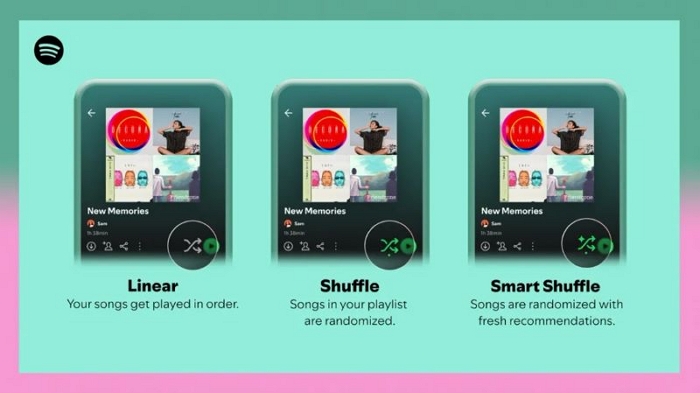
When you’ve got Premium, you’re in charge of how your playlists get randomized. You get three options, all accessible through a single button. Here are what each variant means:
- Play in Order: play tracks exactly as they’re listed.
- Shuffle: classic random mix, no added extras.
- Smart Shuffle: regular Shuffle but with Spotify’s suggestions mixed in for variety.
In fact, on Premium, playlists play in order by default. To switch things up, here’s how you can randomize your playlists on both Spotify mobile and desktop using the Shuffle button.
Steps on Android/iPhone
To shuffle your playlists on Spotify mobile app, head over to the playlist, album, or even an artist station.
Next to the play button, you’ll find the Shuffle icon. When you tap it, the icon will turn green, which means shuffle is on and you’ve randomized your playlist.
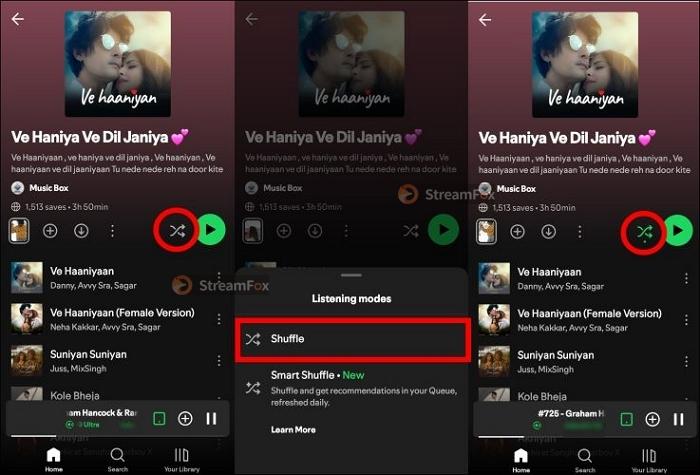
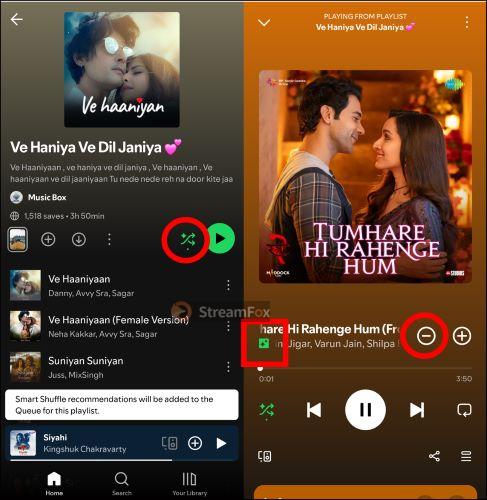
When the Shuffle mode is active, tap the green icon again to activate Smart Shuffle, indicated by a small sparkle icon. This mode randomizes your playlists and adds personalized recommendations after every two tracks, with the option to permanently add them to your queue. However, you can only enable it on playlists with 15 or more songs.
Steps on Windows/Mac
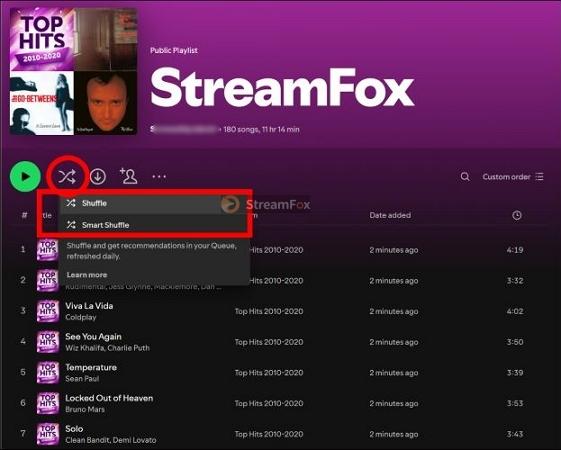
Whether you’re using the Spotify web player or the desktop app on Mac or Windows, the process is pretty much the same. Right next to the big play button, you’ll find the two-crossed arrow icon: the Shuffle button. Hit it once to activate the Shuffle mode and hit it again if you want to enter Smart Shuffle.
How to Randomize a Playlist on Spotify Without Shuffle Feature
Even as a Premium user, you don’t have to settle for randomness dished out by the app. If you are looking for a specific mood or progression that shuffle can’t provide, here’s how to randomize your playlists on Spotify without using the Shuffle button.They are helpful when Spotify Shuffle isn’t playing songs randomly, including methods that provide true randomization.
Way 1: Use the Sort By feature
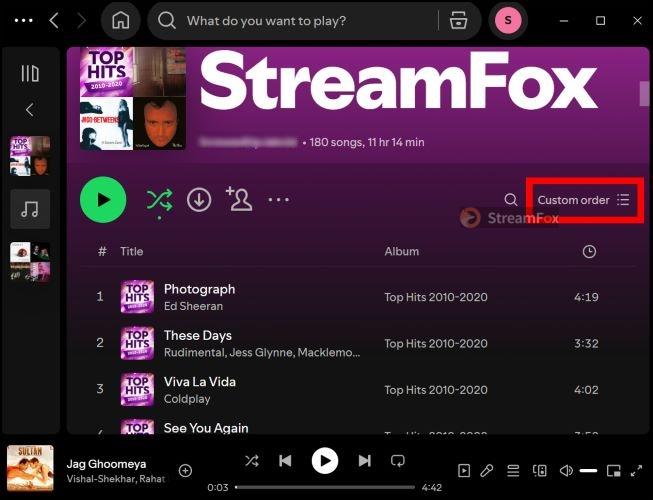
On both mobile and desktop Spotify interface, you can conveniently use the Sort by feature to randomize your playlist. While technically Custom Order is an option that lets you structure the playlist in various categories, what it does is shuffle the current order and get a bit of variety. Here are the steps:
Step 1. Open the desired playlist page in the Spotify app on desktop. Below the title, click the Custom Order button in the top-right corner of the screen.
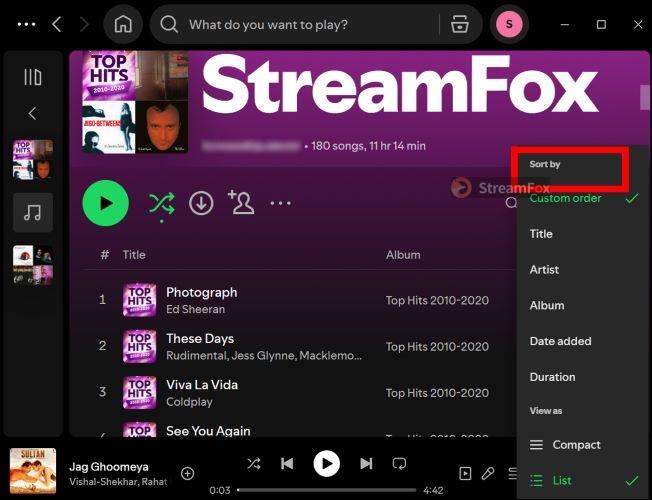
Step 2. You find several sorting the songs alphabetically by the categories of: Title (song name), Artists, Album, Date Added (oldest to newest first), and even Duration. Choose the preferred option to randomly rearrange the current order and randomize the playlist. Keep in mind that clicking twice will reverse the order.
Way 2. Manually Reorder Tracks in Your Playlist for a Personalized Shuffle
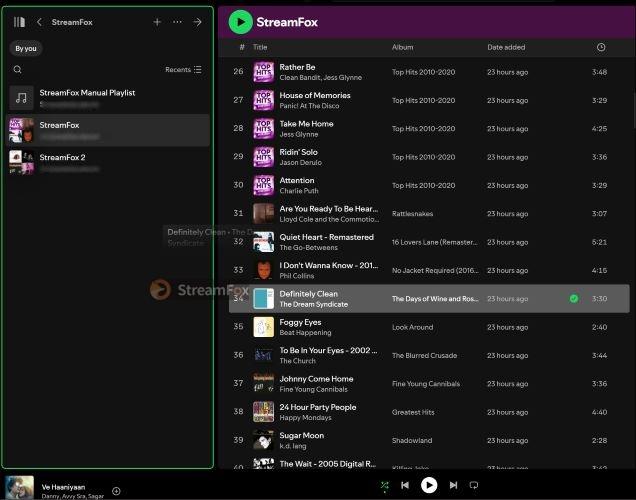
You can control the randomness and give your playlist a unique flow by manually reordering the songs. Here are the steps:
On the computer, all it takes is creating a new playlist. Then, drag the desired songs from your existing playlist into the newly created one in whatever order you want.
On the Spotify mobile app:
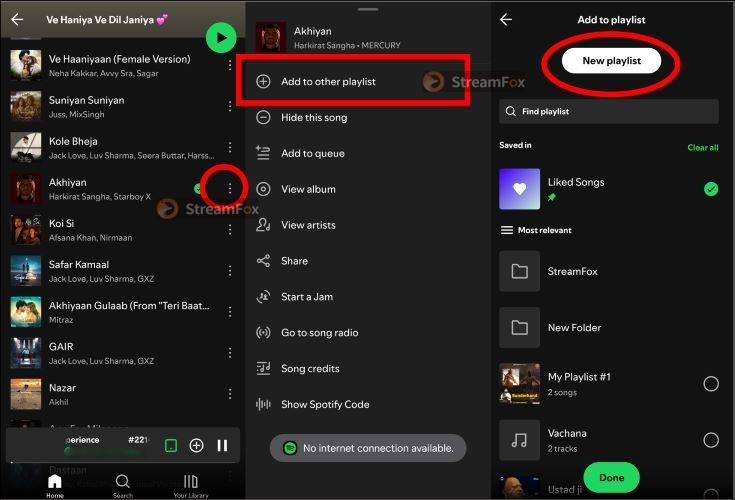
- Head to the playlist and tap the three dots next to the track you want to start with.
- From there, select Add to other playlist and hit New Playlist at the top.
- Once you’ve got the playlist started, go back to the other songs you want and repeat the same steps for other songs.
Way 3. Export Tracks from Play Queue to a Empty Playlist
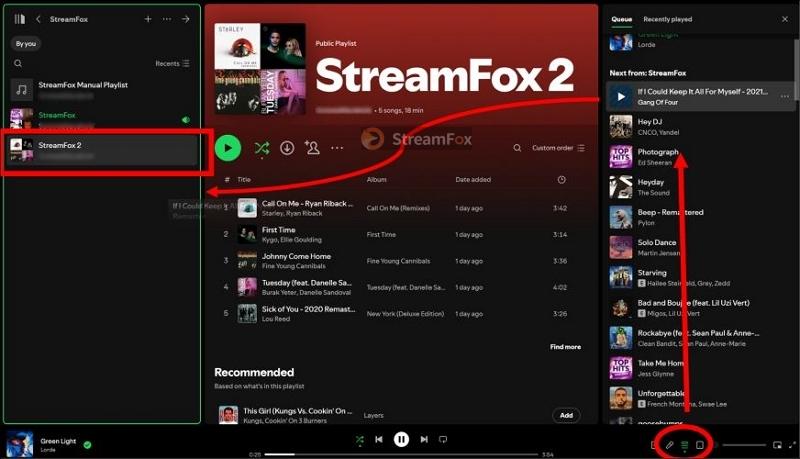
Sometimes, the best playlists are born out of what’s already in your queue. Keep in mind that flexibility to manually drag tracks from the Play Queue is something you won’t find on mobile devices. It’s a trick that’s pretty much limited to the computer app and here’s how to take advantage of this:
- Start playing your playlist in Shuffle mode.
- Then head over to the Play Queue by clicking the icon at the bottom.
- In the right pane, you can see the queue, simply drag and drop the already shuffled order into a brand new playlist.
Way 4. Shuffle Spotify Playlists Using Trackify
You can also bring in some outside help and use Trackify to randomize a playlist on Spotify. Third-party apps like Trackify use their own algorithm to do what Spotify’s built-in feature can’t. Fret not! It’s more than just a shuffler. In fact, Trackify is built around understanding your Spotify stats. So it knows your listening habits and preferences and makes the randomization feel a bit more aligned with what you love.
Here’s how to get started with Trackify Playlist Randomizer for permanent shuffle results:
Step 1. First head to trackify.am. Click on the big green Login with Spotify button.

Step 2. On the next screen, hit Agree to allow Trackify access to your Spotify account.

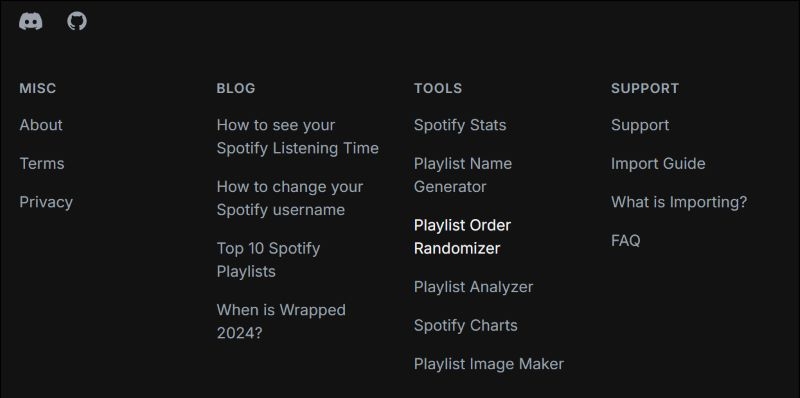
Step 3. Once you’re on the main dashboard, scroll all the way down to the bottom of the page. Under the Tools section, select Playlist Order Randomizer.
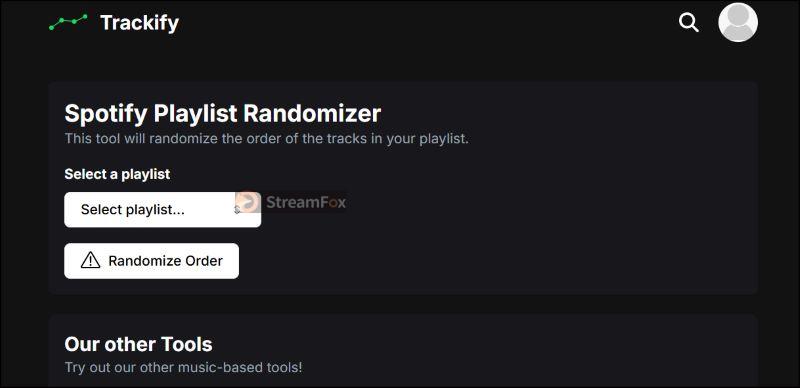
Step 4. In the Playlist Order Randomizer screen, it’s super straightforward. Just click on the Select playlist.
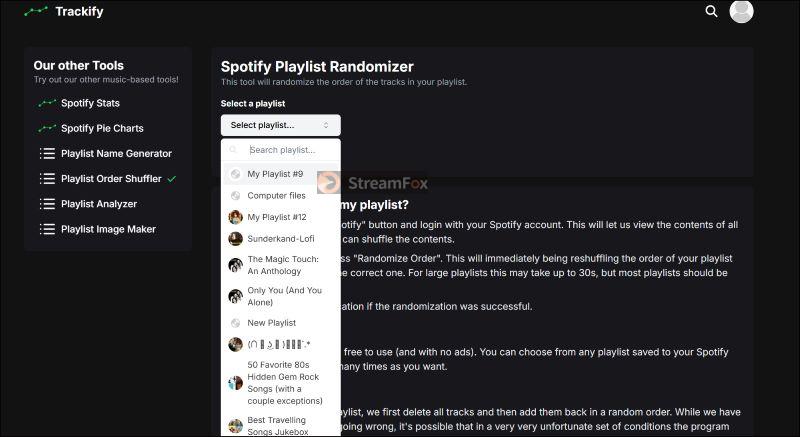
Step 5. The drop-down will show all your existing Spotify playlists. Browse through and select the one you want to randomize.
Step 6. Hit the Randomize Order button.
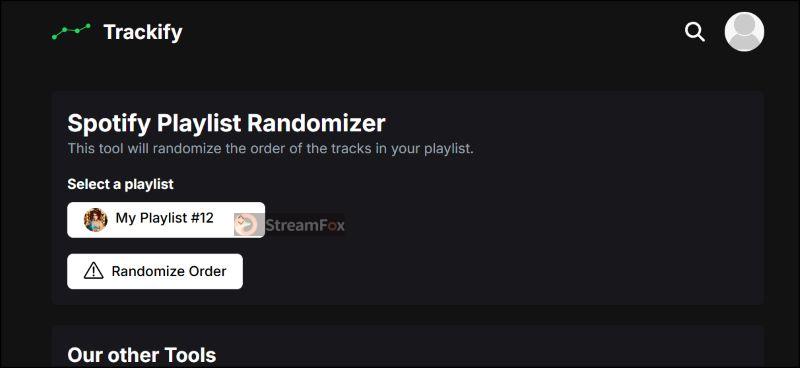
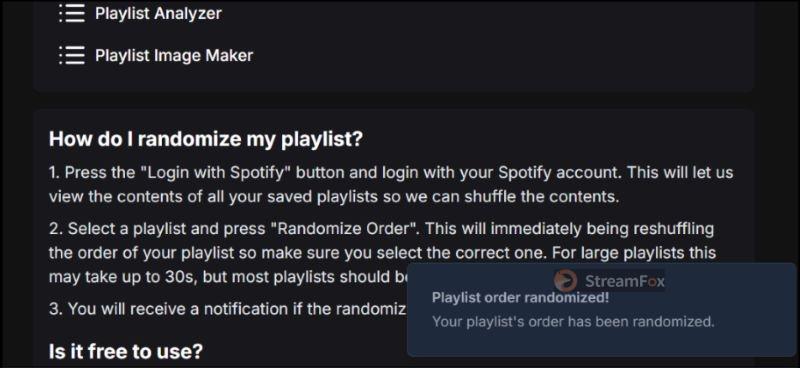
Step 7. It will take some time to randomize the selected playlist, and once done, a confirmation will pop up at the bottom of the screen.
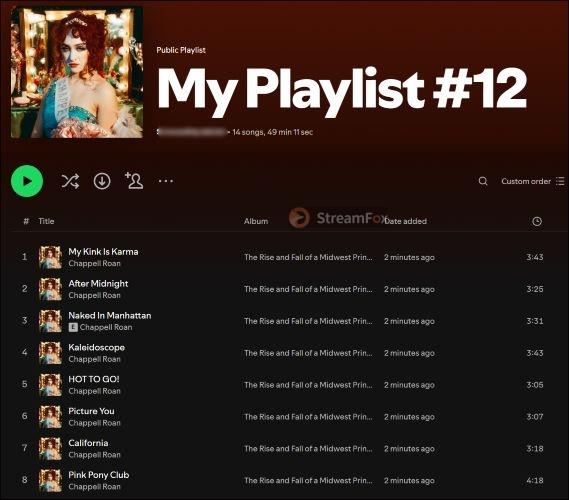
Step 8. Jump back into Spotify and you’ll find the playlist sitting there with its freshly shuffled order.
Way 5. Use SpotifyShuffler to Randomize Spotify Playlists
Like Trackify, SpotifyShuffler is another good alternative if Spotify’s Shuffle doesn’t satiate your ears. It is much more simple and lets you create a fresh shuffle with just a click: without messing up your current one. Each time you want to mix things up, it will generate a new randomized playlist for you to enjoy. Here’s how you can use it:
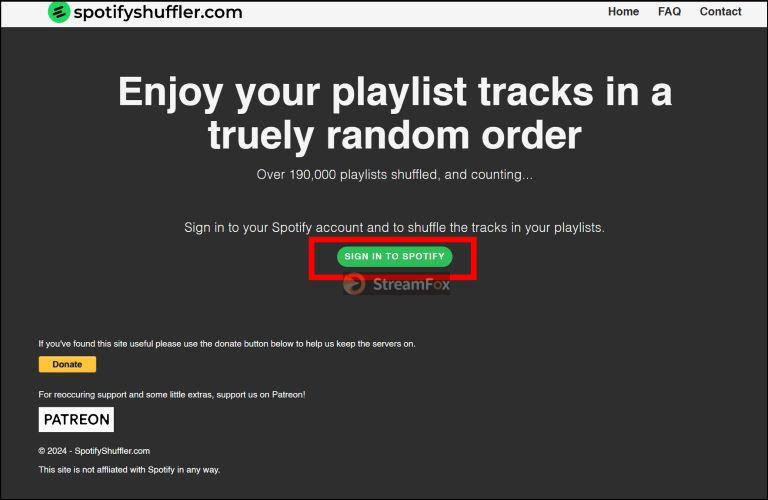
Step 1. Visit SpotifyShuffer.com from your browser, whether on mobile or computer. At the center of the page, click on SIGN IN TO SPOTIFY to connect your account and shuffle.
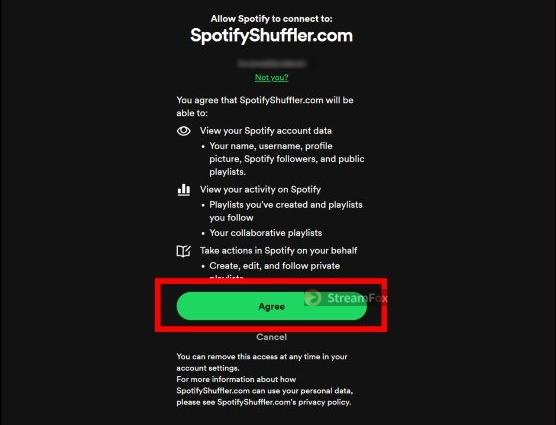
Step 2. Log in to your Spotify account and click Agree to grant SpotifyShuffler permission to access your playlists.
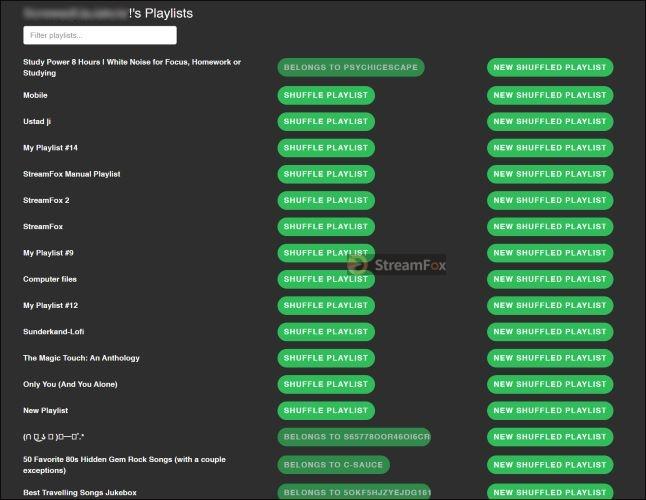
Step 3. All your playlist will be displayed on the next page. Use the Filter Playlist bar to quickly find the playlist you’re looking for.
Step 4. Next to the playlist, you’ll see two options: SHUFFLE PLAYLIST to shuffle your current playlist. Or NEW SHUFFLED PLAYLIST, which creates a new playlist with the same name and adds Shuffle to it, while keeping your original playlist untouched. Choose the option that you want.
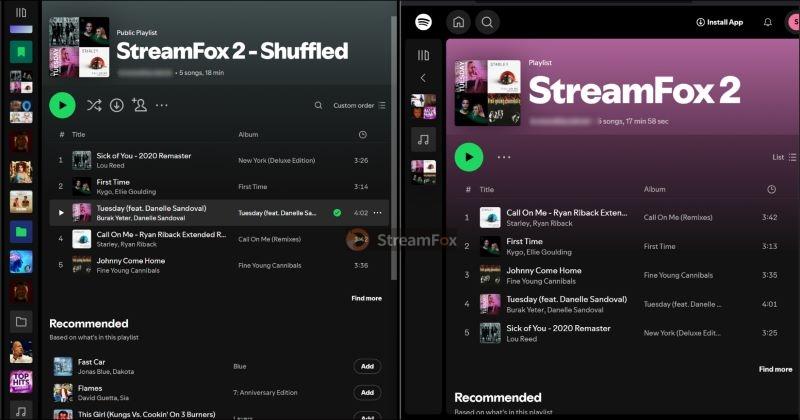
Step 5. A confirmation message will appear at the top of the screen.

Next time you check your Spotify library, you’ll notice a newly created shuffled playlist. From here, you can continue reshuffling with SpotifyShuffler whenever you like.
How to Randomize Spotify Playlists Offline Without Spotify App
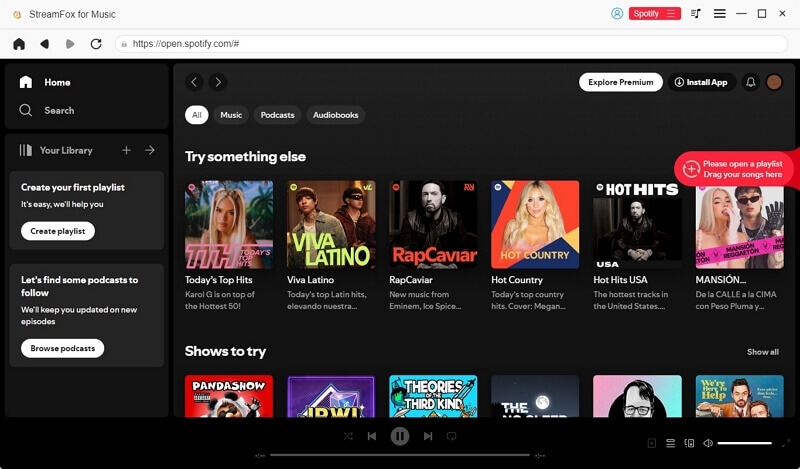
All the methods above require you to use the Spotify app to shuffle your songs. However, you can also use other music players to randomly play your favorite tracks. Before doing that, you’ll need to save your Spotify music as local files like MP3 and StreamFox for Music can help. StreamFox lets you convert and save your selected Spotify playlists as local music files while preserving high audio quality, with output options of up to lossless quality. Complete song information is saved too, including titles, artists, album artwork, and more. A one-hour playlist can be converted in as little as 10 minutes, although the actual time depends on your Internet speed. Notably, the entire conversion process takes place within StreamFox’s built-in Spotify player, so you don’t need to switch between different apps during the process.
Tip: If you want to turn off Spotify Shuffle without premium on your phone, you can save your favorite songs as local files with StreamFox, transfer them to your mobile and then play them freely with another music player.

- Blazing-fast 30x download speed with batch download support, all while without a single compromise on quality.
- Save songs in MP3, M4A, FLAC, WAV, and more, ensuring compatibility across all devices and popular media players.
- Export tracks directly to your Windows or Mac computer, ready for offline access anytime.
- Pull playlist from Apple Music, YouTube Music, Pandora, and more, and mix them seamlessly for a truly random music experience.
Shuffle Spotify Downloads on Windows
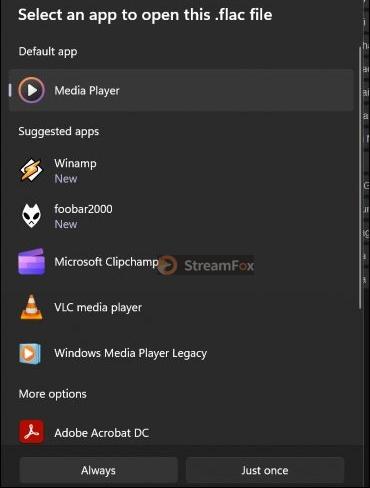
Whether legacy or the new Media Player on Windows, the steps to shuffle selected tracks remain the same. Let’s see using the new Media Player:
Step 1. Highlight all the desired Spotify music downloaded via StreamFox. Right-click and choose to play with the Media Player option.
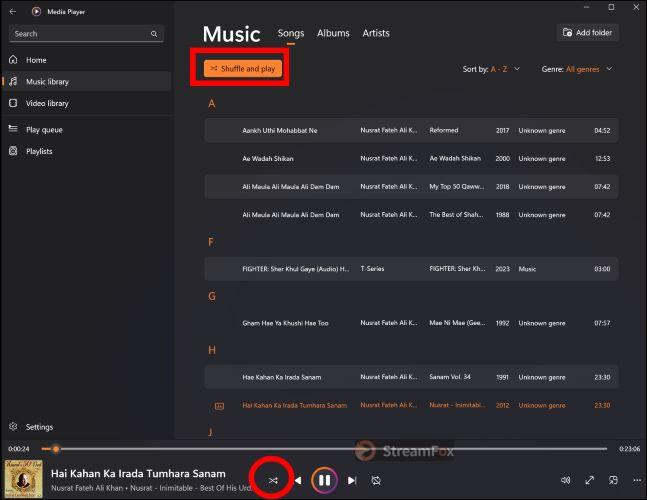
Step 2. You can access the Shuffle feature via the Now Playing bar at the bottom by clicking on the Shuffle icon.
Shuffle StreamFox Downloads on Mac
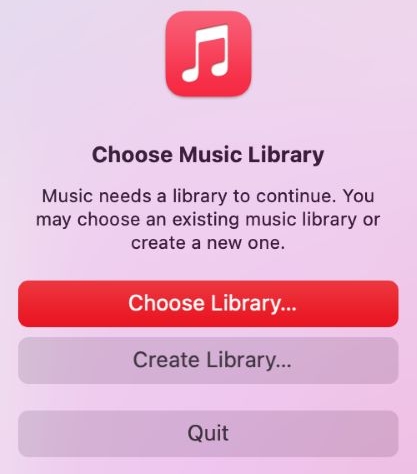
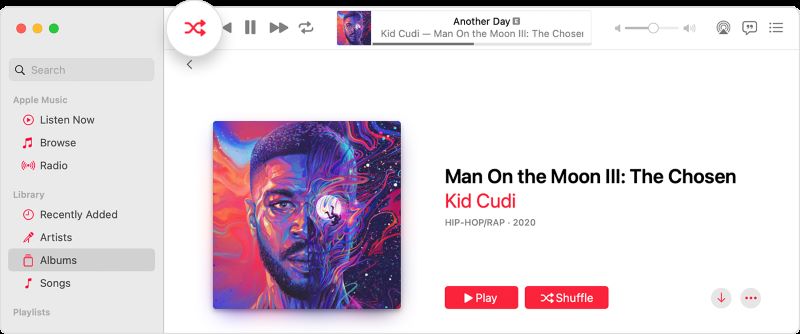
Apple Music, by default, doesn’t scan your internal storage. So, first you have to add StreamFox music downloads as a new playlist. And then, you can use the Shuffle or Shuffle album button to randomize a Spotify playlist offline:
Step 1. Hold down the Option key while launching the Music app. And select Choose Library.
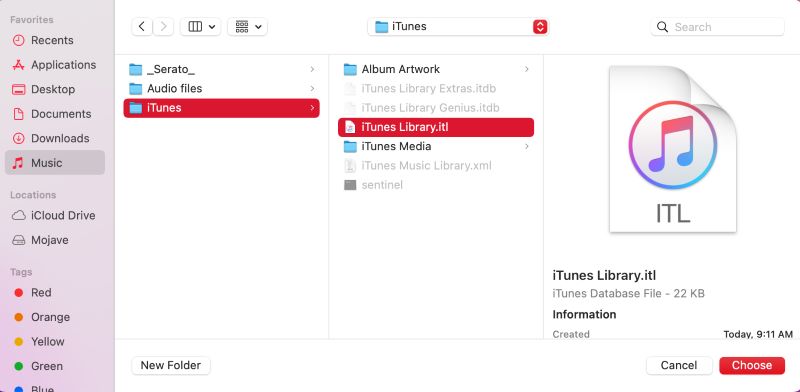
Step 2. Locate the StreamFox downloads and then hit Choose.
Step 3. You’ll have to choose a location to save the music files as a playlist in the Apple Music library. Simply, create a new folder and select Save.
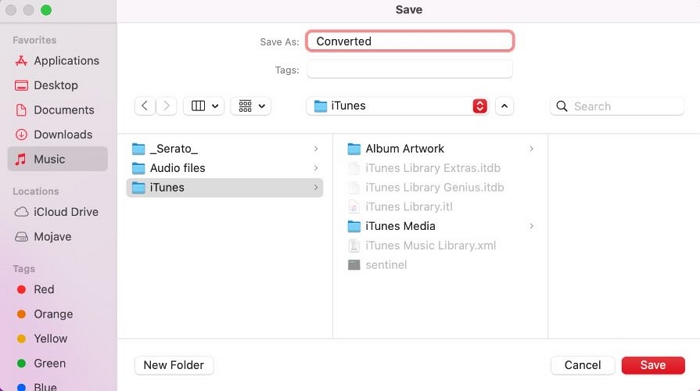
Step 4. Go to your library, and play a song from the added music files. Click the Shuffle button in the playback controls.
FAQ: Why Is My Spotify Playlist Playing Random Songs
Smart Shuffle which plays random songs is forced upon the free users, and you can’t avoid it unless you upgrade to Premium. Only then, you can take full control of your playlist and get rid of those unwanted recommendations.
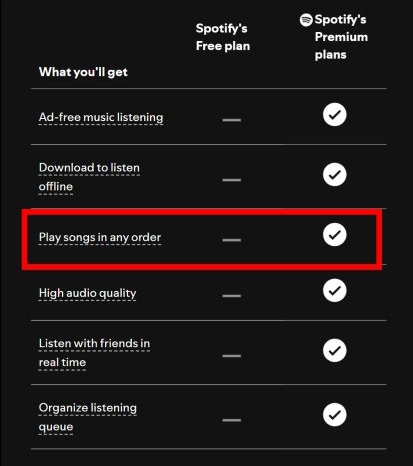
As a Premium user, you can ditch Smart Shuffle and Shuffle by switching to Linear play (make sure the two crossed icon is gray). This will ensure your playlist plays exactly as you’ve arranged it.
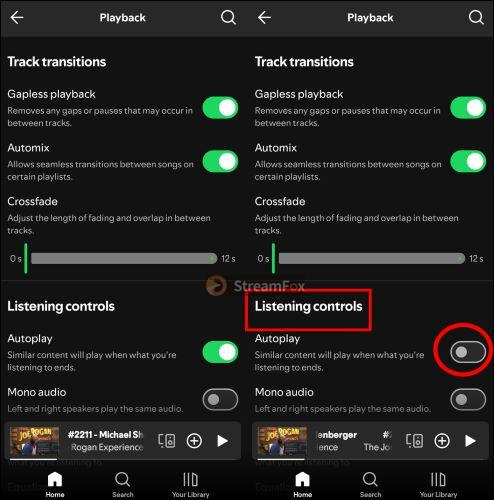
Beyond this, there’s also the Autoplay function, which kicks in after a playlist ends. So, if you are suddenly hearing random tracks, this is why. To stop Spotify from recommending random tracks after the playlist finishes, you can simply turn off Autoplay in your settings. Here are the steps:
- Open Spotify’s Settings page, and select Playback.
- Under Listening Controls, disable Autoplay.
Conclusion
The main drawback of Spotify’s playlist randomization is it offers two distinct experiences, depending on whether you’re paying for the service or not. But one thing is for sure, and that is, both users have to deal with its predictable algorithms that don’t always deliver on a simple promise.
So, if you are tired of being stuck in Spotify’s predictable Shuffle feature, it’s better to save original quality music using StreamFox for Music and take Spotify songs offline, just as they are. You can pair this with advanced music curation software and get more refined randomizations, ensuring the most perfect mix every time with a click.